

Introduction
We will be looking at how to add filter/search features into a blazor server grid. One can enhance the useability of grids by adding field(s) that can receive values to be used to filter the records in a grid view. This can reduce the number of pages needed to be designed in an application because a single page can be used to handle data entry, data view, and even reporting. In this article, only the creation of filters will be looked into.
Programming Language
C# and HTML will be used.
Prerequisite
Basic knowledge of blazor design patterns and page hierarchy is needed to understand this article.
Background information
We are using a Postgres SQL database, so the following nugget packages were installed
- Npgsql
- Npgsql.EntityFrameworkCore.PostgreSql(5.0.0)
In the code below my application is called "payarenauser", so take note of the reference in the various class files. You have to replace it with your own project name. To reference data in an application, you need to import the namespace of the data folder, in my case, it is using payarenauser.Data;
Step 1 - (Creation of data class- this will be a .cs file)
This can be placed in the Data folder
using System;
using System.Collections.Generic;
// needed for validations
using System.ComponentModel.DataAnnotations;
using System.Linq;
using System.Threading.Tasks;
//needed for the schema
using System.ComponentModel.DataAnnotations.Schema;
namespace Payarenauser.Data { // i am using a database in postgres sql
    [Table("bank", Schema = "public")]
    public class BankClass {
        [Key]
        public int bankid {
            get;
            set;
        }
        public string bankcode {
            get;
            set;
        }
        public string bankabbr {
            get;
            set;
        }
        public string bankfullname {
            get;
            set;
        }
    }
}
Step 2 - (Creation of a db context file- This is also a .cs file)
DbContext is an important class in Entity Framework API. It is a bridge between your domain or entity classes and the database. DbContext is the primary class that is responsible for interacting with the database.
using Microsoft.AspNetCore.Identity.EntityFrameworkCore;
using Microsoft.EntityFrameworkCore;
using Payarenauser.Data;
using System;
using System.Collections.Generic;
using System.Text;
namespace payarenauser.Data {
    public class ApplicationDbContext1: DbContext {
        public ApplicationDbContext1(DbContextOptions < ApplicationDbContext1 > options): base(options) {}
        public DbSet < BankClass > Bank {
            get;
            set;
        }
    }
}
Step 3 - (Creation of a Service- This is also a .cs file)
A service is meant to define the logic for CRUD Operations, create a folder called Service and place the file inside.
using System;
using System.Collections.Generic;
using System.Linq;
using System.Threading.Tasks;
using payarenauser.Data;
using Payarenauser.Data;
namespace Payarenauser.Services {
    public class BankService {
        protected readonly ApplicationDbContext1 _dbcontext1;
        public BankService(ApplicationDbContext1 _db) {
            _dbcontext1 = _db;
        }
        public List < BankClass > GetAllBanks() {
            return _dbcontext1.Bank.ToList();
        }
        public List < BankClass > GetuniqueBank(string bankname) {
            return _dbcontext1.Bank.Where(x => x.bankfullname == bankname).ToList();
        }
        public List < BankClass > GetexceptBank(string bankname) {
            return _dbcontext1.Bank.Where(x => x.bankfullname != bankname).ToList();
        }
    }
}
Now let's look at the code above in detail.
First, we import the necessary namespaces.
Next, we bring in the DB context
Next, we make the user the Service scope as public and initiate the DB context to a DB
We can now go into the main code, the main reason for this article.
We have to create a list as a method and pass parameters to it, this handles the logic for filtering.
In the code above two filtering options were created.
public List < BankClass > GetuniqueBank(string bankname) {
    return _dbcontext1.Bank.Where(x => x.bankfullname == bankname).ToList();
}
We created a list from the bank class, then gave it a meaningful name, in this case, GetuniqueBank, then passed a parameter of a string data type with the name bankname.
So this means the application will look for a value from a placeholder and compare that value with the bankname in the bank table, after which the List records will be refreshed /reloaded.
public List <BankClass> GetexceptBank(string bankname) {
    return _dbcontext1.Bank.Where(x => x.bankfullname != bankname).ToList();
}
We created a list from the bank class, then gave it a meaningful name, in this case, GetexceptBank, then passed a parameter of a string data type with the name bankname.
So this means the application will look for a value from a placeholder and the records where the bank name in the table is the same as the variable in the placeholder will be removed, after which the List records will be refreshed /reloaded.
C# HAS SEVERAL OPERATORS THAT CAN BE USED TO CREATE OTHER SCENARIOS.
Step 4 - (Creation of the razor component- This is also a .razor file)
Similar to a .cs file, a razor component has some things needed to be done first, this includes importing necessary things, this can be done using such syntax like @using, @inject, @inherits, we will not be covering the scenarios in this article.
@page "/Viewbankreport"
@using Payarenauser.Data
@using Payarenauser.Services
@inherits OwningComponentBase<BankService>
@inject IJSRuntime jsRunTime
@inject AuthenticationStateProvider GetAuthenticationStateAsync
@using Microsoft.AspNetCore.Http
@inject IHttpContextAccessor httpContextAccessor
<div style="text-align:center,">
    <h1>Bank List  </h1>
    <hr />
    <button class="btn-primary hidewhenprint" @onclick="Showpopup">
        Add Record
    </button>
    <div class="col-md-4" hidewhenprint></div>
    <button class="btn-primary hidewhenprint" @onclick="Print">
        Print
    </button>
    <td><input type="text" placeholder="Enter Bank full name" @bind="ucobject.bankfullname" /></td>
    <button class="btn-primary hidewhenprint" @onclick="showspecificbank">
        Perform Search
    </button>
    <button class="btn-primary hidewhenprint" @onclick="excludepecificbank">
        Perform Exclusion Search
    </button>
     }
    <table class="table">
        <tr>
            <th>Bank Id</th>
            <th>Bank Code</th>
            <th>Abbrev</th>
            <th>Full Name</th>
        </tr>

        @foreach (var item in uclist)
        {
            <tr>
                <td>@item.bankid</td>
                <td>@item.bankcode</td>
                <td>@item.bankabbr</td>
                <td>@item.bankfullname</td>
            </tr>
        }
    </table>
    <h4>Total number of records is @uclist.Count</h4>
    @code{
        IList<BankClass> uclist;
        BankClass ucobject = new BankClass();
        public string bankname { get; set; }
        private BankClass selectedbank;

        void showspecificbank()
        {
            bankname = ucobject.bankfullname;
            uclist = Service.GetuniqueBank(bankname);
        }
        void excludepecificbank()
        {
            bankname = ucobject.bankfullname;
            uclist = Service.GetexceptBank(bankname);
        }
        protected override void OnInitialized()
        {
            uclist = Service.GetAllBanks();
        }
        private void Print()
        {
            jsRunTime.InvokeVoidAsync("Print");
        }
    }
</div>
So what we have done above is to create a front end that can display a grid that has three buttons(print, show specific, and exclude specific, one text box( for filtering placeholder) and a HTML table to display the results.
Step 5 - (Final Outcome)
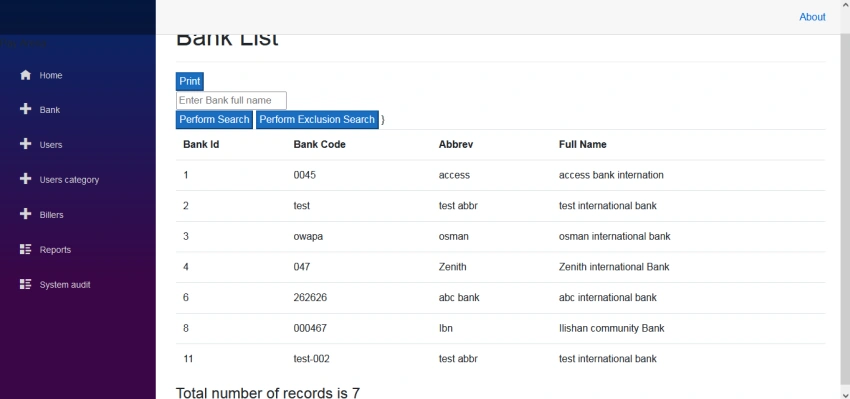
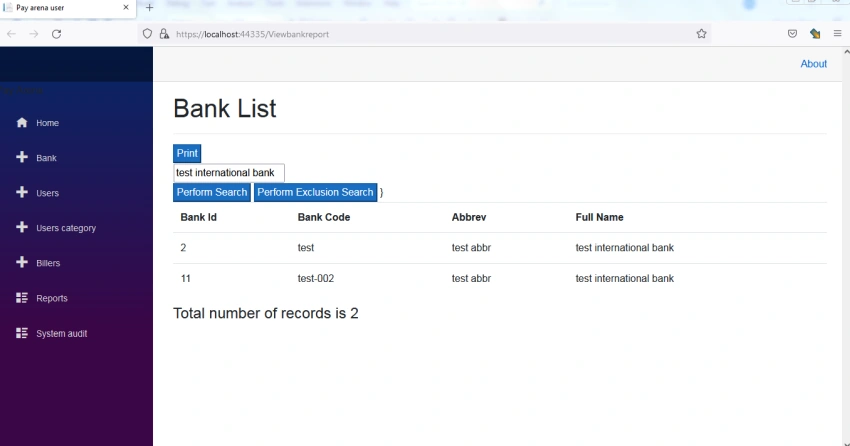
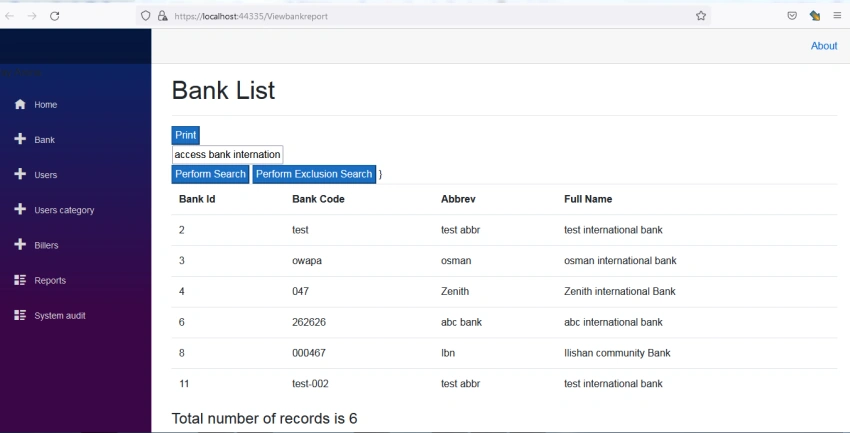
We will not be looking into the code for print action in this article because it includes jquery.
Do remember to add the service created to your startup.cs file. e.g services.AddScoped<BankService>();
Thank you
Join the conversation! Your thoughts help the community grow.