

Introduction
Beginning in Android 3.0, using the SearchView widget as an item in the action bar is the preferred way to provide a search in your app. Like with all items in the action bar, you can define the SearchView to show at all times, only when there is room, or as a collapsible action, that displays the SearchView as an icon initially, then takes up the entire action bar as a search field when the user clicks the icon.
In today's article, we will create a search view. You will be able to see this SearchView as the Action bar in your emulator.
Step 1
First, download a search icon for your search bar and name it as "search". Copy this image to the clipboard. "res" -> "New" -> "Android resource directory". Name the directory as "drawable" and choose the type as "drawable". Paste the image in this directory.
Create yet another directory and name it as "raw" and choose its type as "raw". Paste that ".txt" file in this folder in which you want to perform the search. I am using a file called "definations.txt".
Step 2
To create a menu resource file: "res" -> "Menu" -> "Menu resource file". Name this file as "options_menu" and add the following code to it:
- <menu xmlns:android="http://schemas.android.com/apk/res/android">
- <item
- android:id="@+id/search"
- android:title="Search"
- android:icon="@drawable/search"
- android:showAsAction="collapseActionView|ifRoom"
- android:actionViewClass="android.widget.SearchView"/>
- </menu>
Setting "showAsAction" to "collapseActionView" as in the preceding ensures collapsing and expanding the action bar is possible as and when required.
Step 3
Creating a searchable Configuration:
Right-click on "res" -> "New" -> "Package". Name this package as "xml". Right-click on this directory then select "New" -> "xml resource file". Name this file as "searchable" and add the following code to it:
- <searchable xmlns:android="http://schemas.android.com/apk/res/android"
- android:label="@string/search"
- android:hint="@string/enter" />
The hint will appear in the Search space.
Step 4
Add the following code to "activity_main":
- <TextView
- android:layout_width="wrap_content"
- android:layout_height="wrap_content"
- android:text="@string/hello_world"
- android:id="@+id/txt"/>
Step 5
"strings.xml" is used is:
- <string name="app_name" >
- SearchViews
- </string>
- <string name="action_settings" >
- Settings
- </string>
- <string name="hello_world" >
- Hello world!
- </string>
- <string name="enter" >
- Enter....
- </string>
- <string name="search" >
- Search
- </string>
Step 6
Open "MainActivity" Java file and add the following code to it:
- package com.searchviews;
- import android.app.SearchManager;
- import android.content.Context;
- import android.content.Intent;
- import android.os.Build;
- import android.os.Bundle;
- import android.app.Activity;
- import android.view.Menu;
- import android.view.MenuInflater;
- import android.view.MenuItem;
- import android.widget.SearchView;
- import android.widget.TextView;
- public class MainActivity extends Activity {
- Menu m;
- final Context context=this;
- @Override
- protected void onCreate(Bundle savedInstanceState) {
- super.onCreate(savedInstanceState);
- setContentView(R.layout.activity_main);
- DatabaseTable db=new DatabaseTable(this);
- }
- @Override
- public boolean onCreateOptionsMenu(Menu menu) {
- MenuInflater inflater = getMenuInflater();
- inflater.inflate(R.menu.options_menu, menu);
- if (Build.VERSION.SDK_INT >= Build.VERSION_CODES.HONEYCOMB) {
- SearchManager searchManager =(SearchManager) getSystemService(Context.SEARCH_SERVICE);
- SearchView searchView = (SearchView) menu.findItem(R.id.search).getActionView();
- searchView.setSearchableInfo(searchManager.getSearchableInfo(getComponentName()));
- }
- return true;
- }
- @Override
- public boolean onOptionsItemSelected(MenuItem item) {
- //return super.onOptionsItemSelected(item);
- switch (item.getItemId()) {
- case R.id.search:
- onSearchRequested();
- return true;
- default:
- return false;
- }
- }
- }
In the code above, SearchView will create the search view. "onSearchRequest()" is called when the user signals the desire to start a search.The SearchView starts an activity with the "ACTION_SEARCH" intent when a user submits a query.
Step 7
Now we will create a database from which we will perform the search. The "definations.txt" used by me contains a word and it's definition. I will be creating a virtual table having two columns, one for the word and the other for its definition.
Right-click on the same package then select "New" -> "Java class". Name this file as "DatabaseTable" and add the following code to it:
- package com.searchviews;
- import android.content.ContentValues;
- import android.content.Context;
- import android.content.res.Resources;
- import android.database.Cursor;
- import android.database.sqlite.SQLiteDatabase;
- import android.database.sqlite.SQLiteOpenHelper;
- import android.database.sqlite.SQLiteQueryBuilder;
- import android.text.TextUtils;
- import android.util.Log;
- import java.io.BufferedReader;
- import java.io.IOException;
- import java.io.InputStream;
- import java.io.InputStreamReader;
- public class DatabaseTable {
- private final DatabaseOpenHelper mDatabaseOpenHelper;
- private static final String TAG = "DictionaryDatabase";
- public static final String COL_WORD = "WORD";
- public static final String COL_DEFINITION = "DEFINITION";
- private static final String DATABASE_NAME = "DICTIONARY";
- private static final String FTS_VIRTUAL_TABLE = "FTS";
- private static final int DATABASE_VERSION = 1;
- public DatabaseTable(Context context) {
- mDatabaseOpenHelper = new DatabaseOpenHelper(context);
- }
- public Cursor getWordMatches(String query, String[] columns) {
- String selection = COL_WORD + " MATCH ?";
- String[] selectionArgs = new String[] {query+"*"};
- return query(selection, selectionArgs, columns);
- }
- private Cursor query(String selection, String[] selectionArgs, String[] columns) {
- SQLiteQueryBuilder builder = new SQLiteQueryBuilder();
- builder.setTables(FTS_VIRTUAL_TABLE);
- Cursor cursor = builder.query(mDatabaseOpenHelper.getReadableDatabase(),
- columns, selection, selectionArgs, null, null, null);
- if (cursor == null) {
- return null;
- } else if (!cursor.moveToFirst()) {
- cursor.close();
- return null;
- }
- return cursor;
- }
- private static class DatabaseOpenHelper extends SQLiteOpenHelper{
- private final Context mHelperContext;
- private SQLiteDatabase mDatabase;
- private static final String FTS_TABLE_CREATE =
- "CREATE VIRTUAL TABLE " + FTS_VIRTUAL_TABLE +
- " USING fts3 (" +
- COL_WORD + ", " +
- COL_DEFINITION + ")";
- private SQLiteOpenHelper mDatabaseOpenHelper;
- DatabaseOpenHelper(Context context) {
- super(context, DATABASE_NAME, null, DATABASE_VERSION);
- mHelperContext = context;
- }
- @Override
- public void onCreate(SQLiteDatabase db) {
- mDatabase = db;
- mDatabase.execSQL(FTS_TABLE_CREATE);
- loadDictionary();
- }
- @Override
- public void onUpgrade(SQLiteDatabase db, int oldVersion, int newVersion) {
- Log.w(TAG, "Upgrading database from version " + oldVersion + " to "
- + newVersion + ", which will destroy all old data");
- db.execSQL("DROP TABLE IF EXISTS " + FTS_VIRTUAL_TABLE);
- onCreate(db);
- }
- private void loadDictionary() {
- new Thread(new Runnable() {
- public void run() {
- try {
- loadWords();
- } catch (IOException e) {
- throw new RuntimeException(e);
- }
- }
- }).start();
- }
- private void loadWords() throws IOException {
- final Resources resources = mHelperContext.getResources();
- InputStream inputStream = resources.openRawResource(R.raw.definations);
- BufferedReader reader = new BufferedReader(new InputStreamReader(inputStream));
- try {
- String line;
- while ((line = reader.readLine()) != null) {
- String[] strings = TextUtils.split(line, "-");
- if (strings.length < 2) continue;
- long id = addWord(strings[0].trim(), strings[1].trim());
- if (id < 0) {
- Log.e(TAG, "unable to add word: " + strings[0].trim());
- }
- }
- } finally {
- reader.close();
- }
- }
- public long addWord(String word, String definition) {
- ContentValues initialValues = new ContentValues();
- initialValues.put(COL_WORD, word);
- initialValues.put(COL_DEFINITION, definition);
- return mDatabase.insert(FTS_VIRTUAL_TABLE, null, initialValues);
- }
- }
- }
"getWordMatches" functions perform the major matching task.
Step 8
Now we will create our search activity. Create a Java file and name it "SearchResultsActivity". Add the following code to it:
- package com.searchviews;
- import android.*;
- import android.R;
- import android.app.Activity;
- import android.app.SearchManager;
- import android.content.Context;
- import android.content.Intent;
- import android.database.Cursor;
- import android.os.Bundle;
- import android.view.View;
- import android.widget.AdapterView;
- import android.widget.ArrayAdapter;
- import android.widget.ListView;
- import android.widget.TextView;
- public class SearchResultsActivity extends Activity {
- DatabaseTable db = new DatabaseTable(this);
- final Context context=this;
- ListView list;
- TextView v;
- String res;
- @Override
- protected void onCreate(Bundle savedInstanceState) {
- super.onCreate(savedInstanceState);
- setContentView(R.layout.simple_list_item_1);
- v=(TextView)findViewById(R.id.text1);
- handleIntent(getIntent());
- v.setText(res);
- }
- @Override
- protected void onNewIntent(Intent intent) {
- super.onNewIntent(intent);
- handleIntent(getIntent());
- }
- private void handleIntent(Intent intent) {
- if (Intent.ACTION_SEARCH.equals(intent.getAction())) {
- String query = intent.getStringExtra(SearchManager.QUERY);
- Cursor c = db.getWordMatches(query, null);
- c.moveToFirst();
- res=c.getString(1);
- }
- }
- }
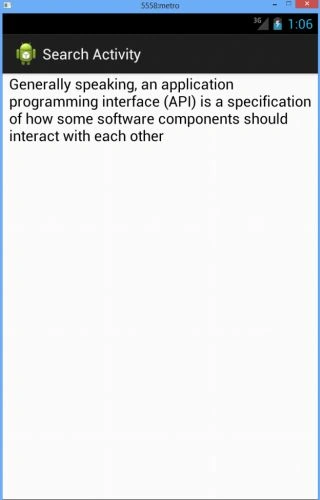
The "onCreate" function calls the "handleIntent" function. "handleIntent" performs the search and returns the result to a Cursor. Back in "onCreate" I retrieved and printed the result of searching. The output, in this case, is the definition of the word entered.
Step 9
Now the most important part!!
Open "AndroidManifest" and make the following changes to it:
- <?xml version="1.0" encoding="utf-8"?>
- <manifest xmlns:android="http://schemas.android.com/apk/res/android"
- package="com.searchviews"
- android:versionCode="1"
- android:versionName="1.0" >
- <uses-sdk
- android:minSdkVersion="11"
- android:targetSdkVersion="15" />
- <application
- android:allowBackup="true"
- android:icon="@drawable/ic_launcher"
- android:label="@string/app_name"
- android:theme="@style/AppTheme" >
- <activity
- android:name="com.searchviews.MainActivity"
- android:label="@string/app_name" >
- <intent-filter>
- <action android:name="android.intent.action.MAIN" />
- <category android:name="android.intent.category.LAUNCHER" />
- </intent-filter>
- <meta-data android:name="android.app.default_searchable"
- android:value=".SearchResultsActivity"/>
- </activity>
- <activity
- android:name="com.searchviews.SearchResultsActivity"
- android:label="Search Activity">
- <intent-filter>
- <action android:name="android.intent.action.SEARCH" />
- </intent-filter>
- <meta-data
- android:name="android.app.searchable"
- android:resource="@xml/searchable" />
- </activity>
- </application>
- </manifest>
Note that if do not make your main activity (MainActivity) and the search activity (SearchResultsActivity) searchable, your code will not work.
The output snapshots:
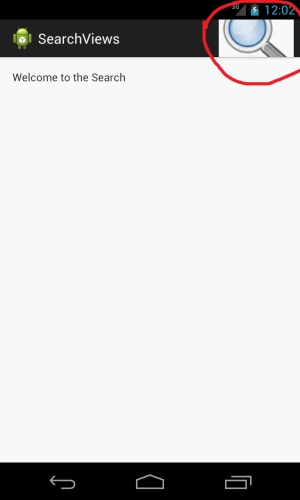
The red mark in the preceding figure shows the search icon. Clicking on it gives:
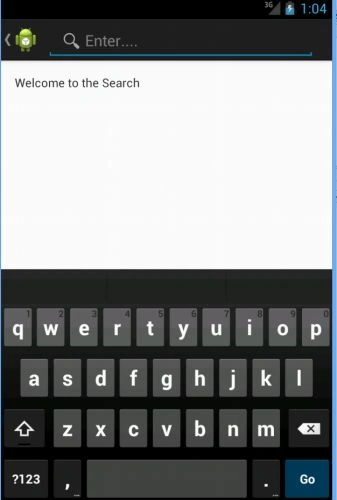
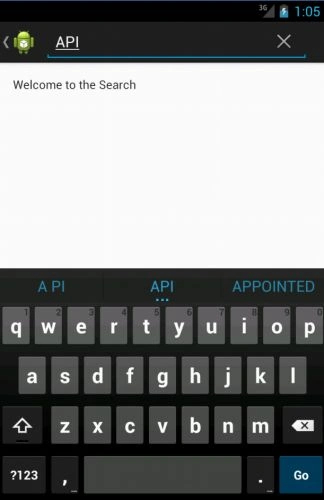
Enter the word:
Search Result:
Thank you... Enjoy coding :)
JOHN JOHNNNYPosted May 19, 2015, 9:19 AM
Process: com.akada.gemstouch.searchviewsqlite, PID: 1237 java.lang.NullPointerException at com.akada.gemstouch.searchviewsqlite.MyActivity.onCreateOptionsMenu(MyActivity.java:42) at android.app.Activity.onCreatePanelMenu(Activity.java:2538) at android.support.v4.app.FragmentActivity.onCreatePanelMenu(FragmentActivity.java:275) at android.support.v7.app.ActionBarActivity.superOnCreatePanelMenu(ActionBarActivity.java:276) at android.support.v7.app.ActionBarActivityDelegate$1.onCreatePanelMenu(ActionBarActivityDelegate.java:79) at android.support.v7.app.ActionBarActivityDelegateBase.preparePanel(ActionBarActivityDelegateBase.java:979) at android.support.v7.app.ActionBarActivityDelegateBase.doInvalidatePanelMenu(ActionBarActivityDelegateBase.java:1182) at android.support.v7.app.ActionBarActivityDelegateBase.access$100(ActionBarActivityDelegateBase.java:79) at android.support.v7.app.ActionBarActivityDelegateBase$1.run(ActionBarActivityDelegateBase.java:118) at android.os.Handler.handleCallback(Handler.java:733) at android.os.Handler.dispatchMessage(Handler.java:95) at android.os.Looper.loop(Looper.java:136) at android.app.ActivityThread.main(ActivityThread.java:5017) at java.lang.reflect.Method.invokeNative(Native Method) at java.lang.reflect.Method.invoke(Method.java:515) at com.android.internal.os.ZygoteInit$MethodAndArgsCaller.run(ZygoteInit.java:779) at com.android.internal.os.ZygoteInit.main(ZygoteInit.java:595) at dalvik.system.NativeStart.main(Native Method)
JOHN JOHNNNYPosted May 19, 2015, 9:18 AM
Really good tutorial you have here, but when i test it in my emulator it crashes and shows "Unfortunately myapp has stopped" see the logcat error message below kindly help
Chhavi GoelPosted Jun 26, 2013, 4:14 AM
i dont knw the contents of your manifest file. You can download the project provided to you and see where have you gone wrong.
chandru sahPosted Jun 26, 2013, 12:01 AM
<?xml version="1.0" encoding="utf-8"?> <manifest xmlns:android="http://schemas.android.com/apk/res/android" package="com.search" android:versionCode="1" android:versionName="1.0" > <uses-sdk android:minSdkVersion="8" android:targetSdkVersion="17" /> <application android:allowBackup="true" android:icon="@drawable/ic_launcher" android:label="@string/app_name" android:theme="@style/AppTheme" > <activity android:name="com.search.MainActivity" android:label="@string/app_name" > <intent-filter> <action android:name="android.intent.action.MAIN" /> <category android:name="android.intent.category.LAUNCHER" /> </intent-filter> <meta-data android:name="android.app.default_searchable" android:value=".SearchResultsActivity"/> </activity> <activity android:name="com.search.SearchResultsActivity" android:label="Search Activity"> <intent-filter> <action android:name="android.intent.action.SEARCH" /> </intent-filter> <meta-data android:name="android.app.searchable" android:resource="@xml/searchable" /> </activity> </application> </manifest>
chandru sahPosted Jun 26, 2013, 12:00 AM
please Check Whether my Manifest Codes are correct or not..
chandru sahPosted Jun 25, 2013, 11:56 PM
i entered "API" only ... But im getting errorrrrrrrrrrrr................
Chhavi GoelPosted Jun 25, 2013, 11:19 PM
Got it... when you are entering the word in the search view (in emulator), type "API" or "AndroidStudio" or "ListView" (in this case only). Entering any other word will give you the same error. This is because as you can see in "handleIntent()" in "SearchResultsActivity" we are returning the query result. Since only these three words exists in "definations.txt" added in raw, searching these words would return the cursor but searching anything else will give error.
chandru sahPosted Jun 25, 2013, 9:06 AM
Even I used The Virtual Keyboard ... :( But getting same error only .
chandru sahPosted Jun 25, 2013, 9:05 AM
Sorry For Latee Reply. In my Logcatt getting error After pressing enter like 06-25 13:00:43.176: W/dalvikvm(870): threadid=1: thread exiting with uncaught exception (group=0x40a71930) 06-25 13:00:43.378: E/AndroidRuntime(870): FATAL EXCEPTION: main 06-25 13:00:43.378: E/AndroidRuntime(870): java.lang.RuntimeException: Unable to start activity ComponentInfo{com.search/com.search.SearchResultsActivity}: java.lang.NullPointerException 06-25 13:00:43.378: E/AndroidRuntime(870): at android.app.ActivityThread.performLaunchActivity(ActivityThread.java:2180) 06-25 13:00:43.378: E/AndroidRuntime(870): at android.app.ActivityThread.handleLaunchActivity(ActivityThread.java:2230) 06-25 13:00:43.378: E/AndroidRuntime(870): at android.app.ActivityThread.access$600(ActivityThread.java:141) 06-25 13:00:43.378: E/AndroidRuntime(870): at android.app.ActivityThread$H.handleMessage(ActivityThread.java:1234) 06-25 13:00:43.378: E/AndroidRuntime(870): at android.os.Handler.dispatchMessage(Handler.java:99) 06-25 13:00:43.378: E/AndroidRuntime(870): at android.os.Looper.loop(Looper.java:137) 06-25 13:00:43.378: E/AndroidRuntime(870): at android.app.ActivityThread.main(ActivityThread.java:5041) 06-25 13:00:43.378: E/AndroidRuntime(870): at java.lang.reflect.Method.invokeNative(Native Method) 06-25 13:00:43.378: E/AndroidRuntime(870): at java.lang.reflect.Method.invoke(Method.java:511) 06-25 13:00:43.378: E/AndroidRuntime(870): at com.android.internal.os.ZygoteInit$MethodAndArgsCaller.run(ZygoteInit.java:793) 06-25 13:00:43.378: E/AndroidRuntime(870): at com.android.internal.os.ZygoteInit.main(ZygoteInit.java:560) 06-25 13:00:43.378: E/AndroidRuntime(870): at dalvik.system.NativeStart.main(Native Method) 06-25 13:00:43.378: E/AndroidRuntime(870): Caused by: java.lang.NullPointerException 06-25 13:00:43.378: E/AndroidRuntime(870): at com.search.SearchResultsActivity.handleIntent(SearchResultsActivity.java:44) 06-25 13:00:43.378: E/AndroidRuntime(870): at com.search.SearchResultsActivity.onCreate(SearchResultsActivity.java:29) 06-25 13:00:43.378: E/AndroidRuntime(870): at android.app.Activity.performCreate(Activity.java:5104) 06-25 13:00:43.378: E/AndroidRuntime(870): at android.app.Instrumentation.callActivityOnCreate(Instrumentation.java:1080) 06-25 13:00:43.378: E/AndroidRuntime(870): at android.app.ActivityThread.performLaunchActivity(ActivityThread.java:2144) 06-25 13:00:43.378: E/AndroidRuntime(870): ... 11 more 06-25 13:00:43.926: D/dalvikvm(870): GC_CONCURRENT freed 183K, 10% free 3062K/3368K, paused 6ms 74ms, total 399ms
Chhavi GoelPosted Jun 19, 2013, 11:18 PM
one more thing... make sure that you are not using the keyboard for entering the word in the search option. Use the virtual keyboard of emulator. Go to AVD Manager-> select the AVD you want-> Edit-> uncheck "Keyboard" and "Skin". Now enter "API" (in capital) and tell me if you are still getting the same error
Chhavi GoelPosted Jun 19, 2013, 10:35 PM
can you tel me the error displayed in logcat of your project??
chandru sahPosted Jun 19, 2013, 8:54 AM
hello!!! Nice to see this coding ... But i'm getting an error like "Unfortunately, searchviews has stopped" :( please help me.