

If you are new to.NET Core, read these articles to kick start your .NET Core knowledge.
- Creating A New .NET Core Web Application Using Visual Studio 2015
- Creating A New .NET Core Web Application With Command Line Interface (CLI)
- Setting And Reading Values From "appsettings.json" In .NET Core
- Binding Dropdown List With Database In ASP.NET Core MVC
- Creating Simple Cascading DropDownList In ASP.NET Core MVC With New Tag Helpers
Topic
- Database part.
- Creating an Application.
- Installing Package for Entity Framework Core From NuGet.
- Adding Connection string and setting up DbContext.
- Adding Category Model in Models folder.
- Adding DbSet for Category Model in DatabaseContext class.
- Adding Controller [DemoController].
- Getting the data from the database, using Entity Framework Core for binding RadiobuttonList.
- Adding View [index.cshtml].,
- Binding Radiobuttonlist using new Tag Helper.
- Adding Index Action method for handling the post request and getting the selected values.
- Saving and running the Application.
Step 1
Database part
Create a sample database with the name “AllSampleCode” to show the demo.

Inside this database, I have added Category table, where you can see the structure of the tables given below.

Step 2
Create a sample database with the name “AllSampleCode” to show the demo.
Inside this database, I have added Category table, where you can see the structure of the tables given below.
Step 2
Creating an Application
Now, let’s create .NET Core web application; open Visual Studio IDE. From the start page, click on New Project link.

After clicking on New Project link, it will open a new dialog with the name “New Project”. Inside it, from the left pane, choose the templates. Inside it, choose Visual C#. Inside it, choose.NET Core template and in middle of your pane, you will see.NET Core project templates. Subsequently, from the templates, choose “ASP.NET Core Web Application (.NET Core)” project templates.

After choosing the project template, now we are going to name the project as “MVCCore2” and finally click OK button to create a project, but it will pop up another dialog with the name “New ASP.NET Core Web Application (.NET Core)”.

Inside this dialog, we are going to choose “Web application” project template to create “Web Application” and click OK button to create a project.
Below is complete project view, which is newly created.

After creating an Application, we are going to add the reference required for Entity Framework Core.
Step 3
Now, let’s create .NET Core web application; open Visual Studio IDE. From the start page, click on New Project link.
After clicking on New Project link, it will open a new dialog with the name “New Project”. Inside it, from the left pane, choose the templates. Inside it, choose Visual C#. Inside it, choose.NET Core template and in middle of your pane, you will see.NET Core project templates. Subsequently, from the templates, choose “ASP.NET Core Web Application (.NET Core)” project templates.
After choosing the project template, now we are going to name the project as “MVCCore2” and finally click OK button to create a project, but it will pop up another dialog with the name “New ASP.NET Core Web Application (.NET Core)”.
Inside this dialog, we are going to choose “Web application” project template to create “Web Application” and click OK button to create a project.
Below is complete project view, which is newly created.
After creating an Application, we are going to add the reference required for Entity Framework Core.
Step 3
Installing Package for Entity framework core From NuGet
To install the package, just right click on the project (MVCCore2) and then select Manage NuGet package. The dialog of NuGet Package Manager will pop up. Inside it, the browse tab is there, where you need to search box type “Microsoft.EntityFrameworkCore.SqlServer” and just click on Install button to install.
To install the package, just right click on the project (MVCCore2) and then select Manage NuGet package. The dialog of NuGet Package Manager will pop up. Inside it, the browse tab is there, where you need to search box type “Microsoft.EntityFrameworkCore.SqlServer” and just click on Install button to install.
- Microsoft.EntityFrameworkCore.SqlServer

Step 4
Adding Connection string and Setting up DbContext
After adding the reference, next step is to add a connection string in appsetting.json file.

After adding the connection string, the next step is to add a class, which will inherit DbContext class, but before doing this, let's start with creating a folder for Models and inside it, we are going to add this class.
For adding a folder, just right click on the project (MVCCore2), followed by choosing Add from menu that pops up and inside it, choose New Folder.
Add - New Folder.

Now, let’s add a class with the name DatabaseContext in Model folder.
To add model, just right click on Models folder, followed by selecting Add. Inside it, select Class and Add New Item dialog will pop up with the default class selected, followed by going to name class as DatabaseContext and click on Add button.
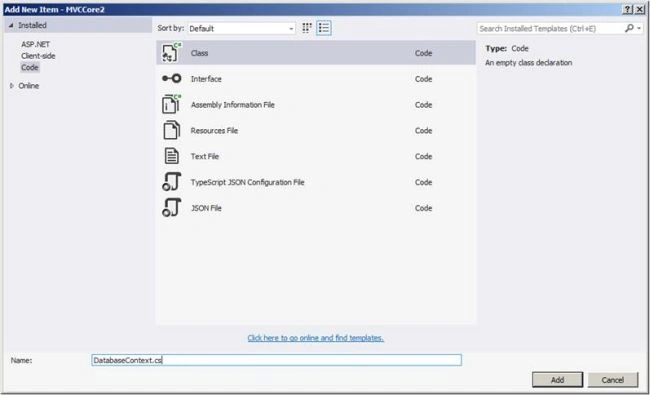
After adding a DatabaseContext class, we are going to inherit DbContext class.
After inheriting with DbContext, we are having created a constructor, which takes DbContextOptions as an input parameter and also inherits the base class constructor (: base(options)) [DbContext].

Now, we are going to add new Service in Startup.cs class for injecting dependency.
Now, whenever you are going to use DatabaseContext class, DbContext instance will be injected.

After completing with add service, we are going to add Model
Step 5
Adding Category Model in Models Folder
For adding model, just right click on Models folder, followed by selecting Add. Inside it, select Class and add new item dialog will pop up with the default class selected. We are going to name the class as Category and click on Add button.
Adding Model Category

After adding Category Model, we are going to add (MainViewModel) Model.
Adding MainViewModel Model
For adding model, just right click on Models folder, followed by selecting Add. Now, one needs to select class and Add New Item dialog will pop up with the default class selected. We are going to name class as MainViewModel and click on Add button.
MainViewModel model contains a string property [Selectedanswer], which gets the selected value from radiobuttonlist at the Server side, when the users post a form by choosing an appropriate value.
The next property is List of Category, which we are going to get from the database to create a radiobuttonlist.
The (MainViewModel) model is the one, which we are going to use on View.

After adding MainViewModel Model, in the next step, we are going to add DbSet of all the models in DatabaseContext class.
Step 6
Adding DbSet for Category Model in DatabaseContext class
Now, let's add DbSet for Category Model in DatabaseContext class, as shown below.

Step 7
Adding Controller [DemoController]
For adding controller, just right click on Controller folder, followed by selecting Add. Inside it, select New Item. After selecting New Item, a new dialog of Add New Item will pop up.
Inside it, just choose “MVC Controller Class”, followed by name Controller as “DemoController” and Click Add button to create Controller.

Afterwards, we need to click on Add button, which has created DemoController in Controller folder, as shown below.

Step 8
Getting Data from Database using Entity framework core for binding Radiobutton List
In DemoController, we are using constructor injection for getting a dependency.
Also, we are getting List<Category> from the database, using Entity Framework Core and passing it to View [Index.cshtml] for binding RadiobuttonList.
The complete code snippet of getting the data and sending it to Index View is given below.

Step 9
Adding View [index.cshtml]
To add view, right click on the Views folder, followed by adding New Folder and name the folder “Demo”.
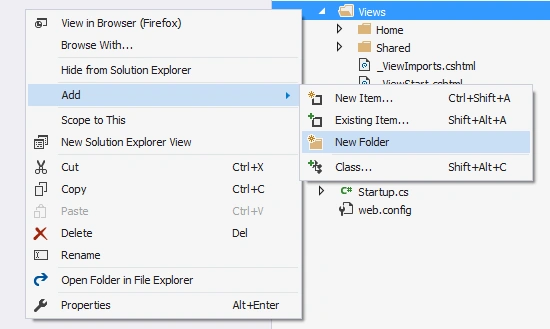
After adding Demo folder, now we are going to add View inside this folder.
For adding View, right click on the Demo folder, which we have added and then select Add. Inside it, select New Item, followed by a new dialog with the name of Add New Item will pop up.

From Add New Item dialogue, just choose “MVC View Page” for adding View. The next step is to give the name to View, the View name must be the name, which is similar to Action method name. We are going to name it as “Index” [“Index.cshtml”] and click on Add button to add View.

After adding View, next step is that we are going to use new Tag Helper for a binding Category radiobuttonlist.
Step 10
Binding RadiobuttonList using new Tag Helper.
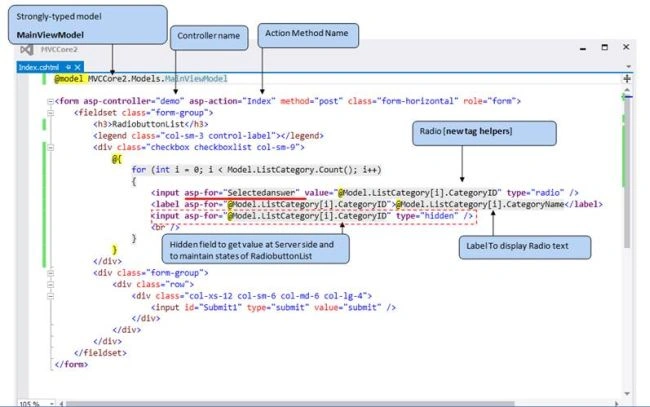
After binding RadiobuttonList on the index.cshtml View, now save the Application and run to access the URL, mentioned below.
http://localhost:####/demo/index

Now, we have just added radiobuttonlist on the index.cshtml View. Let’s add Index Action method to handle the post request and read the value of radiobuttonlist, which is selected by the users.
Step 11
Adding Index Action method for handling post request and getting selected values

Step 12
Saving and Run Application
Now, save and run the application, followed by accessing the URL http://localhost:####/demo/index

Now, let’s choose “Laptops “option from radiobuttonlist and view the output in debug mode.
Debug mode of Index Action Method (POST)

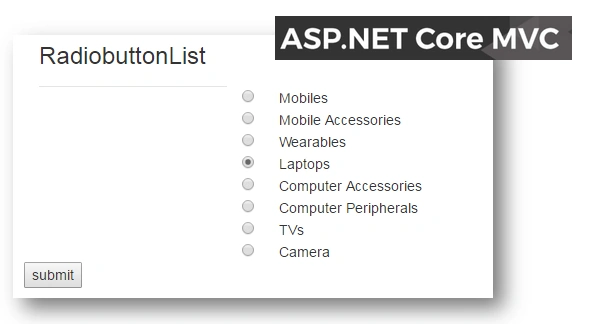
Finally, we have completed creating a simple RadiobuttonList in ASP.NET Core MVC, using New Tag Helpers.
I hope you liked my article. Please share it.
Join the conversation! Your thoughts help the community grow.