
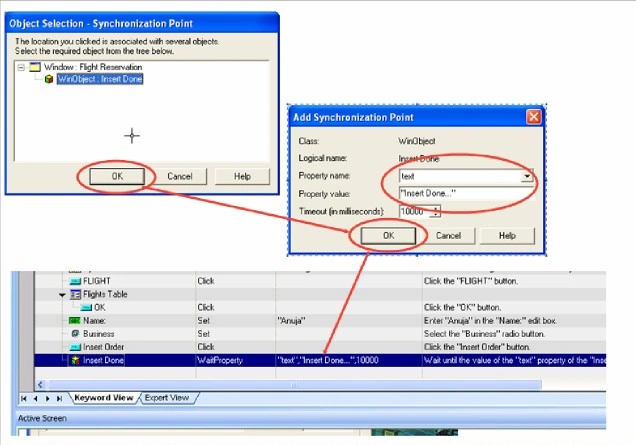
Add Synchronization dialog box open
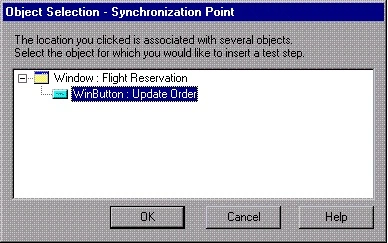
- Enter the property value for which QuickTest should wait before continuing to the next step in the test or component.
- The Property name list contains the test object properties associated with the object. Select the property name you want to use for the sunchronization point.
- Select the Synchronization point timeout (in milliseconds) after which QuickTest continues to the next step, even if the specified property value was not achieved.
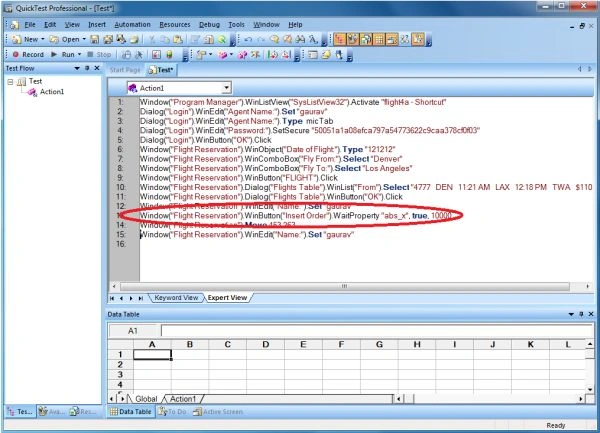
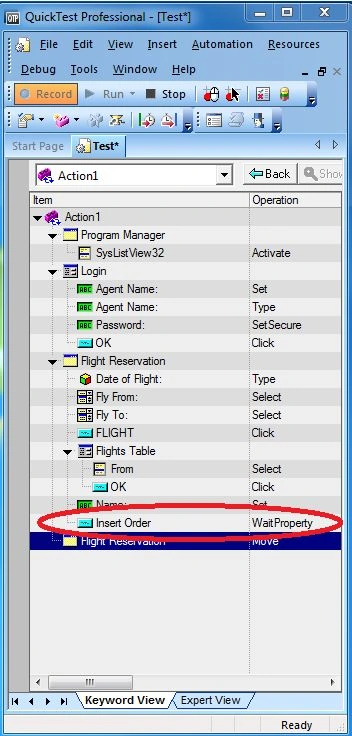
- Click OK. A WaitProperty step is added to your test.
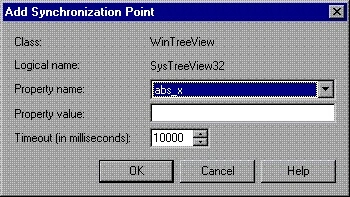
The Add Synchronization point dialog box contains the following options:
- Name Display the name of the selected object.
- Class Display the test object class of the selected object.
- Property Value Enables the user to specify the property value for which QuickTest should wait before continuing to the next step:
- Property Name Contains a list of the test object properties associated with the object. Select the property name you want to use for the synchronization point:
Join the conversation! Your thoughts help the community grow.