

About Salesforce
Salesforce is a cloud-based online solution for customer relationship management (CRM). SalesForce provides all of our departments like marketing, sales, commerce, and service with a shared view of our customers with a single integrated CRM platform.
Relationships in Salesforce
A relationship is a two-way association between two objects. Create relationships to link objects with each other, so that when the users view records, they can also see related data. Avoiding data redundancy and data inconsistency, we are in need of a relationship. We can define different types of relationships like Master-Detail Relationship, Lookup relationship and Many to Many Relationship.
Master-Detail Relationship
A master-detail relationship is a parent-child relationship where the master is like a parent and detail is like a child in which the master object controls some behaviors of the detail object. Also when a Master object record is deleted then the detail object related to it also gets deleted.
Lookup relationship
Lookup Relationship is nothing but creating a relationship between two same objects. This Lookup Relationship is a self-relationship to the same object.
Many to Many Relationship
A many-to-many relationship allows each record of one object to be linked to multiple records from another object and vice versa.
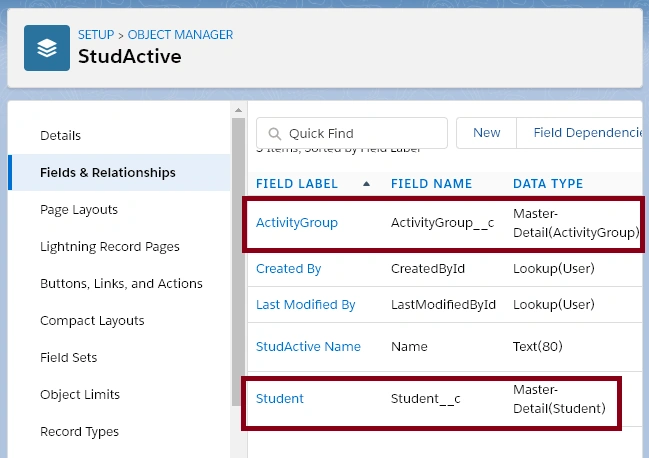
Reading this article, you can learn how to create Many-to-Many Relationship between Student and ActivityGroup objects using StudActive (Junction Object) in SalesForce.
The prerequisites are for Creating a Many-to-Many Relationship in SalesForce as,
Register a Salesforce Free Trail account using the following link.
Step 1
Login to your Salesforce Account and click "Setup".

Step 2
Click the Object Manager and create the Student, ActivityGroupobject, and create the Custom Fields (Refer here)
Step 3
After creating Student and ActivityGroupobjects, now we can create a new object as StudActive which is a Junction Object for creating Many-to-Many Relationship between Student and ActivityGroupobject.
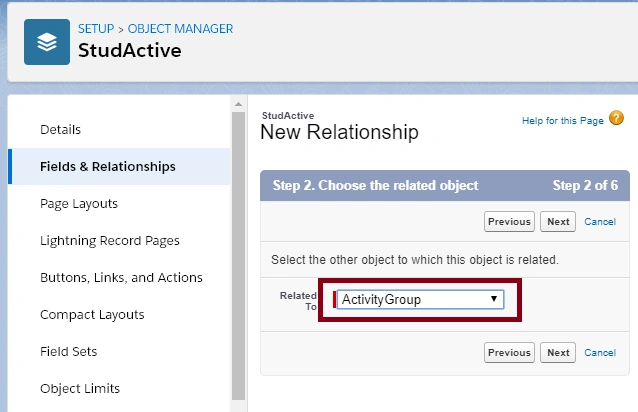
After creating Junction Object (StudActive), first, we have to create Master-Detail relationship between StudActive and Student objects.
Select a StudActiveobject, select the Field & Relationships in the details tab, and click "New" and select the Master-Detail Relationship and click "Next".

Select the related to object as Student and click "Next".

Enter the Field Label and Name for the lookup and click "Next".

Make visible all the field level security and click "Next".







Join the conversation! Your thoughts help the community grow.