

Introduction:
The following article is the continuation of my previous article in which I have explained the concept of creating the Virtual Network on the Azure portal. You can find it at the following link.
As a continuation, we are going to see how to configure a Virtual Machine on the Azure portal in a Virtual Network. This configuration will help you to run your machine in a virtual network which you have created in a different data center. Now, let us see it in detail.
Creating the Virtual Machine
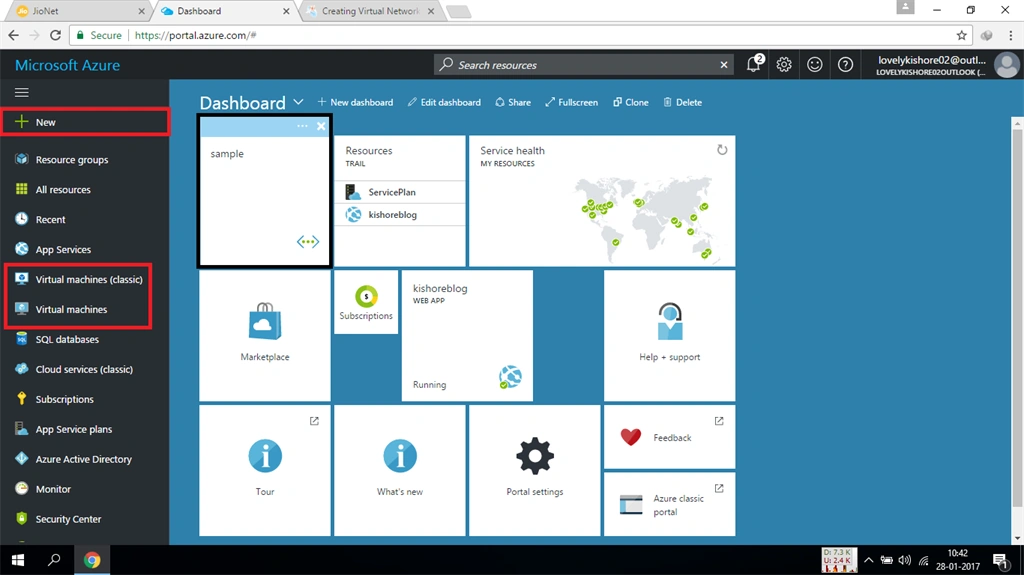
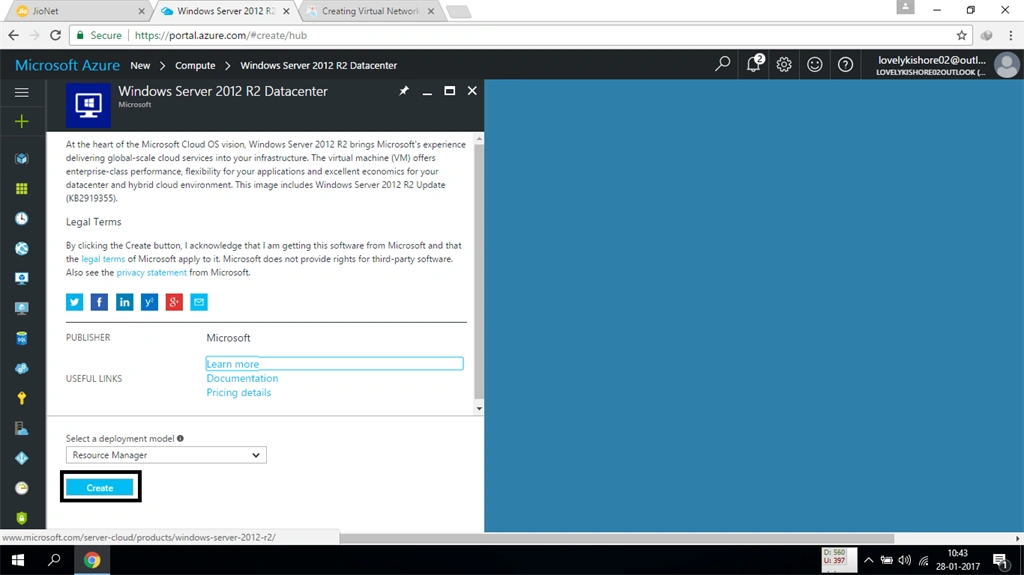
Log into your Azure portal and click on the "Virtual Image" menu in the left or go to "New", select "Compute", and select the "Virtual Machine" option. Then, click on "Create" button. The following is explained below.
Configuring the Virtual Machine
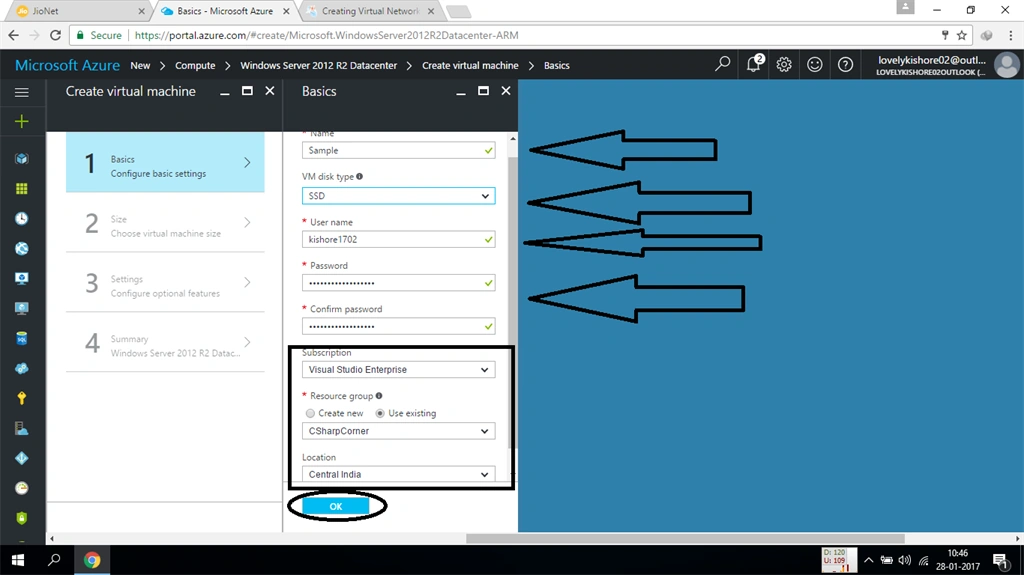
Now, you will be redirected to the "Configuration" menu. Choose the "Basics" option. You will be asked to enter the Virtual Machine name, username, password, and the resource group in which you want to create the VM. Once you do all these, click on the OK button.
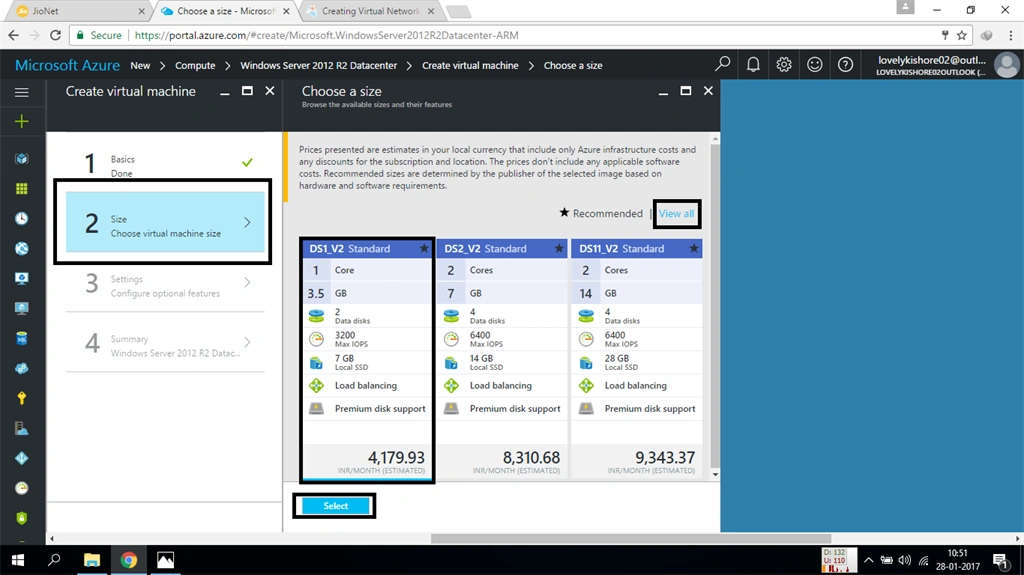
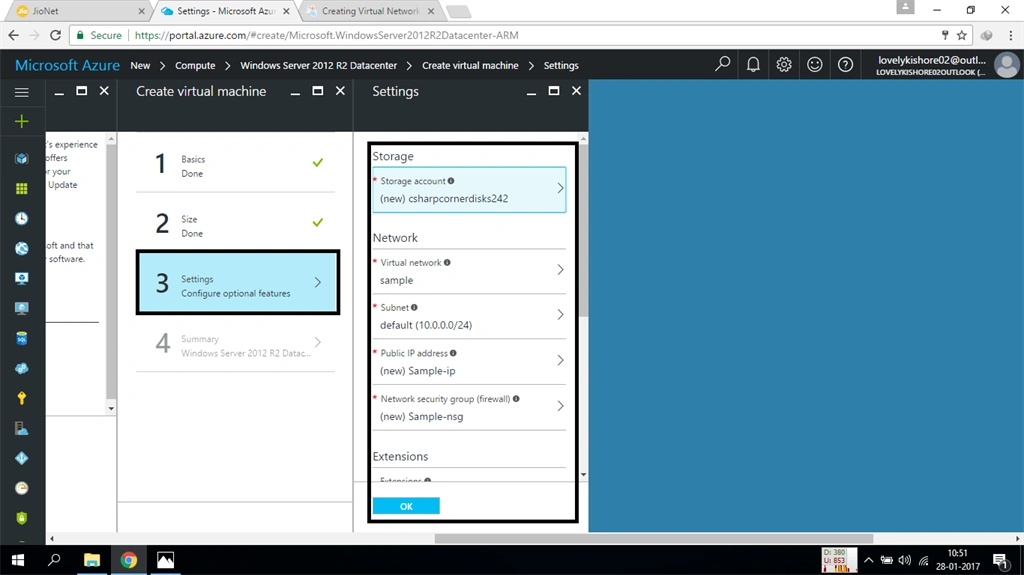
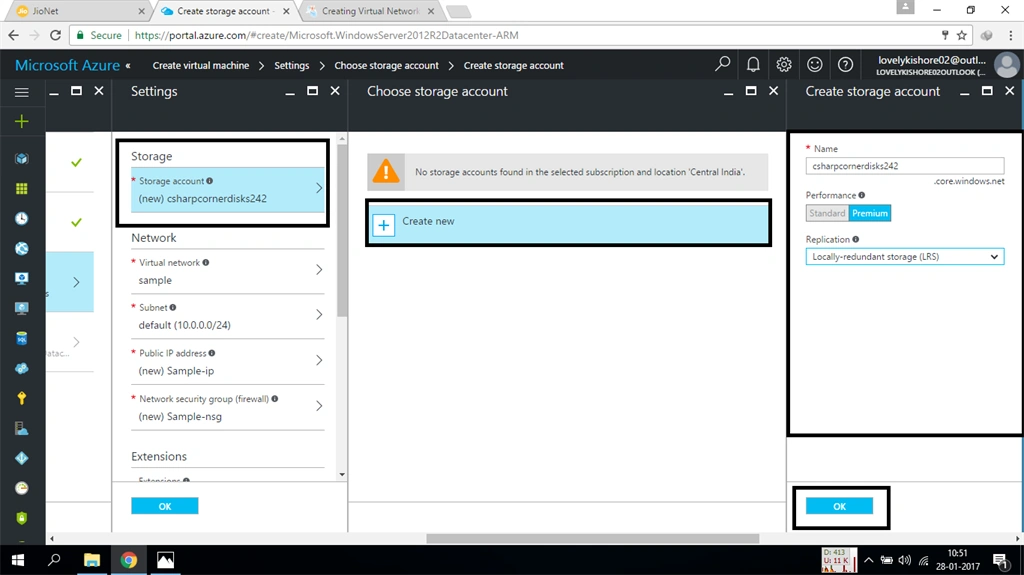
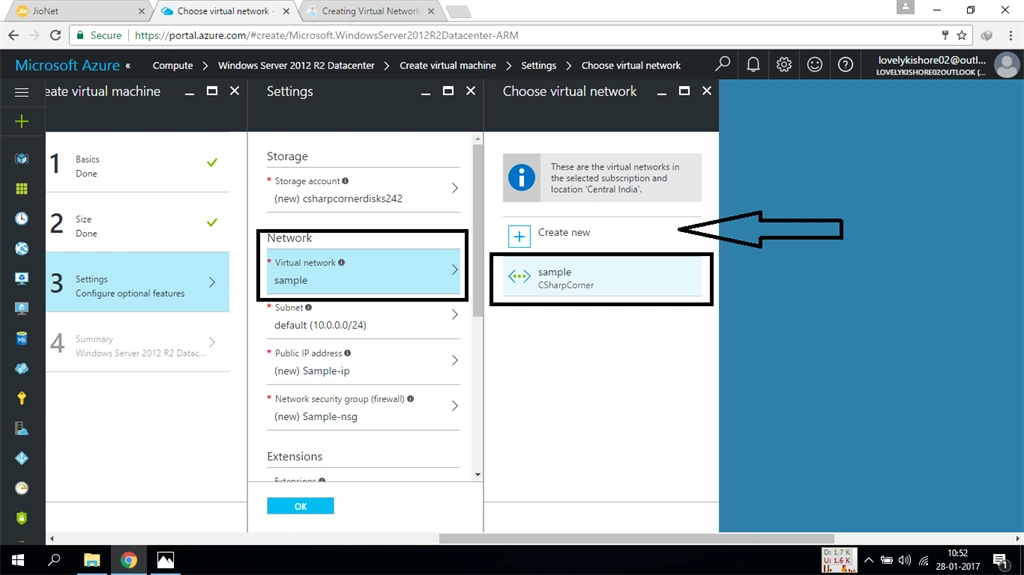
Now, click on the subnet and leave it as default since you have already configured all these in the VNET configuration.
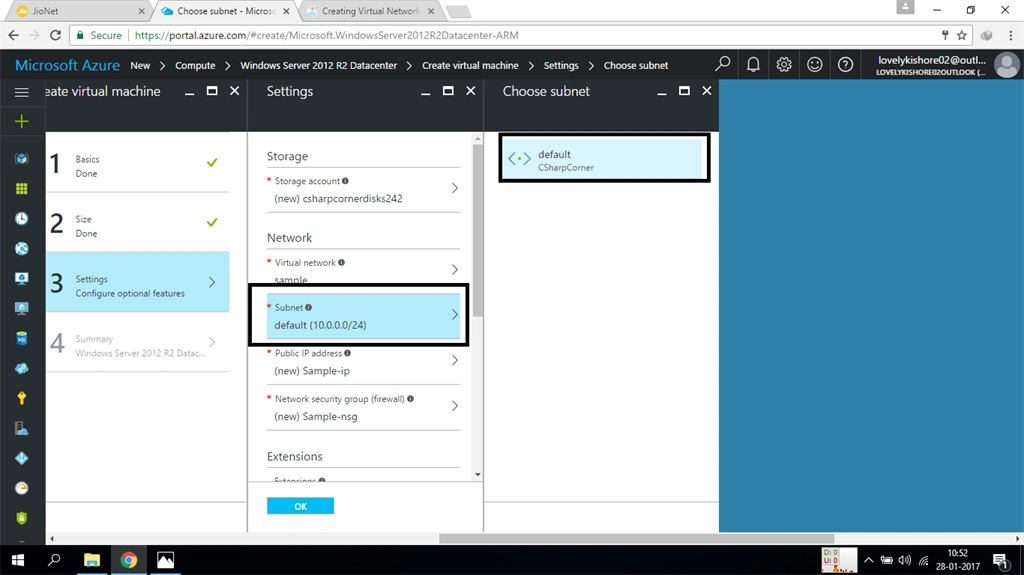
Now, the Public IP addresses are used to make sure that only authorized people are allowed to access the network. You can let it to be default or you can even choose it to be default.

Now, the network security is as same as this configuration. You can let the firewall be default or you can configure it according to your need.
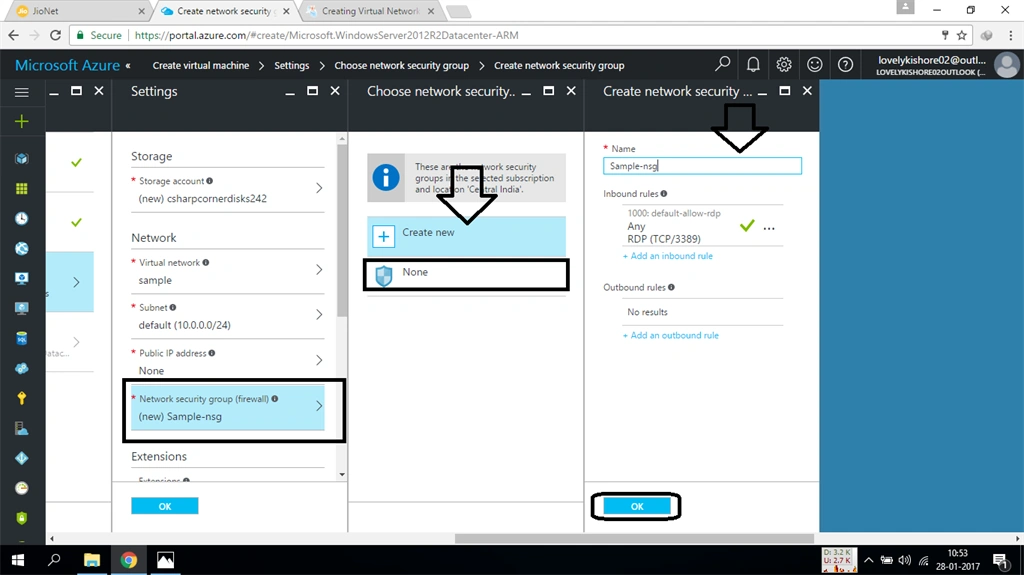
The rest of all the settings are like - extensions and monitoring are based on your requirements. You can decide what you need and finally click on the "OK" button.


Once your machine gets created, you can find your machine in the homepage of your portal. Click on the tile and you will be redirected to your Machine Settings. You can do changes to your machine, like adding VHD or adding more IOPS and etc.


Conclusion
Thus, the article has taught you the ways to create a VM on the Azure portal in a Virtual Network. Hope you have learned something new. In the next article, we will be writing the ways to create the load balancing in the Azure Virtual Machines.
Join the conversation! Your thoughts help the community grow.