In this article, we will see how to create your first Android application.
Introduction
In this article, we will create a Hello World kind of Android application. For that first, we will download what is required and then we will create our first Android application.
Getting the required tools
- Download and install the JDK from here
- Download the Android ADT bundle from here. It contains the Android SDK, Eclipse IDE and ADT (Android Developer Tools). Click on the "Download the SDK ADT Bundle for Windows" button and select your System type, either 32-bit or 64-bit. Then click on the "Download the SDK ADT Bundle for Windows" button to download the SDK. Extract the downloaded compressed files to your preferred location
Creating an Android application using the Eclipse IDE
Step 1
The Eclipse IDE comes with the Android ADT bundle. We will use Eclipse to create the Android application.
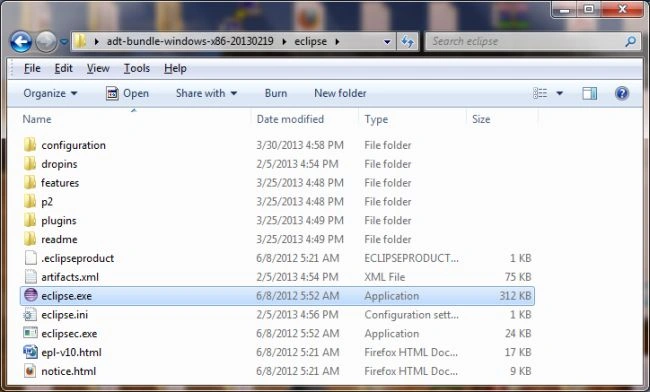
Launch Eclipse by opening "eclipse.exe" from the "eclipse" folder inside the extracted ADT bundle folder.
Step 2
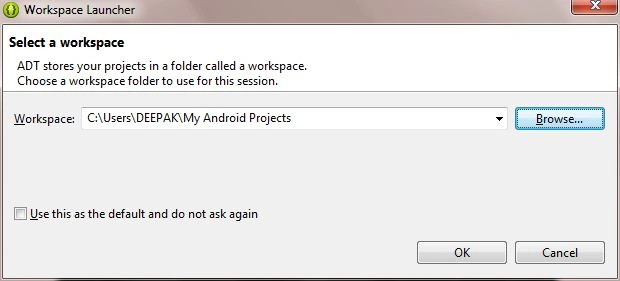
You will be asked to select a workplace. Select a folder as a workspace where all your Android applications will be stored.
Step 3
Select "File" -> "New" -> "Android Application Project" in Eclipse to create a new Android application.
Step 4
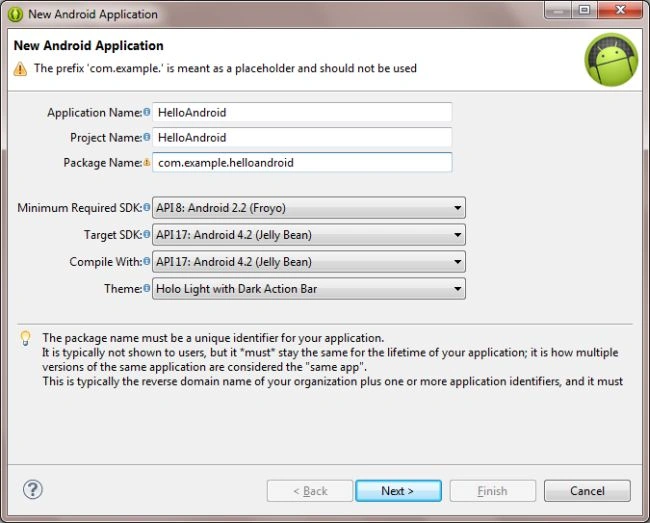
Enter the Application Name, Project Name and Package Name in the New Android Application dialog box. Then select the appropriate Android API versions and click on Next.
Step 5
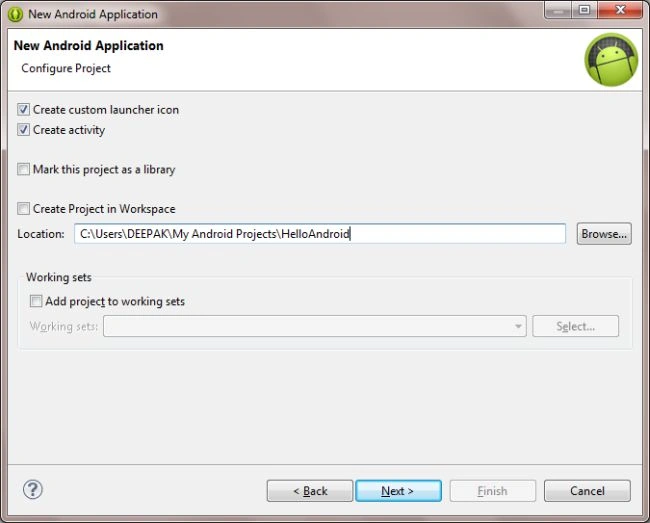
Click "Next" on the Configure Project window.
Step 6
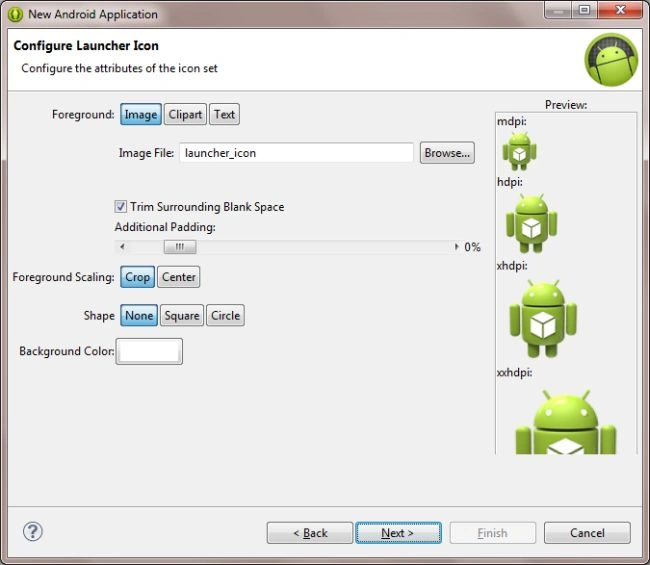
In the Configure Launcher Icon dialog box, customize the launcher icon or leave it to default and click "Next".
Step 7
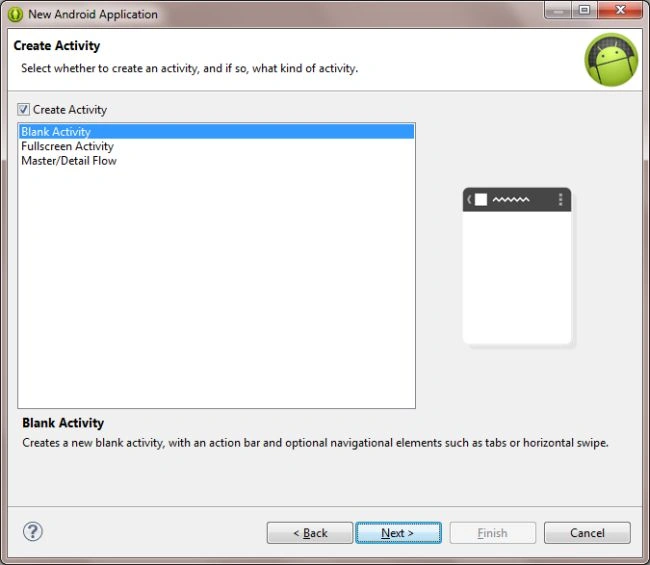
Click Next on Create Activity window
Step 8
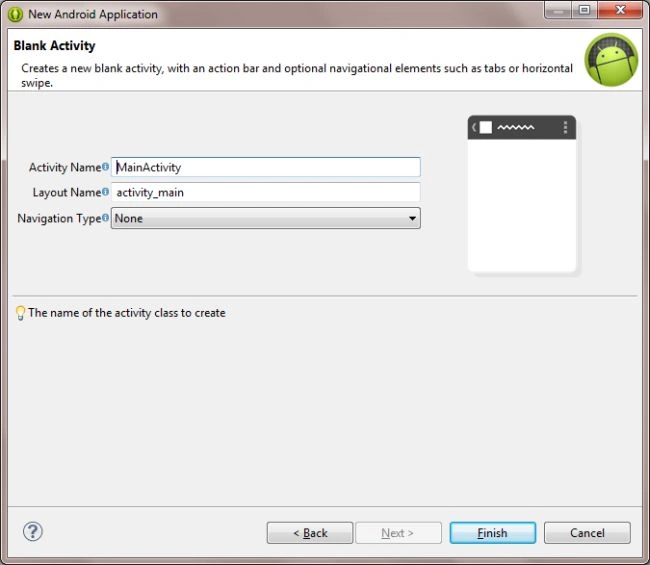
Click "Next" on the Blank Activity dialog box.
Step 9
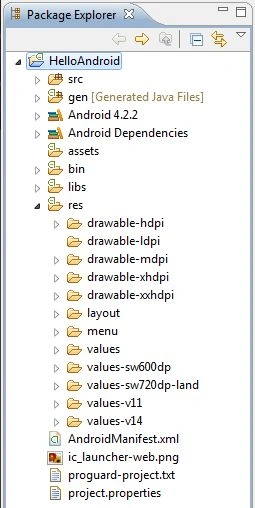
Finally, click "Finish" to launch the project.
The following is the components of an Android application:
Step 10
Open the "res/layout/activity_main.xml" file and write the following code to display a Button. All the UI that is displayed in an Android application is stored in the "res/layout" folder as an Android XML File.
- <RelativeLayout xmlns:android="http://schemas.android.com/apk/res/android"
- xmlns:tools="http://schemas.android.com/tools"
- android:layout_width="match_parent"
- android:layout_height="match_parent" >
-
- <Button
- android:id="@+id/btnHelloWorld"
- android:layout_width="match_parent"
- android:layout_height="wrap_content"
- android:onClick="btnHelloWorld_Click"
- android:text="@string/click_me" />
-
- </RelativeLayout>
Step 11
Open the "src/com.example.helloandroid/MainActivity.java" file and write the following to bind the layout to the display and specify the Button's onClick event. All the Java code is stored in the "src/your package/your" application folder.
- package com.example.helloandroid;
- import android.os.Bundle;
- import android.app.Activity;
- import android.view.Menu;
- import android.view.View;
- import android.widget.Toast;
- public class MainActivity extends Activity {
- @Override
- protected void onCreate(Bundle savedInstanceState) {
- super.onCreate(savedInstanceState);
- setContentView(R.layout.activity_main);
- }
- public void btnHelloWorld_Click(View vw){
- Toast.makeText(getApplicationContext(), "Hello World!", Toast.LENGTH_SHORT).show();
- }
- }
In the onCreate method, the setContentView method is used to the view with the "activit_main" XML file from the "res/layout" folder. This file is referenced using "R.layout.activity_main". You use "R(.java)" to access any resources in Android.
We also defined a "btnHelloWorld_Click" method that is called when clicking on the button. We used "makeText" a static method of the Toast class to show the "Hello World!" message. It takes three parameters, context, text to display and duration to show the message.
Step 11
Now run the application using "Run" -> "Run menu" or by pressing the "Ctrl+F11" keys.
But before running the application you need to set up an emulator or connect a real Android device to your system. We will test our application in an emulator. So let us create a new emulator.
Creating an Emulator
Step 1
Go to "Window" -> "Android Virtual Device Manager" to open an Android Virtual Device Manager dialog box.
Step 2
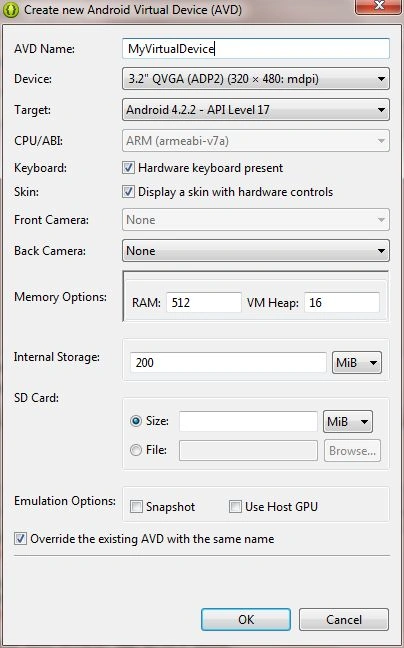
Click on "New" to open the "Create new Android Virtual Device (AVD)" dialog box.
Enter an AVD name, select the target Android API level, Device and click "OK."
Step 3
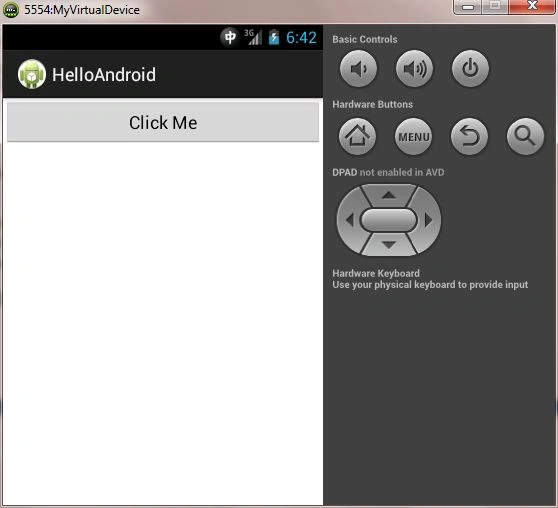
Now run the application ("Ctrl+F11") to test it in an emulator. It will take a moment to start the emulator with your application. Our application will be launched with a button.
Step 4
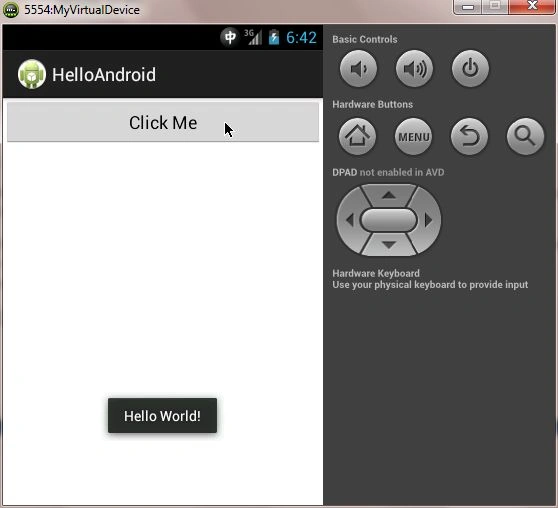
A "Hello World!" message will be displayed when clicking on this button.


 Step 2
You will be asked to select a workplace. Select a folder as a workspace where all your Android applications will be stored.
Step 2
You will be asked to select a workplace. Select a folder as a workspace where all your Android applications will be stored.
 Step 3
Select "File" -> "New" -> "Android Application Project" in Eclipse to create a new Android application.
Step 3
Select "File" -> "New" -> "Android Application Project" in Eclipse to create a new Android application.
 Step 4
Enter the Application Name, Project Name and Package Name in the New Android Application dialog box. Then select the appropriate Android API versions and click on Next.
Step 4
Enter the Application Name, Project Name and Package Name in the New Android Application dialog box. Then select the appropriate Android API versions and click on Next.
 Step 5
Click "Next" on the Configure Project window.
Step 5
Click "Next" on the Configure Project window.
 Step 6
In the Configure Launcher Icon dialog box, customize the launcher icon or leave it to default and click "Next".
Step 6
In the Configure Launcher Icon dialog box, customize the launcher icon or leave it to default and click "Next".
 Step 7
Click Next on Create Activity window
Step 7
Click Next on Create Activity window
 Step 8
Click "Next" on the Blank Activity dialog box.
Step 8
Click "Next" on the Blank Activity dialog box.
 Step 9
Finally, click "Finish" to launch the project.
The following is the components of an Android application:
Step 9
Finally, click "Finish" to launch the project.
The following is the components of an Android application:
 Step 10
Open the "res/layout/activity_main.xml" file and write the following code to display a Button. All the UI that is displayed in an Android application is stored in the "res/layout" folder as an Android XML File.
Step 10
Open the "res/layout/activity_main.xml" file and write the following code to display a Button. All the UI that is displayed in an Android application is stored in the "res/layout" folder as an Android XML File.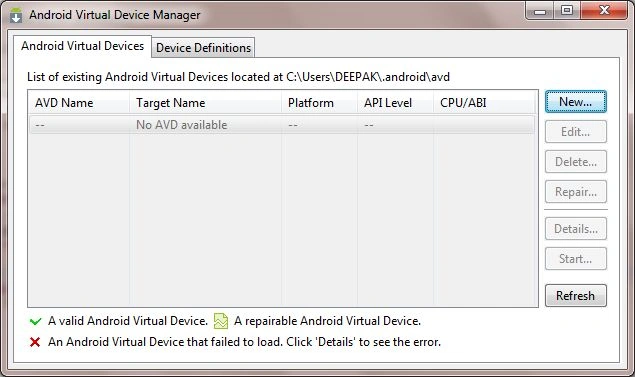
Chintan RathodPosted May 1, 2013, 8:34 AM
In emulator you got "connect your charger"? strange..
kedar pawgiPosted Apr 27, 2013, 5:06 AM
Hi i tried to run the simple android application of Hello World, i am new to this programming i am using the AVD that u used but it just show screen with "android" on it and after some time screen with lock comes in and its written as "Connect Your Charger"....can you help me regarding this...thanks...
Deepak SharmaPosted Apr 15, 2013, 4:53 AM
Hi Chintan, In this article I have tried to explain how to create a basic Android application with <b>all the steps</b>, right from downloading the required tools to setting up an emulator and running the application. By following all the steps here, developers from any language should be able to configure the environment and create a Hello World type of android application.
Chintan RathodeditedPosted Apr 15, 2013, 2:34 AMEdited Apr 15, 2013, 2:36 AM
I don't know what is difference between your article and http://www.c-sharpcorner.com/UploadFile/fd0172/create-a-android-project-with-eclipse/ then http://www.c-sharpcorner.com/UploadFile/shubham0987/getting-started-with-android-development/ articles. Why repeated articles are posted in this forum that I don't know.
Sam HobbsPosted Apr 12, 2013, 6:20 PM
Thank you. It has been a while since I tried to learn Android. One thing I never figured out how to do is how to build an Android project without also testing it.