If you were to ask ask me what makes a SharePoint Site column searchable, then the answer to that question points directly at the very powerful yet simple implementation known as: Managed Property.
Let's say you have a site column called Region, you want to search for a particular region and return the matching list items by typing in the value into the search box. Share Point internally creates a property called crawled property (ows_internalname) for each of the columns created in the list (in this case the Region will have the Crawled Property name as ows_Region). Once you create a managed property (Say : managed_Region) and map the crawled property (ows_Region) of the SharePoint list against the new managed property then the site column, Region, becomes searchable. By default, the site columns, which will have a crawled property and a managed property, are created automatically but not the list columns .
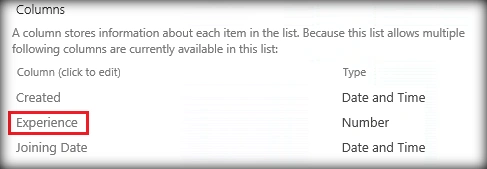
Similarly, let’s try to create a managed property against the list column ‘Experience’ so that it can be used inside search query for refinement of search results. Experience is a list column as shown below.
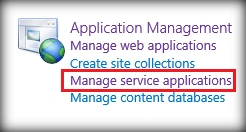
- In order to create the managed property, go to Central Administration and from Application management, select Manage Service Applications, as shown below:
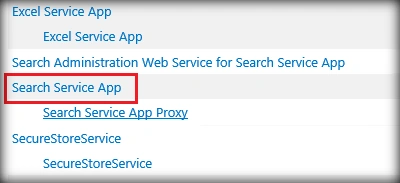
- Click Search Service App, which is the service Application, that takes care of Share Point Search, as shown below:
- Click Search Schema, as shown below:
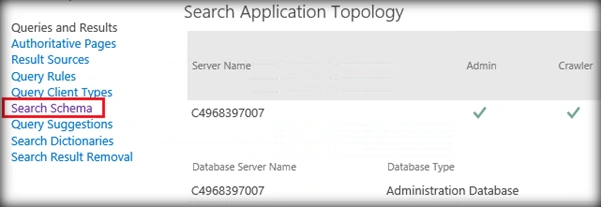
This will open up the existing managed properties Window. It also contains the option to create a new managed property.
- Click New Managed Property,

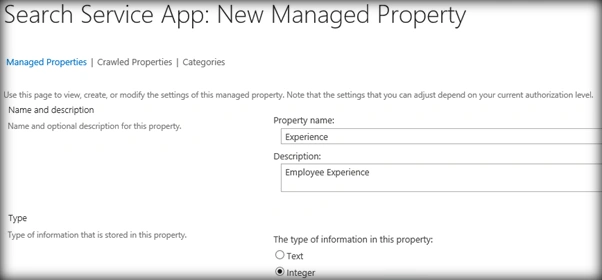
Populate the Managed Property name, description, and data type.
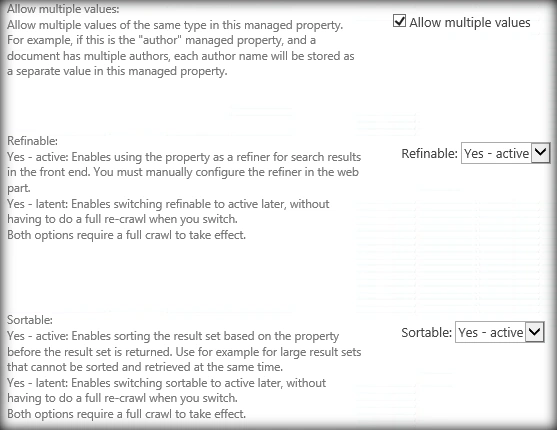
On scrolling down there are couple of attributes that we can set for the managed property.
- Searchable – Selecting this makes the managed property searchable from the crawled content .
- Advanced Searchable Settings – Chanege the weight and full-text index of the managed property.
- Queryable –If this is selected, it enables querying against this managed property. The managed property field name must be included in the query.
- Retrievable –Select this, if you need to show the contents of the managed property in the search results.
- Allow Multiple Values, if this is a multivalue field.
- Refinable – Select this, if the property comes up in the refinement panel to filter the results.
- Sortable – Select this, if you want to sort this search result by this managed property.

Next step is to add mapping to the crawled property.

Note
Make sure to check the Searchable, Queryable, Retrievable check boxes; If the site column data has to come up in the search results or has to be used to search the queries . If the searchable check box is left blank, even after a crawled property mapping to a managed property, the list column data will not come up in the search results.
- Click Add Mapping. It is here that we do the most important part of mapping the Crawled Property with Managed Property.
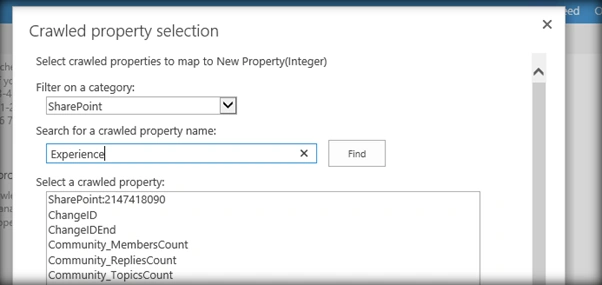
Populate the category as Share Point and the property name as the desired List column Name (Here, we are looking to map the Experience list column).
It returns the two results.
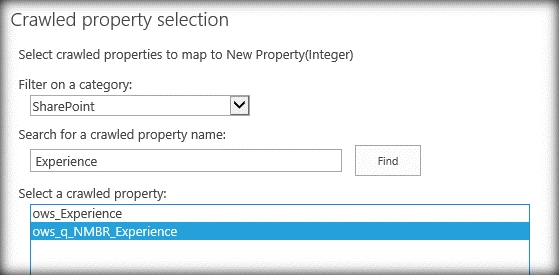
Our List column is the highlighted one. Usually, the list columns will be of the format ows_q_XXXX where XXXX, which indicates the shorthand for the column data type.
Click OK to complete the mapping and metadata property creation. Now, the metadata property will be available in the metadata property listing section.
Let’s try searching for the experience metadata property.
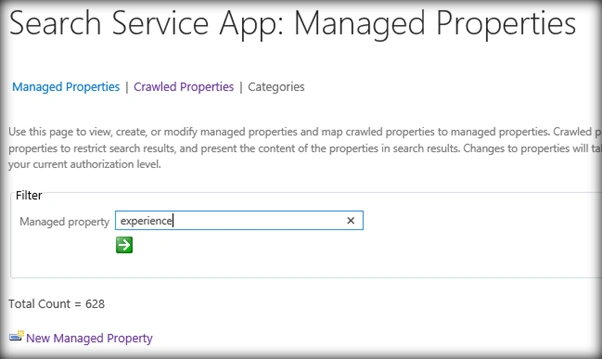
It has successfully listed the newly created metadata property, as shown below:
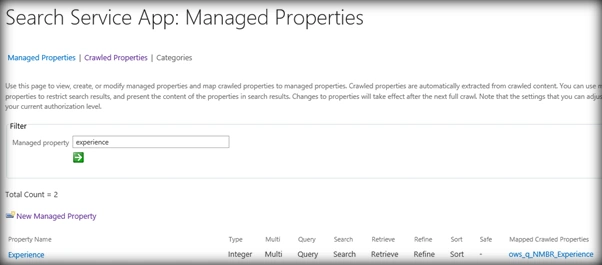
This managed property can now be used in the front end (Core Search Result Web part & Content Search Web part) to refine, sort and query the search results. The ultimate aim of the managed property is to map itself to the crawled list column so that,
- The list column data comes up in the search results.
- The list column data can be queried, using Content Search Web part and Core Search Result Web part.


RajaPosted Jun 27, 2016, 12:31 AM
Good One...
Vignesh ManiPosted Jun 26, 2016, 4:40 PM
Good one
Debasis SahaPosted Jun 25, 2016, 2:52 AM
Nice one..
Santhakumar MunuswamyPosted Jun 25, 2016, 12:20 AM
Thank you for nice article
Prasanna MuraliPosted Jun 24, 2016, 9:36 PM
Nice one...
ruthvik deekondaPosted Jun 24, 2016, 6:57 PM
Good one :)
kalu singh raoPosted Jun 24, 2016, 4:26 PM
Nice...