
In SharePoint 2010 we need to use Server-Side Object (SSOM) / Client-Side Object Model (CSOM) as Console Application to create a Timer job. SSOM solutions are to be deployed as Farm solutions, if it is CSOM, then it has to be deployed by creating Windows Task Schedule. For both the cases, we need to deploy directly in SharePoint Server.
SharePoint 2010 Designer Workflow does not have an option to set the frequency to trigger the Workflow.
Now, by using the SharePoint 2013 Designer Workflow, we can create Timer Job (actually it is workflow), using some tricks. Also, we can deploy it from SharePoint Designer 2013 tool itself.
Step 1
In this example, I have selected the List Workflow.
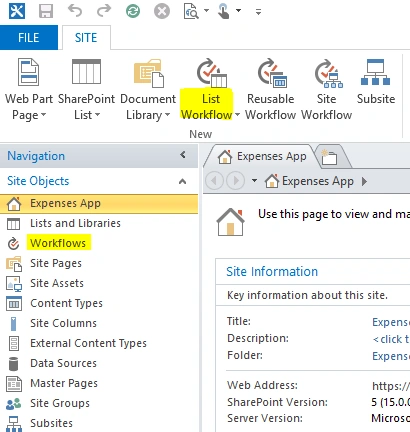
Select the list already created. I have selected the expenses list.
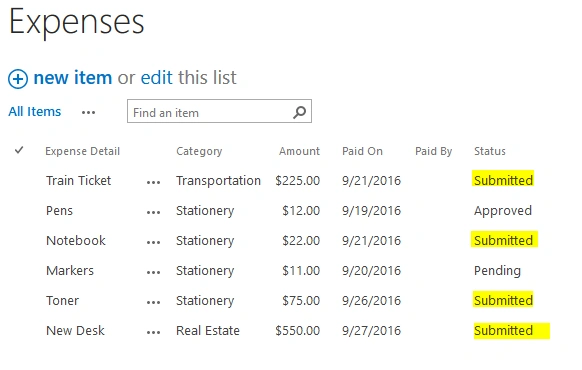
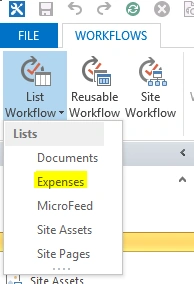
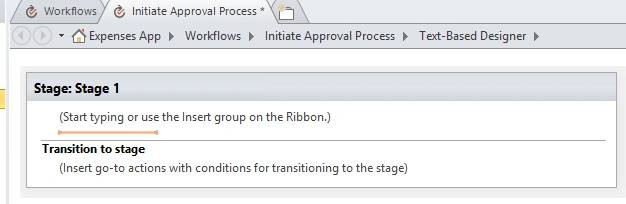
Create a Workflow, as shown below.
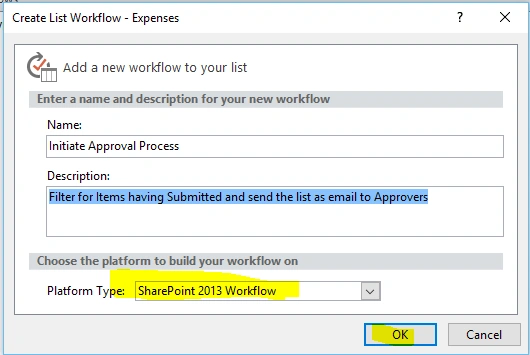
Step 2
Start inserting the actions and conditions, as shown below.
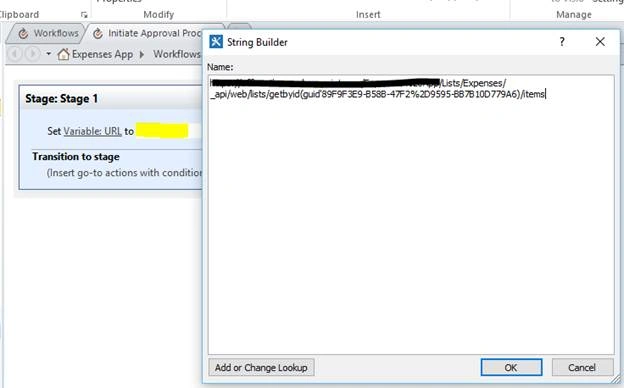
https://SiteCollection/Expenses%20App/Lists/Expenses/_api/web/lists/getbyid(guid'89F9F3E9-B58B-47F2%2D9595-BB7B10D779A6)/items
Now, create dictionary with the parameters, given below.
We add a Dictionary variable (Build a Dictionary action), call it requestHeaders and initialize it, as given below.
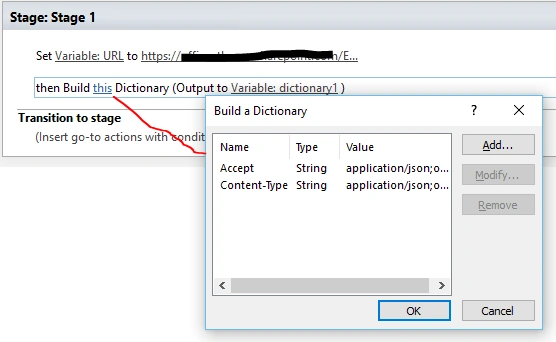
Both “Accept” and “Content-Type” entries are of the string type and they both contain the value “application/json;odata=verbose”. SharePoint REST API understands this and sets the response content type appropriately as JSON.
Now, add a Call HTTP Web Service action and set its properties. The Web Service URL will be the URL variable. This is where we stored the REST link to retrieve all the list items.
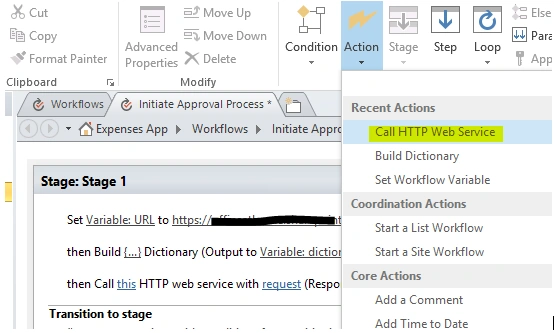
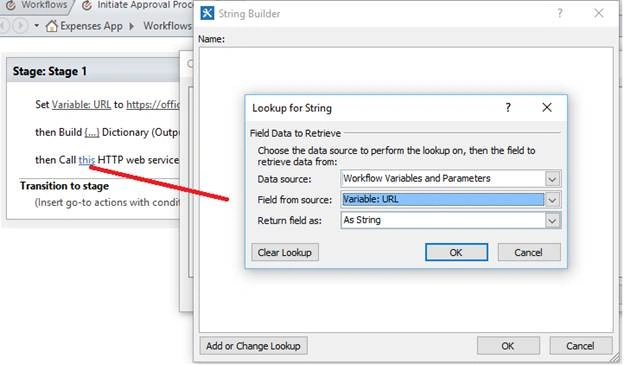
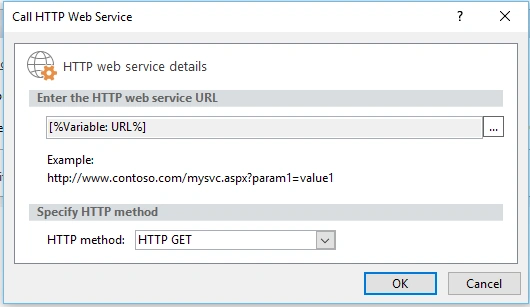
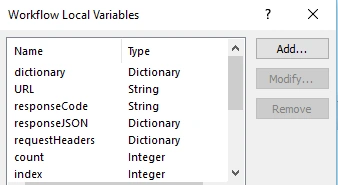
The Response content will go to a new variable called responseJSON.
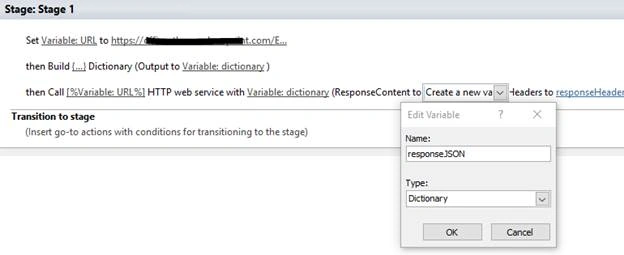
Response headers will go to a new variable called responseHeaders.
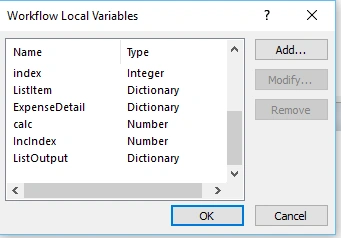
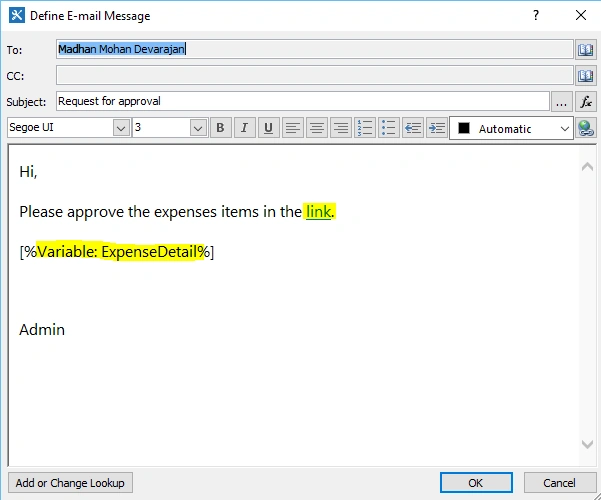
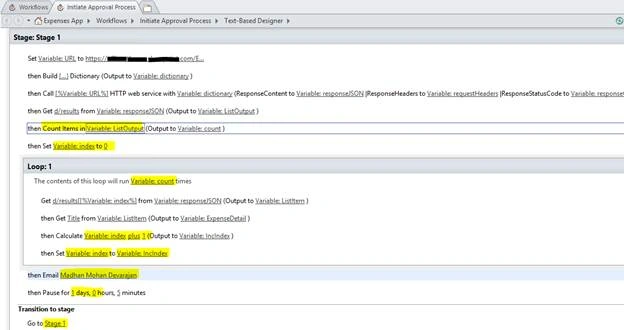
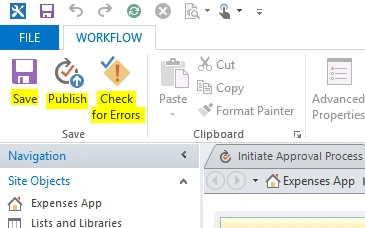
Once, you have completed the Workflow “save” it and “check for errors” before publishing the Workflow to SharePoint site.
Use buttons, which are found in the top ribbon of SharePoint Designer 2013, as shown below.
Final Output
An Email should be triggered every day, which contains the link for SharePoint page, having list of items to be approved.

Creation Of Timer Job Using SharePoint Designer 2013 Workflow
Join the conversation! Your thoughts help the community grow.
Sign in to leave a comment
It is the same account you read, post and publish with — and you will come straight back to this page.
Madhanmohan DevarajanPosted Jan 29, 2020, 10:43 PM
I think you are looking for normal workflow, this example is for timer job, it is executed every day. In your case, the workflow should be triggered only when the due date is changed and it is lesser than today. For that you can use "Stop Workflow" in the place of "Then pause for 1 day".. and remove "Transition stage".
Nigar AnsariPosted Jan 27, 2020, 8:55 PM
Hi Sir, I have created a workflow in 2013 to check if due date is less than today and if it is less then workflow send an email. It works fine until I change the due date when workflow is still running. How can we resolve this issue?
Prasanna MuraliPosted Oct 22, 2016, 11:50 AM
Nice post
RajaPosted Oct 21, 2016, 8:32 AM
Nice Share...
Priyaranjan K SPosted Oct 21, 2016, 12:07 AM
Good One Madhanmohan Devarajan . One question - I guess we can implement this only with the Workflow Manager for 2013, not with SP 2010 WF ?