

Introduction
In this article, I’ll describe, how to perform basic CRUD in Kendo grid, using ASP.NET.MVC and Entity Framework. The Application is developed basically, using Entity Framework database first approach and MVC.
Prerequisites
Basic Knowledge in ASP.NET MVC, Entity Framework and Kendo UI framework.
Set up the Database
Open SSMS with new query Window, create a new database and a table for the demo purpose. Here, the script to create a database and table is given below:
- CREATE DATABASE Employee
- GO
- USE Employee
- GO
- CREATE TABLE Employee
- (
- EmployeeID INT IDENTITY(1,1) CONSTRAINT Pk_Emp_Id PRIMARY KEY,
- FirstName VARCHAR(20),
- LastName VARCHAR(20)
- )
Insert some sample record, which is given below:
- INSERT INTO Employee VALUES('Bob','Ross')
- INSERT INTO Employee VALUES('Pradeep','Raj')
- INSERT INTO Employee VALUES('Arun','Kumar')
- INSERT INTO Employee VALUES('Vasanth','Kumar')
The table design is given below:

Create a new ASP.NET MVC application
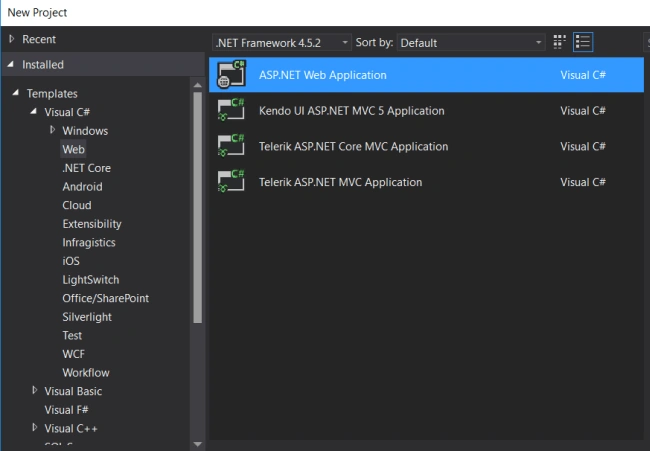
Create a new empty ASP.NET MVC Application, as per the following figures. Open Visual Studio ->File ->New project ->ASP.NET Web Application.

Please refer to my previous article to check out, how to configure Kendo UI in ASP.NET MVC Application.
Generate the Model
Now, we will create Entity Framework models from the database tables.
Step 1: Right-click the Models folder, select Add and New Item.
Step 2: In the Add New Item Window, select data in the left pane and ADO.NET Entity Data Model from the center pane. Name the new model file Employee and Ccick Add.
Step 3: In the Entity Data Model Wizard, select EF Designer from the database and click Next.
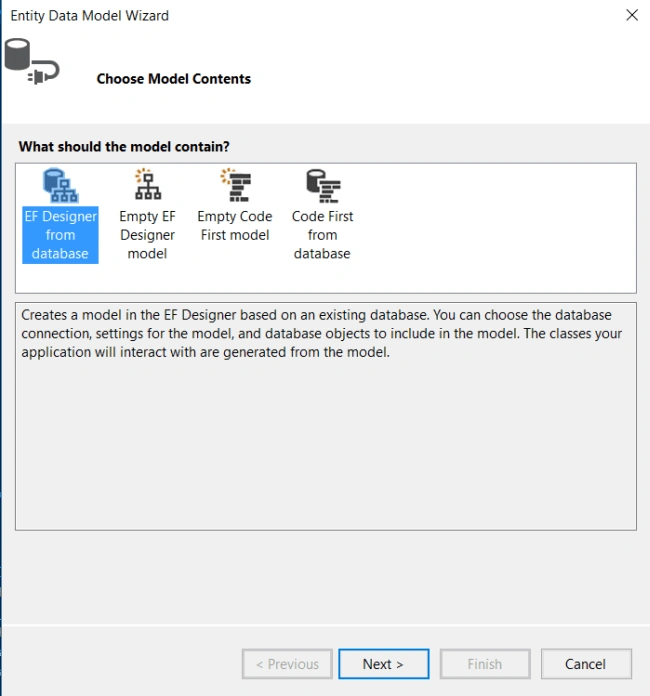
Step 4: Click the New Connection button.
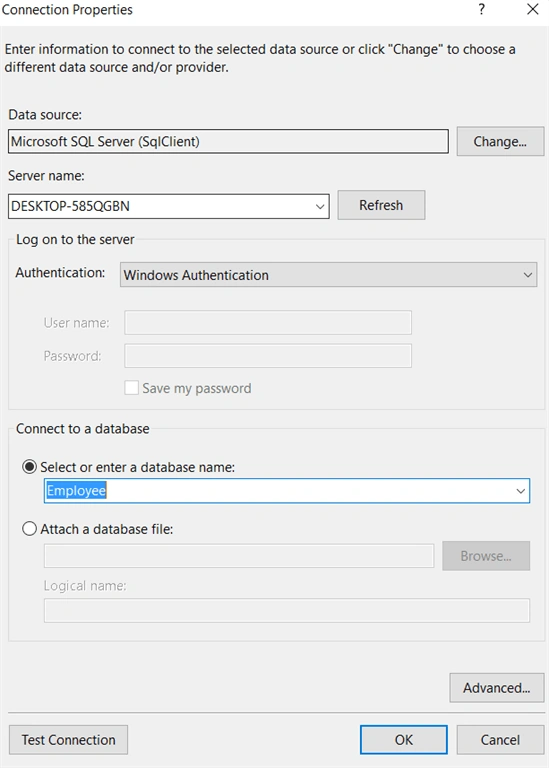
Step 5: In the Connection Properties Window, provide the name of the local Server, where the database was created (in this case (DESKTOP-585QGBN)). After providing the Server name, select the Employee from the available databases and click OK.
Step 6: You can use the default name for the connection to save in the Web.Config file and click Next.
Step 7: Select Table to generate models for Employee table and click Finish.
Create a Controller
Create a new empty controller. Right-click the Controllers folder and select Add –> New Empty Controller. In my case, I named it as EmployeeCRUD Controller
Write the code, given below, in the controller:
- private EmployeeEntities db = new EmployeeEntities();
- // GET: Employee
- public ActionResult GetAllEmployee([DataSourceRequest]DataSourceRequest request)
- {
- try {
- var employee = db.Employees.ToList();
- return Json(employee.ToDataSourceResult(request));
- }
- catch(Exception ex)
- {
- return Json(ex.Message);
- }
- }
- // UPDATE: Employee
- public ActionResult UpdateEmployee([DataSourceRequest]DataSourceRequest request, Employee emp)
- {
- try
- {
- if (ModelState.IsValid)
- {
- db.Entry(emp).State = EntityState.Modified;
- db.SaveChanges();
- return Json(new[] { emp}.ToDataSourceResult(request,ModelState));
- }
- else
- {
- return Json(db.Employees.ToList());
- }
- }
- catch(Exception ex)
- {
- return Json(ex.Message);
- }
- }
- // ADD: Employee
- public ActionResult AddEmployee([DataSourceRequest]DataSourceRequest request, Employee emp)
- {
- try {
- if (ModelState.IsValid)
- {
- db.Employees.Add(emp);
- db.SaveChanges();
- var _emplist = db.Employees.ToList();
- return Json(new[] { emp}.ToDataSourceResult(request,ModelState));
- }
- else
- {
- return Json(db.Employees.ToList());
- }
- }
- catch(Exception ex)
- {
- return Json(ex.Message);
- }
- }
- // DELETE: Employee
- public ActionResult DeleteEmployee([DataSourceRequest]DataSourceRequest request,Employee emp)
- {
- try
- {
- Employee employee = db.Employees.Find(emp.EmployeeID);
- if (employee == null)
- {
- return Json("Employee Not Found");
- }
- db.Employees.Remove(employee);
- db.SaveChanges();
- return Json(db.Employees.ToList());
- }
- catch(Exception ex)
- {
- return Json(ex.Message);
- }
- }
- }
Create a View
Create a new empty controller, Right-click the EmployeeCRUD folder under View Folder, and select Add –>New Empty View. In my case, I named it as Index.cshtml.
- @model KendoMvcApp.Models.Employee
- @{
- ViewBag.Title = "EmployeeCRUD";
- }
- <h2>EmployeeCRUD</h2>
- <div class="container">
- <div class="row">
- @(Html.Kendo().Grid<KendoMvcApp.Models.Employee>()
- .Name("EmpGrid")
- .Selectable()
- .Columns(columns =>
- {
- // columns.Bound(c => c.EmployeeID);
- columns.Bound(c => c.FirstName);
- columns.Bound(c => c.LastName);
- columns.Command(command =>
- {
- command.Edit();
- command.Destroy();
- }).Width(200);
- })
- .DataSource(dataSource => dataSource
- .Ajax()
- .Model(model=>
- {
- model.Id(emp => emp.EmployeeID);
- model.Field(emp => emp.EmployeeID).Editable(false);
- }
- )
- .Read(read => read.Action("GetAllEmployee", "EmployeesCRUD"))
- .Update(update=>update.Action("UpdateEmployee", "EmployeesCRUD"))
- .Create(create=>create.Action("AddEmployee","EmployeesCRUD"))
- .Destroy(destroy=>destroy.Action("DeleteEmployee","EmployeesCRUD"))
- )
- .ToolBar(toolbar => toolbar.Create())
- // Set grid editable.
- .Editable(editable => editable.Mode(GridEditMode.InLine))
- // Set grid sortable.
- .Sortable()
- // Set grid selectable.
- .Selectable()
- // Set grid pagable.
- .Pageable(pageable =>
- {
- pageable.Refresh(true);
- pageable.PageSizes(true);
- })
- )
- </div>
- </div>

ADD/CREATE
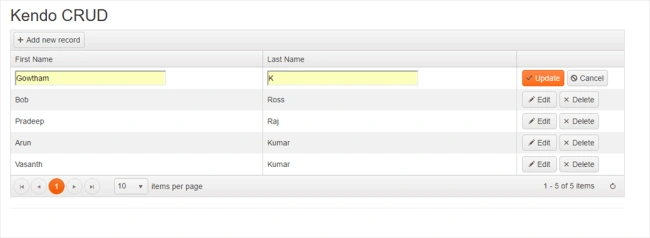

UPDATE

Changes in the table are given below:
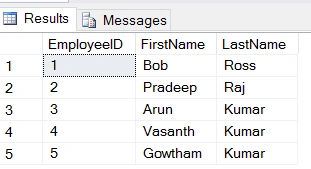
DELETE

Changes in the table are given below:

I hope you enjoyed this article. Your valuable feedback, questions or comments about this article are always welcome.
pradnya durgalePosted Jul 1, 2021, 9:15 AM
Hi Gowtham, i have tried above code but my grid not displaying data.
Haidar WintoroPosted Mar 27, 2021, 10:22 AM
Please.. share this project in your github, your tutorial is not working
Yogita SinghPosted Sep 3, 2020, 5:52 PM
This code does not load any page, can you please share the working code?
Saravanan PonnusamyPosted May 8, 2020, 6:23 AM
Can you please explain from where EmployeeEntities is coming from?????
Sridhar YelagandhulaPosted Nov 7, 2019, 7:27 AM
Kendo grid is a HTML helper method or not ?
Vikas RaoPosted Apr 2, 2019, 5:44 AM
Gowtham K sir paging is not working in your demo, plz guid me
Anupam BhattacharjeePosted Feb 12, 2019, 5:40 AM
The Grid is not showing any records
patrick simalangoPosted May 20, 2018, 11:34 PM
How can you call the view, because on the controller you only return a json. in my application, when i run the application it's not showing the Index view. Please Help. Thank you
Sandip NakhatePosted Aug 9, 2017, 3:56 AM
Its not showing data in grid
Kishan sahooPosted Jul 17, 2017, 7:08 AM
Hi Gowtham ,can you send the source code of this demo.Actually i have tried everything is working fine except in the create or add part whatever data em giving it is not storing to database.
Minh TrầnPosted Jul 12, 2017, 10:13 AM
Can you give me source code, hyperlink above direct page not found
Anu VPosted Aug 24, 2016, 12:32 AM
Nice..
Ricardo StiusoPosted Aug 22, 2016, 7:01 PM
Solution: Add <script src="~/Scripts/jquery-2.2.3.js"></script> in top code.
Ricardo StiusoPosted Aug 22, 2016, 6:51 PM
ERROR: This request has been blocked because sensitive information could be disclosed to third party web sites when this is used in a GET request. To allow GET requests, set JsonRequestBehavior to AllowGet