

Introduction
Web API is the best fit to create a resource-oriented service using HTTP/Restful and it works well with MVC-based applications. For more details, visit this link.
Description
In this session, I will show you CRUD operations using ASP.NET Web API in MVC, AngularJS.
Before going through this session, visit my previous sessions,
- Part 1 - ASP.NET Web API Using MVC And Entity Framework
- Part 2 - ASP.NET Web API Using MVC, Entity Framework And jQuery For Retrieve Data
- Part 3 - Reuse The Model Classes Of Entity Data Model (.edmx) To Multiple Projects Using Class Library In ASP.NET Web API
- Part 4 - ASP.NET Web API Using MVC, Entity Framework And HttpClient For Retrieve Data
- Part 5 - ASP.NET Web API Using MVC, Entity Framework And jQuery For Get and Post With Validation
- Part 6 - ASP.NET Web API Using MVC, Entity Framework And HttpClient For Get And Post With Validation
- Part 7 - ASP.NET Web API Using MVC And jQuery To Upload And Download Files
- Part 8 - ASP.NET Web API Using MVC And HttpClient To Upload And Download Files
- Part 9 - ASP.NET Web API Using MVC And jQuery For Paging
Note
It supports Single Page Applications; that is, at first the entire page is loaded in the client by the initial request, after that, the subsequent action has to be updated by Ajax request and there is no need to reload the entire page. The SPA reduces the response time to user actions and the result is a more fluid experience. Then I will show you how to create SPA and CRUD by using ASP.NET Web API, AngularJS.
Steps to be followed.
Step 1
Create a table called 'Customer'.
Sql Syntax
- CREATE TABLE [dbo].[Customer1](
- [Id] [int] NOT NULL,
- [Name] [nvarchar](50) NULL,
- [Address] [nvarchar](50) NULL,
- [City] [nvarchar](50) NULL,
- [Country] [nvarchar](50) NULL,
- [DateOfBirth] [datetime] NULL,
- [Age] [int] NULL,
- CONSTRAINT [PK_Customer] PRIMARY KEY CLUSTERED
- (
- [Id] ASC
- )WITH (PAD_INDEX = OFF, STATISTICS_NORECOMPUTE = OFF, IGNORE_DUP_KEY = OFF, ALLOW_ROW_LOCKS =
- ON, ALLOW_PAGE_LOCKS = ON) ON [PRIMARY]
- ) ON [PRIMARY]
- GO
Create a MVC web application named CRUDWebAPI.
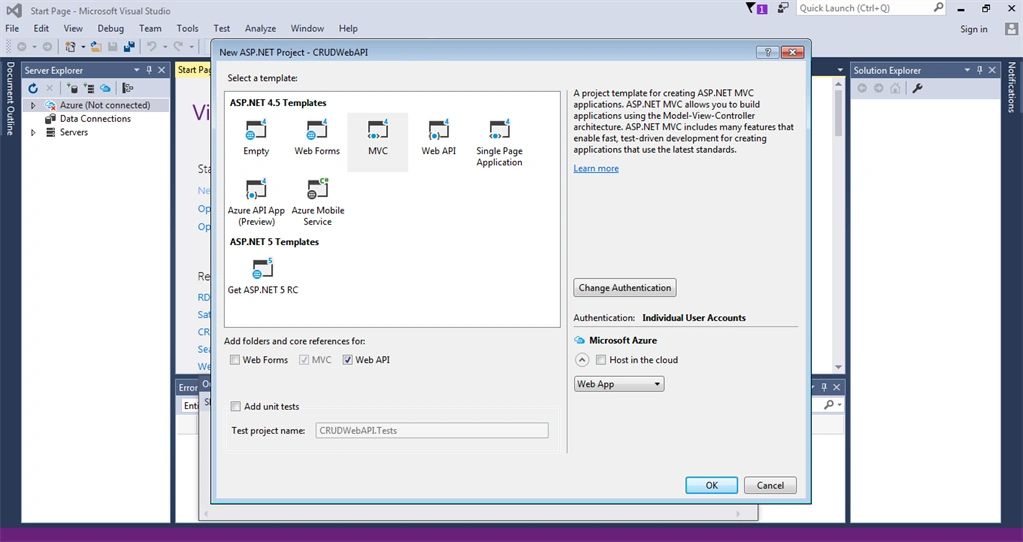
Step 3
Create Entity Frame Work Model Object named "CrystalGranite2016.edmx" by taking above mentioned table name.
Step 4
Then create a Web API 2 controller named "CustomerController.cs" .
Code Ref
- using System;
- using System.Collections.Generic;
- using System.Data.Entity;
- using System.Data.Entity.Infrastructure;
- using System.Linq;
- using System.Net;
- using System.Net.Http;
- using System.Web.Http;
- namespace CRUDWebAPI.Controllers
- {
- public class CustomerController : ApiController
- {
- CrystalGranite2016Entities1 db = new CrystalGranite2016Entities1();
- //get all customer
- [HttpGet]
- public IEnumerable<Customer> Get()
- {
- return db.Customers.AsEnumerable();
- }
- //get customer by id
- public Customer Get(int id)
- {
- Customer customer = db.Customers.Find(id);
- if (customer == null)
- {
- throw new HttpResponseException(Request.CreateResponse(HttpStatusCode.NotFound));
- }
- return customer;
- }
- //insert customer
- public HttpResponseMessage Post(Customer customer)
- {
- if (ModelState.IsValid)
- {
- db.Customers.Add(customer);
- db.SaveChanges();
- HttpResponseMessage response = Request.CreateResponse(HttpStatusCode.Created, customer);
- response.Headers.Location = new Uri(Url.Link("DefaultApi", new { id = customer.Id }));
- return response;
- }
- else
- {
- return Request.CreateErrorResponse(HttpStatusCode.BadRequest, ModelState);
- }
- }
- //update customer
- public HttpResponseMessage Put(int id, Customer customer)
- {
- if (!ModelState.IsValid)
- {
- return Request.CreateErrorResponse(HttpStatusCode.BadRequest, ModelState);
- }
- if (id != customer.Id)
- {
- return Request.CreateResponse(HttpStatusCode.BadRequest);
- }
- db.Entry(customer).State = EntityState.Modified;
- try
- {
- db.SaveChanges();
- }
- catch (DbUpdateConcurrencyException ex)
- {
- return Request.CreateErrorResponse(HttpStatusCode.NotFound, ex);
- }
- return Request.CreateResponse(HttpStatusCode.OK);
- }
- //delete customer by id
- public HttpResponseMessage Delete(int id)
- {
- Customer customer = db.Customers.Find(id);
- if (customer == null)
- {
- return Request.CreateResponse(HttpStatusCode.NotFound);
- }
- db.Customers.Remove(customer);
- try
- {
- db.SaveChanges();
- }
- catch (DbUpdateConcurrencyException ex)
- {
- return Request.CreateErrorResponse(HttpStatusCode.NotFound, ex);
- }
- return Request.CreateResponse(HttpStatusCode.OK, customer);
- }
- //prevent memory leak
- protected override void Dispose(bool disposing)
- {
- db.Dispose();
- base.Dispose(disposing);
- }
- }
- }
In the above mentioned code, I have described code functionality with a green comment line.
- //prevent memory leak
- protected override void Dispose(bool disposing)
- {
- db.Dispose();
- base.Dispose(disposing);
- }
Support Single page application interface.
Open the Package Manager Console from Tools > Library Package Manager. Type the following command to install the AngularJS.Core NuGet package.
- Install-Package AngularJS.Core
Step 6
In Solution Explorer, right-click the Scripts folder, select Add | New Folder. Name the folder app and press Enter. Right-click the app folder you just created and select Add | JavaScript File named "customerCtrl.js".
Code Ref
- (function () {
- 'use strict';
- //create angularjs controller
- var app = angular.module('app', []);//set and get the angular module
- app.controller('customerController', ['$scope', '$http', customerController]);
- //angularjs controller method
- function customerController($scope, $http) {
- //declare variable for mainain ajax load and entry or edit mode
- $scope.loading = true;
- $scope.addMode = false;
- //get all customer information
- $http.get('/api/Customer/').success(function (data) {
- $scope.customers = data;
- $scope.loading = false;
- })
- .error(function () {
- $scope.error = "An Error has occured while loading posts!";
- $scope.loading = false;
- });
- //by pressing toggleEdit button ng-click in html, this method will be hit
- $scope.toggleEdit = function () {
- this.customer.editMode = !this.customer.editMode;
- };
- //by pressing toggleAdd button ng-click in html, this method will be hit
- $scope.toggleAdd = function () {
- $scope.addMode = !$scope.addMode;
- };
- //Inser Customer
- $scope.add = function () {
- $scope.loading = true;
- $http.post('/api/Customer/', this.newcustomer).success(function (data) {
- alert("Added Successfully!!");
- $scope.addMode = false;
- $scope.customers.push(data);
- $scope.loading = false;
- }).error(function (data) {
- $scope.error = "An Error has occured while Adding Customer! " + data;
- $scope.loading = false;
- });
- };
- //Edit Customer
- $scope.save = function () {
- alert("Edit");
- $scope.loading = true;
- var frien = this.customer;
- alert(frien);
- $http.put('/api/Customer/' + frien.Id, frien).success(function (data) {
- alert("Saved Successfully!!");
- frien.editMode = false;
- $scope.loading = false;
- }).error(function (data) {
- $scope.error = "An Error has occured while Saving customer! " + data;
- $scope.loading = false;
- });
- };
- //Delete Customer
- $scope.deletecustomer = function () {
- $scope.loading = true;
- var Id = this.customer.Id;
- $http.delete('/api/Customer/' + Id).success(function (data) {
- alert("Deleted Successfully!!");
- $.each($scope.customers, function (i) {
- if ($scope.customers[i].Id === Id) {
- $scope.customers.splice(i, 1);
- return false;
- }
- });
- $scope.loading = false;
- }).error(function (data) {
- $scope.error = "An Error has occured while Saving Customer! " + data;
- $scope.loading = false;
- });
- };
- }
- })();
In the above-mentioned code, I have described code functionality with a green comment line.
- //get all customer information
- $http.get('/api/Customer/').success(function (data) {
- $scope.customers = data;
- $scope.loading = false;
- })
- .error(function () {
- $scope.error = "An Error has occured while loading posts!";
- $scope.loading = false;
- });
Modify _Layout.cshtml page as mentioned below.
Code Ref
- <!DOCTYPE html>
- <html data-ng-app="app">
- <head>
- <meta charset="utf-8" />
- <meta name="viewport" content="width=device-width, initial-scale=1.0">
- <title>@ViewBag.Title - My ASP.NET Application</title>
- @Styles.Render("~/Content/css")
- @Scripts.Render("~/bundles/modernizr")
- </head>
- <body>
- <div class="navbar navbar-inverse navbar-fixed-top">
- <div class="container">
- <div class="navbar-header">
- <button type="button" class="navbar-toggle" data-toggle="collapse" data-target=".navbar-collapse">
- <span class="icon-bar"></span>
- <span class="icon-bar"></span>
- <span class="icon-bar"></span>
- </button>
- @Html.ActionLink("Application name", "Index", "Home", null, new { @class = "navbar-brand" })
- </div>
- <div class="navbar-collapse collapse">
- <ul class="nav navbar-nav">
- <li>@Html.ActionLink("Home", "Index", "Home")</li>
- <li>@Html.ActionLink("About", "About", "Home")</li>
- <li>@Html.ActionLink("Contact", "Contact", "Home")</li>
- @Html.Partial("_LoginPartial")
- </ul>
- </div>
- </div>
- </div>
- <div class="container body-content">
- @RenderBody()
- <hr />
- <footer>
- @*<p>© @DateTime.Now.Year - My ASP.NET Application</p>*@
- <p style="background-color: Yellow; font-weight: bold; color:blue; text-align: center; font-style: oblique">© @DateTime.Now.ToLocalTime()</p>
- </footer>
- </div>
- @Scripts.Render("~/bundles/jquery")
- @Scripts.Render("~/bundles/bootstrap")
- @Scripts.Render("~/bundles/angularjs")
- @Scripts.Render("~/bundles/appjs")
- @RenderSection("scripts", required: false)
- </body>
- </html>
Here, I have mentioned the path of Javascript references.
- <html data-ng-app="app">
- @Scripts.Render("~/bundles/jquery")
- @Scripts.Render("~/bundles/bootstrap")
- @Scripts.Render("~/bundles/angularjs")
- @Scripts.Render("~/bundles/appjs")
Modify code In BundleConfig.cs file, path is App_Start> BundleConfig.cs as mentioned below.
Code Ref
- using System.Web;
- using System.Web.Optimization;
- namespace CRUDWebAPI
- {
- public class BundleConfig
- {
- // For more information on bundling, visit http://go.microsoft.com/fwlink/?LinkId=301862
- public static void RegisterBundles(BundleCollection bundles)
- {
- bundles.Add(new ScriptBundle("~/bundles/jquery").Include(
- "~/Scripts/jquery-{version}.js"));
- bundles.Add(new ScriptBundle("~/bundles/jqueryval").Include(
- "~/Scripts/jquery.validate*"));
- // Use the development version of Modernizr to develop with and learn from. Then, when you're
- // ready for production, use the build tool at http://modernizr.com to pick only the tests you need.
- bundles.Add(new ScriptBundle("~/bundles/modernizr").Include(
- "~/Scripts/modernizr-*"));
- bundles.Add(new ScriptBundle("~/bundles/bootstrap").Include(
- "~/Scripts/bootstrap.js",
- "~/Scripts/respond.js"));
- bundles.Add(new StyleBundle("~/Content/css").Include(
- "~/Content/bootstrap.css",
- "~/Content/site.css"));
- bundles.Add(new ScriptBundle("~/bundles/angularjs").Include(
- "~/Scripts/angular.min.js"));
- bundles.Add(new ScriptBundle("~/bundles/appjs").Include(
- "~/Scripts/app/customerCtrl.js"));
- }
- }
- }
Here, I loaded file configuration from path as reference mentioned in _Layout.cshtml file.
- bundles.Add(new ScriptBundle("~/bundles/angularjs").Include(
- "~/Scripts/angular.min.js"));
- bundles.Add(new ScriptBundle("~/bundles/appjs").Include(
- "~/Scripts/app/customerCtrl.js"));
I have added a gif image loader during page processing called satyaloader.gif in Images Folder.
Step 10
Create index view for CRUD Operation User Interface called Index.cshtml.
Code Ref
- @{
- ViewBag.Title = "Satyaprakash-CRUD Using Web API";
- }
- <h2>CRUD Using Web API</h2>
- <style>
- #mydiv {
- position: absolute;
- top: 0;
- left: 0;
- width: 100%;
- height: 100%;
- z-index: 1000;
- background-color: grey;
- opacity: .8;
- }
- .ajax-loader {
- position: absolute;
- left: 50%;
- top: 50%;
- margin-left: -32px; /* -1 * image width / 2 */
- margin-top: -32px; /* -1 * image height / 2 */
- display: block;
- }
- table {
- font-family: arial, sans-serif;
- border-collapse: collapse;
- width: 100%;
- }
- td, th {
- border: 1px solid #dddddd;
- text-align: left;
- padding: 8px;
- }
- tr:nth-child(even) {
- background-color: #dddddd;
- }
- .button {
- background-color: #4CAF50;
- border: none;
- color: white;
- padding: 15px 32px;
- text-align: center;
- text-decoration: none;
- display: inline-block;
- font-size: 16px;
- margin: 4px 2px;
- cursor: pointer;
- }
- .button4 {
- border-radius: 9px;
- }
- </style>
- <div data-ng-controller="customerController" class="container">
- <div class="row">
- <div class="col-md-12">
- <strong class="error">{{ error }}</strong>
- <p data-ng-hide="addMode"><a data-ng-click="toggleAdd()" href="javascript:;" class="button button4">Register New Customer</a></p>
- <form name="addCustomer" data-ng-show="addMode" style="width:600px;margin:0px auto;">
- <div class="form-group">
- <label for="cid" class="col-sm-2 control-label">ID:</label>
- <div class="col-sm-10">
- <input type="text" class="form-control" id="cid" placeholder="please enter id" data-ng-model="newcustomer.Id" required />
- </div>
- </div>
- <div class="form-group">
- <label for="cname" class="col-sm-2 control-label">Name:</label>
- <div class="col-sm-10">
- <input type="text" class="form-control" id="cname" placeholder="please enter your name" data-ng-model="newcustomer.Name" required />
- </div>
- </div>
- <div class="form-group">
- <label for="address" class="col-sm-2 control-label">Address:</label>
- <div class="col-sm-10">
- <input type="text" class="form-control" id="address" placeholder="please enter your address" data-ng-model="newcustomer.Address" required />
- </div>
- </div>
- <div class="form-group">
- <label for="city" class="col-sm-2 control-label">City:</label>
- <div class="col-sm-10">
- <input type="text" class="form-control" id="city" placeholder="please enter your city" data-ng-model="newcustomer.City" required />
- </div>
- </div>
- <div class="form-group">
- <label for="country" class="col-sm-2 control-label">Country:</label>
- <div class="col-sm-10">
- <input type="text" class="form-control" id="country" placeholder="please enter your country" data-ng-model="newcustomer.Country" required />
- </div>
- </div>
- <div class="form-group">
- <label for="age" class="col-sm-2 control-label">Age:</label>
- <div class="col-sm-10">
- <input type="text" class="form-control" id="age" placeholder="please enter your age" data-ng-model="newcustomer.Age" required />
- </div>
- </div>
- <br />
- <div class="form-group">
- <div class="col-sm-offset-2 col-sm-10">
- <input type="submit" value="Submit" data-ng-click="add()" data-ng-disabled="!addCustomer.$valid" class="button button4" />
- <input type="button" value="Cancel" data-ng-click="toggleAdd()" class="button button4" />
- </div>
- </div>
- <br />
- </form>
- </div>
- </div>
- <div class="row">
- <div class="col-md-12">
- <br />
- <br />
- </div>
- </div>
- <div class="row">
- <div class="col-md-12">
- <div class="table-responsive">
- <table class="table table-bordered table-hover" style="width:800px">
- <tr>
- <th style="background-color: Yellow;color: blue" >ID</th>
- <td style="background-color: Yellow;color: blue">FirstName</td>
- <th style="background-color: Yellow;color: blue">LastName</th>
- <th style="background-color: Yellow;color: blue">Address</th>
- <th style="background-color: Yellow;color: blue">City</th>
- <th style="background-color: Yellow;color: blue">Country</th>
- <th style="background-color: Yellow;color: blue"></th>
- </tr>
- <tr data-ng-repeat="customer in customers">
- <td><strong data-ng-hide="customer.editMode">{{ customer.Id }}</strong></td>
- <td>
- <p data-ng-hide="customer.editMode">{{ customer.Name }}</p>
- <input data-ng-show="customer.editMode" type="text" data-ng-model="customer.Name" />
- </td>
- <td>
- <p data-ng-hide="customer.editMode">{{ customer.Address }}</p>
- <input data-ng-show="customer.editMode" type="text" data-ng-model="customer.Address" />
- </td>
- <td>
- <p data-ng-hide="customer.editMode">{{ customer.City }}</p>
- <input data-ng-show="customer.editMode" type="text" data-ng-model="customer.City" />
- </td>
- <td>
- <p data-ng-hide="customer.editMode">{{ customer.Country }}</p>
- <input data-ng-show="customer.editMode" type="text" data-ng-model="customer.Country" />
- </td>
- <td>
- <p data-ng-hide="customer.editMode">{{ customer.Age }}</p>
- <input data-ng-show="customer.editMode" type="text" data-ng-model="customer.Age" />
- </td>
- <td>
- <p data-ng-hide="customer.editMode"><a data-ng-click="toggleEdit(customer)" href="javascript:;">Edit</a> | <a data-ng-click="deletecustomer(customer)" href="javascript:;">Delete</a></p>
- <p data-ng-show="customer.editMode"><a data-ng-click="save(customer)" href="javascript:;">Save</a> | <a data-ng-click="toggleEdit(customer)" href="javascript:;">Cancel</a></p>
- </td>
- </tr>
- </table>
- <hr />
- </div>
- </div>
- </div>
- <div id="mydiv" data-ng-show="loading">
- <img src="Images/satyaloader.gif" class="ajax-loader" />
- </div>
- </div>
I have set AngularJS file path that supports single page application interface mentioned in _Layout.cshtml.
- <html data-ng-app="app">
For the above reason I can use AngularJS controller name to perform crud operation as mentioned below in Index.cshtml.
- <div data-ng-controller="customerController" class="container">
- <div class="row">
- <div class="col-md-12">
- table class="table table-bordered table-hover" style="width:800px">
- <tr>
- <th style="background-color: Yellow;color: blue" >ID</th>
- <td style="background-color: Yellow;color: blue">FirstName</td>
- <th style="background-color: Yellow;color: blue">LastName</th>
- <th style="background-color: Yellow;color: blue">Address</th>
- <th style="background-color: Yellow;color: blue">City</th>
- <th style="background-color: Yellow;color: blue">Country</th>
- <th style="background-color: Yellow;color: blue"></th>
- </tr>
- <tr data-ng-repeat="customer in customers">
- <td><strong data-ng-hide="customer.editMode">{{ customer.Id }}</strong></td>
- <td>
- <p data-ng-hide="customer.editMode">{{ customer.Name }}</p>
- <input data-ng-show="customer.editMode" type="text" data-ng-model="customer.Name" />
- </td>
- <td>
- <p data-ng-hide="customer.editMode">{{ customer.Name }}</p>
- <input data-ng-show="customer.editMode" type="text" data-ng-model="customer.Name" />
- </td>
- <td>
- <p data-ng-hide="customer.editMode">{{ customer.Address }}</p>
- <input data-ng-show="customer.editMode" type="text" data-ng-model="customer.Address" />
- </td>
- <p data-ng-hide="customer.editMode"><a data-ng-click="toggleEdit(customer)" href="javascript:;">Edit</a> | <a data-ng-click="deletecustomer(customer)" href="javascript:;">Delete</a></p>
- <p data-ng-show="customer.editMode"><a data-ng-click="save(customer)" href="javascript:;">Save</a> | <a data-ng-click="toggleEdit(customer)" href="javascript:;">Cancel</a></p>
- <div id="mydiv" data-ng-show="loading">
- <img src="Images/satyaloader.gif" class="ajax-loader" />
- </div>
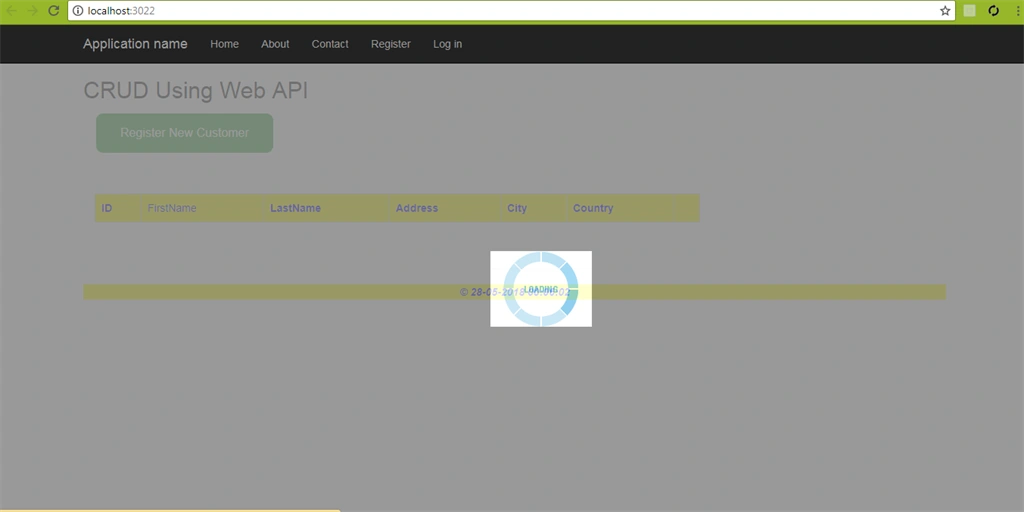
OUTPUT
The page loader will be shown while fetching records.
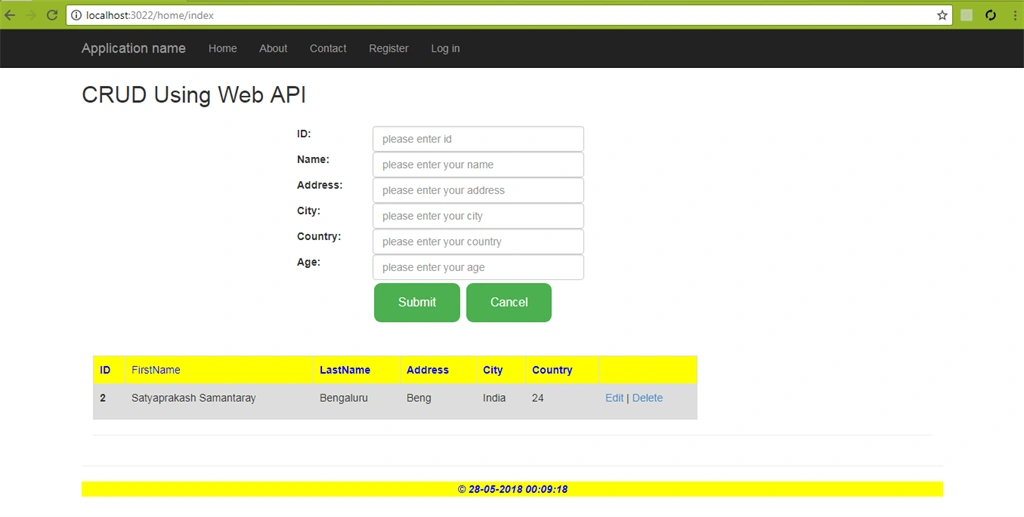
Then UI for inserting records.
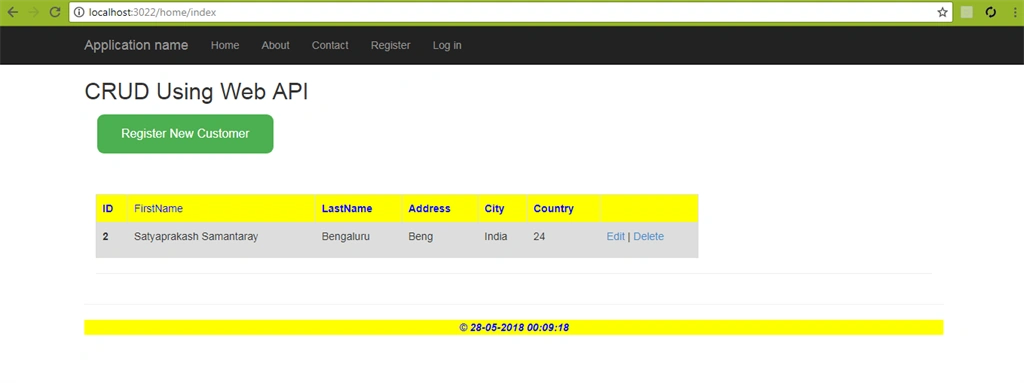
After Inserting records the UI will be shown like this.
After the data is inserted successfully, the alert message will be shown.
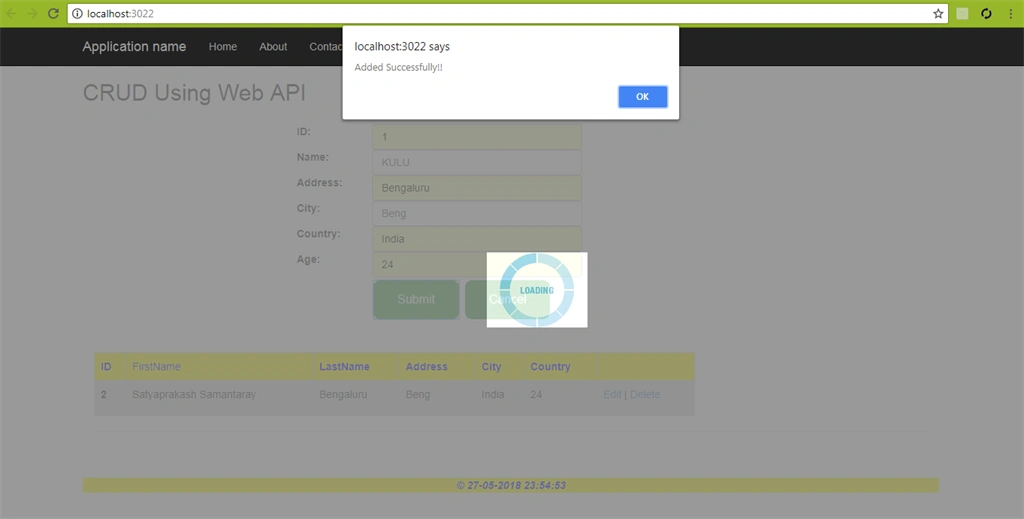
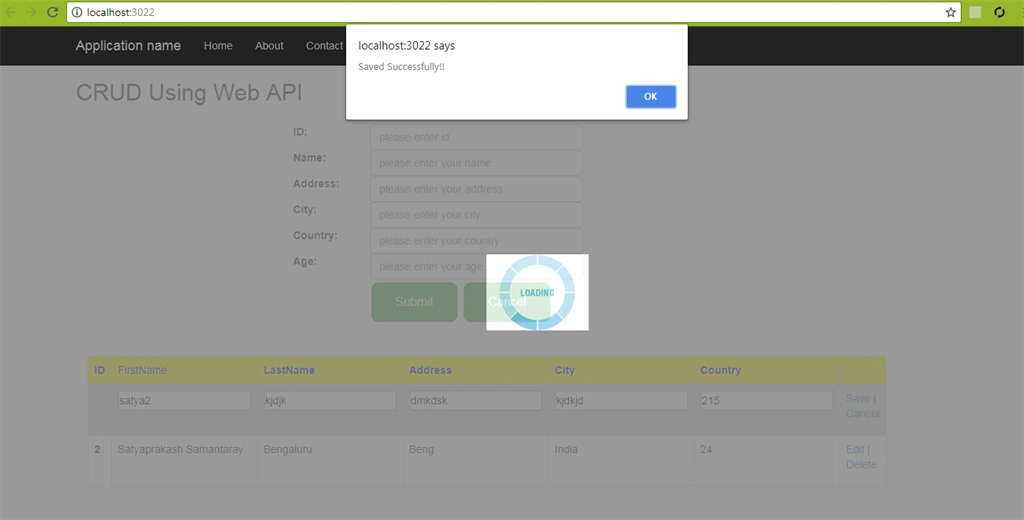
To update records:
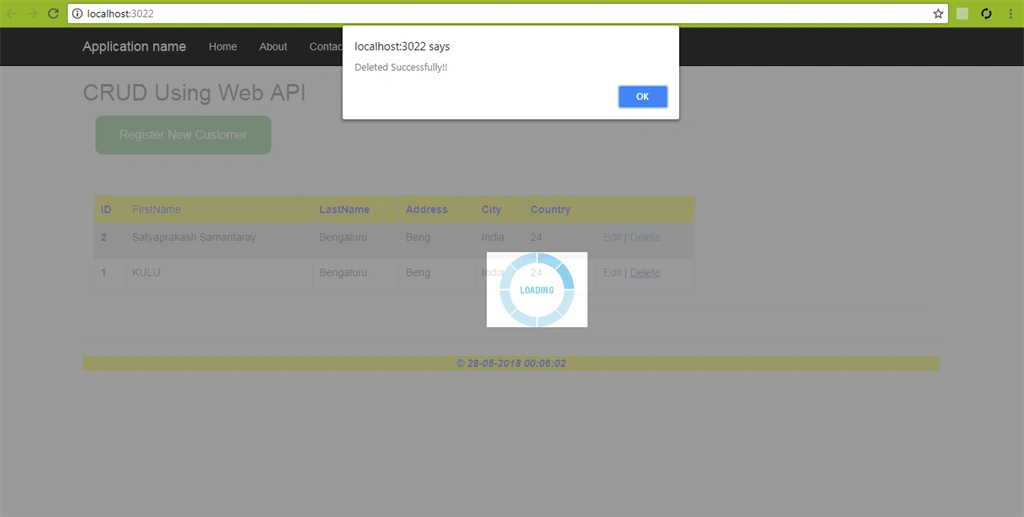
To delete records.
SUMMARY
- CRUD Operation Using Web API.
- AngularJS Single page application Interface Support.
- Page loader during page process.
Ashwini BharadPosted Jul 16, 2020, 1:07 PM
Can you guide how you add view for controller
Bhavesh JadavPosted May 31, 2018, 5:30 AM
Nice article Satyaprakash Sir.