

I am using the following 3 tables to create a Crystal Reports report.
- Customer
- Product
- Cust_Prod_Order
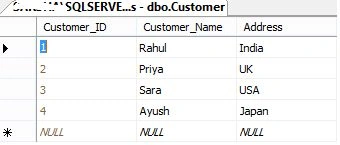
Image 1.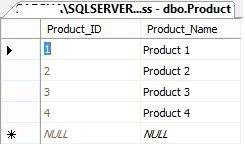
Image 2.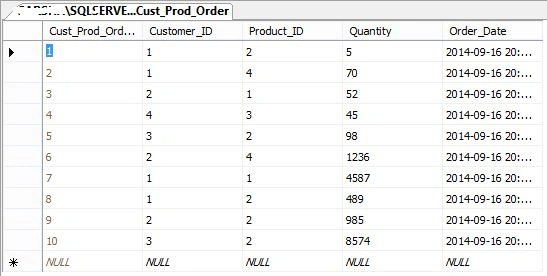
Image 3.
- Open Visual Studio then select File -> New Web Site.
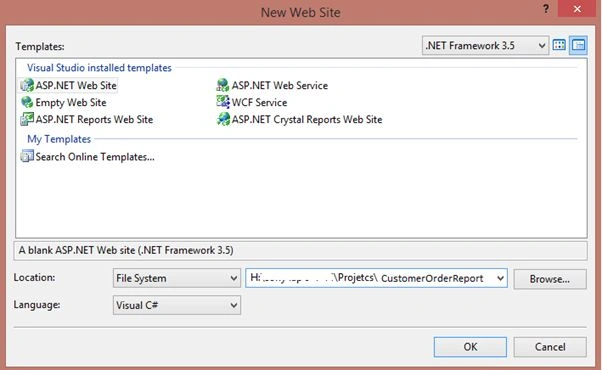
Image 4.
- The right-click on Solution Explorer then select Add New Item -> Crystal Report -> Add.
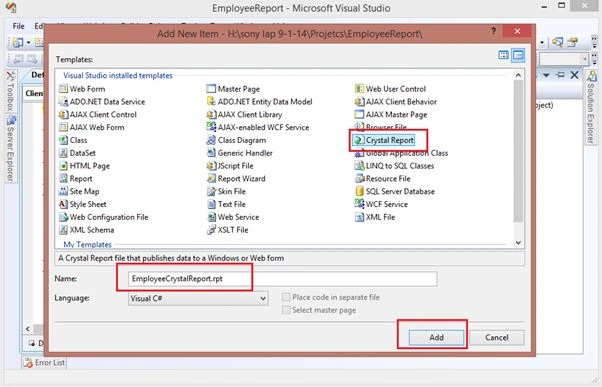
Image 5.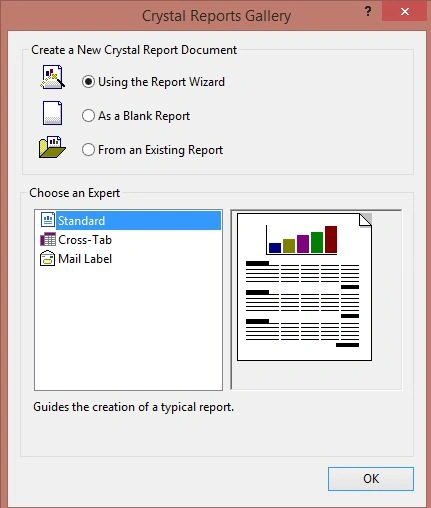
Image 6.
- Here Expand Create New Connection then select OLE DB(ADO) then a pop-up window will open. Select Microsoft OLE DB Provider for SQL Server then click Next.
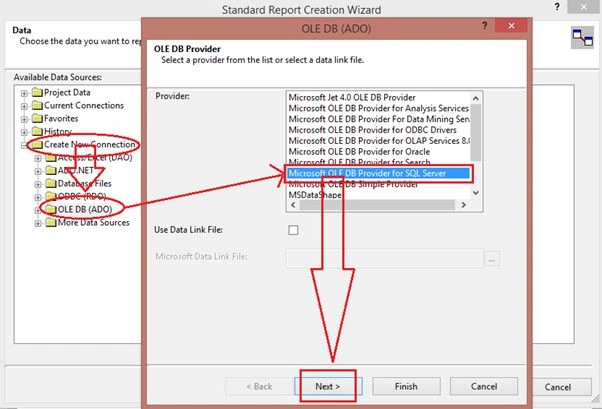
Image 7.
- Now enter your SQL Server details.
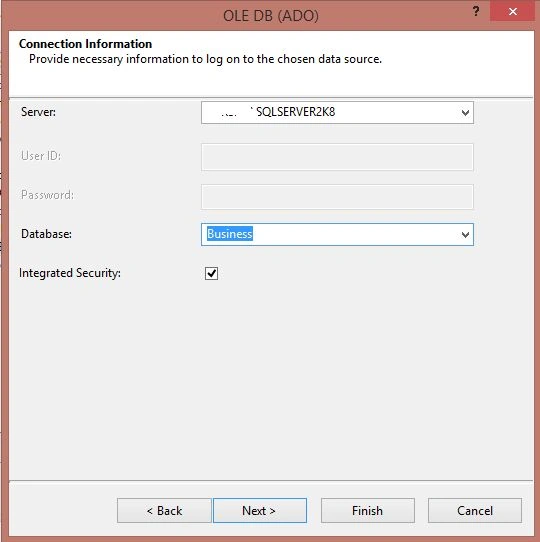
Image 8.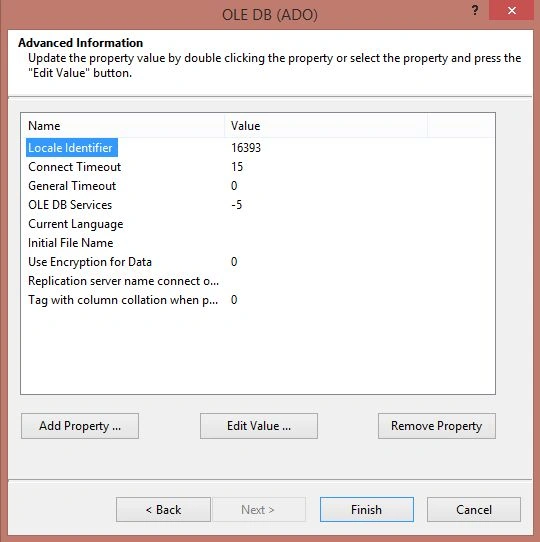
Image 9.
- Now select your database then select all your tables and Move.
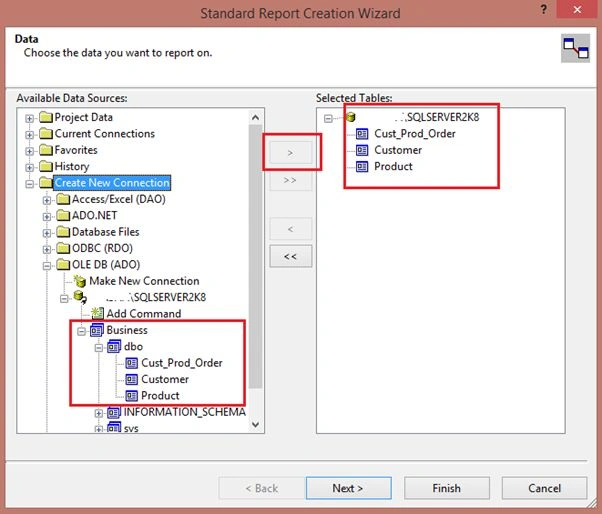
Image 10.
- Now you can see your tables with relationships.
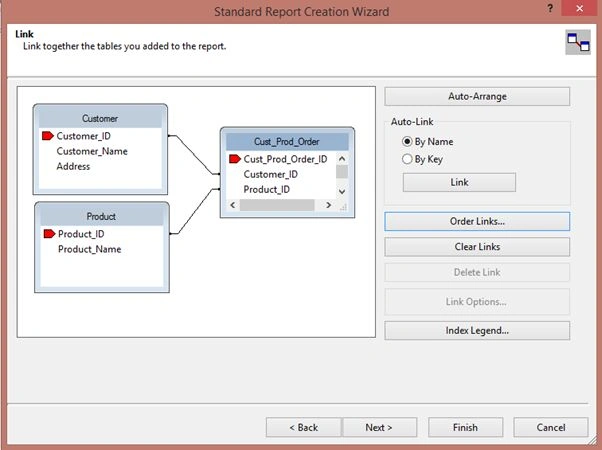
Image 11.
- Now select the columns to show in the reports.
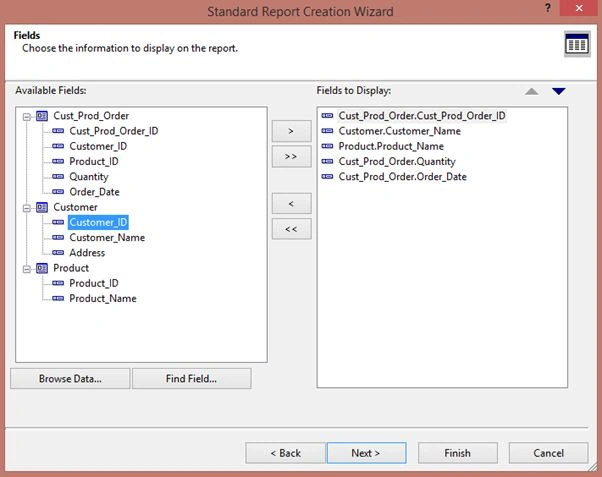
Image 12.
- Now you can see your report is ready. All the Columns are already in the Details sections. You can remove any column or you can add a new column by drag and drop from the Field Explorer to the report. Here I did some formatting like header text background, detail column colour and so on.
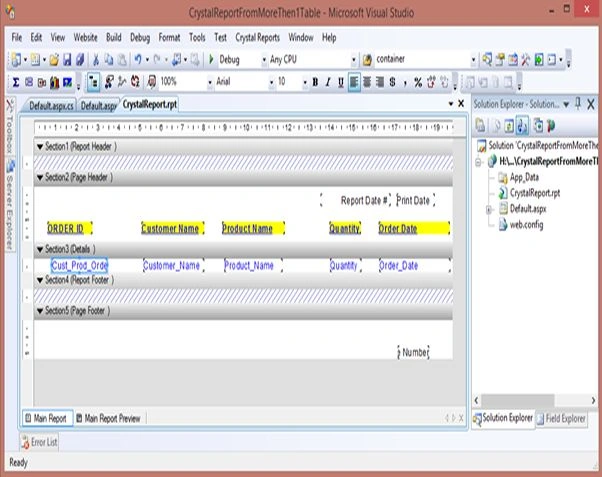
Image 13.
- Now it is time to add a Report Viewer where we can show this Crystal Report. On the Default.aspx page drag and drop CrystalReportViewer from the toolbox as in the following.
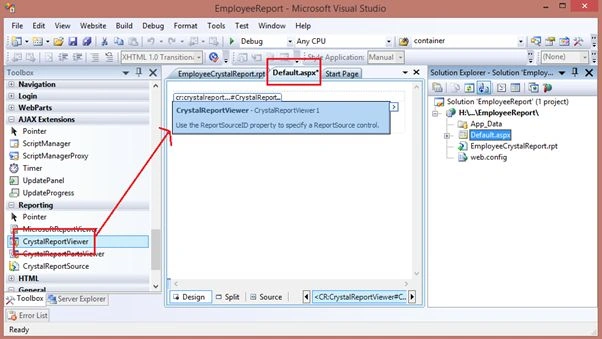
Image 14.
- My aspx code is:
- <%@ Page Language="C#" AutoEventWireup="true" CodeFile="Default.aspx.cs" Inherits="_Default" %>
- <%@ Register Assembly="CrystalDecisions.Web, Version=10.5.3700.0, Culture=neutral, PublicKeyToken=692fbea5521e1304"
- Namespace="CrystalDecisions.Web" TagPrefix="CR" %>
- <!DOCTYPE html PUBLIC "-//W3C//DTD XHTML 1.0 Transitional//EN" "http://www.w3.org/TR/xhtml1/DTD/xhtml1-transitional.dtd">
- <html xmlns="http://www.w3.org/1999/xhtml">
- <head runat="server">
- <title>Crystal Report From More Than One Table</title>
- </head>
- <body>
- <form id="form1" runat="server">
- <table cellpadding="10" cellspacing="10" width="70%" height="300px" align="center"
- style="border: solid 2px gray;">
- <tr>
- <td align="center" style="background-color: SkyBlue;">
- <span style="font-family: Times New Roman; font-size: 18pt; color: Green;">Customer
- Product Order Detail Report</span>
- </td>
- </tr>
- <tr>
- <td align="center">
- <asp:Panel ID="pnlReport" runat="server" Height="400px">
- <CR:CrystalReportViewer ID="CrystalReportViewer1" runat="server" AutoDataBind="true" />
- </asp:Panel>
- </td>
- </tr>
- </table>
- </form>
- </body>
- </html>
- Now on Page_Load event write the following code:
- using System;
- using System.Configuration;
- using System.Data;
- using System.Linq;
- using System.Web;
- using System.Web.Security;
- using System.Web.UI;
- using System.Web.UI.HtmlControls;
- using System.Web.UI.WebControls;
- using System.Web.UI.WebControls.WebParts;
- using System.Xml.Linq;
- using CrystalDecisions.CrystalReports.Engine;
- public partial class _Default : System.Web.UI.Page
- {
- protected void Page_Load(object sender, EventArgs e)
- {
- ReportDocument cryRpt = new ReportDocument();
- cryRpt.Load(Server.MapPath("EmployeeCrystalReport.rpt"));
- CrystalReportViewer1.ReportSource = cryRpt;
- }
- }
- Now run your application:
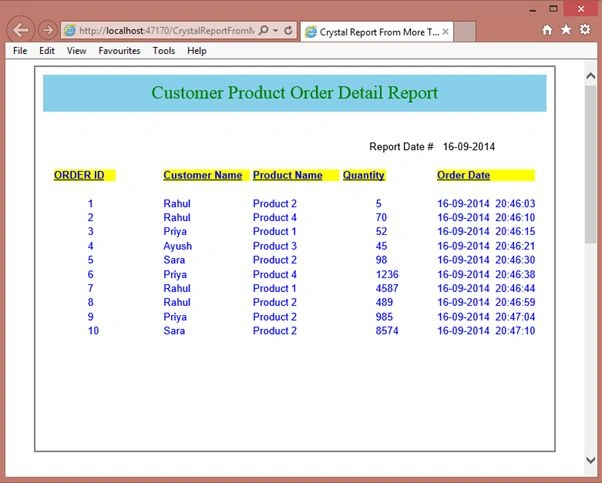
Image 15.
Rahul Kumar SaxenaPosted Feb 24, 2015, 8:12 AM
Thanks 2 All..
Marvin ZumbadoPosted Dec 30, 2014, 1:16 AM
Can you do the same, but for MVC please?
K P Singh ChundawatPosted Dec 28, 2014, 4:50 AM
Nice Article Rahul Saxena sir....Keep it up...
Praveen KumarPosted Dec 27, 2014, 1:47 PM
Very nice!
Manish Kumar ChoudharyPosted Dec 27, 2014, 11:47 AM
Nice one..