

Here in this example I will show data from a ResourceManagement Table design as below.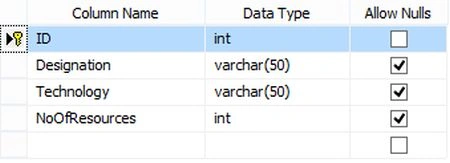
Image 1.
The following is the data in my table.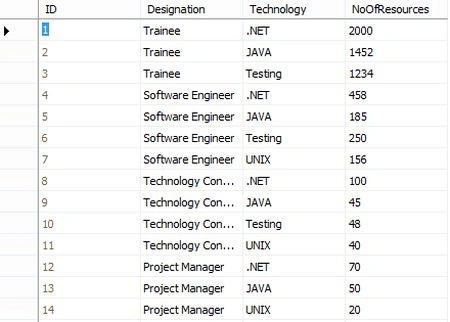
Image 2.
Now open Visual Studio then select File -> New -> Web Site. Then select ASP.Net website then click OK.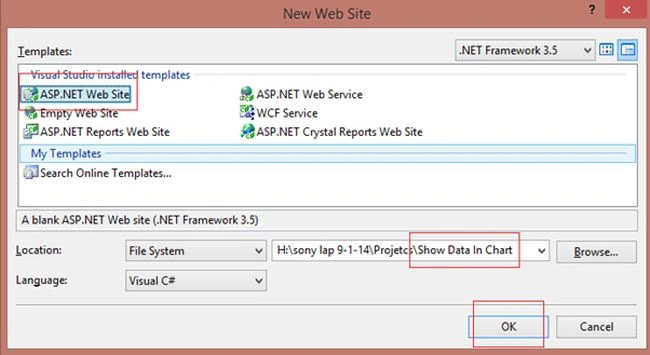
Image 3.
Now right-click on the project in Solution Explorer then select Add New Item then select Crystal Report.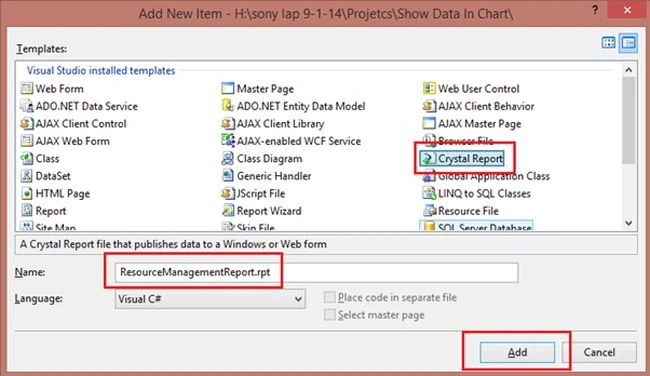
Image 4.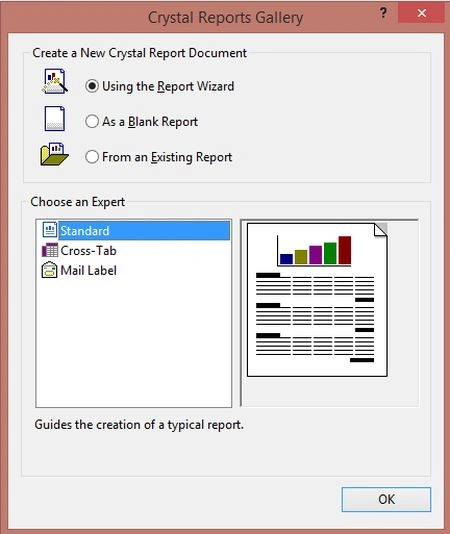
Image 5.
Here click on Create New Connection then select OLE DB (ADO) then double-click here then a dialog window will open.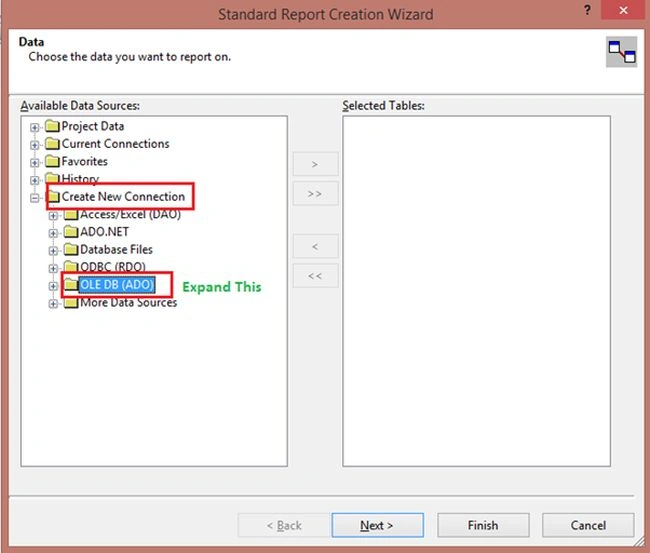
Image 6.
Select Microsoft OLE DB Provider for SQL Server here.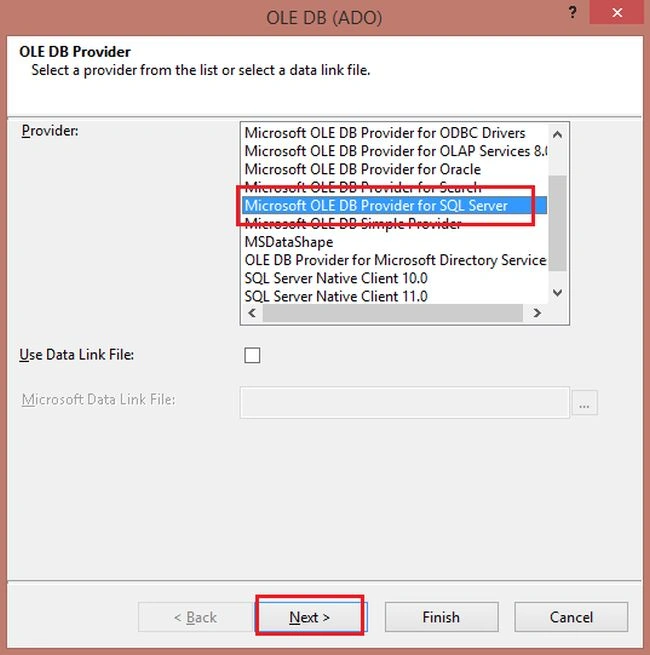
Image 7.
Here provide your SQL Server information and select your DB.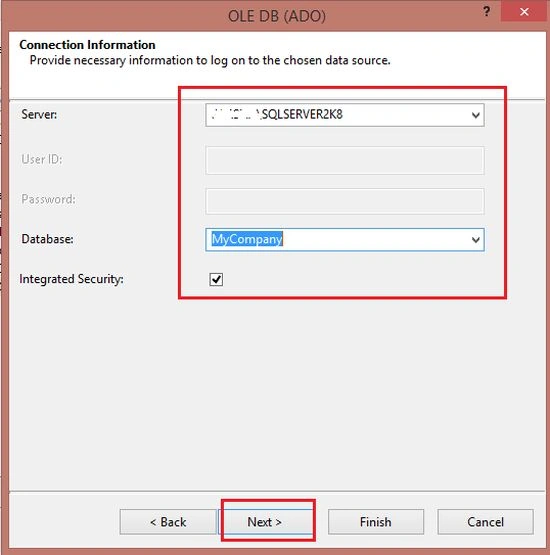
Image 8.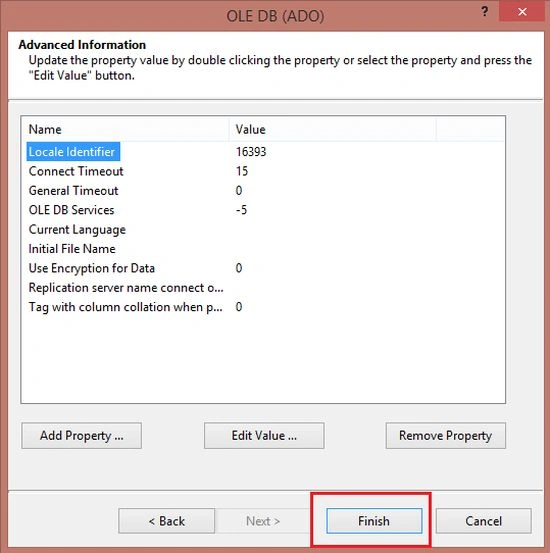
Image 9.
Now select your DB then select your Data Table and move it to the right side.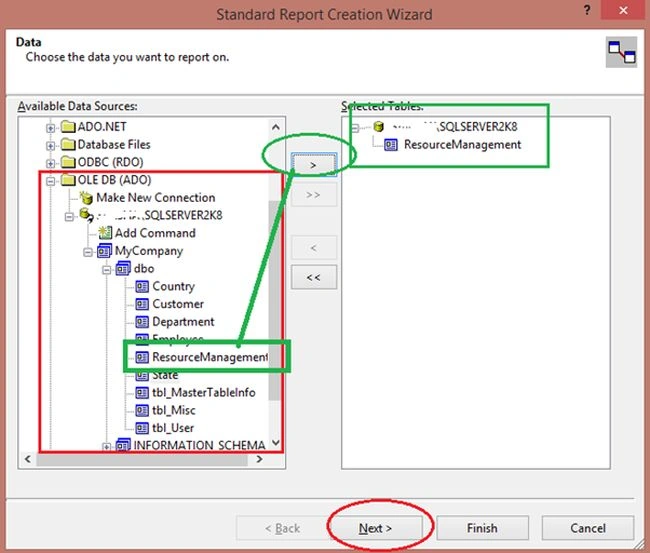
Image 10.
Now select your Data Column and click Finish.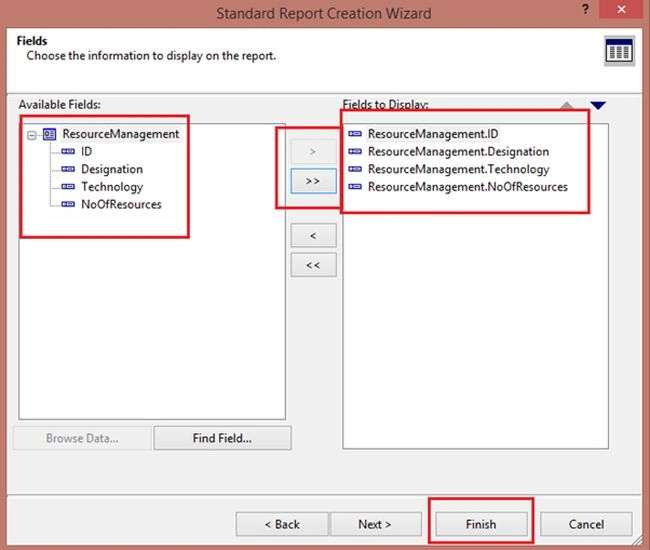
Image 11.
Now we will do some setting to show the data graphically. Right-click on Page Header and Details and click on Suppress to hide because we are showing here only a chart.
Not in Menu then select Crystal Reports -> Insert -> Chart.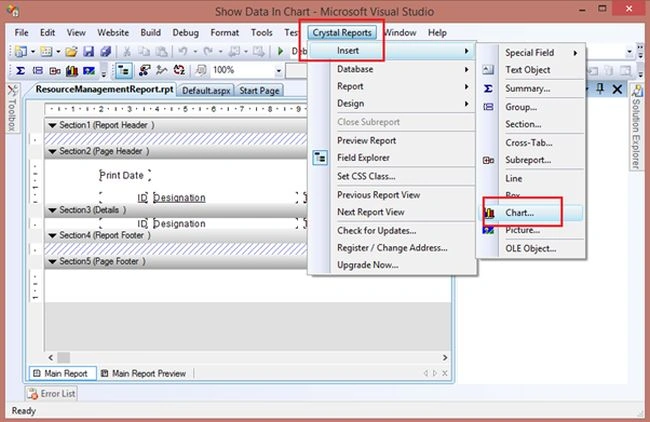
Image 12.
In the Type tab uncheck (de-seelct) Automatically set chart options. Now here select Bar.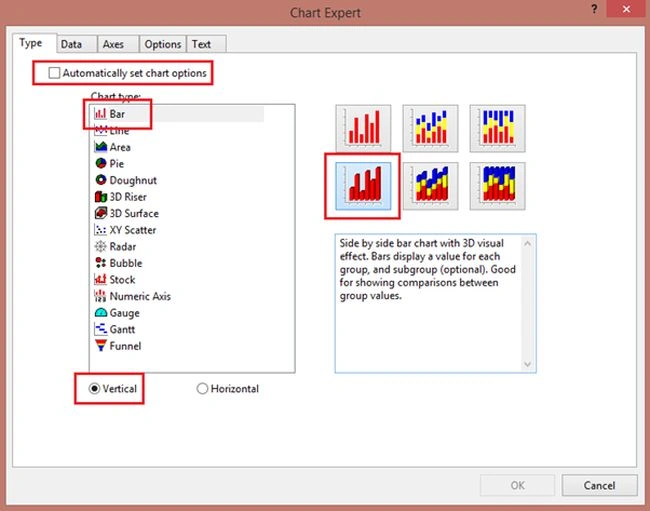
Image 13.
Now click Data. Here select onChange.
Now select your fields to show in the chart.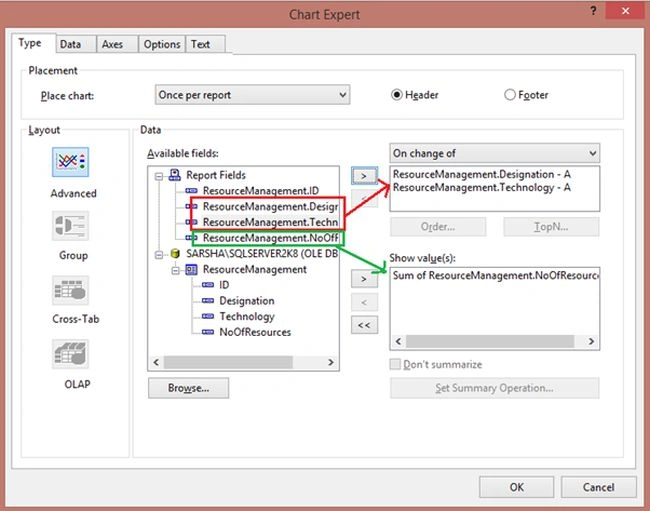
Image 14.
Now Select Axes and make the following settings.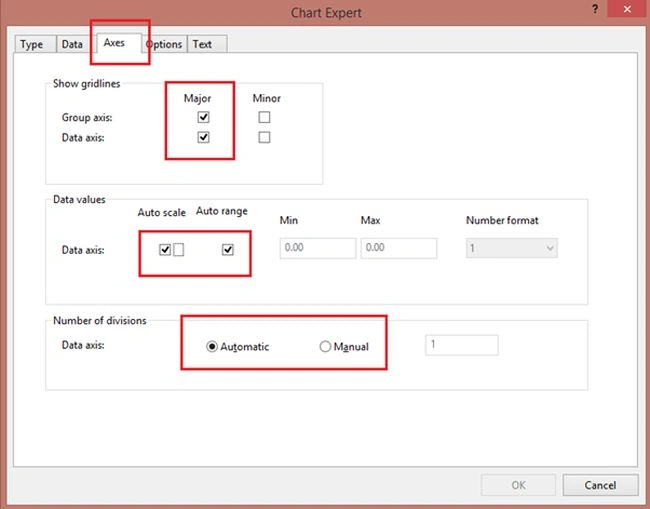
Image 15.
Now select Options and select format.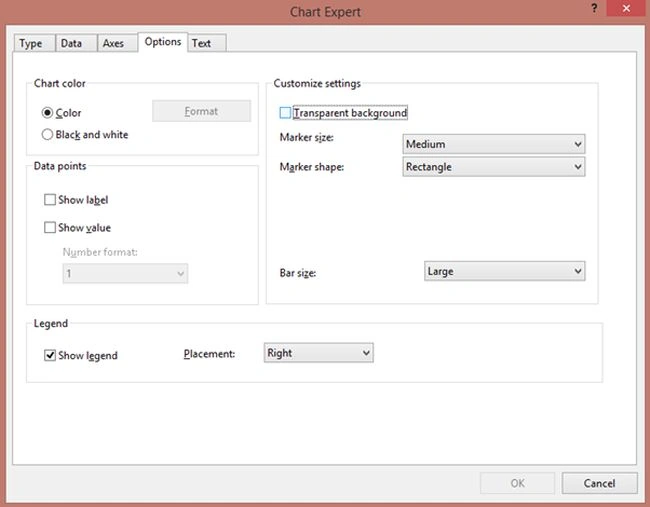
Image 16.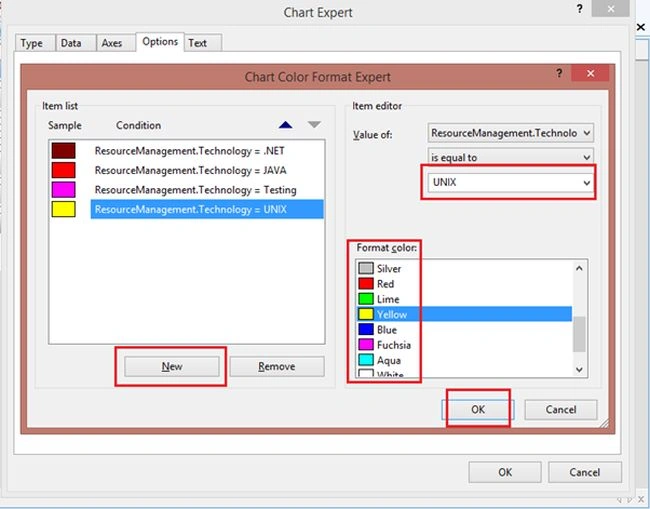
Image 17.
Now set Text font and so on.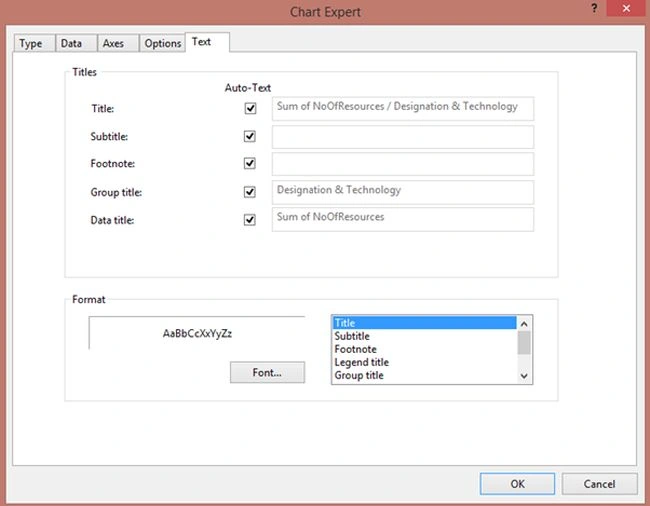
Image 18.
Now run application: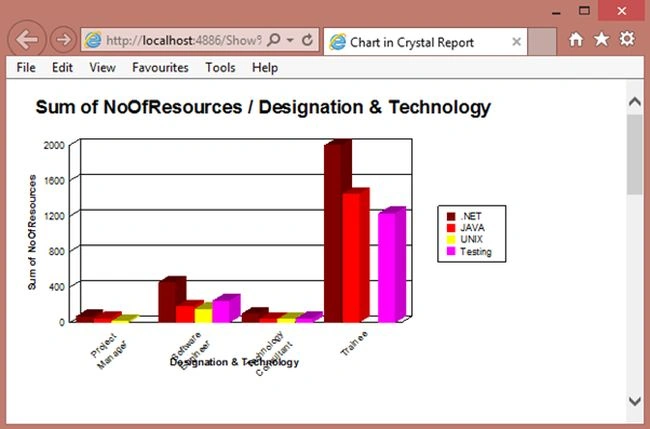
Image 19.
If your chart is not displaying then in the web.config make the following change.
- <httpHandlers>
- <add verb="GET" path="CrystalImageHandler.aspx" type="CrystalDecisions.Web.CrystalImageHandler, CrystalDecisions.Web, Version=10.5.3700.0, Culture=neutral, PublicKeyToken=692fbea5521e1304" />
- </httpHandlers>
Madiha KhanPosted Apr 8, 2017, 11:05 AM
Why i am not able to follow these step using visual studio 2013
Rahul Kumar SaxenaPosted Apr 1, 2016, 5:19 AM
Thansk All
Rahul Kumar SaxenaPosted Apr 1, 2016, 5:19 AM
Thanks Sonu Chaudhary
Sonu ChaudharyPosted Mar 31, 2016, 12:04 PM
good one article
Rahul Kumar SaxenaPosted Apr 13, 2015, 2:44 PM
Thanks Santhakumar...
Santhakumar MunuswamyPosted Apr 13, 2015, 2:37 PM
Good work
Vithal WadjePosted Dec 18, 2014, 3:04 PM
good work