
Here is this Crystal Reports report. I will be showing data from more than one table in ASP.NET.
The following 3 tables I am using to create a Crystal Report.
1. Customer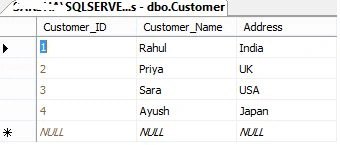
Image 1.
2. Product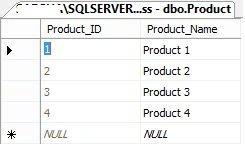
Image 2.
3. Cust_Prod_Order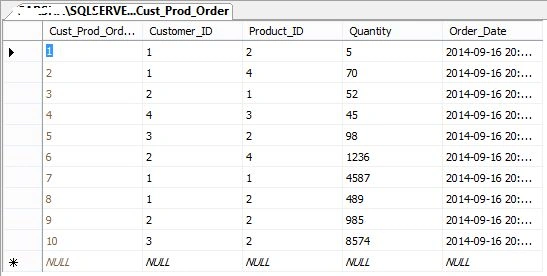
Image 3.
Now open Visual Studio and go to File -> New Web Site.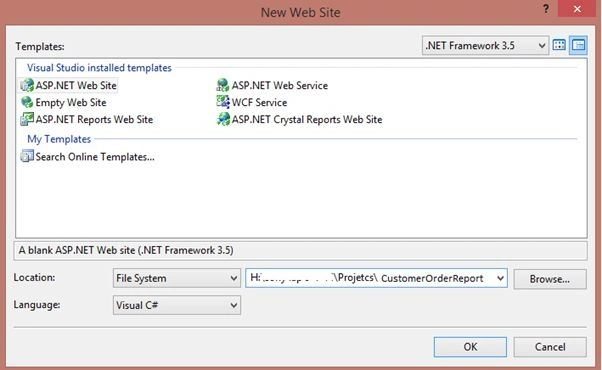
Image 4.
After this right-click on the project in the Solution Explorer then select Add New Item -> Crystal Report -> Add.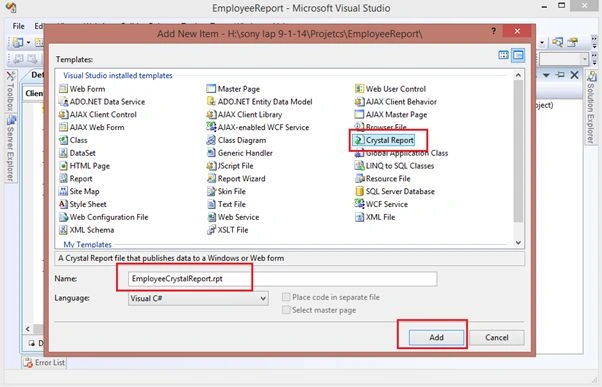
Image 5.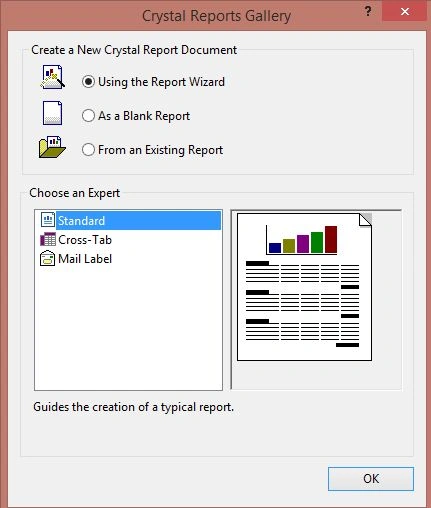
Image 6.
Here expand Create New Connection then select OLE DB (ADO) then a pop-up window will open then select Microsoft OLE DB Provider for SQL Server then click Next.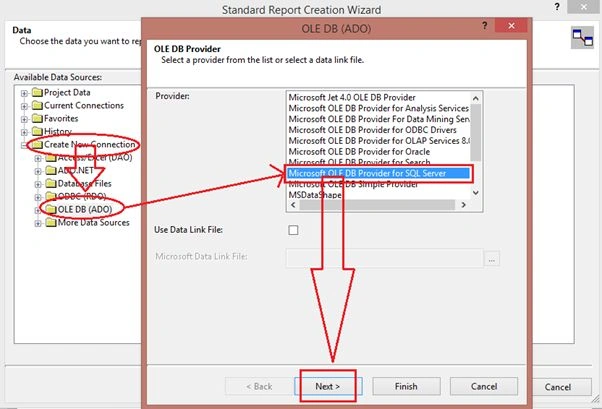
Image 7.
Now enter your SQL Server details.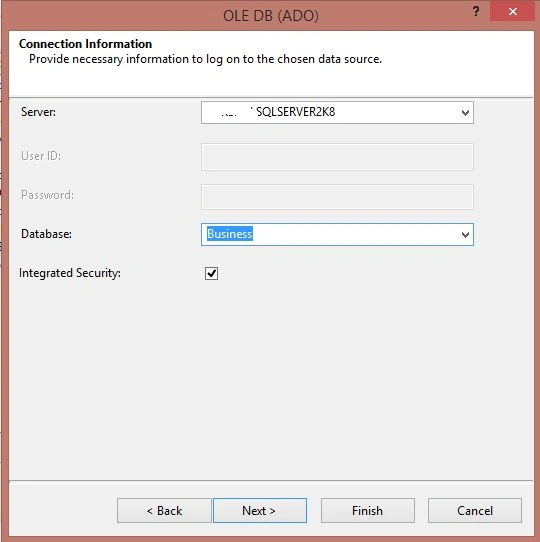
Image 8.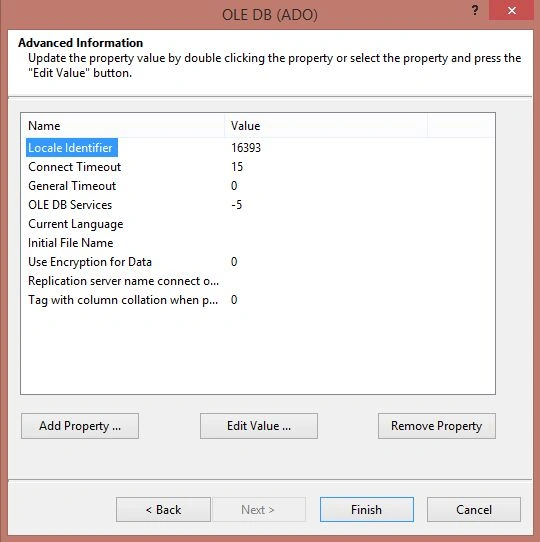
Image 9.
Now select your database then select all your tables and move them over to Selected Tables.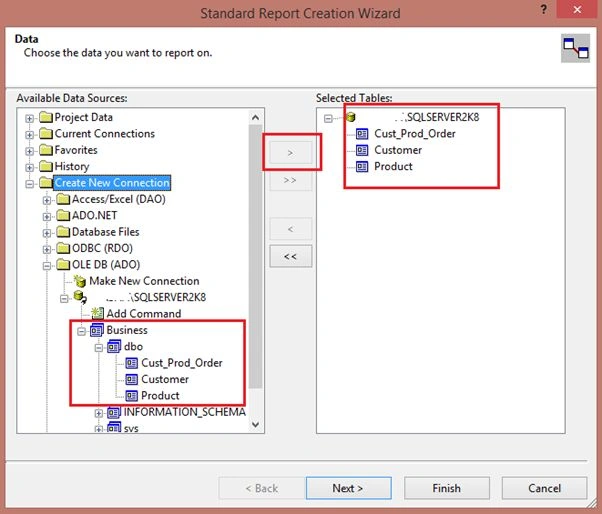
Image 10.
Now you can see your tables with relationships.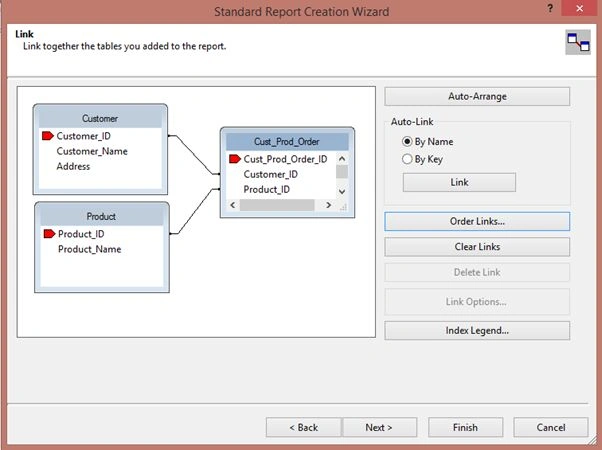
Image 11.
Now select the columns to show in the reports.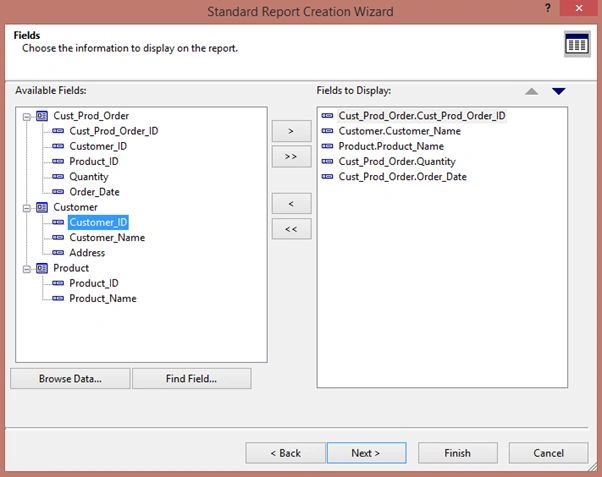
Image 12.
Now you can see your report is ready. All the columns are already in the Details sections. You can remove any column or you can add a new column by dragging and dropping from the Field Explorer to the report. Here I did some formatting like header text background, detail column colour and so on.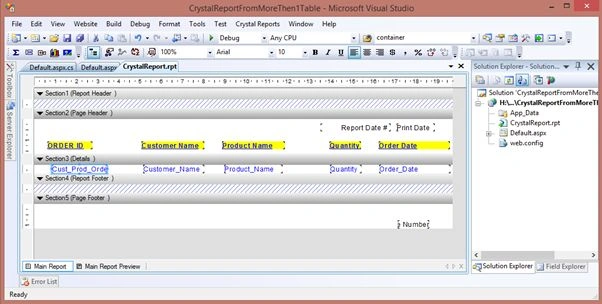
Image 13.
Now in the Field Explorer select Formula Fields -> Right-click - New.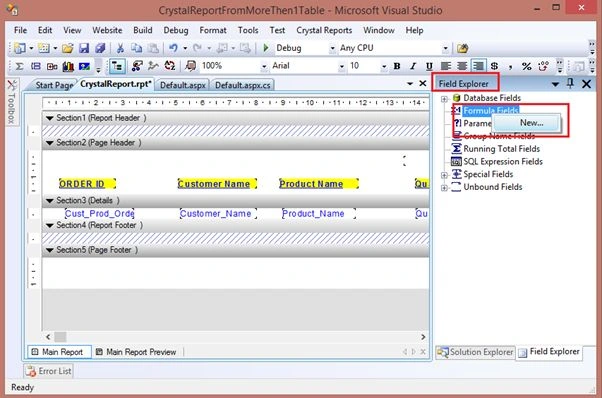
Image 14.
Provide a name then click Use Editor.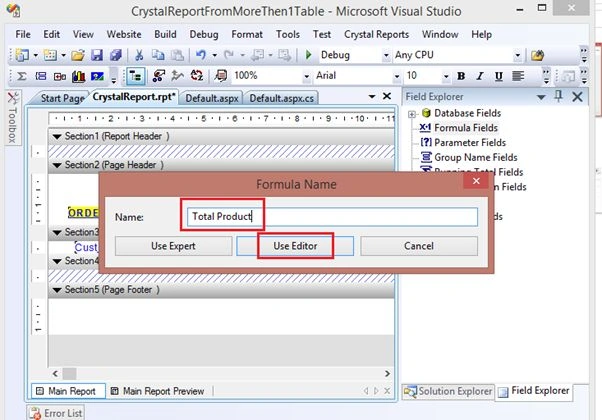
Image 15.
Now select your Column Name and drag it to the following editor window and write Sum formula. 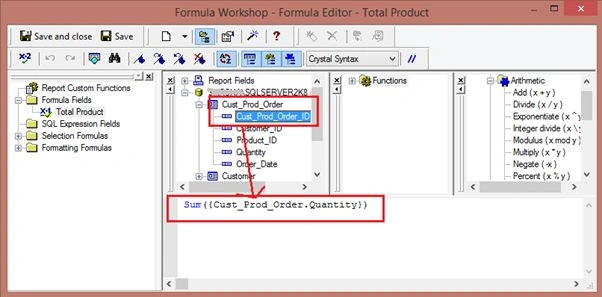
Image 16.
Now click on Save and Close.
Now drag the formula fields to the report footer.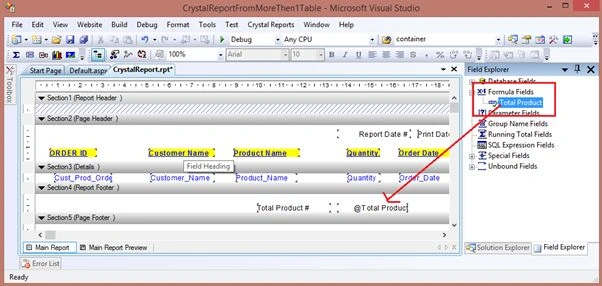
Image 17.
Now to add a Report Viewer to show this Crystal Report. In the Default.aspx page drag and drop a CrystalReportViewer from the toolbox as in the following.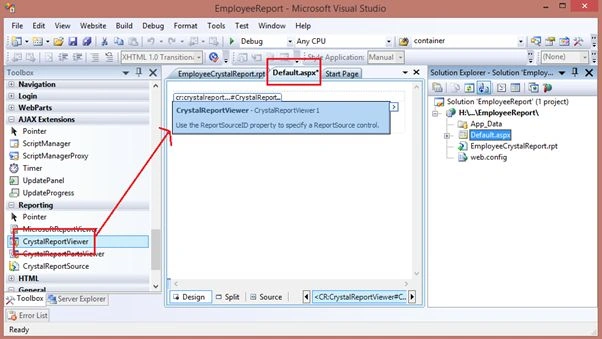
Image 18.
My aspx code is:

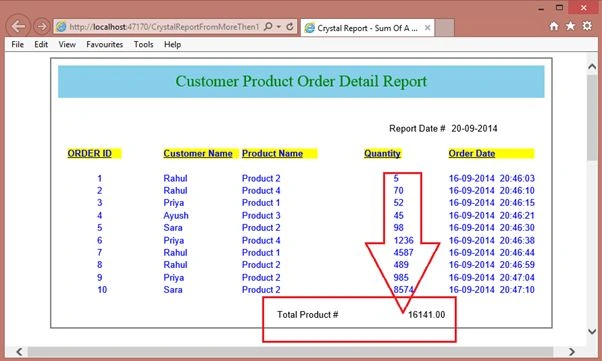
Sum of a Column in Crystal Reports
Join the conversation! Your thoughts help the community grow.
Sign in to leave a comment
It is the same account you read, post and publish with — and you will come straight back to this page.
Rahul Kumar SaxenaPosted Apr 1, 2016, 5:19 AM
Thanks Sonu Chaudhary
Sonu ChaudharyPosted Mar 31, 2016, 12:04 PM
good one article
Rahul Kumar SaxenaPosted May 5, 2015, 3:28 AM
Thanks Santhakumar Munuswamy...
Santhakumar MunuswamyPosted May 4, 2015, 2:37 PM
Good work