
Introduction
The objective of this article is to provide a process which can be followed to develop a crystal report with dynamic columns using parameterized column fields and formula fields. Before going for this the developer has to decide the maximum number of columns he/she has to display and as per the no. of columns the size of the paper. The developer can define the size of the paper by selecting the Printer Setup in the File menu.
There are two ways to display the columns in Crystal Report dynamically. The default is using the infamous Cross Tab component and the other is using parameterized columns. But there are certain limitations to this. Where the cross tab does not provide complete control to each individual cell value, for using dynamic columns, the developer has to decide the maximum no columns in design time and all the field values should be of the same data type.
Let's take an example of a yearly report where the developer has to create such a report when executed will display only those month values as columns, which are selected with "Total" immediately next. So the view may look like :
If the sales of products selected from Mar 2006 to May 2006.
| Product Name | Mar | Apr | May | Total |
| Pro 1 | 12 | 89 | 90 | 191 |
| Pro 2 | 20 | 99 | 70 | 199 |
| Grand Total | 32 | 188 | 160 | 390 |
Same way if the end results for different scenario :
- If the date is between Jan 2006 - Aug 2006Product Name Jan Feb Mar Apr May Jun Jul Aug Total
- If date is between Jun 2006 - Nov 2006Product Name Jun Jul Aug Sep Oct Nov Total
Note: These instructions only work if all the attribute fields are of the same data type as they will be dynamically interchanged using a logic statement.
It seems most of the attribute fields will be of a String data type. We can create formulas in our report that will convert numbers to text using the ToText function. Then, simply use the formula instead of the database field. Or, if our organization uses Views or Queries as a data source, convert the data type on that end.
Steps to create a report with dynamic columns...
1) Determine the maximum number of columns the report page can handle. Or determine the reasonable number of attributes an end-user would want to see. (Consider a report with 50 columns of attributes. It would be unreadable.)
2) Create a string parameter for every attribute column on the report. Do not set the default values at this time (see next step).
3) Open Note Pad (on your desktop under accessories). Type all possible attributes starting in the top right corner with one below the other (see below).
None
Jan
Feb
Mar
Apr
May
Jun
Jul
Aug
Sep
Oct
Nov
Dec
Total
Keep in mind, these will be listed in the picklist and displayed on the report as column headings. The value "None" is important. It will be used in a logic statement, later in these instructions. Save the file (as a text file, .txt) in a shared location all users of the report can access (or on the CE server if using Enterprise).
Name the file similar to the .rpt file name combined with the word "attributes" or "parameter" so it is easy to locate.
4) Edit each parameter created in step 2 and do the following:
Click on "Set default values".
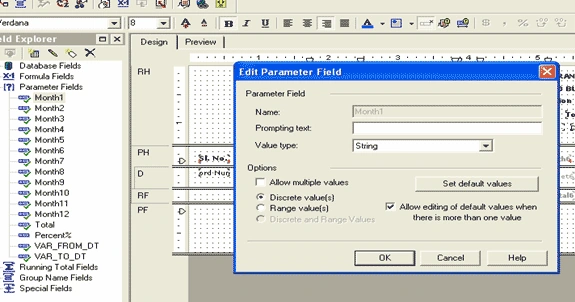
Click on "Import pick list".
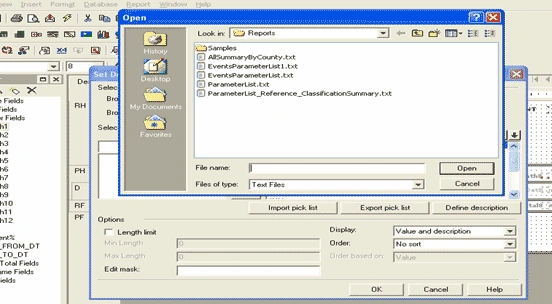
Browse to locate the text file you just created in step 3.
Click OK. The list is automatically populated with the values in the text file.
5) Create empty formulas for the detail fields. The Design will look something like this...
Row Num Product name {?Month1} {?Month2} {?Month3}{?Month4}........................{?Total}
{rownum} {db.ProdName} {@mon.1-Detail} {@Mon.2-Detail} {@Mon.3-Detail}.............{@Total-Detail}

Just use the Insert Fields box and create the formulas upfront. Leave them empty. Place them on the Design Tab. Then use the Insert Fields box to edit them later.
6) Edit the Mon.1-Detail field. Enter the following logic...
(assuming the Stored Proc or View returning column names as ProdName Jan Feb Mar Apr May Jun Jul Aug Sep Oct Nov Dec)
if {?Month1}= "JAN" then {DB.JAN}
else if {?Month1}= "FEB" then {DB.FEB}
else if {?Month1}= "MAR" then {DB.MAR}
else if {?Month1}= "APR" then {DB.APR}
else if {?Month1}= "MAY" then {DB.MAY}
else if {?Month1}= "JUN" then {DB.JUN}
else if {?Month1}= "JUL" then {DB.JUL}
else if {?Month1}= "AUG" then {DB.AUG}
else if {?Month1}= "SEP" then {DB.SEP}
else if {?Month1}= "OCT" then {DB.OCT}
else if {?Month1}= "NOV" then {DB.NOV}
else if {?Month1}= "DEC" then {DB.DEC}
------ add the total field value if applicable
else 0;
Save the formula changes, but don't exit the formula editor. Copy the entire logic statement, then exit.
7) Edit {@Mon.2-Detail}. Paste the logic statement from step 6 into the Formula editor. Use Find/Replace in the formula Editor to find "?Month1" and replace with "?Month2".
Then save the change. Repeat this process for the remaining column detail formulas.
Note: In the case of Total field it will start from the second field onwards. So to display the Total value add the line below (in case if the second column will be counted as the total column)
else if {?Month2}= "Total" then {@Month_Det1}
Same way for all other columns also add .....
else if {?Month3}= "Total" then {@Month_Det1} + {@Month_Det2} If 3rd will be the Total column
else if {?Month4}= "Total" then {@Month_Det1} + {@Month_Det2} + {@Month_Det3} if 4th col will be the Total and so on..
8) You may also want to add conditional formatting to suppress the columns that are not used. To do this you need to edit each field in the column (header and detail).
Start with Column 1's heading...
Right-click on the parameter field, {?Column 1}.
Select the Format field.
On the Common tab find Suppress at the top.
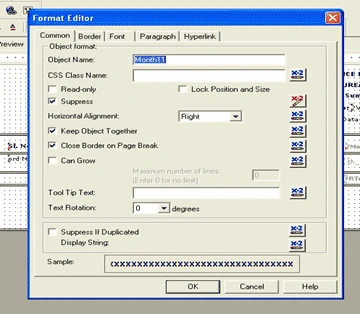
Go to the right and click on the "X+2" button. Enter the following logic in the Format formula editor:
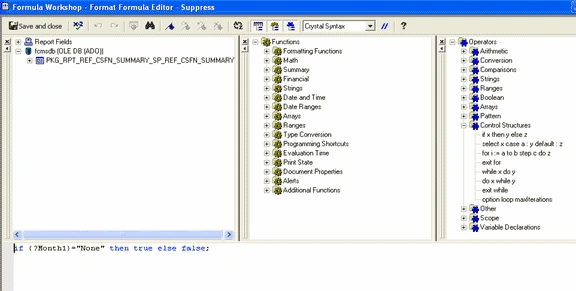
if {?Month1}="None" then true else false;
Save, but don't close. Copy the statement. Close the Format formula editor.
Repeat on the {@Month.1-Detail} field using the pasted statement.
Repeat on the remaining columns, but remember to change the column number in the logic.
9) To add a running total for each column select a new running total field as display below
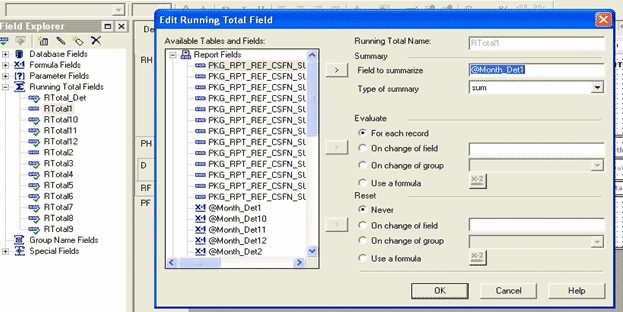
Select the parameterized field to sum up and in the type of summary field select Sum from the dropdown.
Repeat the same process for all the columns as displayed above and also suppress them as per the condition (Refer Sec 8 to make a conditional suppress).
How it works :
1) The column heading will display the parameter value selected by the user. It will display just as you typed it into the default value list when creating the parameter.
Example :
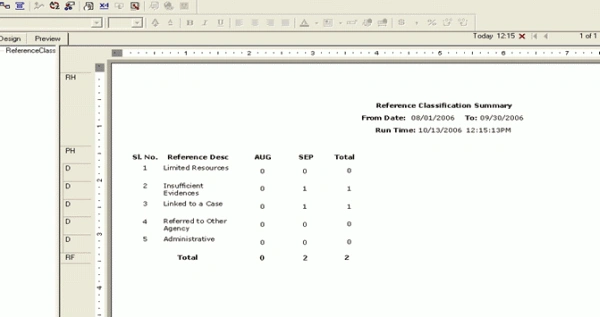
In the example below I am displaying the records of references during the month of Aug and Sep 2006 including the total and grand total value.
Select Aug for the month1 parameter field
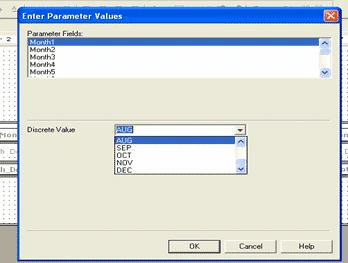
Repeat it to select Sep for month2 parameter field and Total for month3 field. And select From Date and To date as 1st Aug 2006 - 30th Sep 2006.
2) The detail section will display the corresponding attributes for each item record based on the parameter values provided at run time.
On execution of this report, it will display like the below
Contribution by: Kishore Gandra, Sarika Pahurkar, Edmond Joseph
deepak sharmaPosted Oct 27, 2018, 9:20 AM
Sir can you send me the sample code for this. My Email- [email protected]
aya yamanPosted Jan 26, 2012, 8:24 AM
Very Nice Article as for the procedure side should i have a 12 months variable to be set i am alost in this. Thank you
dodla narayanaeditedPosted Aug 30, 2011, 6:46 AMEdited Aug 30, 2011, 6:48 AM
i have created one crystal report namely returnitems1.rpt which consists of two tables namely item_mast,return_sale_item. in item_mast table i have the following columns -->item_code(bigint) -->item_name(nvarchar(max)) -->item_min_qty(nvarchar(max)) and in return_sale_item table i have the following columns -->returnitemid(bigint) -->itemname(bigint) -->billid(bigint) -->billdate(datetime) here i had given a link to "item_code" of "item_mast" table with "itemname" of "return_sale_item" table to display itemname on printted statement. because both the columns names datatypes are same.so it will display the itemname what we are going to be return. but here when i returned a record it is showing on pritted statement of asp.net form.but when i entered morethan one record at a time it is showing only lastly entered record on printted statement.why? this is my sciencier request sir
Parkash KaurPosted May 8, 2010, 2:18 AM
Respected Sir, Please give me solution why not giving me result is there something is wrong in following condition? if {TitleTypeOfBook.ReferenceId}={ReferenceMaster.ReferenceId}then formula={ReferenceMaster.Description} end if
jajaboor FarazieditedPosted May 5, 2010, 1:21 AMEdited May 5, 2010, 1:23 AM
Hi, I have used the formula if {?Month1}= 'JAN' then {RptColumnAdding.JAN} else if {?Month1}= 'FEB' then {RptColumnAdding.FEB} else if {?Month1}= 'MAR' then {RptColumnAdding.MAR} else if {?Month1}= 'APR' then {RptColumnAdding.APR} else if {?Month1}= 'MAY' then {RptColumnAdding.MAY} else if {?Month1}= 'JUN' then {RptColumnAdding.JUN} else if {?Month1}= 'JUL' then {RptColumnAdding.JUL} else if {?Month1}= 'AUG' then {RptColumnAdding.AUG} else if {?Month1}= 'SEP' then {RptColumnAdding.SEP} else if {?Month1}= 'OCT' then {RptColumnAdding.OCT} else if {?Month1}= 'NOV' then {RptColumnAdding.NOV} else if {?Month1}= 'DEC' then {RptColumnAdding.DEC} Else 'None' Where RptColumnAdding is the Dummy table which i set as datasource. My query returns fields as Jan, Feb, Mar,....., Dec. My problem is, when my query returns 12 months and starts from Jul then the report works. But when my query returns less than 12 months and start from Sep then an error message is displayed like "This field name is not known. Error in File C:\DOCUME~1\RONEE\LOCALS~1\Temp\RptAddingColumn {0677395C-F3A0-4586-91B4-93816FB5A970}.rpt: Error in formula . ' if {?Month1}= 'JAN' then {RptColumnAdding.JAN} ' This field name is not known." what is the problem? please help me.
Dmitriy ReznikPosted Jul 29, 2009, 2:40 PM
Please help me solve two problems with my report. The article is wonderful, and the report works very well. I still have two problems with it. 1)When you start the report, you see a page with several comboboxes (according to the number of fields available in the report). The comboboxes contain "Use Value..." string at the top, and then "None", and then all possible fields that we specified in our textfile. If you leave "Use Value..." selected, the report shows the column without any caption, with all 0's. Is it possible to hide somehow option "Use Value..." in the comboboxes, and show "None" by default? 2) On the report, when I press the Export button, instead of the exporting functionality, I am redirected again to the page where the column selection is made. How can I solve this problem? Thank you very much in advance. I really need that to be solved. Dmitriy
Dmitriy ReznikPosted Jul 10, 2009, 6:42 PM
Hi, I just tried to use what I learned from this article. My report is based on the DataSet defined in my application. In the report preview, everything works fine. But when I run the report from the application, I am getting the following message: "The report you requested requires further information." And then it shows empty fields: Server Name (filled with my DataSet name), Database Name, User Name, Password. Could you (or anybody) please help me deal with this problem? Thanks,
Amrit KumarPosted Apr 15, 2009, 9:03 AM
is there any way to distribute columns equally on paper width because it looks odd that right side of paper is blank in case of few columns
Mythili DuddebandaPosted Oct 18, 2007, 9:40 AM
I want to accomplish the same thing using Microsoft .Net reporting. Can you please suggest the steps I need to follow. Thanks
Jitendra chhipaPosted Mar 13, 2007, 2:39 AM
SIR , my problem is same as yours.i m using visual studio 2003 and some of the optons u have provided are not showing by this. and u have useb SP or view for if {?Month1}= "JAN" then {DB.JAN} is {DB.JAN} a view or a SP ??? i dont know what logic shud i give in {DB.JAN} so that only the records of correspondig year will appear. Plz reply me thanks for providing solutions for diff problems.