- <div id="DetailDiv">
- </div>
-
- <script src="Scripts/jquery-2.1.3.min.js"></script>
-
- <script type="text/javascript">
- $(document).ready(function () {
- createHtml();
- });
-
-
- function createHtml() {
- var title = "How to Authenticate and Get Data Using Instagram API";
- var summary = "This article explains how to authenticate an Instagram API and how to get user photos, user details and popular photos using the Instagram API.";
- var url = "https://www.facebook.com/raj2511984";
- var image = 'https://fbcdn-sphotos-d-a.akamaihd.net/hphotos-ak-xpa1/v/t1.0-9/10153182_10153281334431040_8373343421018856197_n.jpg?oh=2f5cbcae8d125e72e0cbc6131c3634ea&oe=552C0BE0&__gda__=1429949942_5641254857be91dda7dd0653815ebf48';
- var appid = '<%=ConfigurationManager.AppSettings["FacebookConsumerKey"].ToString() %>';
-
-
- var w = 600;
- var h = 400;
- var left = Number((screen.width / 2) - (w / 2));
- var top = Number((screen.height / 2) - (h / 2));
-
-
-
- var fb = '<a rel="nofollow" title=\"Share this post on Facebook\" onclick="FbApp_Login(\'' + title + '\',\'' + summary + '\',\'' + url + '\',\'' + image + '\');"><img src="Images/fb.png" /></a>';
-
-
-
- var twitter = "<a href=https://twitter.com/intent/tweet?original_referer=" + encodeURIComponent(url) + "&related=ModelQ-Job&text=" + encodeURIComponent(title) + "&tw_p=tweetbutton&url=" + encodeURIComponent(url) + "&via=_ModelQ title=\"Share this post on Twitter\" onclick=\"javascript:window.open(this.href, '', 'menubar=no,toolbar=no,resizable=yes,scrollbars=yes,width=" + w + ", height=" + h + ", top=" + top + ", left=" + left + "');return false;\"><img src='Images/twitter.png' /></a>";
-
-
- var socialMediaButtons = fb + " " + twitter;
-
-
- jQuery("#DetailDiv").append(' <div><table width="100%"><tr><td valign="top" style=" width:100px; height:100px;"><div>' + socialMediaButtons + '</div></td></tr></table> </div>');
-
- }
-
-
-
- function FbApp_Login(title, sumary, url, image) {
- FB.login(function (response) {
- if (response.authResponse) {
- statusChangeCallback(response, title, summary, url, image);
- }
- }, { scope: 'email,user_photos,publish_actions' });
- }
- window.fbAsyncInit = function () {
- FB.init({
- appId: '<%=ConfigurationManager.AppSettings["FacebookConsumerKey"].ToString() %>',
- cookie: true,
- xfbml: true,
- version: 'v2.0'
- });
-
- };
-
-
-
-
- function statusChangeCallback(response, title, summary, url, image) {
- if (response.status === 'connected') {
-
- FB.ui(
- {
- method: 'feed',
- name: title,
- link: url,
- picture: image,
- caption: title,
- description: summary,
-
- redirect_uri: url,
- }
- )
-
- }
- }
-
-
-
-
-
- (function (d, s, id) {
- var js, fjs = d.getElementsByTagName(s)[0];
- if (d.getElementById(id)) return;
- js = d.createElement(s); js.id = id;
- js.src = "//connect.facebook.net/en_US/sdk.js";
- fjs.parentNode.insertBefore(js, fjs);
- }(document, 'script', 'facebook-jssdk'));
-
- </script>
Step 4. Build and run.
Time to run the application. You will get something like this.

Image 9.
Step 5. Test and verify
Click on the Facebook icon to connect.
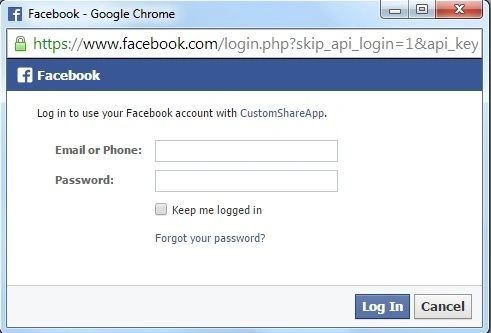
Image 10.
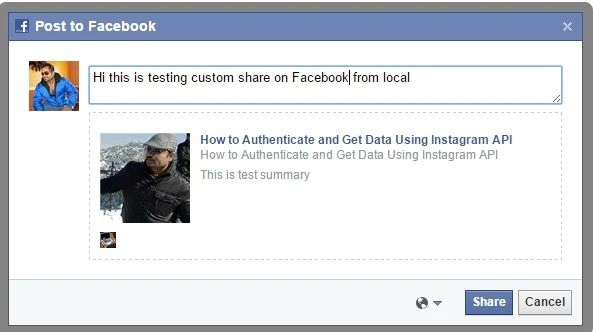
Image 11.
Click share. Now login to Facebook and check in my account.
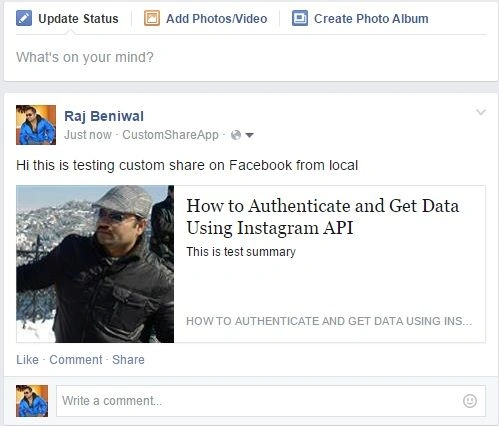
Image 12.
Now let's share on Twitter. Click on the Twitter share icon.
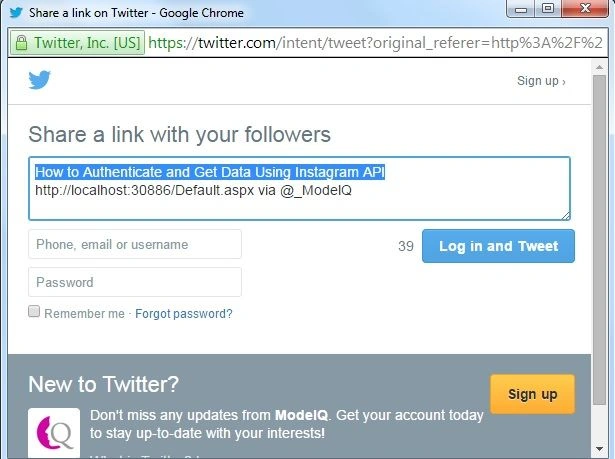
Image 13.
And fill in the email and password and click the Log in and Tweet buttons. Now we are logged into Twitter and can check the latest tweets.
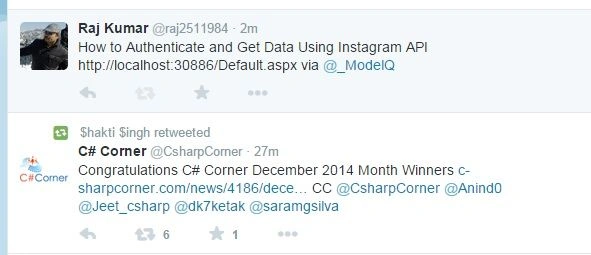
Image 14.
Conclusion
In this article, we learned how to share custom parameters on Facebook and on Twitter from local. For more details I have attached the sample application.




Imran HusainPosted Apr 15, 2021, 7:03 AM
Facebook button is not working same like as twitter
suresh babuPosted Mar 12, 2018, 7:31 AM
Hai Raj Kumar, i have a textbox and button . fill the textbox then click on buton it will be post in who loged in facebook wall. please share the code. thanking you
Manav PandyaPosted Oct 17, 2016, 9:28 AM
Raj Kumar Thanks sir ...
Raj KumarPosted Oct 17, 2016, 7:34 AM
Provide localhost url. That will work.
Manav PandyaPosted Oct 16, 2016, 9:47 AM
In Twitter app form , what should i specify at "URL" textbox because i want to use with local asp.net application
Manav PandyaPosted Oct 2, 2016, 4:02 AM
Nice share ..
Anu VPosted May 27, 2016, 6:56 AM
Nice
Sarvesh TiwariPosted Mar 16, 2016, 5:11 AM
How to share customized image using google plus and twitter in asp.net
Haris BilalPosted Jun 16, 2015, 12:02 PM
Raj can you help me in doing the same thing for linkedin.
Ammar AhmedPosted May 12, 2015, 4:02 AM
If you want to embed this Url in your html file you have to add like this it's working fine<li class="facebook-bg"><a id="fbAnchor" onclick="FbApp_Login('@title','@completeSrcUrl','@image');"></a></li>
Botlhale Jonathan MatlouPosted Feb 2, 2015, 5:32 AM
How can I change this line( var fb = '<a rel="nofollow" title=\"Share this post on Facebook\" onclick="FbApp_Login(\'' + title + '\',\'' + url + '\',\'' + image + '\');"><img src="Images/fb.png" height="50px" /></a>'; ) to have like button_count rather than share button
Rahul Kumar SaxenaPosted Jan 30, 2015, 11:20 PM
Congrts Sir... Article Is selected in Community Spotlight on Microsoft ASP.NET Site.......
Arweb AroshanzamirPosted Jan 29, 2015, 9:37 AM
Nice one..thanks sir..
K P Singh ChundawatPosted Jan 10, 2015, 11:40 AM
great ..