

Introduction
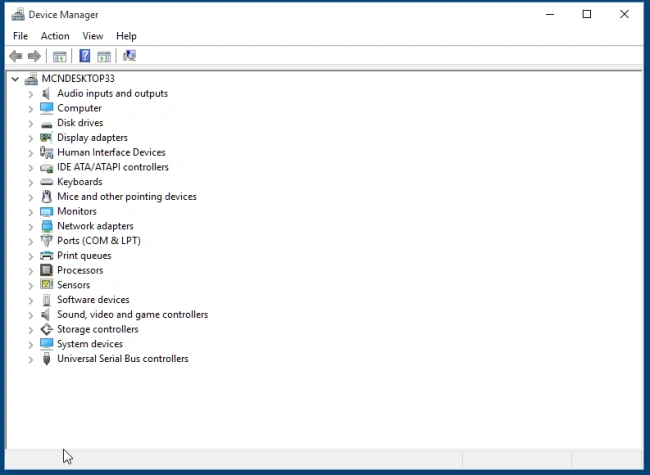
In Windows 10 operating system sometimes a user may want to change the Device Settings according to system requirement or his/her own because some applications and devices do not support or match the operating system. So Device Setting is used to run those applications which are not supporting the default settings of devices. In the Device Settings options, we can also Install, Update and Uninstall the devices drivers manually. To understand the Device Settings we just follow some rules and basic steps.
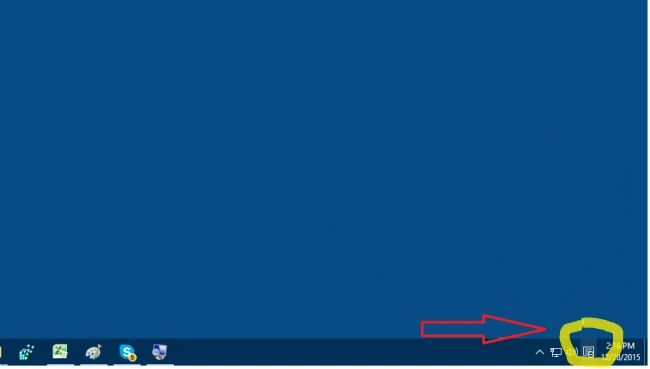
In this article first step is how to open the Settings Home in Windows 10. There are two ways to open Settings Option, First by pressing Windows key/By click on start menu, Secondly Clicking on Notifications icon. just follows these screenshot steps.
Step 1
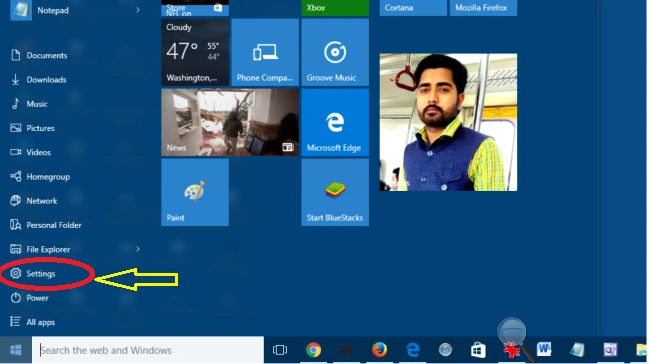 Step 2
Open Setting Home
Click on the Notification icon at the bottom right side corner of the Windows Desktop Screen.
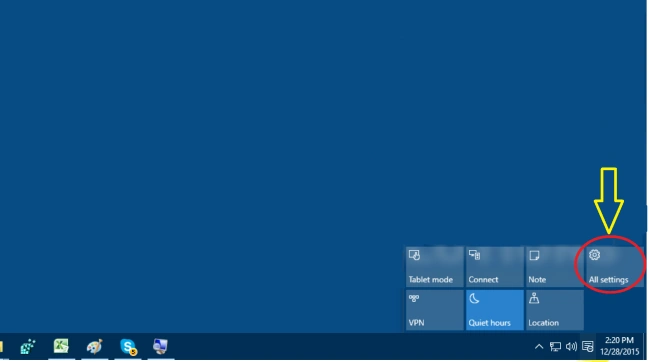
 Select All settings tab options.
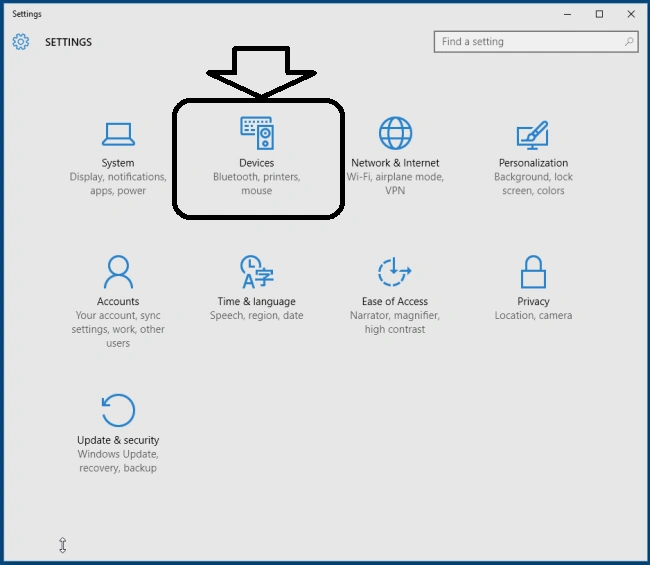
 After doing the above steps we can see the main SETTINGS home window with multiple options.
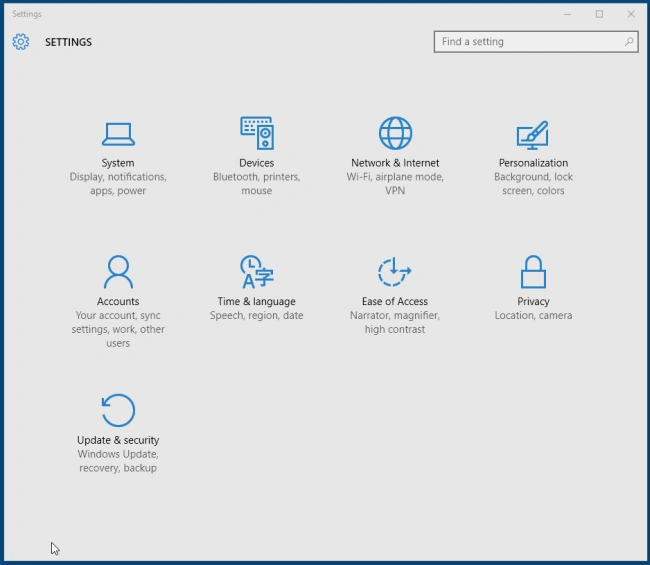 Now click on Devices option.
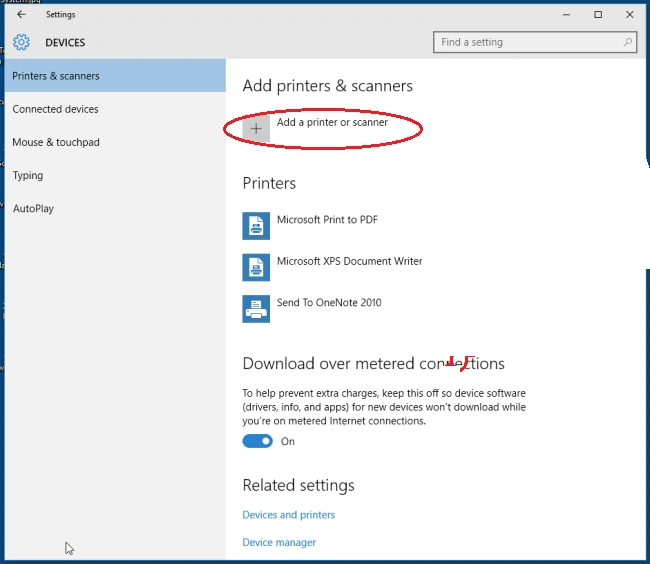
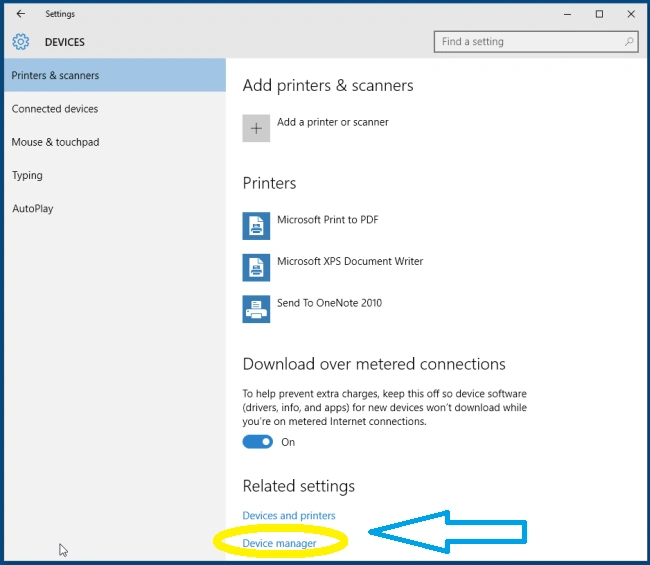
 If you want to add printer and scanner then Click on Add a printer or scanner option marked as Red color circle.
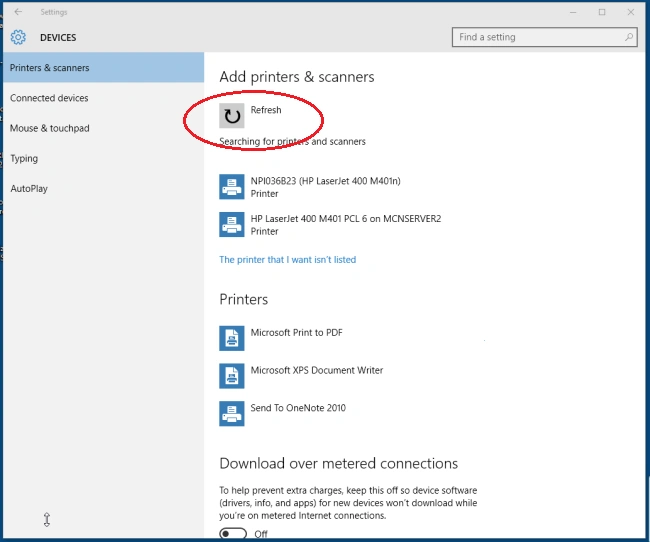
 Whenever devices not found click on Refresh Button.
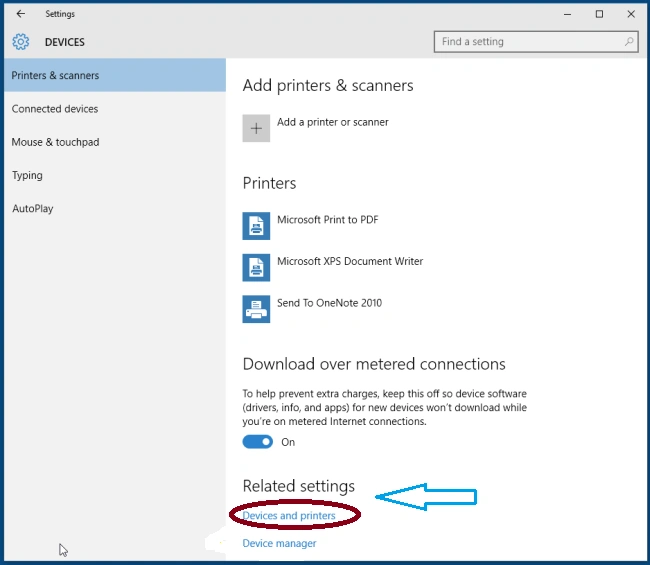
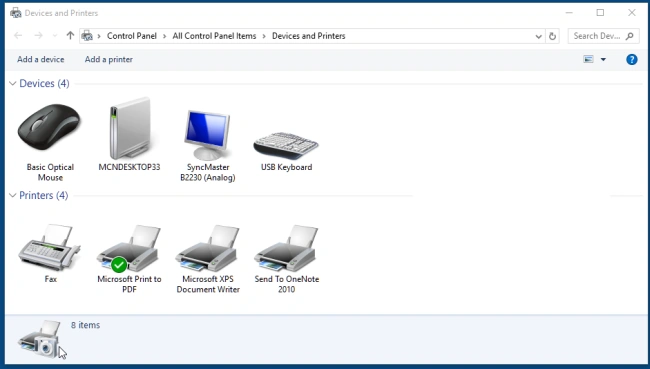
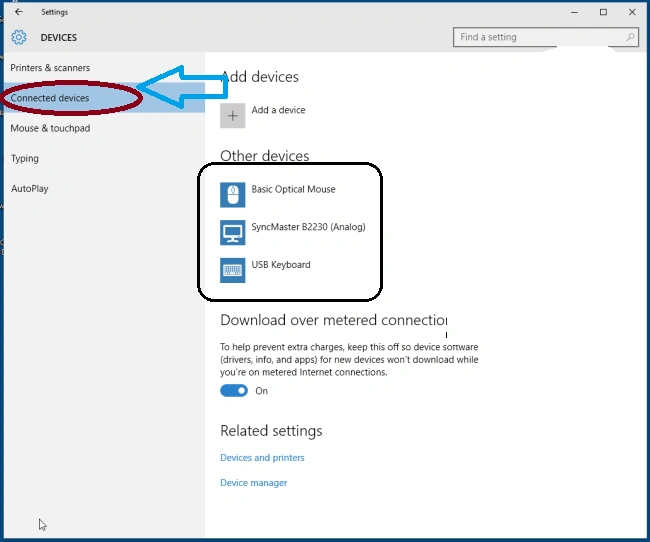
 To look at all connected devices, just click on Devices and Printers marked as Red circle Option. Here's the screenshot.



Santhakumar MunuswamyPosted Dec 30, 2015, 3:13 PM
Thanks for nice share