

Introduction
After installation of Windows 10 Operating System, by default, you can see the Taskbar of Windows 10 at the button position. Sometimes user wants to Customize the Taskbar of Windows 10.
Here are the steps to customize taskbar of Windows 10,
Step 1
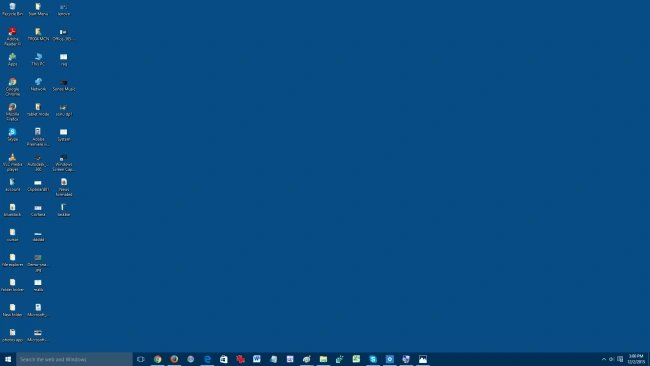
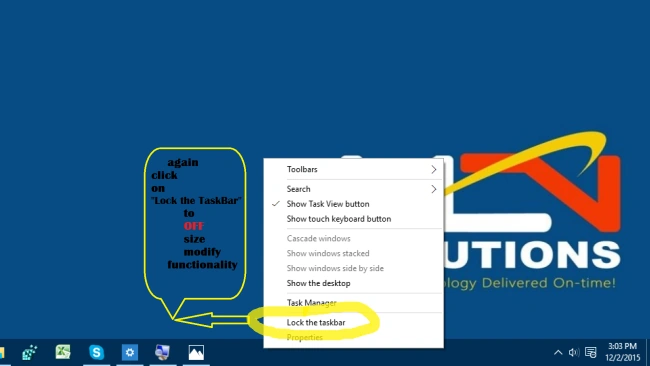
Firstly, ON Customized functionality, here's the screenshot,

Step 2
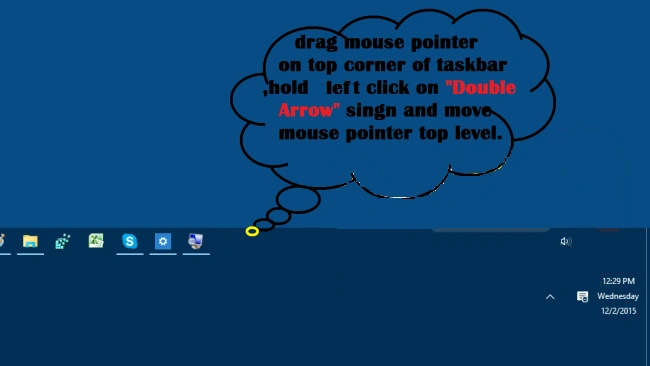
In 2nd step, we will increase the size of Taskbar as in the following screenshot,


Step 3
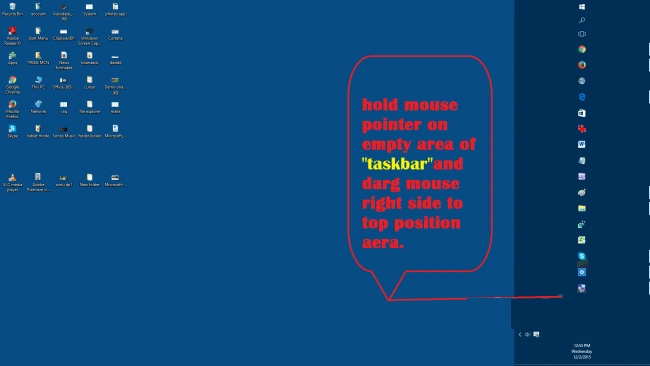
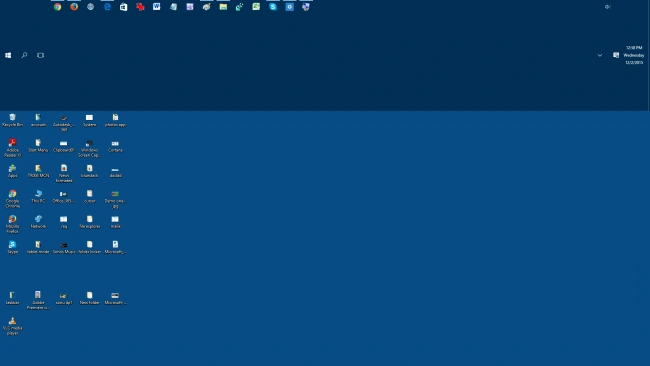
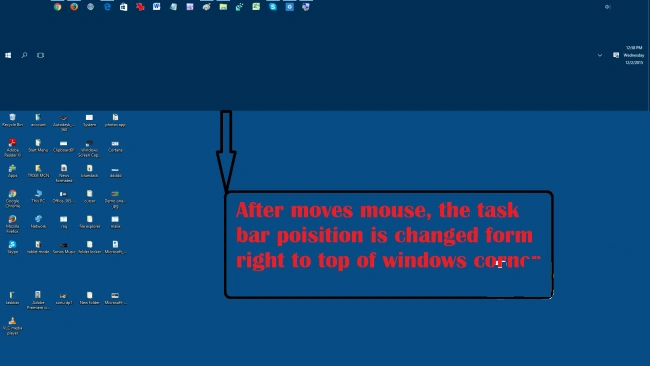
Now we are again changing Taskbar position right side windows screen to top side windows screen. Here's the screenshot,
Step 4
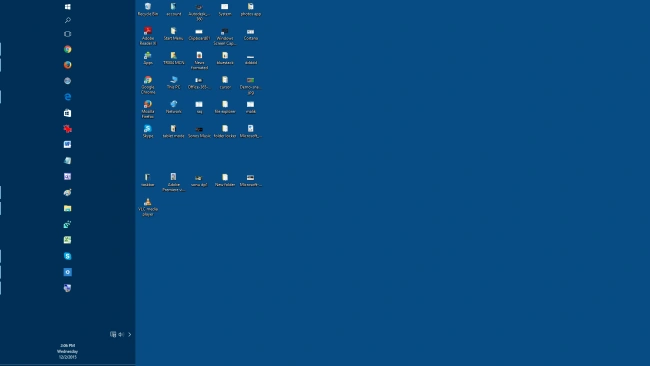
In this step, we looked for Taskbar at Left position windows screen as in the following screenshot,
Step 5
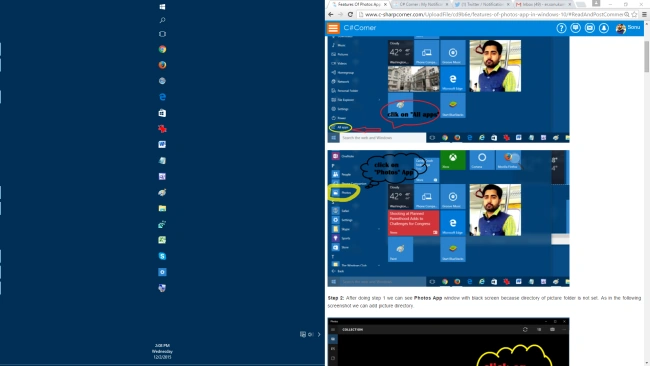
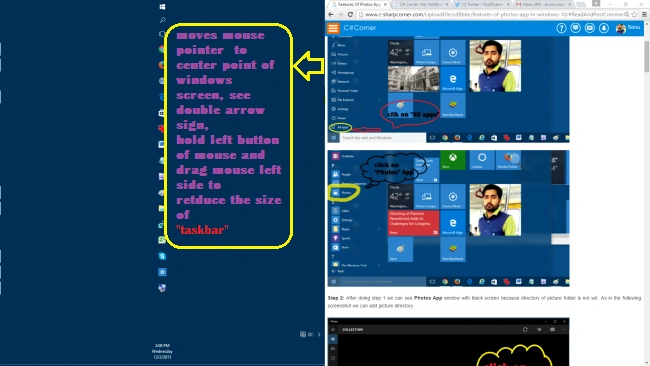
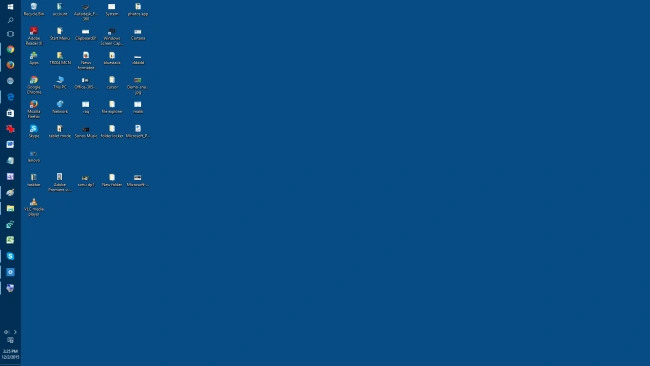
If you are changing the size equals to Windows half screen then we face maximized Windows screen problem. To solve that problem look at the following screenshot,
Step 6
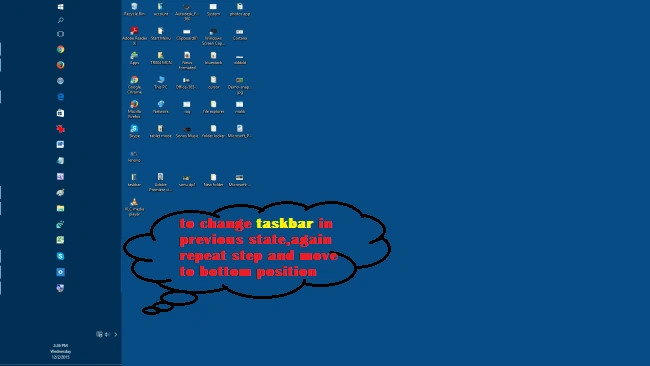
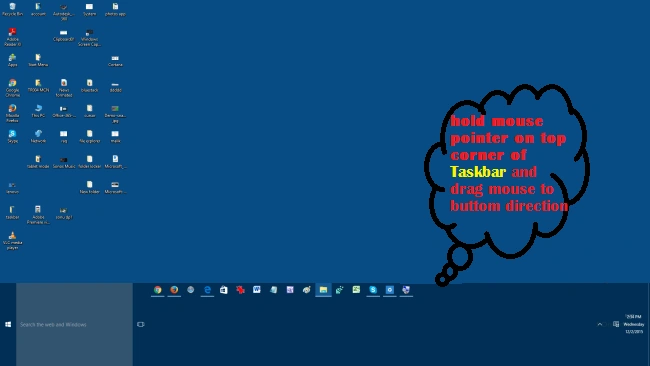
Finally, if we want to change Taskbar in the previous state,
Santhakumar MunuswamyPosted Dec 4, 2015, 7:00 AM
Good one