

Introduction
In the modern UI, the SharePoint team is adding more features. Recently they have introduced SharePoint list form formatting using JSON. Using JSON formatting for lists, we can have
- Conditional formatting applied to fields, which is basically hiding and showing fields based on certain values
- Adding logo, header information to the list form
- Adding footer information to the list form
- Adding sections if the form is large, and arranging the columns side by side
- And much more
The beauty of it is all these things can be achieved directly from the UI, without any custom development using SPFx or CSOM. If you have use case where you need to design form with minimal rules and sections you can take advantage of this JSON formatting.
In this article series, we will cover the following,
- Creating list from existing list template (This article)
- Adding Header/Logo to your list form
- Modifying the body of the form
- Adding the footer note.
Creating List from List template
Step 1
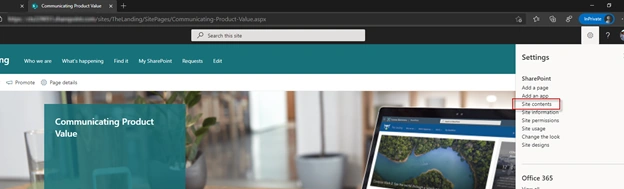
Login to your communication site and go to site contents
Step 2
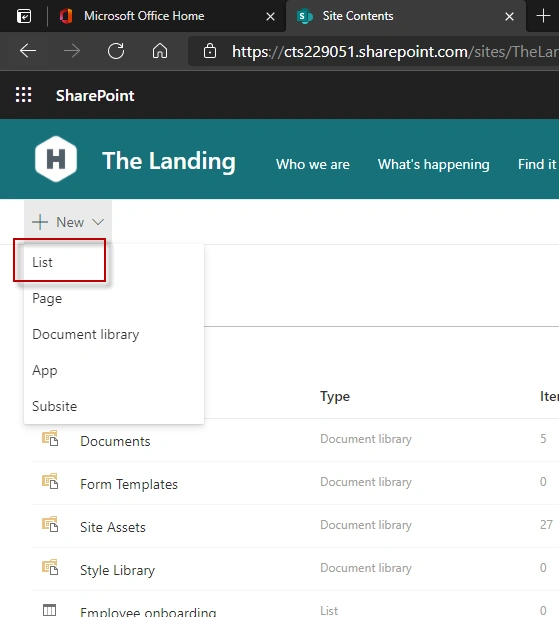
From the site contents page, click on new button and select list
Step 3
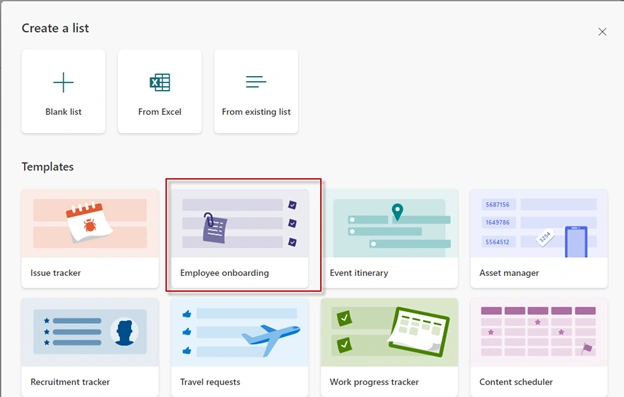
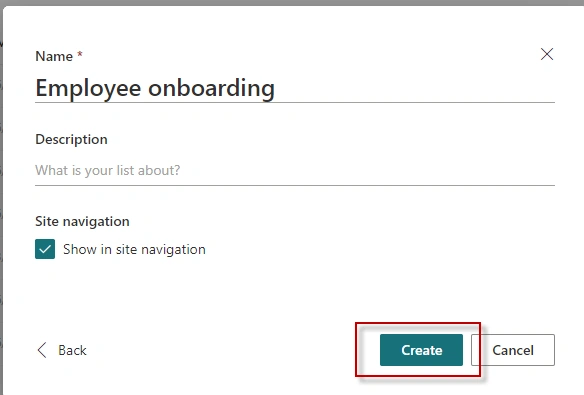
For this example, I have selected employee onboarding. You can chose any other list.
Step 4
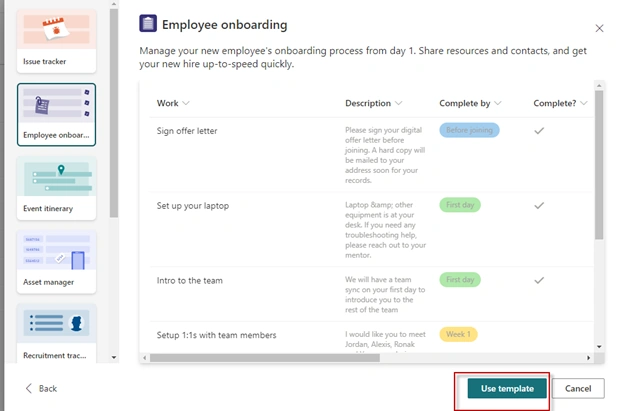
Leave the default title and proceed to next. You can update the title to your needs. I have left it for simplicity.
Step 5
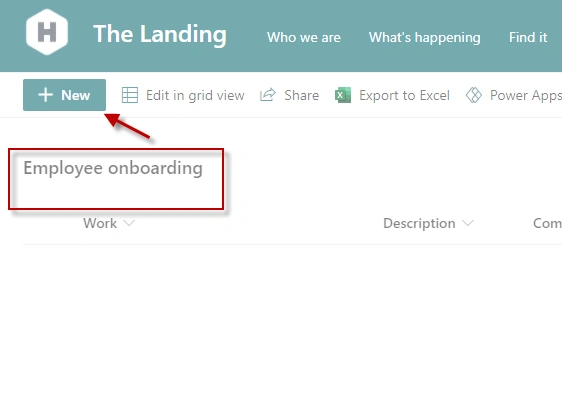
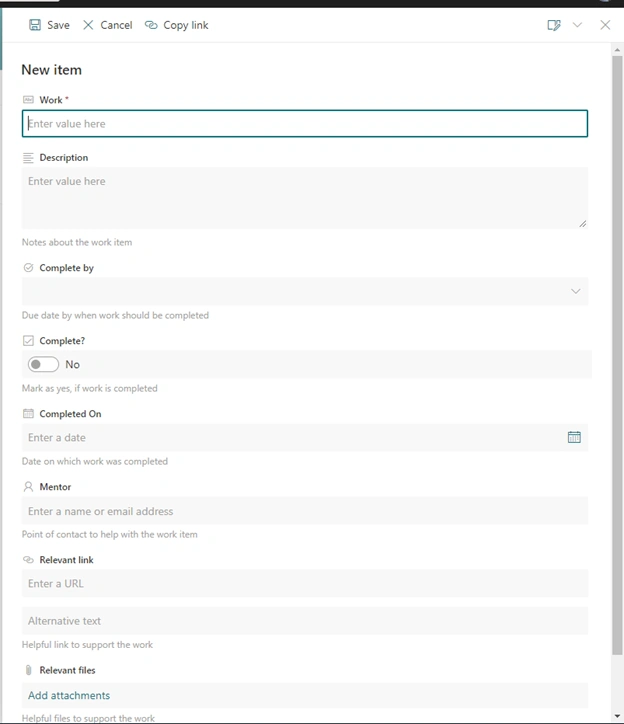
Check the default new form. It should display just like below.
Conclusion
Thus in this section, we have seen how to create a list from existing list templates in Modern SharePoint site. This finishes Part one in the series of Customizing List Forms Using JSON Formatting.
Join the conversation! Your thoughts help the community grow.