

Introduction
- WPF ApplicationFrom
- DataGrid control
- MySQL Database
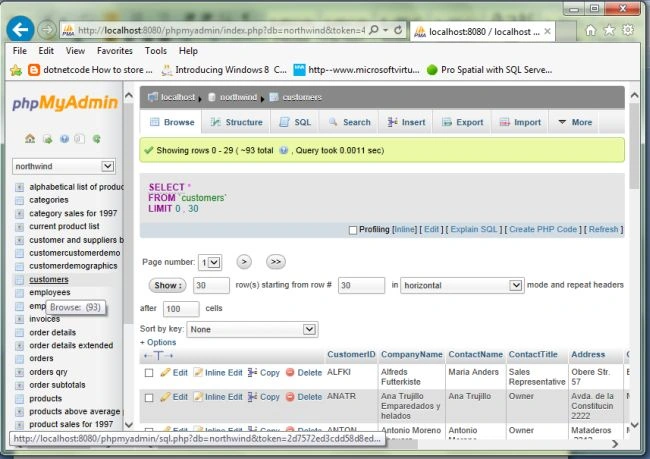
See the following screen; select "MySQL Wamp Server database" > "customers data".
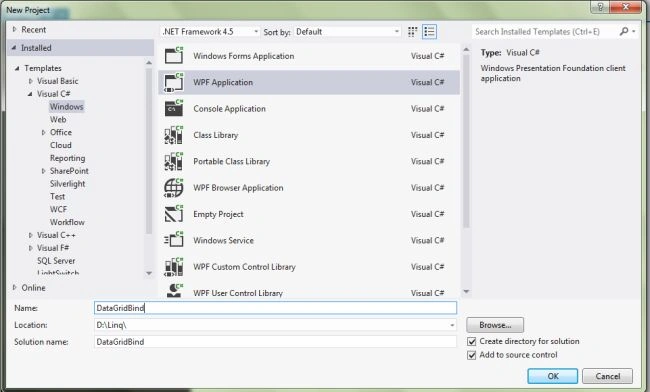
 Create a new project using "File" > "New" > "Project..." > "WPF Application" and name it: "DataGridBind".
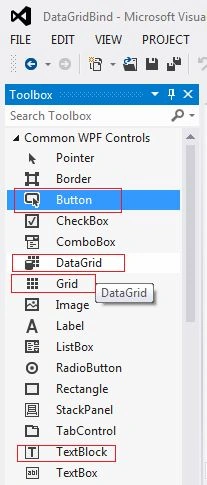
 Now from the Toolbox Select:
- 1 Grid
- 1 Text block
- DataGrid control
- 1 Button
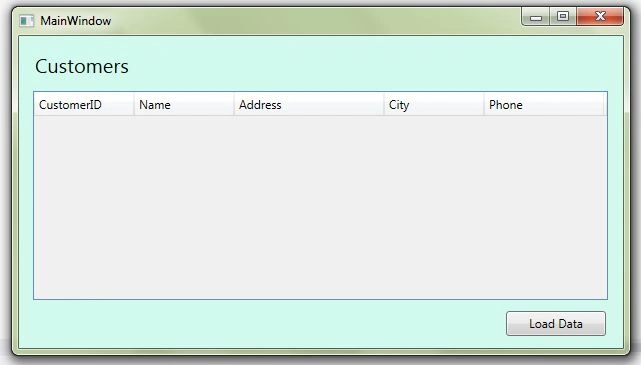
- <Window x:Class="DataGridBind.MainWindow" xmlns="http://schemas.microsoft.com/winfx/2006/xaml/presentation" xmlns:x="http://schemas.microsoft.com/winfx/2006/xaml" Title="MainWindow" Height="350" Width="620">
- <Grid Height="350" Width="625" Background="#FFD1F9EE">
- <TextBlock Height="32" HorizontalAlignment="Left" Margin="16,15,0,0" Name="textBlockHeading" Text="Customers" VerticalAlignment="Top" Width="310" FontSize="20" FontStretch="Normal" />
- <Grid HorizontalAlignment="Left" Height="310" VerticalAlignment="Top" Width="625">
- <DataGrid AutoGenerateColumns="False" HorizontalAlignment="Left" Margin="14,55,0,46" Name="dataGridCustomers" Width="575" ItemsSource="{Binding Path=LoadDataBinding}" CanUserResizeRows="False">
- <DataGrid.Columns>
- <DataGridTextColumn Binding="{Binding Path=CustomerID}" Header="CustomerID" Width="100" IsReadOnly="True" />
- <DataGridTextColumn Binding="{Binding Path=ContactName}" Header="Name" Width="100" IsReadOnly="True" />
- <DataGridTextColumn Binding="{Binding Path=Address}" Header="Address" Width="150" IsReadOnly="True" />
- <DataGridTextColumn Binding="{Binding Path=City}" Header="City" Width="100" IsReadOnly="True" />
- <DataGridTextColumn Binding="{Binding Path=Phone}" Header="Phone" Width="120" IsReadOnly="True" />
- </DataGrid.Columns>
- </DataGrid>
- <Button Content="Load Data" Height="25" HorizontalAlignment="Left" Margin="487,275,0,0" Name="btnloaddata" VerticalAlignment="Top" Width="100" Click="btnloaddata_Click" />
- </Grid>
- </Grid>
- </Window>
In the App.config file create the database connection string as:
- <?xml version="1.0" encoding="utf-8" ?>
- <configuration>
- <connectionStrings>
- <add name="connectionString" connectionString="Server=localhost;userid=root;password=;Database=northwind" providerName="MySql.Data.MySqlClient" />
- </connectionStrings>
- <startup>
- <supportedRuntime version="v4.0" sku=".NETFramework,Version=v4.5" />
- </startup>
- </configuration>
MainWindow.xaml.cs
- using System;
- using System.Collections.Generic;
- using System.Linq;
- using System.Text;
- using System.Threading.Tasks;
- using System.Windows;
- using System.Windows.Controls;
- using System.Windows.Data;
- using System.Windows.Documents;
- using System.Windows.Input;
- using System.Windows.Media;
- using System.Windows.Media.Imaging;
- using System.Windows.Navigation;
- using System.Windows.Shapes;
- //Using namespaces
- using System.Data;
- using MySql.Data.MySqlClient;
- using System.Configuration;
- namespace DataGridBind {
- /// <summary>
- /// Interaction logic for MainWindow.xaml
- /// </summary>
- public partial class MainWindow: Window {
- #region MySqlConnection Connection
- MySqlConnection conn = new
- MySqlConnection(ConfigurationManager.ConnectionStrings["ConnectionString"].ConnectionString);
- public MainWindow() {
- InitializeComponent();
- }
- #endregion
- #region bind data to DataGrid.
- private void btnloaddata_Click(object sender, RoutedEventArgs e) {
- try {
- conn.Open();
- MySqlCommand cmd = new MySqlCommand("Select CustomerID,ContactName,Address,City,Phone,Email from customers", conn);
- MySqlDataAdapter adp = new MySqlDataAdapter(cmd);
- DataSet ds = new DataSet();
- adp.Fill(ds, "LoadDataBinding");
- dataGridCustomers.DataContext = ds;
- } catch (MySqlException ex) {
- MessageBox.Show(ex.ToString());
- }
- Finally {
- conn.Close();
- }
- }
- #endregion
- }
- }
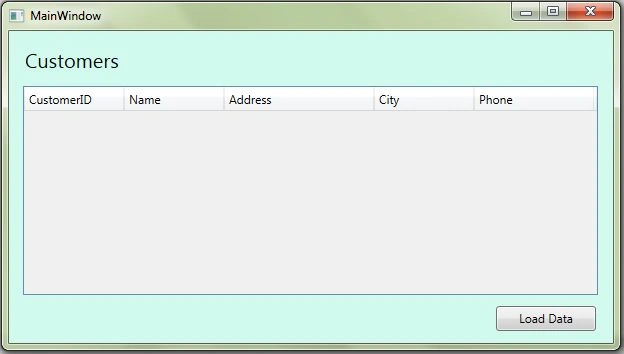
Use the following for “btnloaddata_Click"; bind the Data Grid with the Customer data.
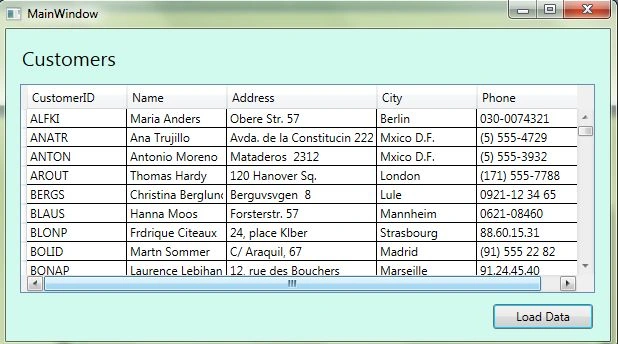 Now bind the DataGrid in the WPF 4.5 application using a MySQL Database. I hope this article is useful. If you have any other questions then please provide your comments below.
taufik masruriPosted May 14, 2017, 11:21 PM
Very useful for me,,,thanks bro
primatneuman .Posted Dec 8, 2014, 12:53 PM
Hi! First of all thank you for the article! It is really helpful. I have a problem to bind to a datagrid data from different sources- several stores, last ten sales from each and first column store's name from a separate mysql table. Any idea where to start? Thanx again!