

When Microsoft launched Windows 8, it also launched a new applications type called Windows Store apps aka Windows 8 app aka Metro style app.
When Visual Studio 2012 was announced last month, it has a supported project templates to build Windows Store apps and has different technologies to build Windows Store apps. You can choose between a pure Web technologies and .NET track. You can build a Windows Store app using HTML 5 and JavaScript. OR you can build a Windows Store app using XAML and C#/VB.NET.
We can develop five types of Windows 8 Apps: Split app, Grid app, Blank app, Navigation app and Fixed layout app. Microsoft Visual Studio 2012 RC is a collection of tools that you can use to create, code, debug, localize, package, and deploy a Windows Windows 8 Apps. Windows 8 Apps introduce many new controls to make the user interface more attractive.
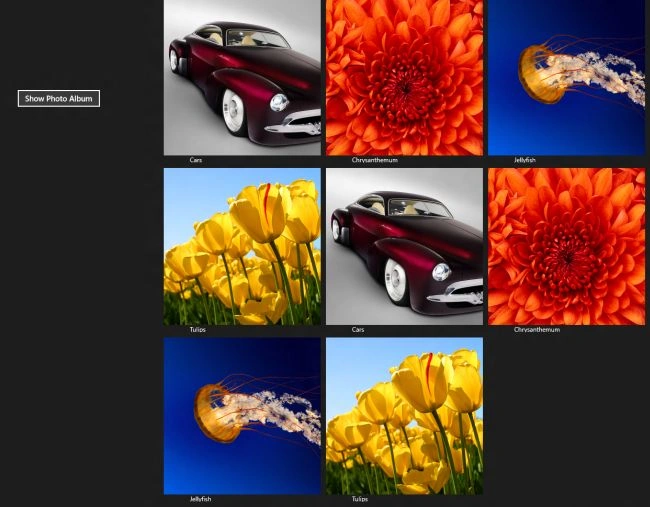
In this article we are going to learn how to bind the data in the grid view controls using XML. XML was designed to transport and store data. We will create a XML file and then, retrieve the XML data to bind it in the grid view control. We will develop aWindows 8 Apps which helps to preview how to use XML and bind the data in controls using XML.
Here are the steps to be followed to bind the data using XML:
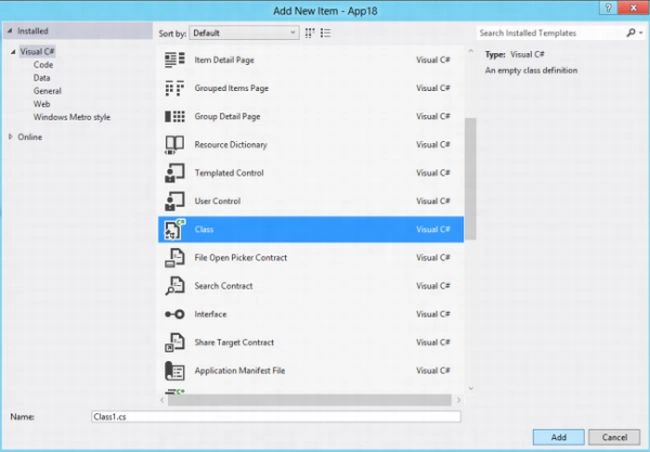
Step 1 First, we will create a new blank Windows 8 Apps.
- Open Visual Studio 2012.
- File -> New -> Project
- Choose Template -> Visual C# -> Windows Store
- Select Blank Application
- Rename the application.

Step 2 Then, we create a new XML file that contains some nodes.
Here is code of XML file
<?xml version="1.0" encoding="utf-8" ?>
<images>
<Image>
<ImageTitle>Cars</ImageTitle>
<ImageUrl>http://www.hdwallpapers.net/gallery/thumbnails/cars/cars_0006_lightbox.jpg</ImageUrl>
</Image>
<Image>
<ImageTitle>Tulips</ImageTitle>
<ImageUrl>Tulips.jpg</ImageUrl>
</Image>
<Image>
<ImageTitle>Jellyfish</ImageTitle>
<ImageUrl>Jellyfish.jpg</ImageUrl>
</Image>s
<Image>
<ImageTitle>Chrysanthemum</ImageTitle>
<ImageUrl>Chrysanthemum.jpg</ImageUrl>
</Image>
<Image>
<ImageTitle>Cars</ImageTitle>
<ImageUrl>http://www.hdwallpapers.net/gallery/thumbnails/cars/cars_0006_lightbox.jpg</ImageUrl>
</Image>
<Image>
<ImageTitle>Tulips</ImageTitle>
<ImageUrl>Tulips.jpg</ImageUrl>
</Image>
<Image>
<ImageTitle>Jellyfish</ImageTitle>
<ImageUrl>Jellyfish.jpg</ImageUrl>
</Image>s
<Image>
<ImageTitle>Chrysanthemum</ImageTitle>
<ImageUrl>Chrysanthemum.jpg</ImageUrl>
</Image>
</images>
Step 3 Add a few XAML in MainPage.xaml. In this we define a grid view in which we bind the XML data on a button click.
<Page
x:Class="App18.BlankPage1"
IsTabStop="false"
xmlns="http://schemas.microsoft.com/winfx/2006/xaml/presentation"
xmlns:x="http://schemas.microsoft.com/winfx/2006/xaml"
xmlns:local="using:App18"
xmlns:d="http://schemas.microsoft.com/expression/blend/2008"
xmlns:mc="http://schemas.openxmlformats.org/markup-compatibility/2006"
mc:Ignorable="d">
<Grid Background="{StaticResource ApplicationPageBackgroundThemeBrush}">
<!--<TextBlock Text="My Photo Album" Grid.Row="0"></TextBlock>-->
<Button x:Name="xmlbutton" Content="Show Photo Album" Click="xmlbutton_Click" Margin="73,72,0,658" ></Button>
<GridView x:Name="PhotoGrid" Width="1200" Height="1200" ScrollViewer.VerticalScrollBarVisibility="Visible"
Canvas.Left="240" ItemsSource="{Binding}">
Anusha NairPosted Mar 1, 2013, 1:18 AM
How to get data from online Xml file into a textblock in win8 app
Ali UYGURPosted Jan 29, 2013, 3:30 AM
how can get the selected item's title and send to Other Page this value?
Pawan Kumar SharmaeditedPosted Jan 8, 2013, 1:59 AMEdited Jan 8, 2013, 2:01 AM
how can possible display image in different different size in grid view binding, replay as soon as posible
Gaurav GuptaPosted Jan 6, 2013, 10:17 PM
Hope this will help you.. http://www.c-sharpcorner.com/UploadFile/99bb20/passing-multiple-values-between-pages-in-metro-style-app-usi/
chris rootePosted Jan 5, 2013, 8:17 AM
How would you pass the data to a new page. I.e from gridview to listview