

In this article, I would like to explain about performing data driven testing in Selenium.
I have used C# language and for IDE is Visual Studio 2010 Ultimate edition to achieve our aim. As we will proceed we will know, step by step how to Create a Data Driven Test method using Selenium in .Net. So for now, let's roll our sleeve and get going.
Before going into details, it would be better to provide a synopsis of a few things so that even you can become familiar with everything. And as I will proceed you will not feel cut off from the main theme.
Selenium
Selenium is a portable software testing framework for web applications. Selenium provides a record/playback tool for authoring tests without learning a test scripting language (Selenium IDE). It also provides a test domain-specific language (Selenese) to write tests in a number of popular programming languages, including C#, Java, Groovy, Perl, PHP, Python and Ruby. The tests can then be run against most modern web browsers. Selenium deploys on Windows, Linux, and Macintosh platforms.
(Source: http://en.wikipedia.org/wiki/Selenium_(software))
I will refrain from going into details about Selenium. Since there is tons of documentation and information available on the internet which already explain Selenium. You can go through over there.
You can visit the Selenium official website for the documentation:
Download the Selenium for .Net from here:
http://seleniumhq.org/download/
Apart from that you can visit my blog also to get to know the Selenium web driver using .Net.
http://seleniumdotnet.blogspot.com/.
Data Driven Testing
Data driven testing is an action through which a set of test input and/or output values are read from data files (ODBC source, CSV files, Excel files, DAO objects, ADO objects etc) and are loaded into variables in captured or manually coded script. Data-Driven testing generally means executing a set of steps with multiple sets of data. Selenium does not provide any out-of-the box solution for data driven testing but leaves it up to the user to implement this on his own. That is why we are here; to do out of box.
Code:
Prerequisites
- Visual Studio 2010 Premium or Visual Studio 2010 Ultimate.
So now our main coding will start from here:
We will be using the Unit testing feature provided by VS2010 and C# code for the same.
- Select Unit test as project from VS2010
- Open your VS2010
- Click on the Test Tab and select New test

- Click on Unit test from the New open window
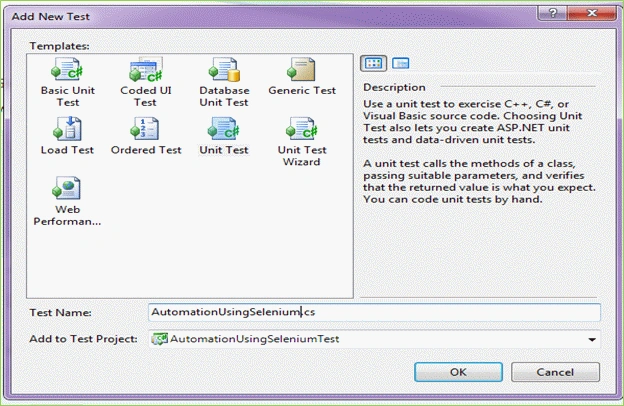
Figure1. Select Unit Test from VS2010
- Rename the File to SeleniumTest.cs
- Add Selenium web driver references
- Add the following dlls through add references:
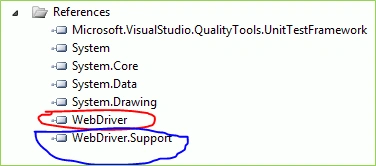
Figure2. Add Selenium DLL in the project.
- Add the following dlls through add references:
- Open the selenium.cs file and add the following Name space:
Never try to add this forcefully unless you are not getting it with your VS intelligence.using OpenQA.Selenium; using OpenQA.Selenium.IE; //add this name space to access WebDriverWait using OpenQA.Selenium.Support.UI;
Test Initialization
public static IWebDriver WebDriver;
// Use TestInitialize to run code before running each test
[TestInitialize()]
public void MyTestInitialize()
{
    var capabilitiesInternet = new OpenQA.Selenium.Remote.DesiredCapabilities();
    capabilitiesInternet.SetCapability("ignoreProtectedModeSettings", true);
    WebDriver = new InternetExplorerDriver(capabilitiesInternet);
}
Test CleanUp
// Use TestCleanup to run code after each test has run
[TestCleanup()]
public void MyTestCleanup()
{
    WebDriver.Quit();
}
Before implementing the test method for data driven we will write the Selenium Test method without Data Driven. Then we will go for Data Driven Testing, by doing this scenario you will clearly understand the difference between a simple Selenium test method without data driven and Selenium test method with Data Driven.
Selenium Test Method without Data Driven
To write Automation code using Selenium to automate our target website we will use any web application. Here I will use a http://www.x-rates.com/calculator.html web application for our AUT (Application under Test) purpose. The function of this AUT web application is to compare a currency value from one country's currency to another country's currency.
NOTE: The AUT website is just for demo purposes. The currency rate would not be fixed. So perhaps the test cases pass for me but would fail for you or vise-versa.
The web page is as below:
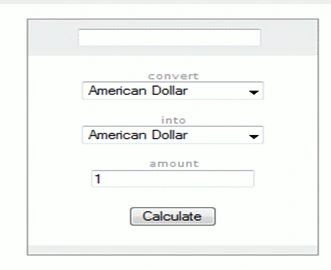
Figure 3. Application Under test
Now we will write our Selenium Test method to perform the following operation:
- Select Value into the first dropdown box (convert)
- Select value into the second dropdown box (into)
- Click on the Calculate button to get the currency value w.r.t first country's currency selected.
- Read the value from upper textbox/input box. This will be our actual result.
- Compare the actual value from the expected value.
[TestMethod]
public void TestCurrencyConvertorWithoutDDT()
{
    //Read your first country currency name
    var convertVal = "American Dollar";
    //Read your second contry currency
    var inToVal = "Indian Rupee";
    //Read Expected value from data source
    var expectedValue = "49.7597 INR";
    //Goto the Target website
    WebDriver.Navigate().GoToUrl("http://www.x-rates.com/calculator.html");
    var setValueConvert = WebDriver.FindElement(By.Name("from"));
    var setValueInto = WebDriver.FindElement(By.Name("to"));
    var calculateButton = WebDriver.FindElement(By.Name("Calculate"));
    var outPutvalue = WebDriver.FindElement(By.Name("outV"));
    var selectConvertItem = new SelectElement(setValueConvert);
    var selectIntoItem = new SelectElement(setValueInto);
    selectConvertItem.SelectByText(convertVal);
    selectIntoItem.SelectByText(inToVal);
    calculateButton.Click();
    var currencyValue = outPutvalue.GetAttribute("value");
    Thread.Sleep(900);//Not a good practise to use Sleep
    //Get the screen shot of the web page and save it on local disk
    SaveScreenShot(WebDriver.Title);
    Assert.AreEqual(expectedValue, currencyValue.Trim());
}
Run the above Test method to see the result:
- On the Test menu, click Windows and then select Test View.
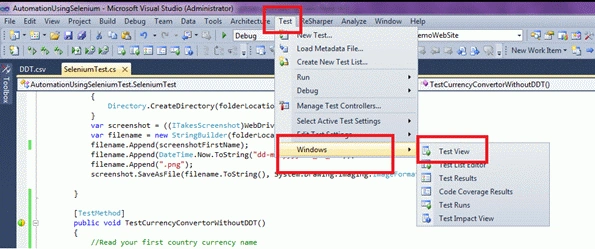
Figure 4. Select Test View
The Test View window is displayed.
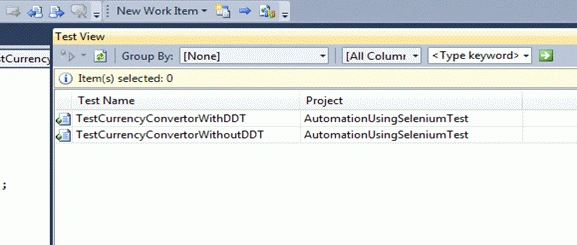
Figure 5. Test View Window
- Right-click TestCurrencyConvertorWithoutDDT and click Run Selection.
If the Test Results window is not already open, it opens now. The TestCurrencyConvertorWithoutDDT test runs.
In the Result column in the Test Results window, the test status is displayed as Running while the test is running.
- In the Test Results window, right-click the row that represents the test and then click View Test Results Details.
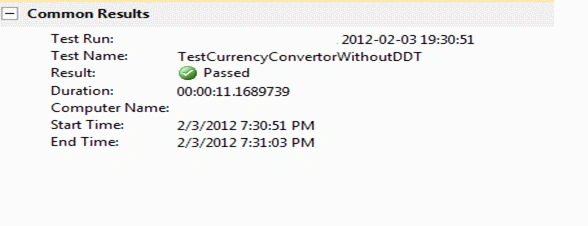
Figure 6. Test Results Windows
Test Method as Data Driven
As you have already seen in the above Selenium test method we ran our method for only one set of values. Now in Data Driven we will run the same method with multiple sets of inputs value.
To read the input values against which we are going to run our Test method, we have stored our input values into a data Source. For that we will use a CSV file, but you can also use other data sources such as Excel Sheet etc.
In this CSV file we will store our expected result also so that we can compare our actual output with this value.
Our csv will look something like this (give the name to this csv file as DDT.csv):
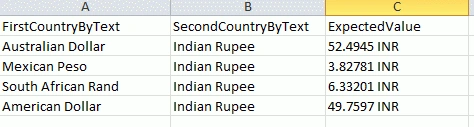
Figure 7. CSV file as Data Source
Now we will connect the above Test method to our data Source [here it is DDT.CSV]
- Open the solution that contains the test method for which you want to use a data source.
- On the Test menu, point to Windows, and then click Test View.
- In the Test View window, right-click the unit test for which you want to use a data source and then click Properties.
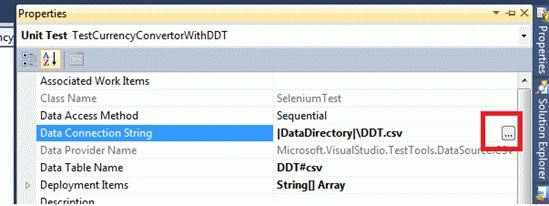
Figure 8. Properties of Selenium Test Method
- In the Properties window click Data Connection String and then click the ellipses(…).
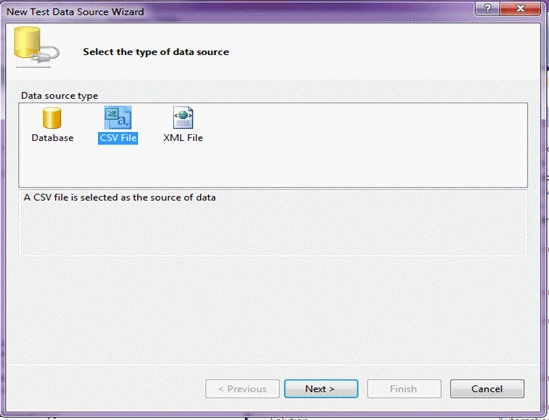
Figure 9. Test Data Source Wizard
- Follow the instructions in the in the New Test Data Source Wizard to create the data connection.
A connection string is added to your unit test after the first bracket of the [TestMethod()] element.
It would be something like this:[DeploymentItem("AutomationUsingSeleniumTest\\DDT.csv"), DataSource("Microsoft.VisualStudio.TestTools.DataSource.CSV", "|DataDirectory|\\DDT.csv", "DDT#csv", DataAccessMethod.Sequential)] - Now we will assign variables to values from your data source
6.1 Open the Test file that contains the test method for which you want to use a data source and locate the variables in the test method.
6.2 For each variable that you want to come from the data source, use the syntax TestContext.DataRow["NameOfColumn"].
The piece of code would be as below:
The whole Code of the Test Method would be as below://Read your first country currency name var convertVal = TestContext.DataRow["FirstCountryByText"].ToString(); //Read your second contry currency var inToVal = TestContext.DataRow["SecondCountryByText"].ToString(); //Read Expected value from data source var expectedValue = TestContext.DataRow["ExpectedValue"].ToString();DeploymentItem("AutomationUsingSeleniumTest\\DDT.csv"), DataSource("Microsoft.VisualStudio.TestTools.DataSource.CSV", "|DataDirectory|\\DDT.csv", "DDT#csv", DataAccessMethod.Sequential)] [TestMethod] public void TestCurrencyConvertorWithDDT() { //Read your first country currency name var convertVal = TestContext.DataRow["FirstCountryByText"].ToString(); //Read your second contry currency var inToVal = TestContext.DataRow["SecondCountryByText"].ToString(); //Read Expected value from data source var expectedValue = TestContext.DataRow["ExpectedValue"].ToString(); //Goto the Target website WebDriver.Navigate().GoToUrl("http://www.x-rates.com/calculator.html"); var setValueConvert = WebDriver.FindElement(By.Name("from")); var setValueInto = WebDriver.FindElement(By.Name("to")); var calculateButton = WebDriver.FindElement(By.Name("Calculate")); var outPutvalue = WebDriver.FindElement(By.Name("outV")); var selectConvertItem=newSelectElement(setValueConvert); var selectIntoItem =newSelectElement(setValueInto); selectConvertItem.SelectByText(convertVal); selectIntoItem.SelectByText(inToVal); calculateButton.Click(); var currencyValue =outPutvalue.GetAttribute("value"); Thread.Sleep(900);//Not a good practise to use Sleep //Get the screen shot of the web page and save it on local disk SaveScreenShot(WebDriver.Title); Assert.AreEqual(expectedValue,currencyValue.Trim()); } - Run the Test Method (I already explained this) and the Result will be something like below:
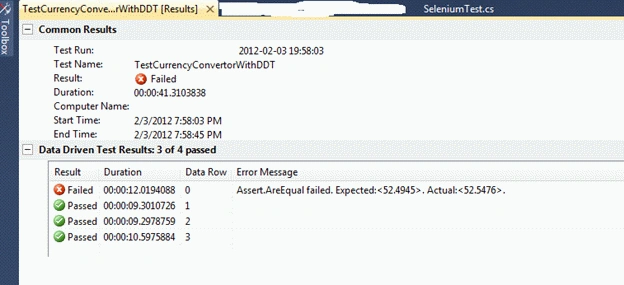
Figure 10. Data Driven Test Results
So you can clearly see that the Test method has ran for 4 different sets of values. And it fetched the input values from our specified data source; that is DDT.csv.
Download the code to get the whole piece of code. I have used a method that is SaveScreenShot(WebDriver.Title). You can get the code details along with the uploaded code. Actually this method would take the screen shot of your target web page and will store that in the Test Result directory.
SaveScreenShot Method
/// <summary>
/// This will Take the screen shot of the webpage and will save it at particular location
/// </summary>      ///
<param name="screenshotFirstName"></param>
private static void SaveScreenShot(string screenshotFirstName)
{
    var folderLocation = Environment.CurrentDirectory.Replace("Out","\\ScreenShot\\");
    if (!Directory.Exists(folderLocation))
    {
        Directory.CreateDirectory(folderLocation);
    }
    var screenshot = ((ITakesScreenshot)WebDriver).GetScreenshot();
    var filename = new StringBuilder(folderLocation);
    filename.Append(screenshotFirstName);
    filename.Append(DateTime.Now.ToString("dd-mm-yyyy HH_mm_ss"));
    filename.Append(".png");
    screenshot.SaveAsFile(filename.ToString(), System.Drawing.Imaging.ImageFormat.Png);
}
The Screenshot of your Target web page will be saved as below:
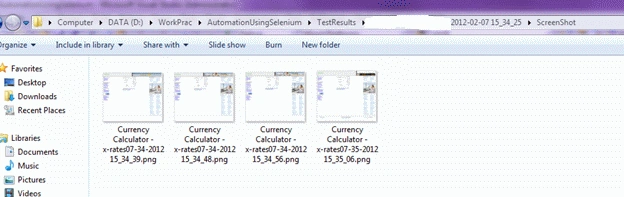
Figure 11. Screenshot saved at Test Result folder.
Feel free to provide your valuable feedback and comments!!
For any issue/question/suggestion in Selenium for C# you can refer to this blog: http://seleniumdotnet.blogspot.com/
Huy DuongPosted Sep 28, 2017, 12:16 AM
Thank you for your hard work, an awesome article about data driven testing.You may also be interested in another approach to Data-driven testing that can be read here: https://www.katalon.com/resources-center/tutorials/data-driven-testing/
Ahetejazahmad KhanPosted Sep 11, 2017, 2:55 AM
Excellent effort !! Did any one notice the screen saver function always takes minutes in file name instead of months.
Tom MohanPosted Mar 23, 2015, 4:47 AM
Good effort
Sachin GuptaPosted Mar 12, 2015, 8:58 AM
how to point multiple file to a single selenium test as we know selenium test will run for each row of targeted file and i want to put some different data from another file in that same selenium test.
Sachin GuptaPosted Oct 16, 2014, 5:46 AM
Hi Jawed, thanks for this great article, i have a query. I am automating my web application which has a create new user page, that page displayed after user login to the application. now i create a .csv file having user information like username password email etc and using this csv file as TestContext. so as per your code, for each row in csv, a complete test cycle will run as like - my application will login - create a user - logout from application - browser will quit itself i define login() method in side my main test and logout() method inside TestCleanup() [TestInitialize()] public void MyTestInitialize() { WebDriver = new FirefoxDriver(); } [TestCleanup()] public void MyTestCleanup() { Logout(); WebDriver.Quit(); } [DataSource("Microsoft.VisualStudio.Tes..., TestMethod] public void Createuser() //Main TEST Method { Login(); . . WebDriver.FindElement(By.Id("ContentPlaceHolder1_ImgbtnSubmit")).Click(); SaveScreenShot(WebDriver.Title); Assert.AreEqual("User Created Successfully!", CloseAlertAndGetItsText()); } so what i want just login into my application once and create all users and then logout from application. please help me. if there are any way to get the total count of datarows in csv and i will loop the perticuler code for creating multiple user.
David ElderPosted Oct 10, 2014, 9:38 AM
Hi Jawed, thanks for this tutorial, it has been very useful :-) .... Question: how do I emulate a situation where I am picking multiple values in the one test... e.g. I have a web app which allows me to select multiple users prior to submitting my request... How would I be able to iterate through all the records in Excel and select each user ?
Mahesh UpadhyayPosted Jun 5, 2013, 10:07 AM
Hi Jawed, It is not generated the visual studio solution under Out folder in Test results, can you please let me know the exact solution for tghis
Mahesh UpadhyayPosted Jun 5, 2013, 2:27 AM
Hi Jawed, I saw your blog, which exceptional. You did a fantastic job. I have a question on selenium webdriver, 1. Did you use any reporting structure for selenium except than assert.fail/pass? If yes, can you please share your code with me it will be great help for me. 2. How come I wait till I check if webelement are exist on the page? Currently I m using wait.Until(ExpectedConditions.ElementExists(By.Name("UserID"))); 3. Do you use any user interface where you can select the test cases that you want to run and just click run. It will execute all selected selenium test cases? Please share you view if you have the same. Please see if you can help me out. Thanks, Mahesh Upadhyay
Mukur ChaudhuriPosted Jun 4, 2013, 5:24 AM
hi i need help...i have a website and i want to access passwords from excel file and check logins automatically in my code...how do i access the passwords one by one from my excel sheet directly
Mukur ChaudhuriPosted Jun 4, 2013, 5:23 AM
hi
titi lopePosted Apr 24, 2013, 4:35 AM
Hello Guys, I am getting error on this line var capabilitiesInternet = new OpenQA.Selenium.Remote.DesiredCapabilities(); capabilitiesInternet.SetCapability("ignoreProtectedModeSettings", true); WebDriver = new InternetExplorerDriver(capabilitiesInternet); Error 1 The best overloaded method match for 'OpenQA.Selenium.IE.InternetExplorerDriver.InternetExplorerDriver(string)' has some invalid arguments unless I have to pass the path to the IEDriverServer.exe as below which is a problem for me because I cannot set all the zones to the same value on my IE Security tab for some reasons. IWebDriver driver = new InternetExplorerDriver(@"C:\Download\IEDriverServer"); I am using selenium-dotnet-2.32.0 Webdriver assembly. Please any idea on why I am getting this error or what I am missing? Thanks lope
Jawed MohammedPosted Jan 22, 2013, 6:20 AM
Thank you so much for your comments and suggestion!!
evan sunPosted Nov 28, 2012, 4:25 AM
add below property will avoid this issue: "An object reference is required for the non-static field, method, or property public TestContext TestContext { get; set; }
Huong PhamPosted Oct 17, 2012, 6:43 AM
Hi Jawed,Thanks much for sharing this tutorial :) But when following your steps,I meet a problem "An object reference is required for the non-static field, method, or property'Microsoft.VisualStudio.TestTools.UnitTesting.TestContext.DataRow.get'" I tried this code "var amountToConvert=System.Convert.ToString(TestContext.DataRow["Vamoun"])",It still doesn't work.Could you help me to solve it.Thanks.
Saravanan NallamuthuPosted Sep 15, 2012, 11:49 AM
Hi jawad, The Example is nice I need to execute a test case using .NET Say i have the following steps Step1:Enter value for Name Texbox Step2:Enter value for Phone Textbox Step3:Click on the Submit button. And in the Excel i will have By.id('TXT_NAME').SendKeys('Value1'); By.Id('TXT_Phone').SendKeys('Valu2'); By.id('BTN_Submit').Click(); How can i execute the test case using the Data Driven framework. The Example that you have given is a kind of iteration where i can enter all possible values for Name textbox and Phone Textbox Can you help on this
Sandeep QAPosted Aug 17, 2012, 10:36 AM
Hello Jawad.. Can you post blog regardig to Login page test case .. DDtest with C#. Thanks... Sandeep.
alberteditedPosted Aug 11, 2012, 7:15 PMEdited Aug 11, 2012, 7:26 PM
superb article, best tutorial in ages! shame they changed their website now, I had to use sendkeys to put values in the textboxes because your SelectElement doesn't seem to work with their new ajaxy currency selectbox..
Diwan BishtPosted Jun 13, 2012, 9:42 AM
Does selenium supports WPF Application? Please let me know... Regards, [email protected]
Jawed MohammedPosted Jun 6, 2012, 4:46 AM
Hi Abhishek, Can you try this code..while reading the data value from data source. var amountToConvert=System.Convert.ToString(TestContext.DataRow["Vamoun"]); Hope this would work for you.. Thanks, Md. Jawed
Abhishek SinghPosted May 25, 2012, 7:33 AM
An object reference is required for the non-static field, method, or property 'Microsoft.VisualStudio.TestTools.UnitTesting.TestContext.DataRow.get' C:\Documents and Settings\Administrator\my documents\visual studio 2010\Projects\QA-Demo\SeleniumDemo\Currency_Converter_with_DDT.cs I am stuck on these error on var amountToConvert = TestContext.DataRow["Vamount"].ToString(); and similar 3 lines .... I has been added all required libraries; list of libraries used are as follows: using System; using System.Data; using System.Text; using System.Collections.Generic; using System.Linq; using Microsoft.VisualStudio.TestTools.UnitTesting; using Microsoft.VisualStudio.TestTools.UnitTesting.Web; using OpenQA.Selenium; using OpenQA.Selenium.Support.UI; using OpenQA.Selenium.Firefox; using System.Text.RegularExpressions; using System.Threading; Please let me know what I am missing or doing wrong??/
Jawed MohammedPosted May 17, 2012, 3:59 AM
Hi Chirutac, Please go to this link http://code.google.com/p/selenium/downloads/list and download IEDriverServer and place this exe into your bin folder of your solution. this will solved your issue.thanks!!
chirutacPosted May 4, 2012, 9:39 AM
I get an error: "The file Capabilities [BrowserName=, IsJavaScriptEnabled=False, Platform=Any, Version=]\IEDriverServer.exe does not exist. The driver can be downloaded at http://code.google.com/p/selenium/downloads/list" What must I do to solve this error because really I can't find information .... Thanks
Ramesh JhajhariaPosted Mar 9, 2012, 4:23 AM
Hi Sir, Thanks for explaining everything in details. Can you please post how to use excel file as I have to do it for different types of data and data will be stored in different sheets of an excel. Thanks, RJ
Nitin SinghPosted Feb 8, 2012, 11:05 PM
It is very nice so keep it and thanks for sharing...
Jawed MohammedPosted Feb 8, 2012, 12:25 PM
Thank you very much to all of you for your comments.. its nice that you liked it... ~jawed
Ibrahim ErsoyPosted Feb 8, 2012, 3:45 AM
I learnt quite much things in this article.Wish that you write more! Good job.
Sonakshi SinghPosted Feb 7, 2012, 11:03 PM
It seems interesting to me really
Stephen JohnsonPosted Feb 7, 2012, 10:58 PM
You have presented your article very nicely.
Arjun PanwarPosted Feb 7, 2012, 10:48 PM
It's really thanks for this great article.
Vikas MishraPosted Feb 7, 2012, 11:42 AM
hi javed it's really very interesting exaplanation..........
Amit MaheshwarieditedPosted Feb 7, 2012, 11:06 AMEdited Feb 7, 2012, 11:07 AM
Hi, Jawed it's really great effort to accomplish such task about testing with selenium so keep it up and thanks for sharing............