

Introduction
Here we are going to learn how to create a database backup and restore in SQL server.
How to do database backup in SQL server
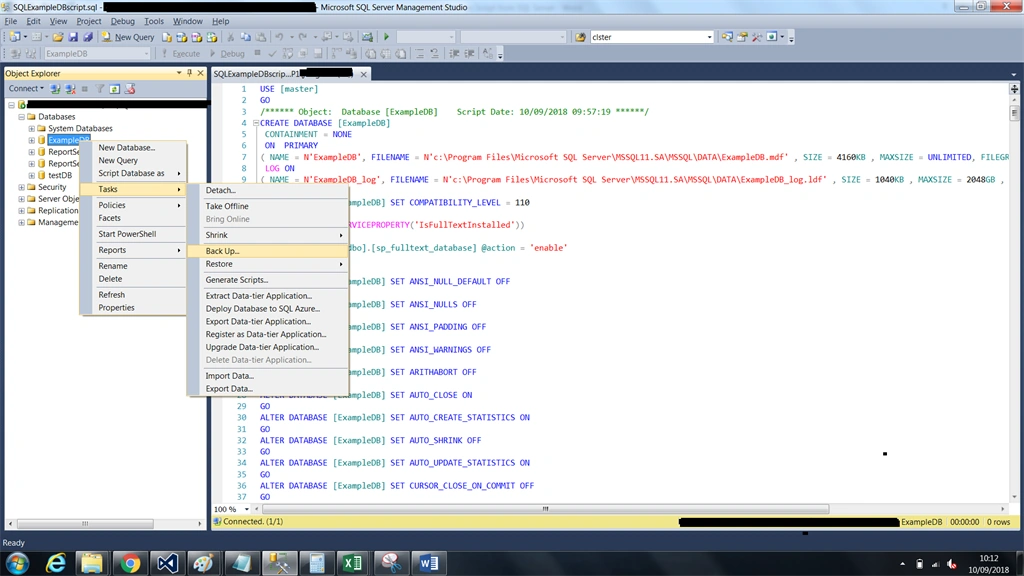
Step 1 Click on database -> Task - > Backup
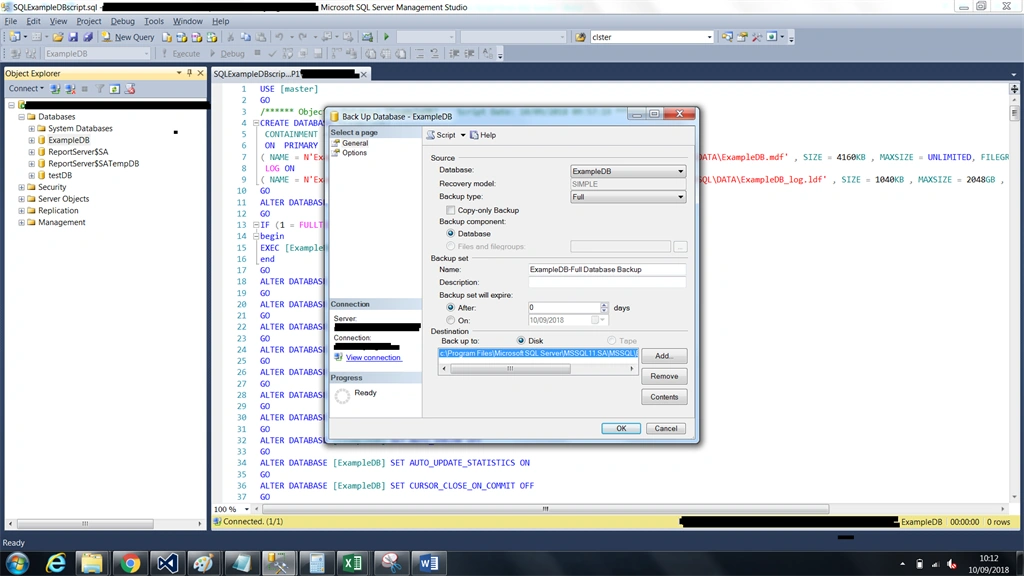
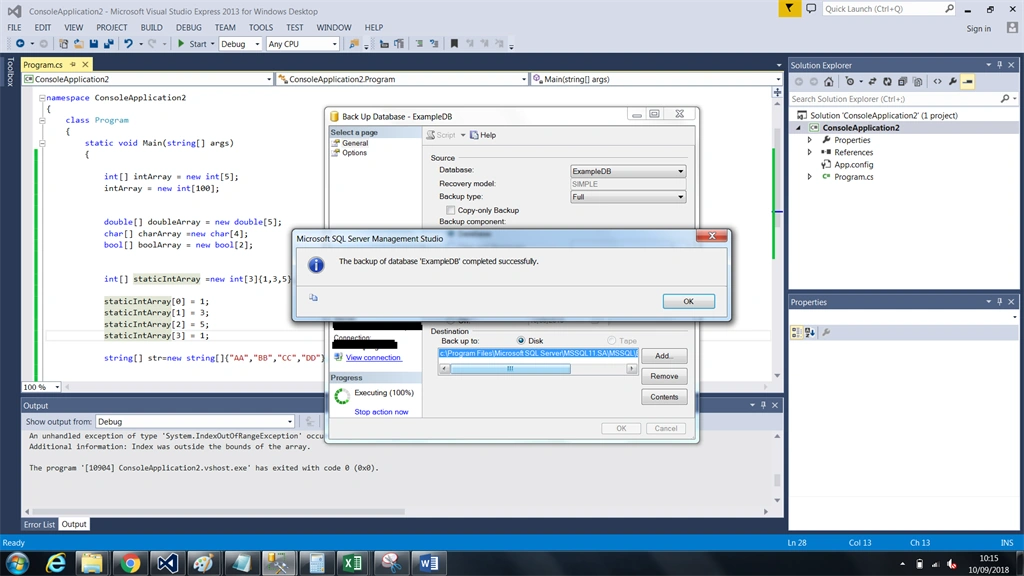
Step 3 Click on the ok button – Database backup completed successfully.

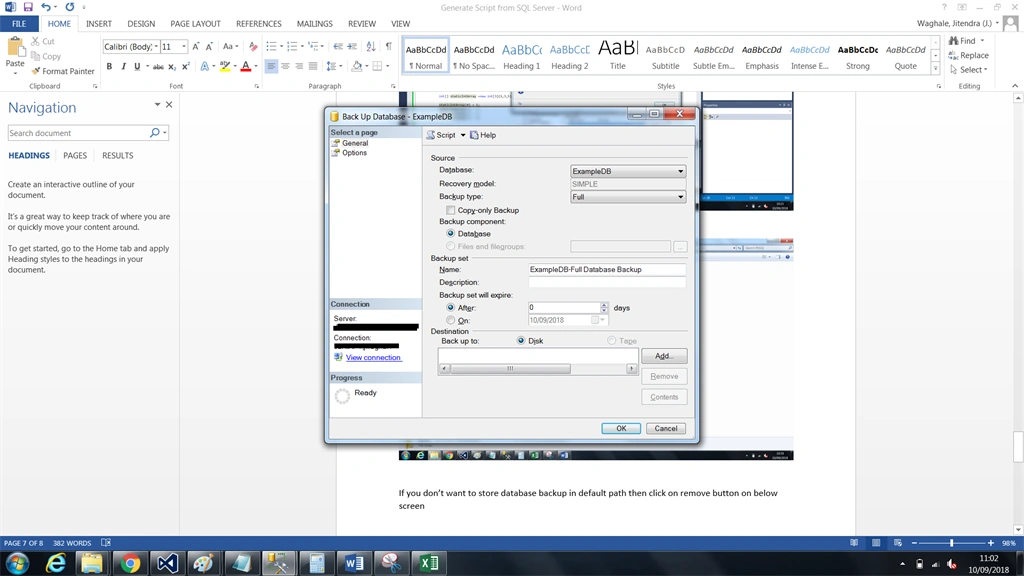
Step 5 If you don’t want to store database backup in default path then click on remove button on below screen,
Step 6 And then click on add button and the below screen will appear,
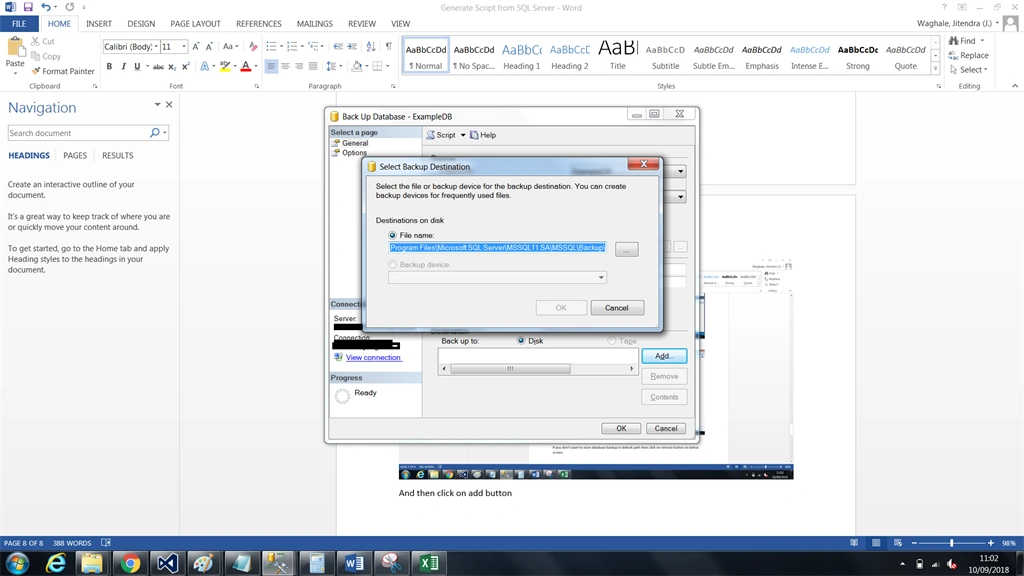
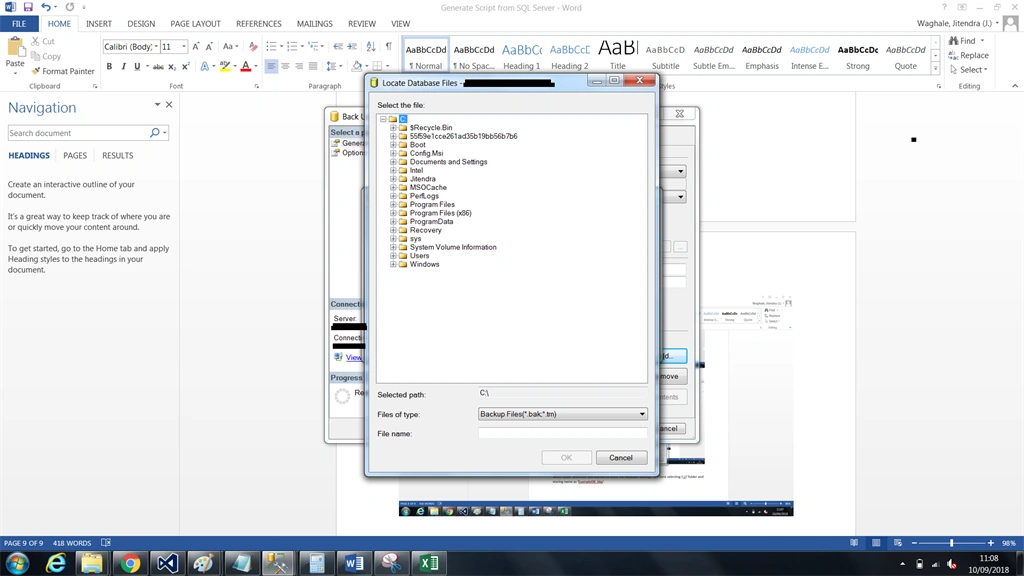
Step 7 Click on expand (unnamed) button.
Select the folder where you want to store the database backup, I am here selecting C:// folder and storing name as ‘ExampleDB_bkp’ like below,
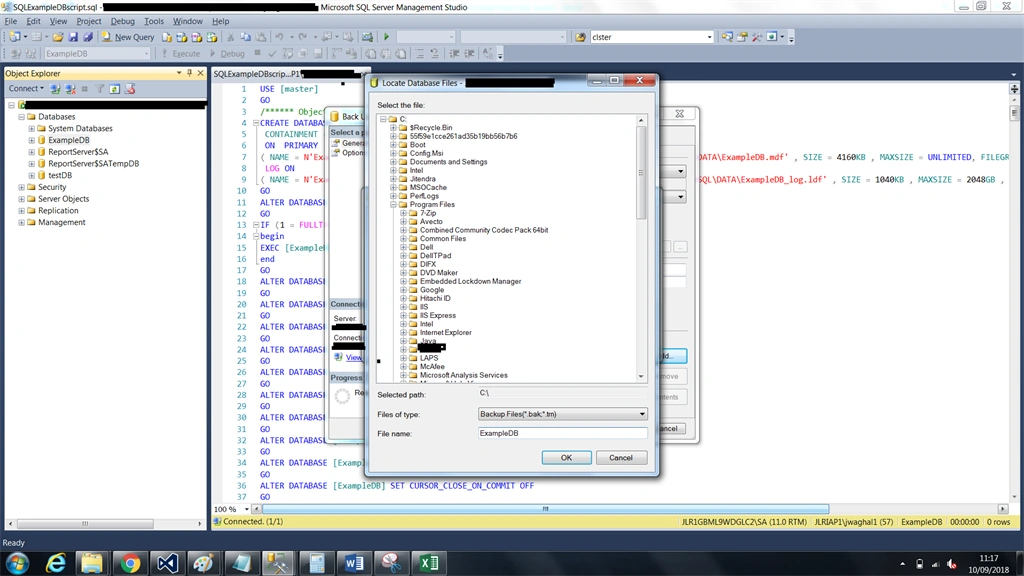
Step 9 You just need to add the database backup name and click on ok button and the database is created successfully,
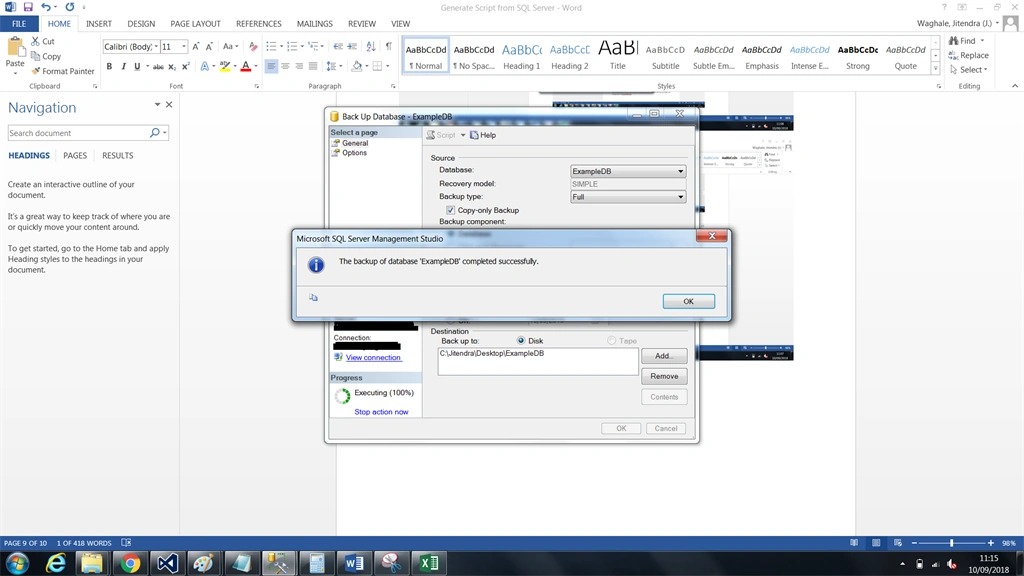
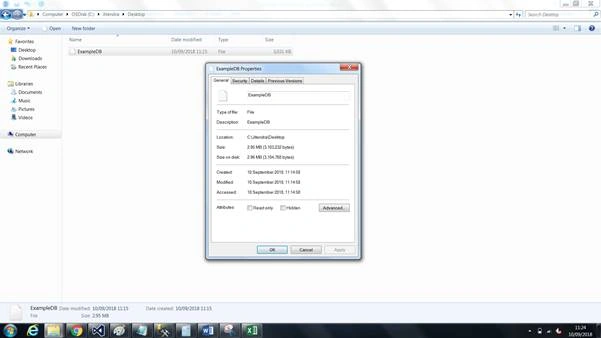
Now let’s check if the database backup is created or not. Yes, now it’s created on the below path.
How to restore the database backup?
For example, here we have taken the backup first,

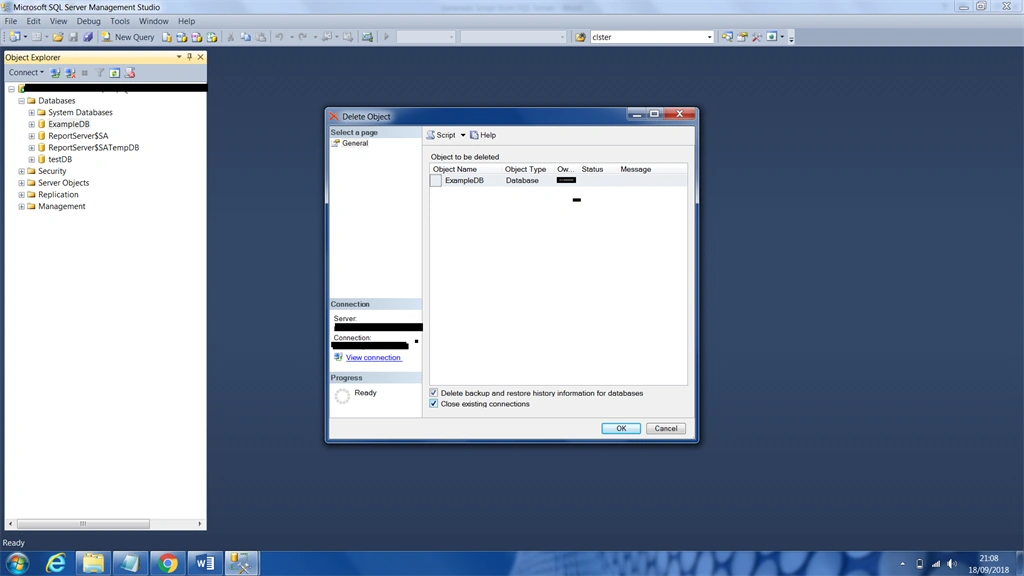
Now, we are deleting ‘ExampleDB’ database

Click on checkbox and close existing connections and then click ok.
As we have already taken database backup, now we are going to restore the database.
Step 1
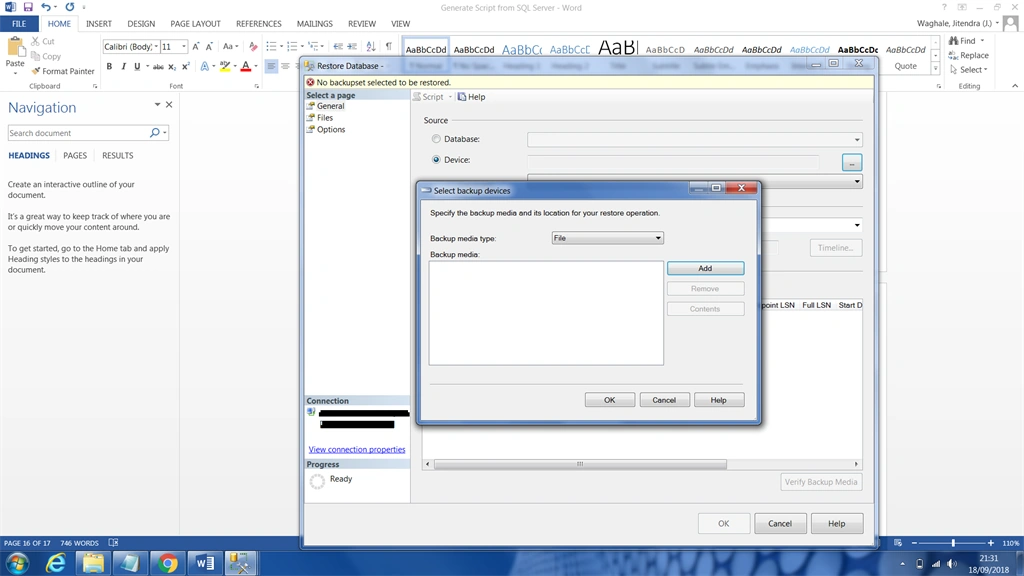
Right click on the database -> and then click on restore the database enclosed image for reference like below -> select device radio option,

Click on the add button,
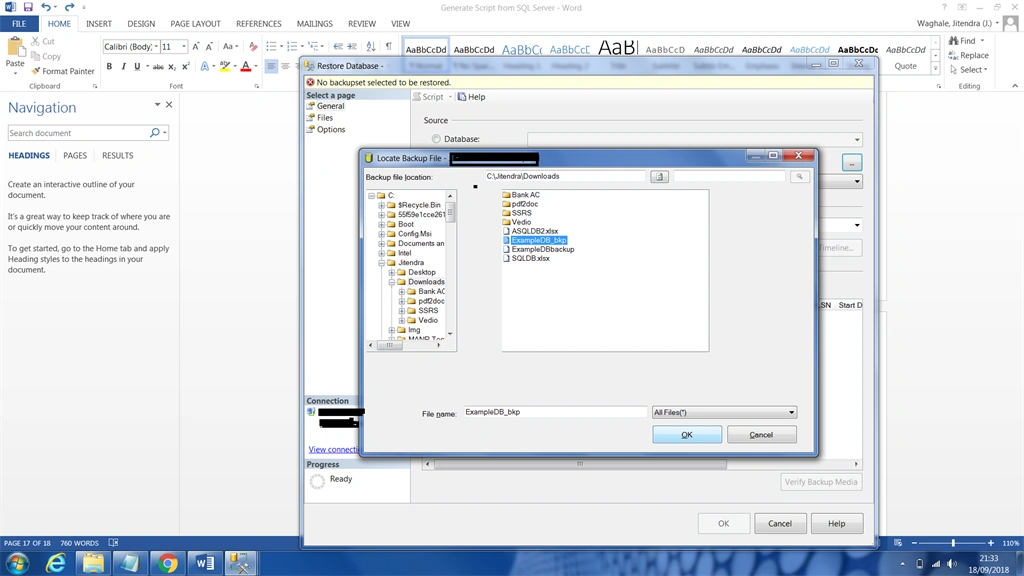
Specify the path -> and then select the database to restore.
->and click on ok - > then ok
Click on ok,
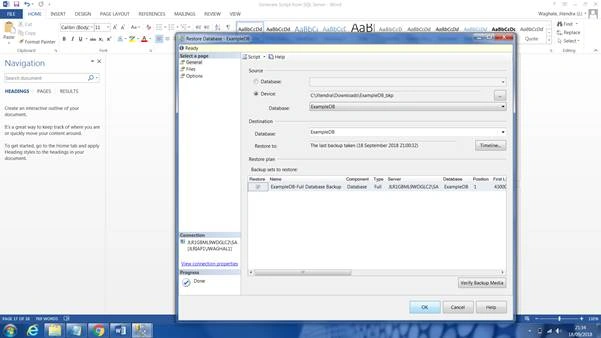
Then you will get a success message,
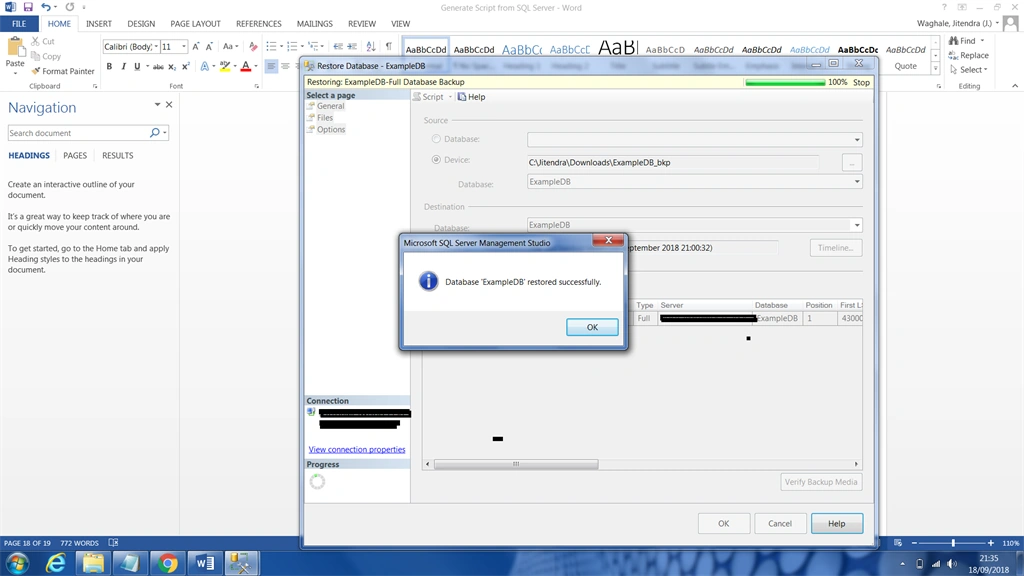
Check if the database is successfully restored or not.
And yes it restored,

Conclusion
In this article, you learned how to do a database backup and restore. I hope, it's helpful.
Rajesh KumarPosted Sep 19, 2018, 11:38 PM
Nice article, Thanks for sharing................
Mahesh ChandPosted Sep 19, 2018, 9:13 AM
Great tutorial. But I think you should crop images to the area what has to be highlighted. It's hard to read. You can use a small tool IrfanView to crop and resize your images. The tool is free and small exe. I use it all the time.