

OK, It's been a long time. You must be wondering what's going on. Well... there have been many changes recently. There are some bad news and some good news. I don't think its a good idea to share bad news with you guys and I'm also pretty sure you won't be interested in good news either ;). One of the news is I've moved to a new apartment, which means lots of moving and time wasting. O well.. part of life. Huh?
Any way, let's back to the business. This article is on DataGrid Customization. This article is in response to a question on discussion boards about how to exchange two columns of a DataGrid. Actually there are couple of ways you can do so and here is one of them.
In this article, I'll explain few of the features provided by the Windows Forms DataGrid control. Actually few questions I'm going to reply in this article were asked on C# Corner discussion forums. These questions are -
- How to I get the name and index of the Column headers?
- How do I find out if mouse click right click was on a column header?
- How do I get the row and column numbers of current selected cell?
- How to change the positions of columns? and more...
Ok, I start this application by creating a Windows application in VS.NET. I add a DataGrid, two Button controls, two text boxes and two label controls. I set these control's properties such as their text and styles. You can set them the way you want. As you can see from Figure 1, I change the DataGrid style, change the text of buttons and so on.
In this application, when you'll click on Get Grid Info button, it will return the information regarding the data in the DataGrid control such as total number of rows, columns, names of the tables, and name of the table columns.
OK, first of all I define the following variables:
// Developer defined variables
private OleDbConnection conn = null;
private string connectionString = "Provider=Microsoft.Jet.OLEDB.4.0;Data Source=C:\\Northwind.mdb";
private string sql = null;
private DataSet ds = null;
Now, on Form's load event handler, I call FillDataGrid method.
private void Form1_Load(object sender,System.EventArgs e)
{
FillDataGrid();
}
The FillDataGrid method is listed in Listing 1, where I simply connects and open a connection using OleDb data provider with Access's Northwind database. Make sure you've the database in right directory or change the path. By default there is no DataGridTableStyle available for a DataGrid besides the default one. I add the DataGridTableStyle using the DataGrid.TableStyles.Add method.
You access a collection of DataGridTableStyle objects of a DataGrid through DataGrid's TableStyles proeprty.
Listing 1. The FillDataGrid method
private void FillDataGrid()
{
sql = "SELECT * FROM Customers";
conn = new OleDbConnection(connectionString);
adapter = new OleDbDataAdapter(sql, conn);
ds = new DataSet("Customers");
adapter.Fill(ds, "Customers");
dataGrid1.DataSource = ds.Tables[0].DefaultView;
// By default there is no DataGridTableStyle object.
// Add all DataSet table's style to the DataGrid
foreach(DataTable dTable in ds.Tables)
{
DataGridTableStyle dgStyle = new DataGridTableStyle();
dgStyle.MappingName = dTable.TableName;
dataGrid1.TableStyles.Add(dgStyle);
}
// DataGrid settings
dataGrid1.CaptionText = "DataGrid Customization";
dataGrid1.HeaderFont = new Font("Verdana", 12);
}
Now if you run the application, the output will look like Figure 1.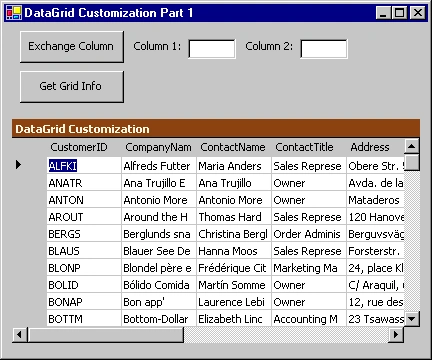
Figure 1.
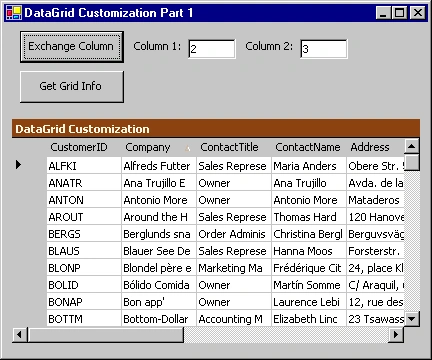
As you can see from Figure 1, we have two text boxes - Column1 and Column 2. The Exchange button is responsible for reshuffling columns. Say you want to exchange column 2 with column 3, you need to enter 2 in text box1 and 2 in text box2 and click Exchange Column button.
The Get Grid Info button returns the data about the grid. The DataGridTableStyle is a collection of DataGridColumnStyle, which can be accessed through the GridColumnStyles property of DataDataTableStyle.
The DataGridColumnStyle represents the style of a DataGrid column, which includes color, text, font and other formatting options such as a caption.
The VisibleRowCount and VisibleColumnCount properties of DataGrid returns total visible rows and columns respectively.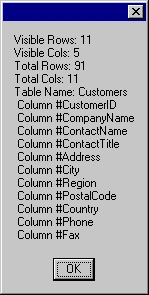
Figure 2.
As you can see from code Listing 2, I read DataGridTableStyles using the TableStyles property and then I read DataGridColumnStyles using the GridColumnStyles of DataGridTableStyle, which returns a collection of columns. In other words, Listing 2 reads all available DataGridTableStyles and DataGrildColumnStyles and displays the information in a message box. The output looks like Figure 2.
Listing 2. Get Grid Info button click handler
private void FillDataGrid()
{
sql = "SELECT * FROM Customers";
conn = new OleDbConnection(connectionString);
adapter = new OleDbDataAdapter(sql, conn);
ds = new DataSet("Customers");
adapter.Fill(ds, "Customers");
dataGrid1.DataSource = ds.Tables[0].DefaultView;
// By default there is no DataGridTableStyle object.
// Add all DataSet table's style to the DataGrid
foreach(DataTable dTable in ds.Tables)
{
DataGridTableStyle dgStyle = new DataGridTableStyle();
dgStyle.MappingName = dTable.TableName;
dataGrid1.TableStyles.Add(dgStyle);
}
// DataGrid settings
dataGrid1.CaptionText = "DataGrid Customization";
dataGrid1.HeaderFont = new Font("Verdana", 12);
}
Now last thing we need to do is reshuffle columns. The ReshuffleColumns module is listed in Listing 4. Here we simply reading the current DataGridTableStyle and changing the location of two columsn.
Listing 3. The ReshuffleColumn module
public void ReshuffleColumns(int col1, int col2, string mapName, DataGrid grid)
{
DataGridTableStyle existingTableStyle = grid.TableStyles[mapName];
int counter = existingTableStyle.GridColumnStyles.Count;
DataGridTableStyle newTableStyle = new DataGridTableStyle();
newTableStyle.MappingName = mapName;
for(int i = 0; i < counter; ++i)
{
if(i != col1 && col1 < col2)
newTableStyle.GridColumnStyles.Add(existingTableStyle.GridColumnStyles[i]);
if(i == col2)
newTableStyle.GridColumnStyles.Add(existingTableStyle.GridColumnStyles[col1]);
if(i != col1 && col1 > col2)
newTableStyle.GridColumnStyles.Add(existingTableStyle.GridColumnStyles[i]);
}
// Remove the existing table style and add new style
grid.TableStyles.Remove(existingTableStyle);
grid.TableStyles.Add(newTableStyle);
}
Now the last thing is to call the module on button click. Code for that is listed in Listing 5.
Listing 4.
private void button1_Click(object sender, System.EventArgs e)
{
if(textBox1.Text.Length < 1)
{
MessageBox.Show("Enter a number between 0 to 19");
textBox1.Focus();
return;
}
if(textBox2.Text.Length < 1)
{
MessageBox.Show("Enter a number between 0 to 19");
textBox1.Focus();
return;
}
int col1 = Convert.ToInt32(textBox1.Text);
int col2 = Convert.ToInt32(textBox2.Text);
ReshuffleColumns(col1, col2, "Customers", dataGrid1);
}
Actually there are two more ways to do the same. Hopefully if I'll write that on my next articles. I'll also come with more DataGrid Customization issues. Best way to learn is just download the code and open project in VS.NET.
Cheers!
Gerry LogrosaPosted Oct 11, 2011, 4:07 AM
Hi, I'm developing a mobile application(WM 6.0). I've got a problem in localization. My boss ask me to display 3 different languages(Chinese, Vietnamese, English(default) ) for labels, gridheader and others controls. I have 3 resources files. 1. Resources.resx - for default 2. Resources.vi-VN.resx - for Vietnamese 3. Resources.zh-CH.resx - for Chinese My question is how can use this resource files base on CultureInfo of my application. and how to set the CulureInfo. Thanks, jryts
neha dubeyPosted Sep 28, 2007, 2:58 AM
how to find transpose of a datagrid ? i have already created a datagrid ,have entered the data in it.Now i want to find the transpose of it. I have tried to do it,but seeking best n shortest method to do it.
George GomezPosted Sep 10, 2007, 3:55 PM
Please help me in How to pass data fro a selected row in a datagrid to the last row in the same datagrid?
BANGARAMPosted Jul 13, 2007, 7:36 AM
I HOPE U WILL HELP ME WHENEVER I HAVE PROBLEM THANQ
Iain CrawfordeditedPosted Jun 9, 2007, 7:56 PMEdited Jun 9, 2007, 7:57 PM
i need to read a .csv file into a data grid, situated on a tab control (tab1). The .csv file consists of a list of several point numbers together with their x, y and z coordinates. When the list is read into the datagrid, I then need to do some manipulation of the data and then put the new point numbers and x, y,z coordinates to a new datagrid in the tab control (tab2). I don't have a clue where to start, could you give me some advice to help me on my way to finding a solution. Many thanks!
swatantra singhPosted May 16, 2007, 4:52 AM
how doi add a control to a winform datagrid