

Here are the steps to create a DataGrid in WPF with AutoGenerated Columns and Selected Columns,
- Create a new WPF project.
Click File, Project, Windows, then WPF Application.
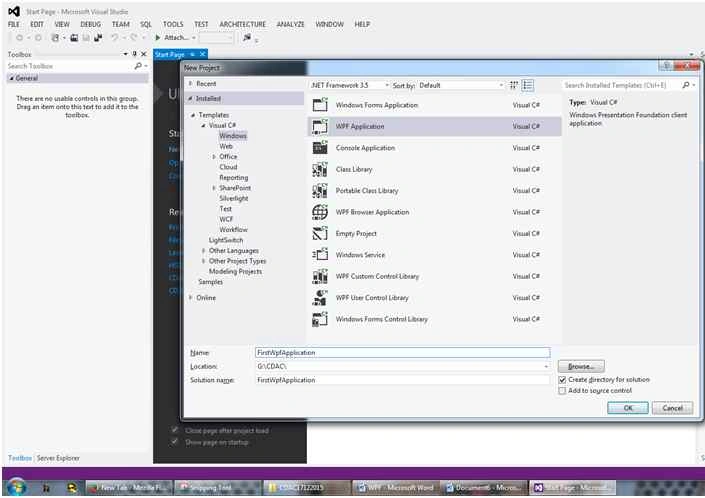
- After creating project, a screen will get displayed like the following,
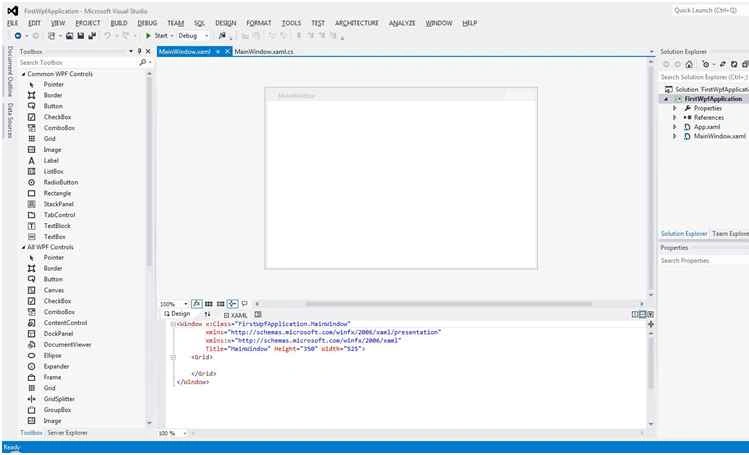
- Default Files,
App.xaml: This file take care of Class and StartUri that is which window (form) you want to execute first. App.xaml is same as Program.cs file of WinForm application on functionality point of view.
MainWindow.xaml: By default file created by visual studio for WPF app. This file as same as Form1.cs created default in WinForm for start to work on WPF.
WPF mixture of Web, WinForm kind of coding and functionality. WPF form file having two way coding facility like WebForm having XAML tab or Design tab.
WPF is elder brother of WinForm.
DataGrid control available from Version 4.0 in Dot Net framework.
- Insert a DataGrid control from toolbox.
Adjust size as you want. You can set size from code behind or through xaml code.

Firstly, I am showing AutoGenerateColumns="True", then afterwards I will show AutoGenerateColumns="False".
Before starting code behind things, first I am explaining you required namespaces for implementation of ADO.NET code to fill DataGrid.
For fetching connection string from APP.CONFIG we have to first give reference of System.Configuration.dll file.
Right click on Project name or Reference folder.
- Select Add Reference option.
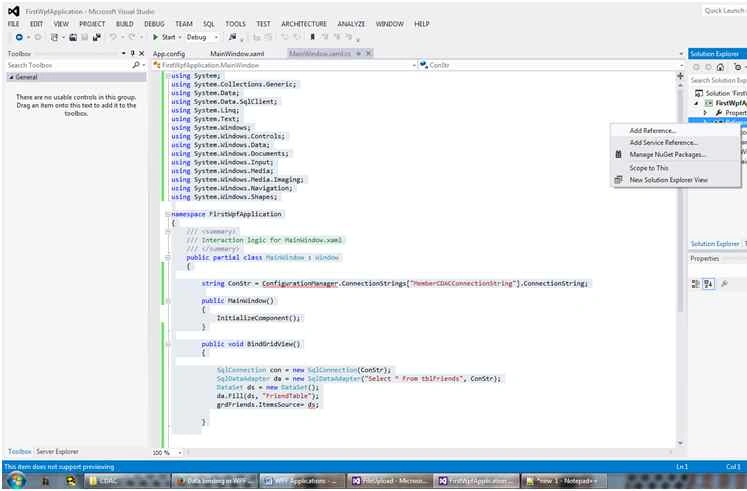
While you click on Add Reference, Reference manager window will open.
Select Framework, the first option left side of window then search and select System.Configuration.
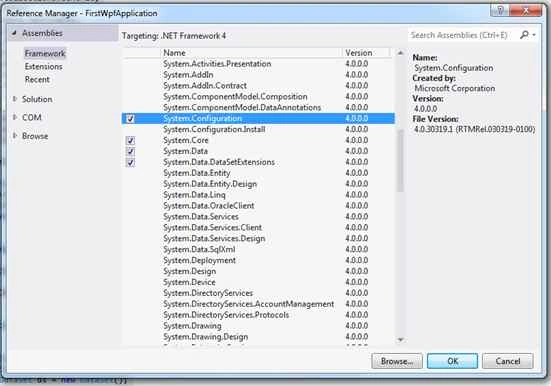
After completion of reference, you can use System.Configuration namespace.
Namespace Required
Please, add the following namespace in code behind in this project using default file name MainWindow.xaml.cs.
| Namespace | Functionalities |
| Using System.Data | To get ADO.NET data handling classes. |
| Using System.Data.SqlClient | To connect to Microsoft SQL server. |
| Using System.Configuration | To fetch configuration and connectionstring from app.config. |
For implementing DataGrid, I used three files and table whose code is given below,
Table Structure inside MemberCDAC database, table named tblFriends,
- USE [MemberCDAC]
- GO
- /****** Object: Table [dbo].[tblFriends] Script Date: 12/19/2015 09:48:03 ******/
- SET ANSI_NULLS ON
- GO
- SET QUOTED_IDENTIFIER ON
- GO
- SET ANSI_PADDING ON
- GO
- CREATE TABLE [dbo].[tblFriends](
- [FriendID] [int] IDENTITY(1,1) NOT NULL,
- [FriendName] [varchar](50) NULL,
- [FriendImage] [varchar](500) NULL,
- [Place] [varchar](500) NULL,
- [Mobile] [varchar](20) NULL
- ) ON [PRIMARY]
- GO
- <?xml version="1.0" encoding="utf-8" ?>
- <configuration>
- <connectionStrings>
- <add name="MemberCDACConnectionString" connectionString="Data Source=SAIBABA-PC\SAIBABA;Initial Catalog=MemberCDAC;Integrated Security=True" providerName="System.Data.SqlClient"/>
- </connectionStrings>
- </configuration>
- <Window x:Class="FirstWpfApplication.MainWindow"
- xmlns="http://schemas.microsoft.com/winfx/2006/xaml/presentation"
- xmlns:x="http://schemas.microsoft.com/winfx/2006/xaml"
- Title="MainWindow" Height="500" Width="700">
- <Grid Margin="0,-4,0,4">
- <DataGrid HorizontalAlignment="Left" VerticalAlignment="Top" Height="174" Width="562" Margin="0,275,0,0"
- AutoGenerateColumns="True" Name="grdFriends"/>
- </Grid>
- </Window>
- using System;
- using System.Collections.Generic;
- using System.Data;
- using System.Data.SqlClient;
- using System.Linq;
- using System.Text;
- using System.Windows;
- using System.Windows.Controls;
- using System.Windows.Data;
- using System.Windows.Documents;
- using System.Windows.Input;
- using System.Windows.Media;
- using System.Windows.Media.Imaging;
- using System.Windows.Navigation;
- using System.Windows.Shapes;
- using System.Configuration;
- namespace FirstWpfApplication
- {
- /// <summary>
- /// Interaction logic for MainWindow.xaml
- /// </summary>
- public partial class MainWindow: Window
- {
- //To fetch connection string from APP.CONFIG file.
- string ConStr = ConfigurationManager.ConnectionStrings["MemberCDACConnectionString"].ConnectionString;
- public MainWindow()
- {
- InitializeComponent();
- BindDataGrid();
- }
- //Binding DataGrid control with data.
- public void BindDataGrid()
- {
- //Set connection which feteched from app.config.
- SqlConnection con = new SqlConnection(ConStr);
- //SELECT query to fetch data from TBLFREINDS
- SqlDataAdapter da = new SqlDataAdapter("Select * From tblFriends", ConStr);
- //DataSet is virutual database or data container.
- DataSet ds = new DataSet();
- //Fill data inside ds(DataSet) with TableNamed FriendTable
- da.Fill(ds, "FriendTable");
- //Bind Data with DataGrid control.
- grdFriends.ItemsSource = ds.Tables["FriendTable"].DefaultView;
- }
- }
- }
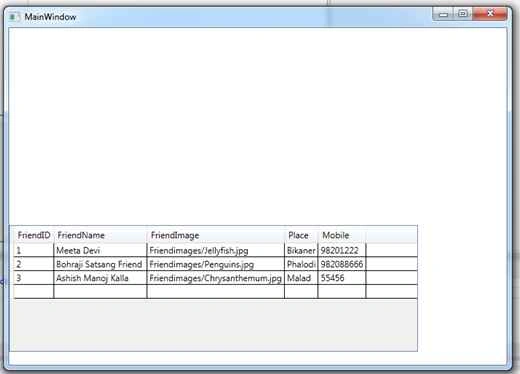
In above screen and example, I selected autogeneratedcolumn = true.
Next, you will learn how to set column in DataGrid control manually.
SELCTED COLUMN
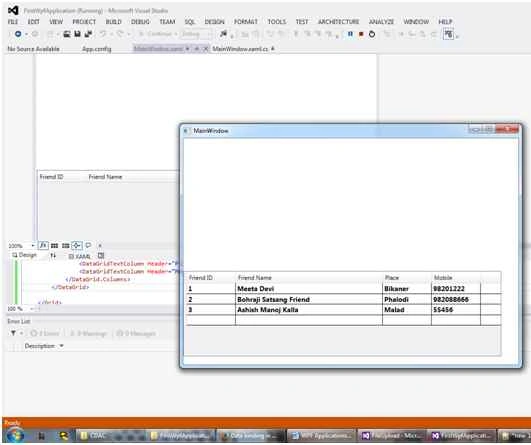
Now, you will learn how to set columns inside DataGrid control.
MainWindow.xaml code:
In following code, I had manually set columns name. Some cosmetic changes to all columns in grid with FontSize, FontWeight,
- <Window x:Class="FirstWpfApplication.MainWindow"
- xmlns="http://schemas.microsoft.com/winfx/2006/xaml/presentation"
- xmlns:x="http://schemas.microsoft.com/winfx/2006/xaml"
- Title="MainWindow" Height="500" Width="700">
- <Grid Margin="0,-4,0,4">
- <DataGrid HorizontalAlignment="Left" VerticalAlignment="Top" Height="174" Width="649" Margin="0,275,0,0"
- AutoGenerateColumns="False" Name="grdFriends">
- <DataGrid.Columns>
- <DataGridTextColumn Header="Friend ID" Width="100" Binding="{Binding FriendID}" FontSize="14" FontWeight="Bold" />
- <DataGridTextColumn Header="Friend Name" Width="300" Binding="{Binding FriendName}" FontSize="14" FontWeight="Bold" />
- <DataGridTextColumn Header="Place " Width="100" Binding="{Binding Place}" FontSize="14" FontWeight="Bold" />
- <DataGridTextColumn Header="Mobile" Width="100" Binding="{Binding Mobile}" FontSize="14" FontWeight="Bold" />
- </DataGrid.Columns>
- </DataGrid>
- </Grid>
- /Window>
Santhakumar MunuswamyPosted Dec 26, 2015, 2:06 AM
Thanks for nice article. Keep it up
Mahesh ChandPosted Dec 19, 2015, 10:21 AM
Welcome to C# Corner, Manoj.