

Introduction
In this part of the article, we will learn about how to integrate Angular Material Datatable into an Angular 6 app with server-side Pagination, Filtering, and Sorting data. We will cover all the scenarios from the beginning so that beginners can implement and use Angular Material Datatable component in their applications.
What is Datatable?
A data table is a very flexible tool by which we can perform so many operations in an easy manner. Within the data table you can get so many options to manage the data with their features like pagination, sorting, and filtering.
In this article, I'm going to use Angular Material Datatable, which is the part of Material Design that performs various kinds of operations with the server-side data.
So let's implement DataTable with our Angular 6 application.
Installation
To use the Angular Material Data table component, we should install angular material dependencies by using the following npm command.
- npm install --save @angular/material @angular/cdk @angular/animations
So, now we are ready to use Angular Material components in our application.
After that we should import all the dependencies into the module.ts file as described below.
- import { BrowserModule } from '@angular/platform-browser';
- import { NgModule } from '@angular/core';
- // To use material components
- import { MatToolbarModule , MatMenuModule , MatInputModule , MatTableModule ,MatButtonModule,MatCardModule,MatTableDataSource,MatPaginatorModule,MatSortModule} from '@angular/material';
- import { BrowserAnimationsModule } from '@angular/platform-browser/animations';
- // To use routing
- import { routing } from './routes';
- // To implement services
- import { HttpModule } from '@angular/http';
- import { DataServiceService } from './service/data-service.service';
- import { AppComponent } from './app.component';
- @NgModule({
- declarations: [
- AppComponent,
- ],
- imports: [
- HttpModule,
- routing,
- BrowserAnimationsModule,
- BrowserModule,
- MatToolbarModule , MatMenuModule , MatInputModule , MatTableModule ,MatButtonModule,MatCardModule,MatPaginatorModule,MatSortModule
- ],
- exports:[
- MatToolbarModule , MatMenuModule , MatInputModule , MatTableModule ,MatButtonModule,MatCardModule,MatPaginatorModule,MatSortModule
- ],
- providers: [DataServiceService],
- bootstrap: [AppComponent]
- })
- export class AppModule { }
I have imported the different material components because we are going to use multiple Angular Material components in this article.
Now let's quickly set up the routing for our app. For that create the routes.ts file inside the app folder and paste the following code snippet.
- import { ModuleWithProviders } from '@angular/core';
- import { Routes, RouterModule } from '@angular/router';
- import { AppComponent } from './app.component';
- import { CombinedComponent } from './combined/combined.component';
- import { WithfilteringComponent } from './withfiltering/withfiltering.component';
- import { WithpaginationComponent } from './withpagination/withpagination.component';
- import { WithsortingComponent } from './withsorting/withsorting.component';
- import { DefaultComponent } from './default/default.component';
- const appRoutes: Routes = [
- { path: '', redirectTo: 'Default', pathMatch: 'full' },
- { path: 'Default', component: DefaultComponent },
- { path: 'WithPagination', component: WithpaginationComponent },
- { path: 'WithFiltering', component: WithfilteringComponent },
- { path: 'WithSorting', component: WithsortingComponent },
- { path: 'Combined', component: CombinedComponent }
- ];
- export const routing: ModuleWithProviders = RouterModule.forRoot(appRoutes);
Before that, let's configure our home page using the app.component.html file. Open the file and replace the following source code.
- <mat-toolbar color="accent">
- <span>Manav Pandya - C#Corner</span>
- <span class="demo-toolbar"></span>
- <button mat-button href="www.asp-dotnet-mvc-tutorials.blogspot.in">Go To My Blog</button>
- <button mat-button [matMenuTriggerFor]="menu">Select Table From Below Menu</button>
- <mat-menu #menu="matMenu">
- <button [routerLink]="['/Default']" mat-menu-item>Default DataTable</button>
- <button [routerLink]="['/WithPagination']" mat-menu-item>Table With Pagination</button>
- <button [routerLink]="['/WithFiltering']" mat-menu-item>Table With Filtering</button>
- <button [routerLink]="['/WithSorting']" mat-menu-item>Table With Sorting</button>
- <button [routerLink]="['/Combined']" mat-menu-item>Combined DataTable</button>
- </mat-menu>
- </mat-toolbar>
- <router-outlet>
- </router-outlet>
Simple Datatable
Before implementing complex Datatable with different functionalities, we will implement a simple Datatable so that we get to know the difference between them.
For that, create a new component named default, where we will implement a simple material data table.
- ng g c default
- <mat-card>
- <div class="alert alert-info">
- <strong>Simple Angular Material DataTable</strong>
- </div>
- <div class="example-container mat-elevation-z8">
- <mat-table #Table [dataSource]="MyDataSource">
- <!-- For ID -->
- <ng-container matColumnDef="id">
- <mat-header-cell *matHeaderCellDef> ID </mat-header-cell>
- <mat-cell *matCellDef="let post"> {{post.id}} </mat-cell>
- </ng-container>
- <!-- For User ID -->
- <ng-container matColumnDef="userId">
- <mat-header-cell *matHeaderCellDef> User ID </mat-header-cell>
- <mat-cell *matCellDef="let post"> {{post.userId}} </mat-cell>
- </ng-container>
- <!-- For Title -->
- <ng-container matColumnDef="title">
- <mat-header-cell *matHeaderCellDef> Title </mat-header-cell>
- <mat-cell *matCellDef="let post"> {{post.title}} </mat-cell>
- </ng-container>
- <!-- For Body -->
- <ng-container matColumnDef="body">
- <mat-header-cell *matHeaderCellDef> Body Text </mat-header-cell>
- <mat-cell *matCellDef="let post"> {{post.body}} </mat-cell>
- </ng-container>
- <mat-header-row *matHeaderRowDef="displayedColumns"></mat-header-row>
- <mat-row *matRowDef="let row; columns: displayedColumns;"></mat-row>
- </mat-table>
- </div>
- </mat-card>
Here in this example, I have used different markup tags of material components, let's see the description about that.
- <mat-table>
It defines the material design data table, which is used to render the number of records using the data table. - <ng-container>
ng-container is a directive, which acts as a structural directive.
- <mat-header-cell>
It defines the header text of a mat-table directive. - <mat-cell>
Used to print the value of a specific cell of a material table. - <mat-header-row>
It takes the array of values to act as data row template, that renders out table wise. - <mat-row>
It is used to show the content of the row for the data table. - DataSource="MyDataSource"
Datasource is the primary property, which is used to populate the data table with the data and the other operations like Pagination, Sorting, Searching and Filtering will completely depend on the data populated using DataSource property.
So far, we have implemented the simple data table page with the HTML required to create the data table.
Now, open the default.component.ts file and replace the give lines of source code.
- import { Component, OnInit } from '@angular/core';
- import { MatTableDataSource } from '@angular/material';
- import { DataServiceService } from '../service/data-service.service';
- import { MatSort } from '@angular/material';
- import { BehaviorSubject } from 'rxjs/BehaviorSubject';
- import { Observable } from 'rxjs/Observable';
- @Component({
- selector: 'app-default',
- templateUrl: './default.component.html',
- styleUrls: ['./default.component.css']
- })
- export class DefaultComponent implements OnInit {
- MyDataSource: any;
- displayedColumns = ['id', 'userId','title','body'];
- constructor(public dataService: DataServiceService) { }
- ngOnInit() {
- this.RenderDataTable();
- }
- RenderDataTable() {
- this.dataService.GetAllRecords()
- .subscribe(
- res => {
- this.MyDataSource = new MatTableDataSource();
- this.MyDataSource.data = res;
- console.log(this.MyDataSource.data);
- },
- error => {
- console.log('There was an error while retrieving Posts !!!' + error);
- });
- }
- }
As you can see that there is one method named RenderDataTable(), which is used to get the data from the service and populate the data table using DataSource property.
To get data, I'm using the free online REST service [Fake API data] and to know more about that, than just go through the following link.
To populate our datatable we are using the service file named data-service.service.ts, create the service using given command.
- ng g s /service/data-service
- import { Injectable } from '@angular/core';
- import { Http, Response, Headers, RequestOptions } from '@angular/http';
- import { Observable } from 'rxjs/Observable';
- import { Observer } from 'rxjs/Observer';
- import 'rxjs/add/operator/map';
- import 'rxjs/add/operator/catch';
- import 'rxjs/add/operator/toPromise';
- import 'rxjs/add/observable/throw';
- @Injectable()
- export class DataServiceService {
- private headers = new Headers({ 'Content-Type': 'application/json' });
- _baseUrl: string = '';
- // For Using Fake API by Using It's URL
- constructor(private http: Http) {
- this._baseUrl = "https://jsonplaceholder.typicode.com/";
- }
- // To fill the Datatable for Default Table [Dummy Data]
- public GetAllRecords() {
- return this.http.get(this._baseUrl + 'posts')
- .map((res: Response) => {
- return res.json();
- })
- .catch(this.handleError);
- }
- // To provide error description
- private handleError(error: Response | any) {
- console.error(error.message || error);
- return Observable.throw(error.status);
- }
- }
This is how we have implemented a simple Material data table, now let's see the output.
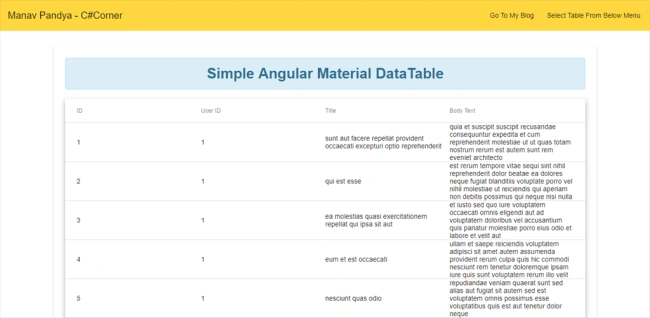
As you can see above our data populated inside the data table, but it's just a simple table with the list of 100 records, but the problem is that there are 100 records listed in the page. Instead we can use pagination to limit data to the specific number of results per page.
Data table With Pagination
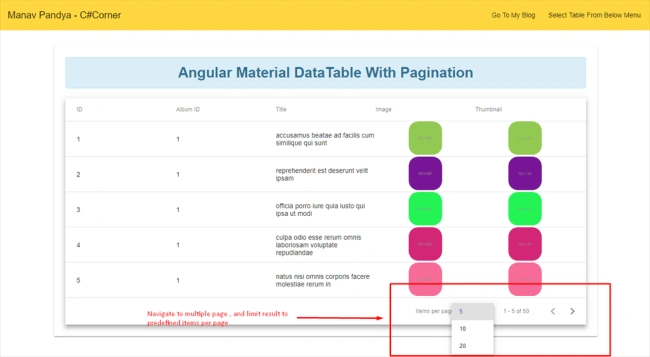
Paging reduces our result to the chunks of results for the instance, and you can navigate forward or backward using pagination.
For that, I'm going to create a component named with pagination by using the following command.
- ng g c withpagination
- <mat-card>
- <div class="alert alert-info">
- <strong>Angular Material DataTable With Pagination</strong>
- </div>
- <div class="example-container mat-elevation-z8">
- <mat-table #Table [dataSource]="MyDataSource">
- <!-- For ID -->
- <ng-container matColumnDef="id">
- <mat-header-cell *matHeaderCellDef> ID </mat-header-cell>
- <mat-cell *matCellDef="let post"> {{post.id}} </mat-cell>
- </ng-container>
- <!-- For Album ID -->
- <ng-container matColumnDef="albumId">
- <mat-header-cell *matHeaderCellDef> Album ID </mat-header-cell>
- <mat-cell *matCellDef="let post"> {{post.albumId}} </mat-cell>
- </ng-container>
- <!-- For Title -->
- <ng-container matColumnDef="title">
- <mat-header-cell *matHeaderCellDef> Title </mat-header-cell>
- <mat-cell *matCellDef="let post"> {{post.title}} </mat-cell>
- </ng-container>
- <!-- For Image -->
- <ng-container matColumnDef="url">
- <mat-header-cell *matHeaderCellDef> Image </mat-header-cell>
- <mat-cell style="text-align: center;" *matCellDef="let post">
- <img class="img-rounded" src={{post.url}}/>
- </mat-cell>
- </ng-container>
- <!-- For Thumbnail Photo -->
- <ng-container matColumnDef="thumbnailUrl">
- <mat-header-cell *matHeaderCellDef> Thumbnail </mat-header-cell>
- <mat-cell style="text-align: center;" *matCellDef="let post">
- <img class="img-rounded" src={{post.thumbnailUrl}}/>
- </mat-cell>
- </ng-container>
- <mat-header-row *matHeaderRowDef="displayedColumns"></mat-header-row>
- <mat-row *matRowDef="let row; columns: displayedColumns;"></mat-row>
- </mat-table>
- <!-- To use pagination in DataTable -->
- <mat-paginator #paginator [pageSize]="10" [pageSizeOptions]="[5, 10, 20]">
- </mat-paginator>
- </div>
- </mat-card>
<mat-paginator> options are as follow,
- #paginator - trigger from component to define pagination within datatable
- [pageSize] - define how many rows will be displayed per page by default
- [pageSizeOptions] - define how many rows you want to see at a time, you can change as per your requirement
Open the withpagination.component.ts file and paste the following code snippet.
- import { Component, OnInit ,ViewChild} from '@angular/core';
- import { MatTableDataSource , MatPaginator } from '@angular/material';
- import { DataServiceService } from '../service/data-service.service';
- import { MatSort } from '@angular/material';
- import { BehaviorSubject } from 'rxjs/BehaviorSubject';
- import { Observable } from 'rxjs/Observable';
- @Component({
- selector: 'app-withpagination',
- templateUrl: './withpagination.component.html',
- styleUrls: ['./withpagination.component.css']
- })
- export class WithpaginationComponent implements OnInit {
- MyDataSource: any;
- displayedColumns = ['id', 'albumId','title','url','thumbnailUrl'];
- constructor(public dataService: DataServiceService) { }
- @ViewChild(MatPaginator) paginator: MatPaginator;
- ngOnInit() {
- this.RenderDataTable();
- }
- RenderDataTable() {
- this.dataService.GetAllPhotos()
- .subscribe(
- res => {
- this.MyDataSource = new MatTableDataSource();
- this.MyDataSource.data = res;
- this.MyDataSource.paginator = this.paginator;
- console.log(this.MyDataSource.data);
- },
- error => {
- console.log('There was an error while retrieving Photos !!!' + error);
- });
- }
- }
Code explanation
For pagination, I have used @ViewChild(MatPaginator), that indicates we have used the functionality of a material design MatPaginator by creating an object paginator.
- this.MyDataSource.paginator= this.paginator // which is the view child paginator object
For populating this datatable, I've used the URL https://jsonplaceholder.typicode.com/albums/1/photos
Open the data-service.service.ts file and add the following method to get all the photos from the API.
- // To fill the Datatable with Photos [Dummy Data]
- public GetAllPhotos() {
- return this.http.get(this._baseUrl + 'albums/1/photos')
- .map((res: Response) => {
- return res.json();
- })
- .catch(this.handleError);
- }
Datatable with Sorting
Sorting is the important part, which is mainly used to simplify the data in either ascending or descending order
To use Sorting in the Angular app using Material Datatable, we should include the paginator into the module file like this.
- import { MatSort } from '@angular/material';
- ng g c withsorting
- <mat-card>
- <div class="alert alert-info">
- <strong>Angular Material DataTable With Sorting</strong>
- </div>
- <div class="example-container mat-elevation-z8">
- <mat-table #Table [dataSource]="MyDataSource" matSort>
- <!-- For ID -->
- <ng-container matColumnDef="id">
- <mat-header-cell *matHeaderCellDef mat-sort-header> ID </mat-header-cell>
- <mat-cell *matCellDef="let post"> {{post.id}} </mat-cell>
- </ng-container>
- <!-- For Post ID -->
- <ng-container matColumnDef="userId">
- <mat-header-cell *matHeaderCellDef mat-sort-header> User ID </mat-header-cell>
- <mat-cell *matCellDef="let post"> {{post.userId}} </mat-cell>
- </ng-container>
- <!-- For Name -->
- <ng-container matColumnDef="title">
- <mat-header-cell *matHeaderCellDef mat-sort-header> Title </mat-header-cell>
- <mat-cell *matCellDef="let post"> {{post.title}} </mat-cell>
- </ng-container>
- <mat-header-row *matHeaderRowDef="displayedColumns"></mat-header-row>
- <mat-row *matRowDef="let row; columns: displayedColumns;"></mat-row>
- </mat-table>
- <!-- To paginate between pages with search -->
- <mat-paginator #paginator [pageSize]="10" [pageSizeOptions]="[5, 10, 20]">
- </mat-paginator>
- </div>
- </mat-card>
As you've noticed, there are two terms regarding the sorting,
- matSort - it defines that the datatable is sortable
- mat-sort-header - this term is used to indicate that every column is identically listening for sorting changes
Open withsorting.component.ts file and paste the following lines of source code.
- import { Component, OnInit ,ViewChild} from '@angular/core';
- import { MatTableDataSource,MatPaginator,MatSort } from '@angular/material';
- import { DataServiceService } from '../service/data-service.service';
- import { BehaviorSubject } from 'rxjs/BehaviorSubject';
- import { Observable } from 'rxjs/Observable';
- @Component({
- selector: 'app-withsorting',
- templateUrl: './withsorting.component.html',
- styleUrls: ['./withsorting.component.css']
- })
- export class WithsortingComponent implements OnInit {
- MyDataSource: any;
- displayedColumns = ['id', 'userId','title'];
- @ViewChild(MatPaginator) paginator: MatPaginator;
- @ViewChild(MatSort) sort: MatSort;
- constructor(public dataService: DataServiceService) { }
- ngOnInit() {
- this.RenderDataTable();
- }
- RenderDataTable() {
- this.dataService.GetAllAlbums()
- .subscribe(
- res => {
- this.MyDataSource = new MatTableDataSource();
- this.MyDataSource.data = res;
- this.MyDataSource.sort = this.sort;
- this.MyDataSource.paginator = this.paginator;
- console.log(this.MyDataSource.data);
- },
- error => {
- console.log('There was an error while retrieving Albums !!!' + error);
- });
- }
- }
For sorting, I have used @ViewChild(MatSort), that indicates we have used the functionality of a material design MatSort by creating object sort.
And for that, I have the referenced object to MyDataSource property like this.
- this.MyDataSource.sort = this.sort // which is viewchild sorting object
For populating the data, I'm going to use the API URL https://jsonplaceholder.typicode.com/albums
Now open the data-service.service.ts and add the following method.
- // To fill the Datatable with Albums [Dummy Data]
- public GetAllAlbums() {
- return this.http.get(this._baseUrl + 'albums')
- .map((res: Response) => {
- return res.json();
- })
- .catch(this.handleError);
- }
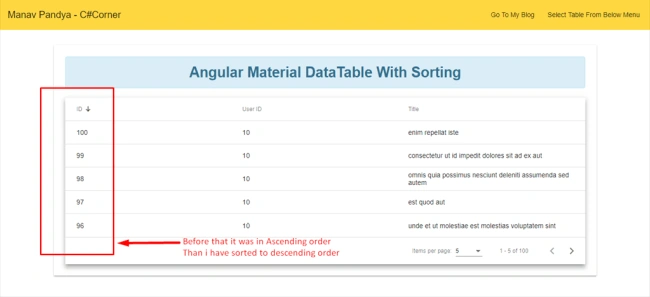
As you can see my data are populated and the data table is sorted with the descending order.
Conclusion
In this part of the article, we have integrated three types of different operations using Angular Material Datatable which are listed below.
- Simple Datatable Integration
- Data table with Pagination
- Data table with Sorting
Further, we will expand our datatable by adding more features like searching, and the combined example of Angular material datatable with all possible features. Until then stay tuned and keep learning.
Nicolas MaretPosted Jun 16, 2020, 5:15 AM
It's a great example, how would you change the content of the DataTable when clicking on a Menu button?
Chittaranjan SwainPosted Nov 27, 2019, 9:01 PM
Nice article.
BijayKumar AcharyaPosted Aug 25, 2019, 7:32 PM
Could you please add detailed data table information along with paging and sorting in child table? It would be a great learning. Thanks for this grand article.
BijayKumar AcharyaPosted Aug 25, 2019, 7:30 PM
This is a great article.
Luka KosoricPosted Apr 29, 2019, 11:18 AM
How is this server-side pagination ? It's clearly client side. You do a getAll and then let mat-table handle pagination. This is all good as long as the data is simple but in 99% of real world cases pagination is handled on the back-end side because having a get return 100 000 entries can just outright break your app...
snehitha udayPosted Mar 28, 2019, 9:18 AM
Hello Manav, pretty good article, and one issue that i had, was trying with pagination sorting and data fetch, but doesn't work. The first Datatable works pretty well, but the issues with having all the features in one is the issue
Amit Kumar SinghPosted Jan 8, 2019, 11:16 PM
Nice Article Pandya
yudi pratamaPosted Dec 16, 2018, 7:09 PM
Hi Munav, nice article..but the pagination, sort and filtering are on the client side, am I right?what about if the data count is about 1M records or more?
Thanainan KhamthaenPosted Nov 22, 2018, 11:24 PM
Pagination not working for me .
Sant kuPosted Nov 19, 2018, 5:22 AM
Nice article for NG Mat table. Does it call the service url on page click (Previous, next)?
EMMANUEL OKELLOPosted Oct 25, 2018, 7:48 AM
Thanks for the article, it was helpful given that it was a step after step. Although my reason for reading up to here is for server-side searching/filtering. Looking forward to that.
Laxmidhar SahooPosted Oct 23, 2018, 5:38 AM
Thanks for a good article
Adrian DragomirPosted Oct 23, 2018, 4:28 AM
Please fix the link to the article which now is "https://www.c-sharpcorner.com/article/datatable-with-angular-5/"
Laxmidhar SahooPosted Oct 5, 2018, 2:59 AM
Good naration
Naresh SinghalPosted Oct 3, 2018, 8:39 AM
Nice article Manav Pandya , Keep it up.....
Muthu KumarPosted Oct 3, 2018, 12:23 AM
Nice Article..
Debasis SahaPosted Oct 2, 2018, 6:33 AM
Nice Article Manav... thanks for sharing...