Introduction
In my
last article, we created a Toast Message that is quite basic. If you want to add an image in a Toast message then that is what we are going to do in this article, in other words, customize a Toast Message.
The agenda we will follow is the same as we did in the previous article as in the following:
- First, add a button and TextView on the main_activity.xml
- Then, create an XML file for the toast. Because this time, we are inflating the XML file to toast notification.
- Last, we will call it from setOnClickListner().
The following is the procedure to follow.
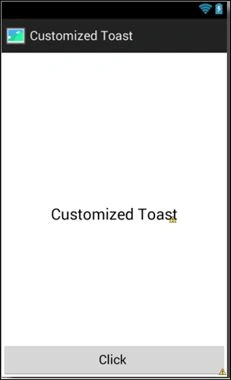
Step 1: First, add a button and textView to the main_activity.xml layout.
Step 2: We will now add an XML file that acts as a toast popup when makeText() calls a toast instance.
Earlier, we had simply es a simple string as a toast message, but this time we will inflate a XML file as the toast's content.
So, we will make an additional XML file named custom_toast.xml as in the following:
- <?xml version="1.0" encoding="utf-8"?>
- <LinearLayout xmlns:android="http://schemas.android.com/apk/res/android"
- android:layout_width="match_parent"
- android:layout_height="match_parent"
- android:orientation="horizontal"
- android:gravity="center" >
-
- <ImageView
- android:id="@+id/customImage"
- android:layout_width="wrap_content"
- android:layout_height="wrap_content"
- android:contentDescription="@string/toastImage"
- android:src="@drawable/ic_launcher" />
-
- <TextView
- android:id="@+id/customText"
- android:layout_width="wrap_content"
- android:layout_height="wrap_content"
- android:contentDescription="@string/toastImage"
- android:text="@string/toast_message" />
- </LinearLayout>
And in string.xml file, we have declared some new:
- <?xml version="1.0" encoding="utf-8"?>
- <resources>
- <string name="app_name">Customized Toast</string>
- <string name="hello_world">Hello world!</string>
- <string name="action_settings">Settings</string>
- <string name="toastImage">My Toast</string>
- <string name="toast_message">This is my Custom Toast</string>
- </resources>
Step 3
-
- Button myButton =(Button) findViewById(R.id.button1);
-
- myButton.setOnClickListener(new OnClickListener() {
-
- public void onClick(View arg0) {
-
-
- LayoutInflater li= getLayoutInflater();
-
-
- View view =li.inflate(R.layout.custom_toast, (ViewGroup) findViewById(R.id.custom_toast_layout));
-
-
- Toast myToast= new Toast(MainActivity.this);
- myToast.setDuration(myToast.LENGTH_LONG);
- myToast.setGravity(Gravity.CENTER, 0, 0);
- myToast.setView(view);
- myToast.show();
- }
- });
Inside setOnClickListner(), we created an inflater and a view. Then, added a custom_toast.xml file to the inflator. Now, we identify the entire XML file as a single view.
Finally, we target a Toast object and assign all the desired properties along with the setView() method where we our view (that we have inflated).
The final code will be like:
- package com.greensyntax.customizedtoast;
- import android.os.Bundle;
- import android.support.v7.app.ActionBarActivity;
- import android.view.Gravity;
- import android.view.LayoutInflater;
- import android.view.View;
- import android.view.View.OnClickListener;
- import android.view.ViewGroup;
- import android.widget.Button;
- import android.widget.Toast;
-
- public class MainActivity extends ActionBarActivity {
-
- @Override
- protected void onCreate(Bundle savedInstanceState) {
- super.onCreate(savedInstanceState);
- setContentView(R.layout.activity_main);
-
-
- Button myButton =(Button) findViewById(R.id.button1);
-
- myButton.setOnClickListener(new OnClickListener() {
-
- public void onClick(View arg0) {
-
-
- LayoutInflater li= getLayoutInflater();
-
-
- View view =li.inflate(R.layout.custom_toast, (ViewGroup) findViewById(R.id.custom_toast_layout));
-
-
- Toast myToast= new Toast(MainActivity.this);
- myToast.setDuration(myToast.LENGTH_LONG);
- myToast.setGravity(Gravity.CENTER, 0, 0);
- myToast.setView(view);
- myToast.show();
- }
- });
-
- }
- }
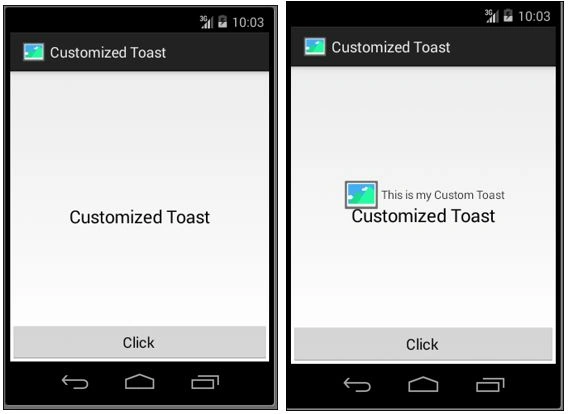
And, it shows like:
Conclusion
If you experience any issue then go for the enclosed file.


 Step 2: We will now add an XML file that acts as a toast popup when makeText() calls a toast instance.
Earlier, we had simply es a simple string as a toast message, but this time we will inflate a XML file as the toast's content.
So, we will make an additional XML file named custom_toast.xml as in the following:
Step 2: We will now add an XML file that acts as a toast popup when makeText() calls a toast instance.
Earlier, we had simply es a simple string as a toast message, but this time we will inflate a XML file as the toast's content.
So, we will make an additional XML file named custom_toast.xml as in the following:
Join the conversation! Your thoughts help the community grow.