Introduction
Error Logging Modules & Handlers (ELMAH) is a tool for debugging mainly ASP.NET applications as suggested by the wiki. Since we all know there is always a chance of getting exceptions when working on any applications. Handling them is a real challenge for many developers. But if we have a tool then it can provide the details of the exceptions or errors with the stack trace as well. Apart from showing the users the Yellow screen of death, we show the users a customized error page and for the developers if an exception occurs then instead of a try/catch block for every method, ELMAH provides them the details of the exceptions with the entire stack trace and a solution based on the error code. For more information on error codes and redirection please follow one of my other articles Custom Errors. Let's get into more details of how this beautiful tool works.
What we get
You would be wondering what this ELMAH gives us after adding this into the application. Straight from the Hanselmen's blog, ELMAH would provide us the following without changing a single peice of code. Since ELMAH includes modules and handlers, it greatly supports HttpModules and Http Handlers.
- All unhandled exceptions (null references, out of bound exceptions and so on) are logged in the ELMAH interface.
- A webpage can remotely view the logged detailed exceptions.
- Since this shows the entire stack trace, the so-called Yellow screen of death can also be seen but in the ELMAH interface.
- ELMAH also provides an opportunity to store the exceptions or log them into tables (SSMS).
- <customerrors mode="On" defaultredirect="/Default/Error">
- <error statuscode="404" redirect="/Default/NotfoundError">
- </error></customerrors>
Suppose the preceding is the case and the user using the application lands on the preceding redirect path URL pages, whereas the error and exception are managed by ELMAH and mailed or logged into the database for future reference for the developers.
Installation for an existing MVC project
Step 1
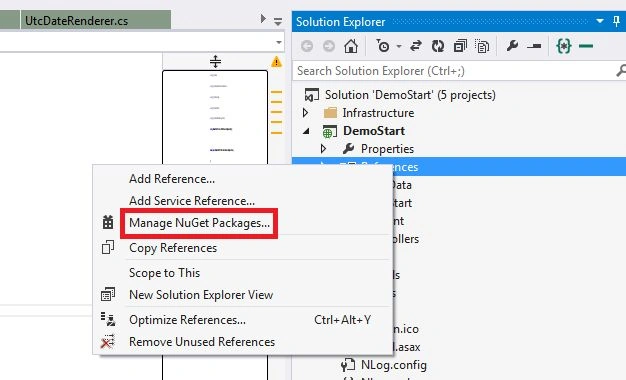
Go to references and right-click on the Manage Nuget Packages.
Step 2
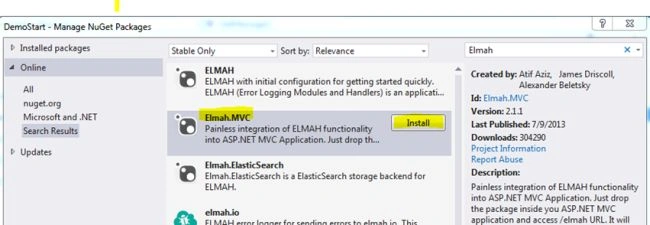
Search online for Elmah.MVC.
Step 3
After the successful installation, you can check the package.config for the version of ELMAH installed as shown below:

Step 4
You need to ensure the following web.config configurations as shown in the images below:
- <sectionGroup name="elmah">
- <section name="security" requirePermission="false" type="Elmah.SecuritySectionHandler, Elmah" />
- <section name="errorLog" requirePermission="false" type="Elmah.ErrorLogSectionHandler, Elmah" />
- <section name="errorMail" requirePermission="false" type="Elmah.ErrorMailSectionHandler, Elmah" />
- <section name="errorFilter" requirePermission="false" type="Elmah.ErrorFilterSectionHandler, Elmah" />
- </sectionGroup>
- <system.web>
- <authentication mode="None" />
- <compilation debug="true" targetFramework="4.5.1" />
- <httpRuntime targetFramework="4.5.1" />
- <httpModules>
- <add name="ErrorLog" type="Elmah.ErrorLogModule, Elmah" />
- </httpModules>
- <httpHandlers>
- <add verb="POST,GET,HEAD" path="elmah.axd" type="Elmah.ErrorLogPageFactory, Elmah" />
- </httpHandlers>
- </system.web>
- <system.webServer>
- <modules>
- <add name="ErrorLog" type="Elmah.ErrorLogModule, Elmah" />
- </modules>
- <handlers>
- <add name="Elmah" verb="POST,GET,HEAD" path="elmah.axd" type="Elmah.ErrorLogPageFactory, Elmah" />
- </handlers>
- </system.webServer>
- <elmah>
- <security allowRemoteAccess="yes" />
- </elmah>
Now everything is set for developers to check for the internal exceptions. But how to access the ELMAH interface? It is simple, just use the path URL succeding with /elmah.axd then when that is done you see the list of exceptions/errors that have occured. The interface would look as in the following image:
 Integration of ELMAH into Gmail
Yes, you heard it right. As the heading says, we can include email settings into ELMAH and send the entire stack trace and exception details as mail to multiple users using a subject too. The following explains the integration and setup for the mail settings. Here I use the Gmail settings. The best part here is the change is only done at the web.config level. The following are the proper configurations.
- First in the system.webServer/modules section add the following peice of line. The final module is below:
- <modules runAllManagedModulesForAllRequests="true">
- <add name="ErrorLog" type="Elmah.ErrorLogModule, Elmah" preCondition="managedHandler" />
- <add name="ErrorMail" type="Elmah.ErrorMailModule, Elmah" preCondition="managedHandler" />
- </modules>
- Then after adding this module section, we need a setup for the Gmail in the system.net/mailSettings section as in the following:
- <system.net>
- <mailSettings>
- <smtp from="[email protected]">
- <network host="smtp.gmail.com" port="587" userName="*****" word="***" enableSsl="true" />
- </smtp>
- </mailSettings>
- </system.net>
Just remember, you need to set your Gmail username and word. Google Mail is very smart and does not simply send the mail that comes. The application must sign in into Gmail, since it might be from an unauthenticated source. To avoid this, you need to follow the mail that Google will send you and you need to approve that you want that IP source to use your mail settings to send mail. Thus, you make Google happy. :)
- Then finally we need to set the elmah section with the following block:
Thus, you are all set. Now our application/ELMAH is smart enough to understand the configurations and send mail to the specified users. Remember, in the preceding block "to", you can specify more than one mail address separated by comma(s). Thus, have a look at the image below to see how the mail looks:
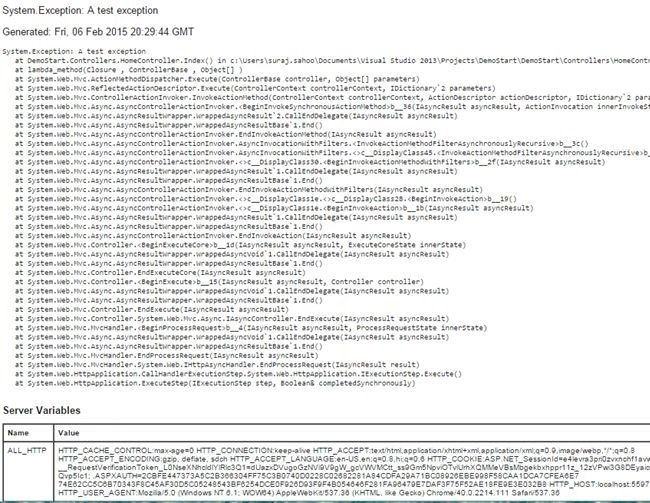
- The preceding is a part of how the mail looks.
Thus, we have discussed everything related to ELMAH. In the future article/blog I will be explaining how to store into tables using connection strings. The interaction of SQL Server of ELMAH.
References
Scott Hanselman Blog Wiki.


Abhishek MaitreyPosted Feb 9, 2015, 7:31 AM
nicely explained Suraj. I'll read it's second part too. twitter:@abhimaitrey
Vithal WadjePosted Feb 8, 2015, 6:52 AM
nice