

Before we begin deploying our app on the Heroku server be sure that you have a registered a Heroku account, if not then click here to register.
Note: You must have Node and GIT installed on your system before we can deploy our app.
For this example I assume that you have a basic server file created using Node ready with you. If not, then the code for server.js is as follows.
- var http=require('http');
- var server=http.createServer(function(req,res){
- res.writeHead(200,{'Content-Type':'text/html'});
- res.end('Hello World');
- });
- var port=process.env.PORT || 3000;
- server.listen(port);
- });
Before we start to upload this file on the Heroku, we need to make some changes. We cannot set the port on our own, it might already be set in the environment variable. So we will check if the port number is already set else we can use our own port number. We will save the port number in a port variable and pass that variable in the server.listen() function. The updated code will look like this.
- var http=require('http');
- var server=http.createServer(function(req,res){
- res.writeHead(200,{'Content-Type':'text/html'
- });
- res.end('Hello World');
- });
- var port=process.env.PORT || 3000;
- server.listen(port);
- });
Step 1
Heroku requires a package.json file. We can create it with the “npm init” command. You can leave everything to its default.
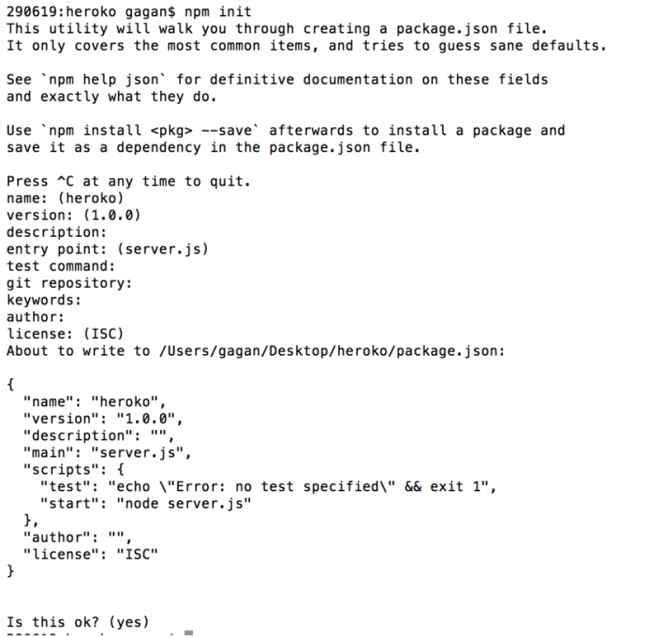
Step 2
Hero also needs a second file called “Procfile” without any extension that tells Heroku how to start your application. So inside your current directory create a file called Procfile with the following content and save it.
- web: node server.js
We will be using GIT to upload the files on the Heroku server. So we need to initialise GIT on the current folder, add all the files and commit them.
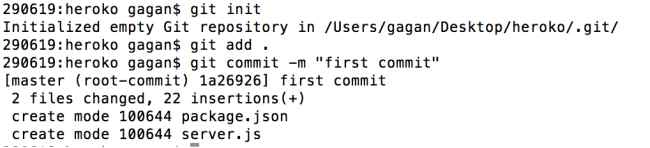
Step 4
Do a Heroku login using your email id and password.

Step 5
In this step we will create our Heroku app with a unique name, we will use “Heroku create” for that.

We have named our app “hello-world-121″ and you can see that that a unique URL has been generated for our app.
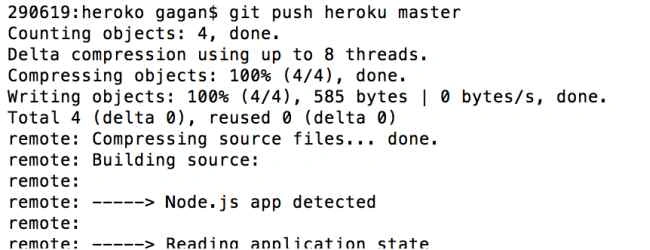
This URL has no code yet, so in our final step we need to push our code from our local system to the Heroku server using the “git push” command.
Step 6
Push our code to the server.
We have named our app “hello-world-121″ and you can see that a unique URL has been generated for our app.
This URL has no code yet, so in our final step we need to push our code from local system to the Heroku server using the “git push” command.
Step 7
Push our code to the server.

This was a very basic example of how to upload your app to the Heroku server.
Amit PrabhuPosted Sep 1, 2015, 5:31 AM
good
Sibeesh VenuPosted Jul 14, 2015, 1:00 PM
Nice Share. Thank you :)
RakeshPosted Jul 14, 2015, 12:27 AM
Good start
Pankaj Kumar ChoudharyPosted Jul 14, 2015, 12:13 AM
Nice Start........
Nilesh JadavPosted Jul 14, 2015, 12:01 AM
Nice article sir
Gopi ChandPosted Jul 13, 2015, 9:18 PM
Its good..welcome