

This article describes the design of a screen in LightSwitch to add or edit an entity using Visual Studio 2012.
The following is the procedure for designing a screen to create or edit an entity (table).
Step 1
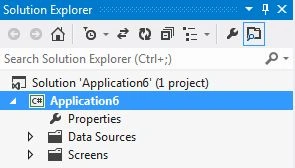
Open the Solution Explorer.
Step 2
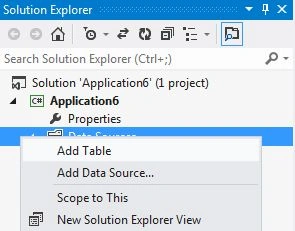
In the Solution Explorer, right-click on the data source and choose "Add Table".
Step 3
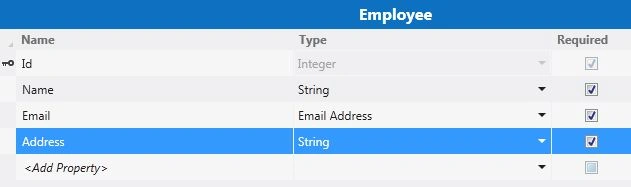
The table appears.
Step 4
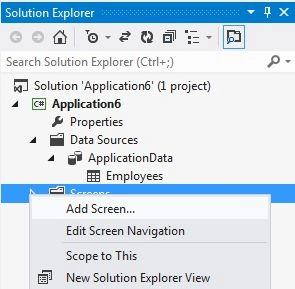
Right-click on the Screens and choose "Add Screen".
Step 5
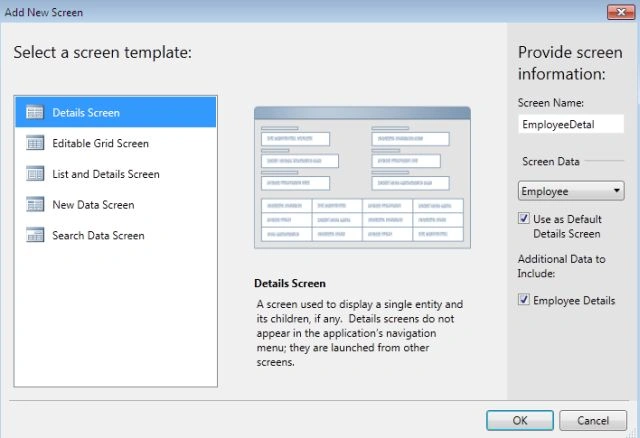
Select the Details Screen from the Screen Template. Under Screen Information we provide the Screen Name and Screen Data and then click "OK".
Step 6
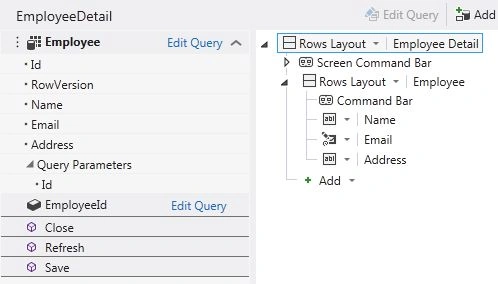
The Screen Designer appears.
Step 7
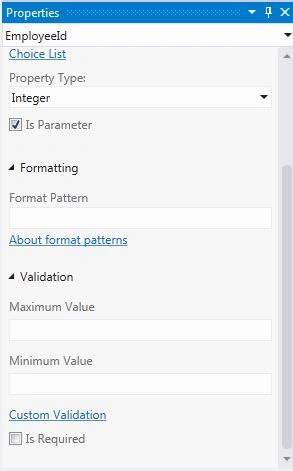
Select the Employee Id option and go to the property window and uncheck the "Is Required" property from the property window. 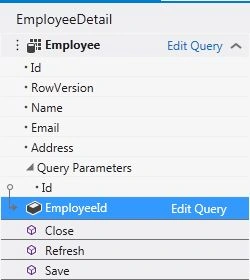
Step 8
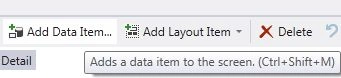
Go to the Menu Bar and select "Add Data Item".
Step 9
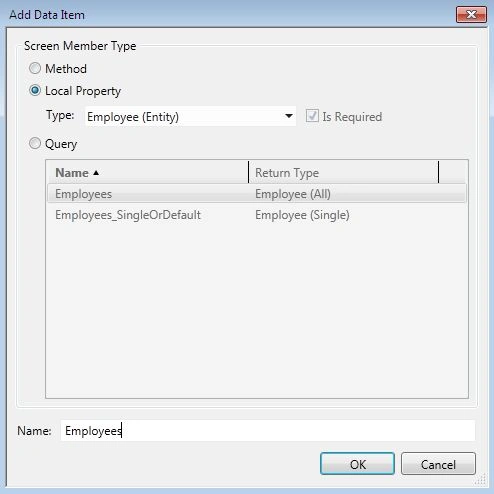
The Add Data Item Dialog box appears. In that, first select the Local property radio button. From the Type option choose the Employee (entity) and we provide the "Employees" Name to it and click "OK".
Step 10
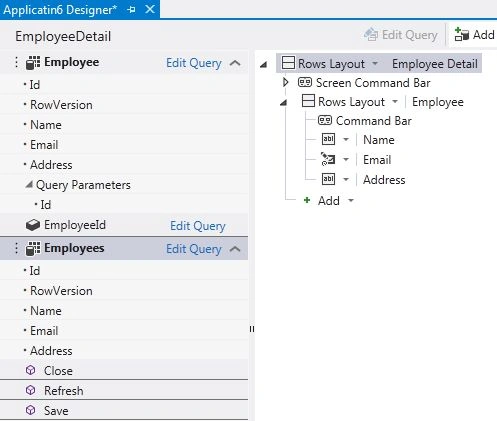
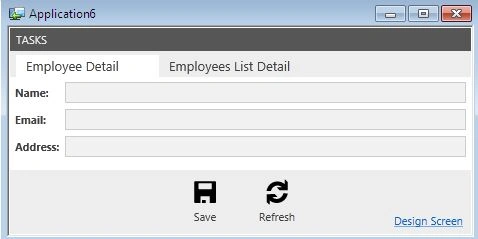
Now the Application Designer will look in the manner shown.
Step 11
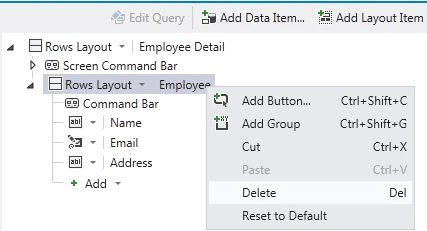
From the Screen designer delete the Employee content. We have deleted it siince we want to replace the content from the Employees property.
Step 12
After deleting now the Application Designer will appear in the manner shown.
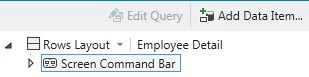
Step 13
Now we want to bind the Employees property to the screen, therefore we click on the add option and choose the "Employees" option form the drop-down list.
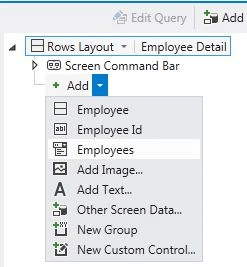
Step 14
Now the application designer will look like this as shown.
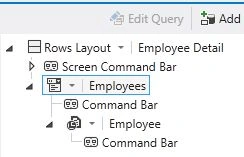
Step 15
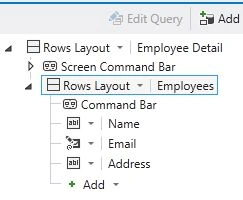
Now in order to change the control type we click on the Employees option and from the drop-down list we have choosen the Rows Layout option.
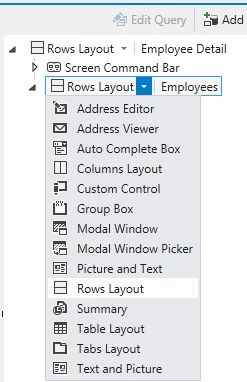
Step 16
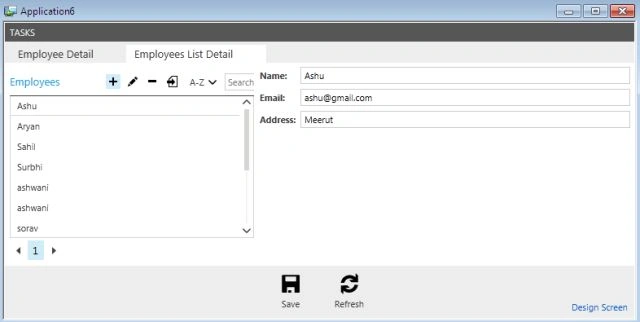
After selecting the Rows Layout option the screen designer will appear in the following manner:
Step 17
In the Menu Bar click on "Write Code" and choose the "EmployeeDetail_Saved" method.

Step 18
In the code editor enter the following code.
using System;
using System.Linq;
using System.IO;
using System.IO.IsolatedStorage;
using System.Collections.Generic;
using Microsoft.LightSwitch;
using Microsoft.LightSwitch.Framework.Client;
using Microsoft.LightSwitch.Presentation;
using Microsoft.LightSwitch.Presentation.Extensions;
namespace LightSwitchApplication
{
public partial class EmployeeDetail
{
partial void Employee_Loaded(bool succeeded)
{
// Write your code here.
this.SetDisplayNameFromEntity(this.Employee);
if (this.EmployeeId.HasValue)
{
this.Employees = new Employee();
}
else
{
this.Employees=this.Employee;
}
}
partial void Employee_Changed()
{
// Write your code here.
this.SetDisplayNameFromEntity(this.Employee);
}
partial void EmployeeDetail_Saved()
{
// Write your code here.
Join the conversation! Your thoughts help the community grow.