

Step 1
Open Expression Blend 4 -> select Silverlight-Application -> select Silverlight-Application -> change Name and Location accordingly -> hit OK.
Step 2
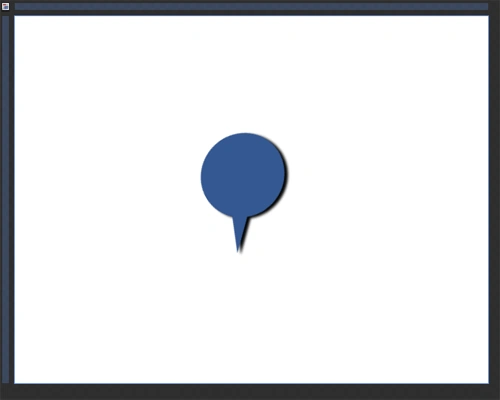
Select Assets -> select Shapes -> select Callout Oval, draw Oval, manage the width & height, background color, stroke color, margin and shadow effect as shown below:
Step 3
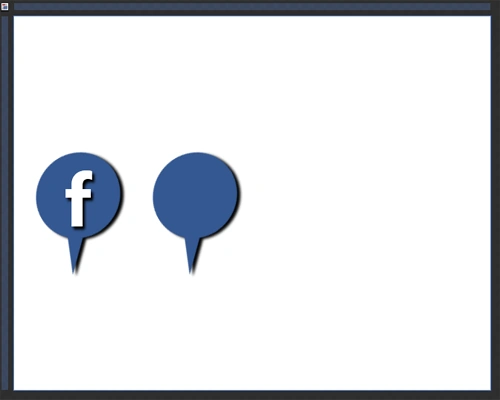
Select Tool-Box -> select Text-Block, write "f" for Facebook, manage the width & height, foreground color and shadow effect as shown below:

Step 4
Follow Step 2 and draw another Oval, manage the width & height, background color, stroke color, margin and shadow effect as shown below:
Step 5
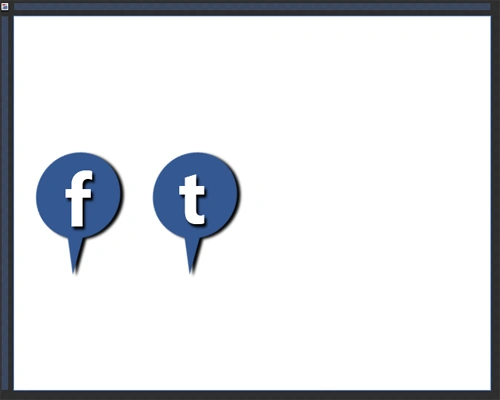
Follow Step 3 and write "t" for Twitter, manage the width & height, foreground color and shadow effect as shown below:
Step 6
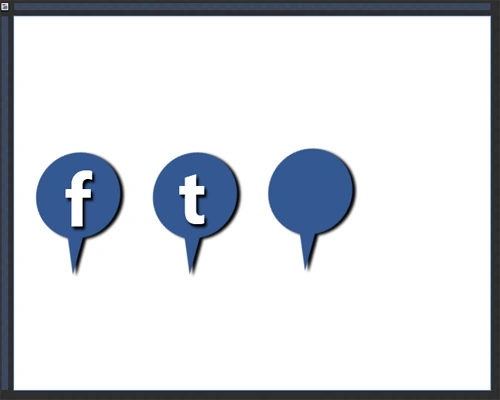
Follow Step 2 and draw another Oval, manage the width & height, background color, stroke color, margin and shadow effect as shown below:
Step 7
Follow Step 3 and write "g" for Google, manage the width & height, foreground color and shadow effect as shown below:
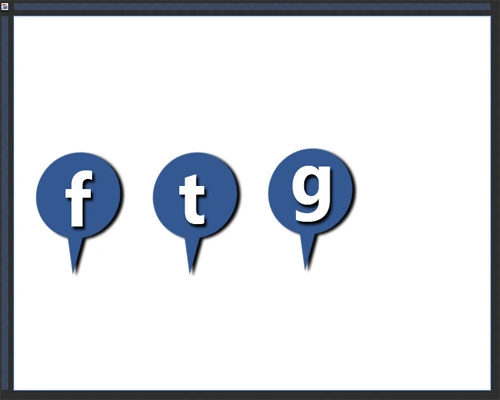
Step 8
Follow Step 2 and draw another Oval, manage the width & height, background color, stroke color, margin and shadow effect as shown below:
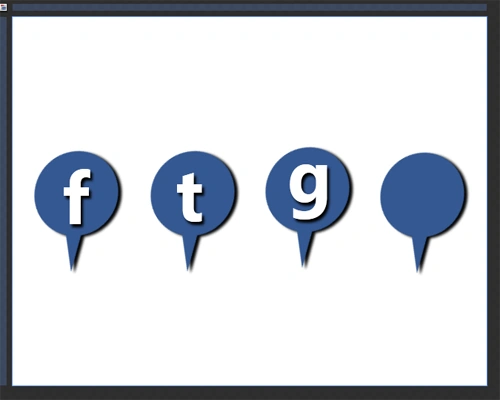
Step 9
Follow Step 3 and write "y" for Yahoo, manage the width & height, foreground color and shadow effect as shown below:
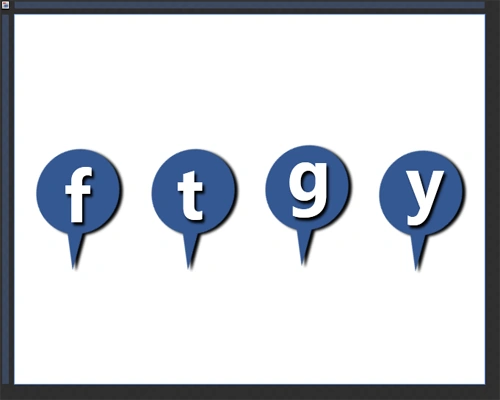
Step 10
Here's the complete Social-Networking icon's Package as shown below:
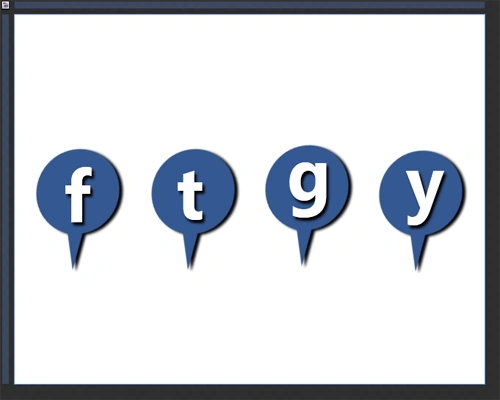
Summary
Using this article we are able to design Social-Media-Icon's.
Sonia Bhadouria VishvkarmaPosted Oct 5, 2012, 12:48 AM
Thank's Deepak....
Deepak MiddhaPosted Oct 5, 2012, 12:41 AM
Nice description sonia,Now I can design icon for my project with the help of yours article.
Sonia Bhadouria VishvkarmaPosted Oct 4, 2012, 3:08 AM
Thank's.....
Richa GargPosted Oct 4, 2012, 1:15 AM
nice article Sonia...