

Welcome to an article on an important new functionality on our SharePoint 2013 and Office 365 site which is none other than “Design Manager”.
Before reading this article, I highly recommend reading my previous parts:
- Design Manager in SharePoint 2013 / Office 365 - Part One
- Design Manager In SharePoint 2013 & Office 365 - Part Two
- Design Manager In SharePoint 2013 & Office 365: Part Three
- Design Manager in SharePoint 2013 & Office 365- Part Four
- Design Manager In SharePoint 2013 & Office 365 - Part Five
- Design Manager In SharePoint 2013 & Office 365 - Part Six
Branding is everything now among all organizations. A site should have it all to attract its users. Earlier, SharePoint Designer was an extra tool to do so but now we have Design Manager right at your site collection.
You have to enable your publishing feature on your site collection and you will have a list of features available on your site settings of the site collection.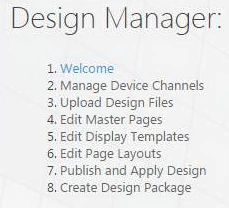
- Welcome
- Manage Device Channels
- Upload Design Files
- Edit Master Pages
- Edit Display Templates
- Edit Page Layouts
- Publish and Apply Design
- Create Design Package
All the above have awesome functionalities which will help you to do a lot of things with your master pages, page layouts, html and css files all in here.
In this article we will start off with the seventh configuration “Publish and Apply Design”.
Publish and Apply Design
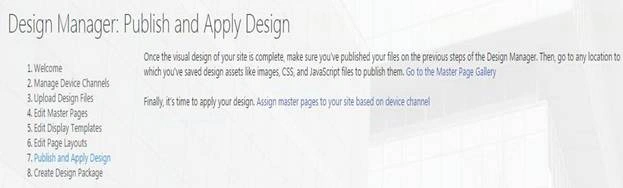
Here under Publish and Apply Design, we will be able to publish and apply our design which we modified in the Design Manager.
Let’s see how we can do it.
- Click on ‘Assign master page to your site based on device channel’.
- You will come to the configuration here of Site Master Page Settings as per the screen below.
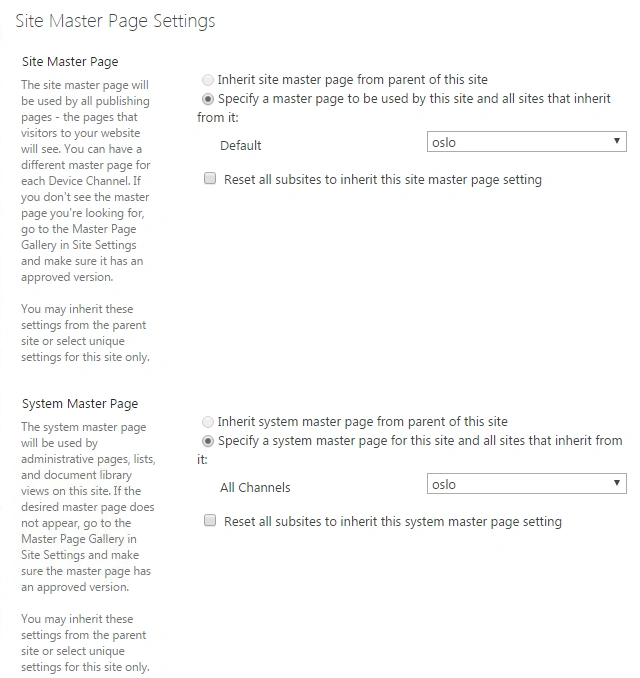
Site Master Page
Under this setting, you can either make your site inherit from the parent’s master page or select a new master page for this site.
You can also make all the sub sites of this site to inherit the same master page as this.
System Master Page
Similarly under this setting, you can either make your site inherit from the parent’s system master page or select a new system master page for this site.
You can also make all the sub sites of this site to inherit the same system master page as this.
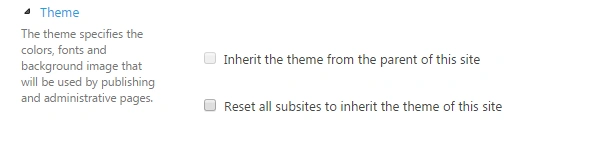
Theme
You can choose the theme from the parent’s and can make all the sub sites of this site to inherit the same theme as this site.
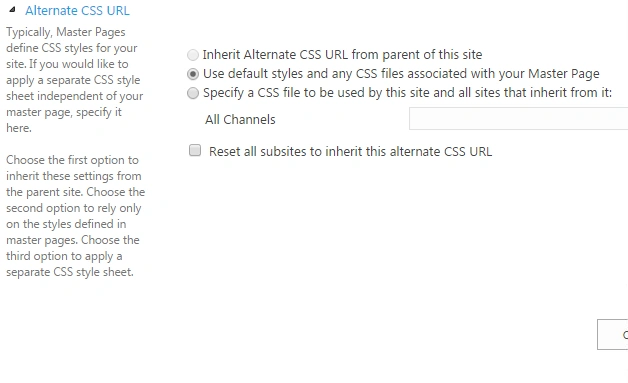
Alternate CSS URL
Here you can inherit the css of the site from the parent or use the default styles and css files associated with your master page or browse a new css file from your system.
Here you can too make the sub sites inherit the css file as your current parent site.
Once your configuration is done, click on OK and your site will be set with the new master page, theme and the css file..
Here we saw an article on Design Manager in SharePoint 2013 & Office 365 with the seventh configuration panel ‘Publish and Apply Design’ on the list. There are more to come. Keep reading and keep learning!
Humayun Kabir MamunPosted Apr 4, 2016, 5:55 AM
Nice...
Rahul Kumar SaxenaPosted Apr 2, 2016, 12:34 PM
Good One
Mohammed IbrahimPosted Apr 1, 2016, 6:09 AM
nice
Sagar PardeshiPosted Mar 31, 2016, 2:36 AM
Nice
Sibeesh VenuPosted Mar 31, 2016, 2:27 AM
Nice Share