

Introduction
Dialogues are most commonly used in Android to show some messages to the user or to get some confirmation from the user. In some cases, we need to show a dialogue where a user needs to select more than one option.
There are two ways to create dialogues; they are DialogueFragment and Dialogue. Builder class. A Dialogue will normally look as shown below,
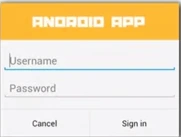
Here I am going to describe how to display a multiple selection dialogue in an activity. For that I am using a dialogueFragment and this has the life cycle methods as onCreate(),onCreateDialogue(),onCreateView(). In the older methods onCreateDialogue() you can construct your dialogue. But with DialogueFragment you can create this on onCreateView()
I have declared a string array in the values folder that contains the options in the dialogue box
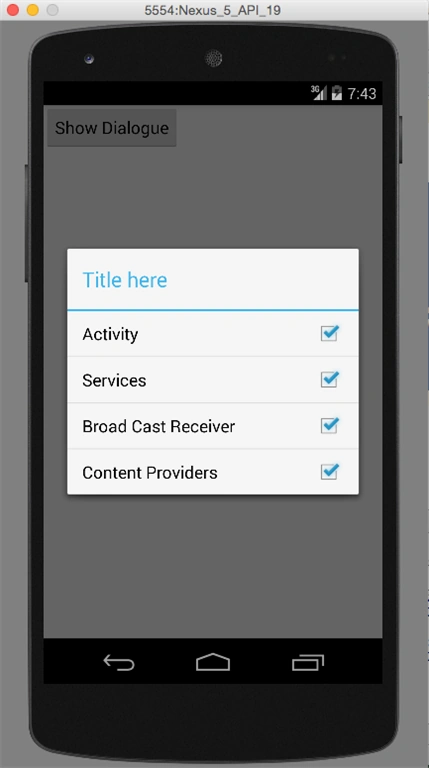
Here I have an activity, in that activity, I create a button, on clicking that button it will show a dialogue with multiple options and each option has a checkbox a the right side of it.
For Alert dialogue, I created a custom class named MyAlert that extends from DialogueFragment. And in the onCreateDialogue() please add the code
- public Dialog onCreateDialog(Bundle savedInstanceState)
- {
- AlertDialog.Builder builder = new AlertDialog.Builder(getActivity());
- builder.setTitle("Title here");
- builder.setMultiChoiceItems(R.array.titles, null, new DialogInterface.OnMultiChoiceClickListener()
- {
- @Override
- public void onClick(DialogInterface dialogInterface, int i, boolean b)
- {
- Toast.makeText(getActivity(), "item clicked at " + i, Toast.LENGTH_SHORT).show();
- }
- });
- Dialog dialog = builder.create();
- return dialog;
- }
Read more articles on Android
Gowtham RajamanickamPosted Apr 7, 2016, 4:25 AM
Good Show.