

Introduction
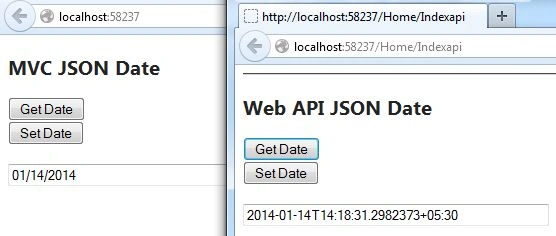
This article explains the difference between JSON dates in ASP.NET MVC and the Web API. The Web API and ASP.NET MVC use different JSON serializers. In ASP.NET MVC the JSONDataContract Serializer is used and in the Web API the NewtonSoftJSON Serializer is used.
Now we can see the difference.
Step 1: Create Web API application
Use the following procedure to create the sample:
- Start Visual Studio 2013.
- From Start window Select "New Project".
- Select "Installed" -> "Template" -> "Visual C#" -> "Web" -> "Visual Studio 2012" and select "ASP.NET MVC4 Web Application".
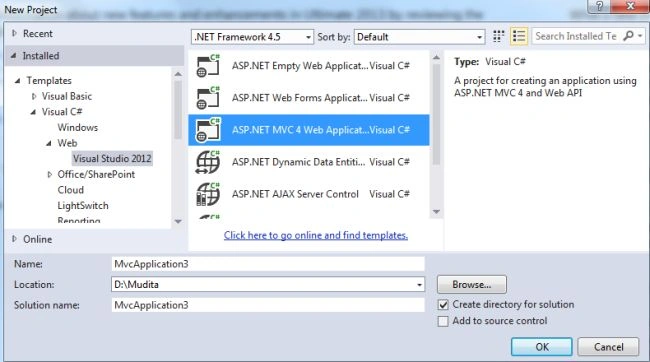
- Click on the "OK" button.
- From the MVC4 project window select "Web API".
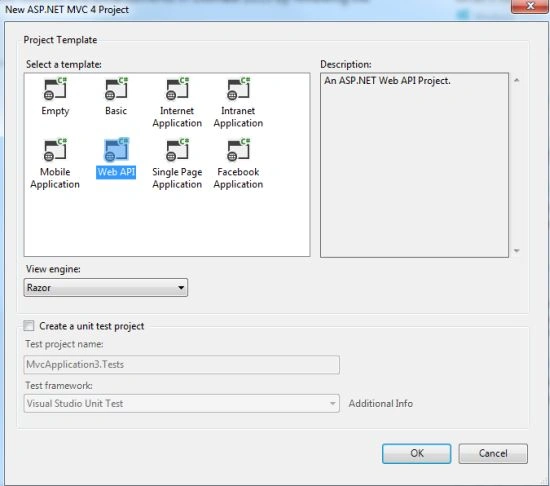
- Click on the "OK" button.
Step 2
Now add the model class to the project as in the following:
- In the Solution Explorer.
- Right-click on the Model Folder.
- Select "Add" -> "Class".
- Select "Installed" -> "Visual C#" and select "Class".
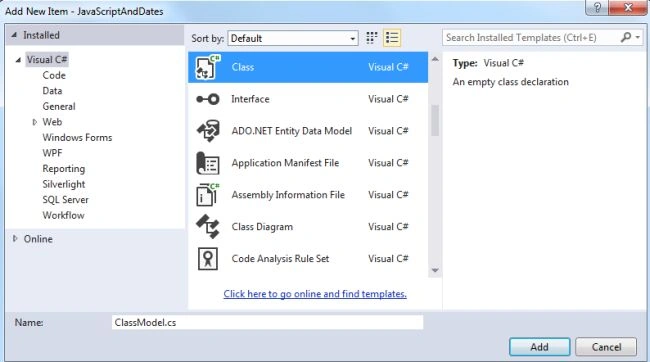
- Click on the "Add" button.
Add the following code:
- using System;
- using System.Collections.Generic;
- using System.Linq;
- using System.Web;
- namespace JavaScriptAndDates.Models
- {
- public class ClassModel
- {
- public int ID { get; set; }
- public DateTime CurrentDate { get; set; }
- }
- }
Step 3
Now in the MVC controller "HomeController":
- In the Solution Explorer expand the Controller folder
- Select MVC controller "HomeController"
Add the following code:
- using JavaScriptAndDates.Models;
- using System;
- using System.Collections.Generic;
- using System.Linq;
- using System.Web;
- using System.Web.Mvc;
- namespace JavaScriptAndDates.Controllers
- {
- public class HomeController : Controller
- {
- //
- // GET: /Home/
- public ActionResult Index()
- {
- return View();
- }
- public ActionResult Indexapi()
- {
- return View();
- }
- public JsonResult SetData(ClassModel updates)
- {
- Console.WriteLine(updates.ID);
- Console.WriteLine(updates.CurrentDate);
- return Json(updates);
- }
- public JsonResult GetData()
- {
- return Json(new ClassModel { ID = 1, CurrentDate = DateTime.Now }, JsonRequestBehavior.AllowGet);
- }
- }
- }
Step 4
Now in the API controller "HomeController".
- In Solution Explorer Expand the Controller folder.
- Select the API controller "ValuesController"
Add the following code:
- using JavaScriptAndDates.Models;
- using System;
- using System.Collections.Generic;
- using System.Linq;
- using System.Net;
- using System.Net.Http;
- using System.Web.Http;
- namespace JavaScriptAndDates.Controllers
- {
- public class ValuesController : ApiController
- {
- public HttpResponseMessage PutData([FromBody]ClassModel updates)
- {
- Console.WriteLine(updates.ID);
- Console.WriteLine(updates.CurrentDate);
- return new HttpResponseMessage( HttpStatusCode.OK);
- }
- public ClassModel GetData()
- {
- return new ClassModel { ID = 1, CurrentDate = DateTime.Now};
- }
- }
- }
Step 5
Now add the new View in the Home folder.
- In the Home Controller .
- Right-click on the "Indexapi"action method.
- Select "Add view" and click on the "Add" button.
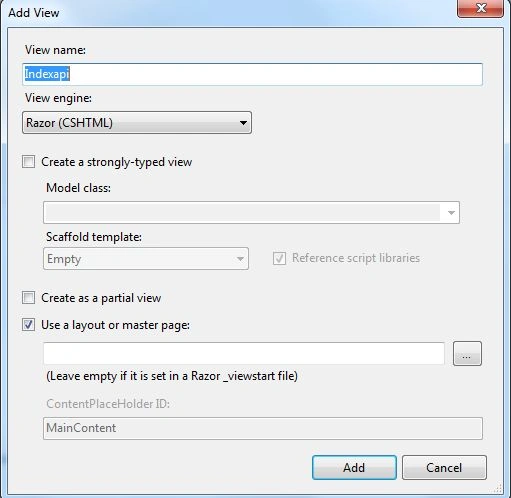
Add the following code;
- <hr />
- <h2>Web API JSON Date</h2>
- <button id="getDateApi">Get Date</button>
- <br />
- <button id="setDateApi">Set Date</button>
- <br />
- <label id="theIdApi" data-bind="text: idApi" ></label>
- <br />
- <input id="theDataApi" data-bind="value: currentDateApi" style="width:300px" />
- @section Scripts{
- <script src="~/Scripts/jquery-ui-1.10.2.js"></script>
- <script src="~/Scripts/knockout-2.2.0.debug.js"></script>
- <script src="~/Scripts/knockout.mapping-latest.debug.js"></script>
- <script src="~/Scripts/sample-api-45.js"></script>
- }
Now add some code to the index.cshtml file:
- @{
- ViewBag.Title = "Index";
- }
- <h2>MVC JSON Date</h2>
- <button id="getDate">Get Date</button>
- <br />
- <button id="setDate">Set Date</button>
- <br />
- <label id="theId" data-bind="text: id" ></label>
- <br />
- <input id="theData" data-bind="date: currentDate" style="width:300px" />
- @section Scripts{
- <script src="~/Scripts/jquery-ui-1.10.2.js"></script>
- <script src="~/Scripts/knockout-2.2.0.debug.js"></script>
- <script src="~/Scripts/knockout.mapping-latest.debug.js"></script>
- <script src="~/Scripts/knockout.bindings.date.js"></script>
- <script src="~/Scripts/sample-45.js"></script>
- }
In this application we need some scripting files for these.
- jquery-ui-1.10.2.js
- knockout-2.2.0.debug.js
- knockout.mapping-latest.debug.js
- knockout.binding.date.js
And we need to create two other scripting files, one for MVC and the second for the Web API.
In the MVC scripting file add the following code:
- /// <reference path="../../JsonDates.40/Scripts/_references.js" />
- var viewModel = {
- id: ko.observable(0),
- currentDate: ko.observable("")
- }
- $(document).ready(function ()
- {
- ko.applyBindings(viewModel);
- $("#theData").datepicker();
- $(document).delegate("#getDate", "click", function ()
- {
- $.ajax({
- url: "/Home/GetData",
- type: "GET",
- contentType: "text/json",
- success: function (data)
- {
- viewModel.id(data.Id);
- viewModel.currentDate(data.CurrentDate);
- }
- });
- });
- $(document).delegate("#setDate", "click", function ()
- {
- var js = ko.mapping.toJS(viewModel);
- var json = {
- Id: js.id,
- CurrentDate: js.currentDate
- }
- $.ajax({
- url: "/Home/SetData",
- type: "POST",
- contentType: "application/json;charset=utf-8",
- data: JSON.stringify(json),
- success: function (data)
- {
- viewModel.id(data.Id);
- viewModel.currentDate(data.CurrentDate);
- }
- });
- });
- });
- /// <reference path="_references.js" />
- var viewModelApi = {
- idApi: ko.observable(0),
- currentDateApi: ko.observable("")
- }
- $(document).ready(function ()
- {
- ko.applyBindings(viewModelApi);
- $("#theDataApi").datepicker();
- $(document).delegate("#getDateApi", "click", function ()
- {
- $.ajax({
- url: "/api/Values",
- type: "GET",
- contentType: "text/json",
- success: function (data)
- {
- viewModelApi.idApi(data.Id);
- viewModelApi.currentDateApi(data.CurrentDate);
- }
- });
- });
- $(document).delegate("#setDateApi", "click", function ()
- {
- var js = ko.mapping.toJS(viewModelApi);
- var json = {
- Id: js.idApi,
- CurrentDate: js.currentDateApi
- }
- $.ajax({
- url: "/api/Values",
- type: "PUT",
- contentType: "application/json;charset=utf-8",
- data: JSON.stringify(json),
- success: function (data)
- {
- }
- });
- });
- });
Step 8
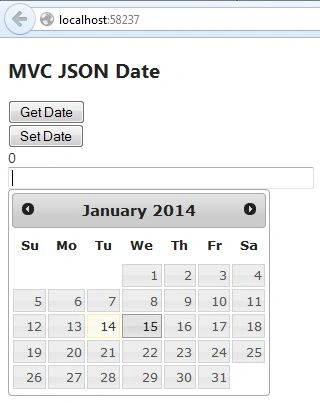
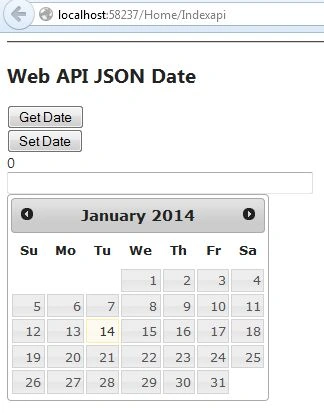
Execute the application:
Join the conversation! Your thoughts help the community grow.