

Introduction
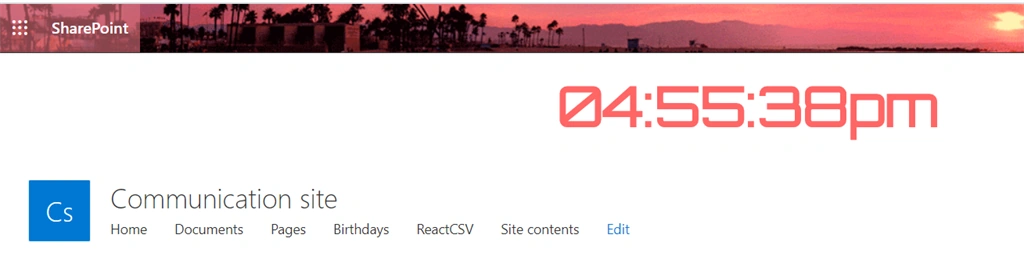
react-live-clock is an react plugin to show a digital clock. In this article we will leverage this plugin as an extension to make this visible in the entire site.
Steps
Open a command prompt and create a directory for the SPFx solution.
md spfx-ReactClockExtension
Navigate to the above-created directory.
cd spfx-ReactClockExtension
Run the Yeoman SharePoint Generator to create the solution.
yo @microsoft/sharepoint
Solution Name
Hit Enter for the default name (spfx-ReactClockExtension in this case) or type in any other name for your solution.
Selected choice - Hit Enter
Target for the component
Here,
we can select the target environment where we are planning to deploy
the client web part; i.e., SharePoint Online or SharePoint OnPremise
(SharePoint 2016 onwards).
Selected choice - SharePoint Online only (latest).
Place of files
We may choose to use the same folder or create a subfolder for our solution.
Selected choice - same folder.
Deployment option
Selecting Y will allow the app to be deployed instantly to all sites and be accessible everywhere.
Selected choice - N (install on each site explicitly).
Permissions to access web APIs
Choose
if the components in the solution require permission to access web APIs
that are unique and not shared with other components in the tenant.
Selected choice - N (solution contains unique permissions)
Type of client-side component to create
We can choose to create client-side webpart or an extension.
Selected choice: Extension
Type of client-side extension to create
We can choose to create Application customizer, Field customizer, or ListView Command Set.
Selected choice: Application Customizer
Application customizer name
Hit Enter to select the default name or type in any other name.
Selected choice: ReactClockExtension
Application customizer description
Hit Enter to select the default description or type in any other value.
Selected choice: Adds custom header and footer to a SharePoint site
Yeoman
generator will perform scaffolding process to generate the solution.
The scaffolding process will take a significant amount of time.
Once the scaffolding process is completed, lock down the version of project dependencies by running the below command.
- npm shrinkwrap
- code .
- npm install react react-dom
- npm i react-live-clock
- import { override } from '@microsoft/decorators';
- import {
- BaseApplicationCustomizer,
- PlaceholderContent,
- PlaceholderName
- } from '@microsoft/sp-application-base';
- import * as React from "react";
- import * as ReactDOM from "react-dom";
- import ReactHeader ,{IReactHeaderProps} from "./ReactHeader";
- import * as strings from 'ReactClockExtensionApplicationCustomizerStrings';
- export interface IReactClockExtensionApplicationCustomizerProperties {
- // This is an example; replace with your own property
- testMessage: string;
- Top: string;
- }
- /** A Custom Action which can be run during execution of a Client Side Application */
- export default class ReactClockExtensionApplicationCustomizer
- extends BaseApplicationCustomizer<IReactClockExtensionApplicationCustomizerProperties> {
- private _topplaceholder: PlaceholderContent | undefined;
- @override
- public onInit(): Promise<void> {
- // Added to handle possible changes on the existence of placeholders.
- this.context.placeholderProvider.changedEvent.add(this, this._renderPlaceHolders);
- // Call render method for generating the HTML elements.
- this._renderPlaceHolders();
- return Promise.resolve();
- }
- private _renderPlaceHolders(): void {
- console.log('Available placeholders: ',
- this.context.placeholderProvider.placeholderNames.map(name => PlaceholderName[name]).join(', '));
- // Handling the bottom placeholder
- if (!this._topplaceholder) {
- this._topplaceholder =
- this.context.placeholderProvider.tryCreateContent(
- PlaceholderName.Top,
- { onDispose: this._onDispose });
- // The extension should not assume that the expected placeholder is available.
- if (!this._topplaceholder) {
- console.error('The expected placeholder (Top) was not found.');
- return;
- }
- const elem: React.ReactElement<IReactHeaderProps> = React.createElement(ReactHeader);
- ReactDOM.render(elem, this._topplaceholder.domElement);
- }
- }
- private _onDispose(): void {
- console.log('[ReactHeaderFooterApplicationCustomizer._onDispose] Disposed custom top and bottom placeholders.');
- }
- }
Join the conversation! Your thoughts help the community grow.