

Introduction
It is well known that automatic shutdown is one of the features of the Windows operating system which makes your computer secure. Sometimes for our convenience, we use the automatic shutdown feature. The well-known program shutdown.exe of the Windows operating system is responsible to perform this automatic task. But to lengthen the operating system life it is necessary for (or we prefer) our system to properly shut off every time. So that we have to disable the automatic update feature in Windows 8.
So in this article, we will learn how to disable the automatic turn off feature in Windows 8.
How to disable the automatic turn off the feature in Windows 8?
Step 1
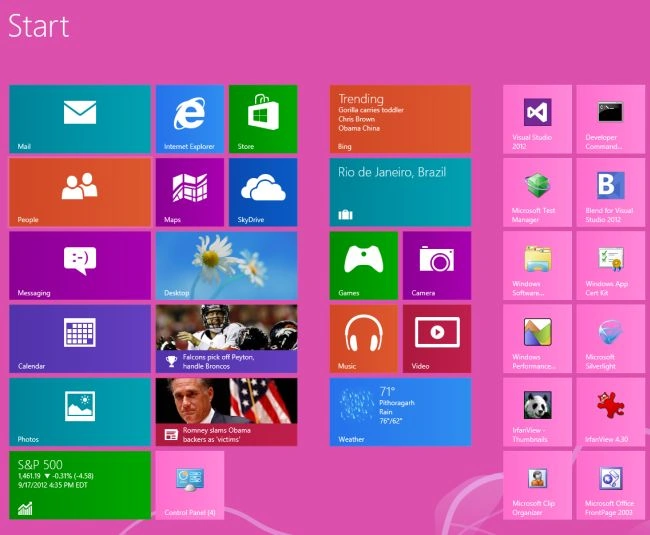
First of all, we have to move to the Start screen window of Windows 8.
Step 2
Then move the cursor on the bottom-right of the window screen and click the search box which is helpful to search in Windows 8.

Step 3
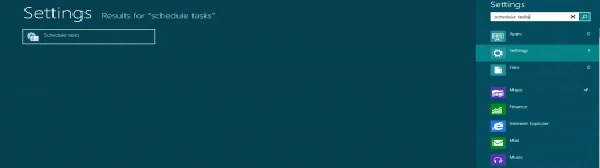
Then in the search box type "schedule tasks" and click on setting from the right sidebar then click schedule tasks in the main window.
Step 4
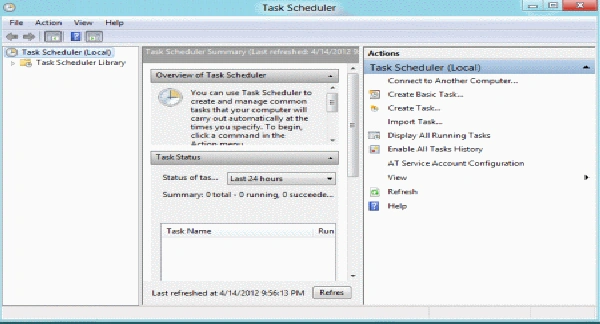
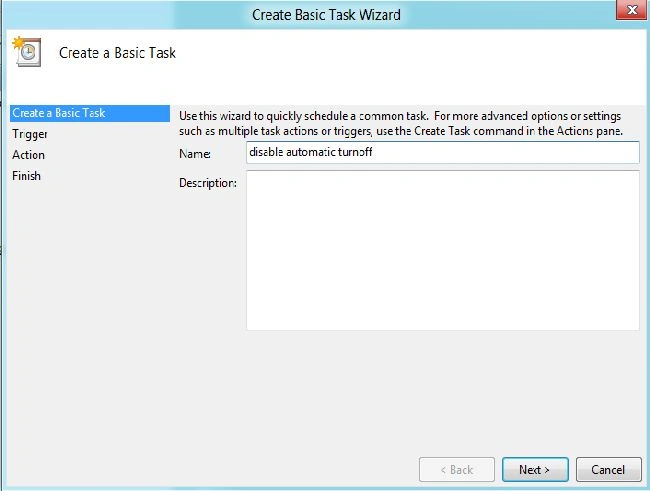
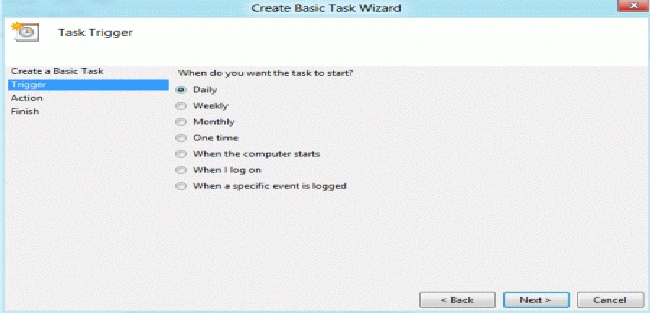
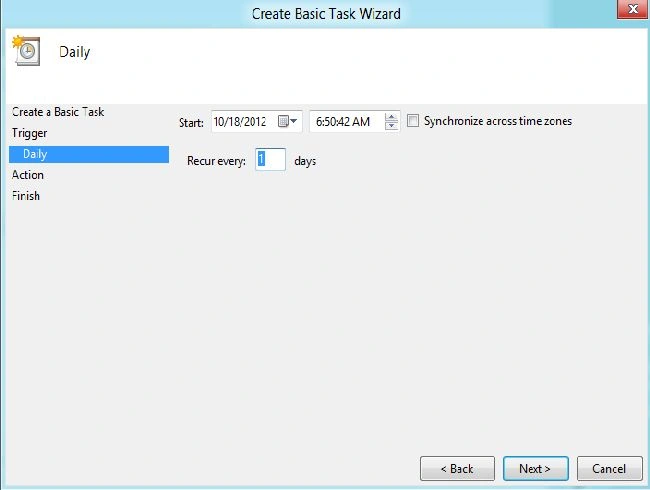
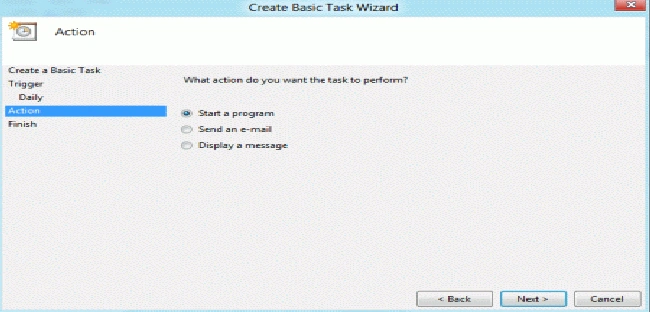
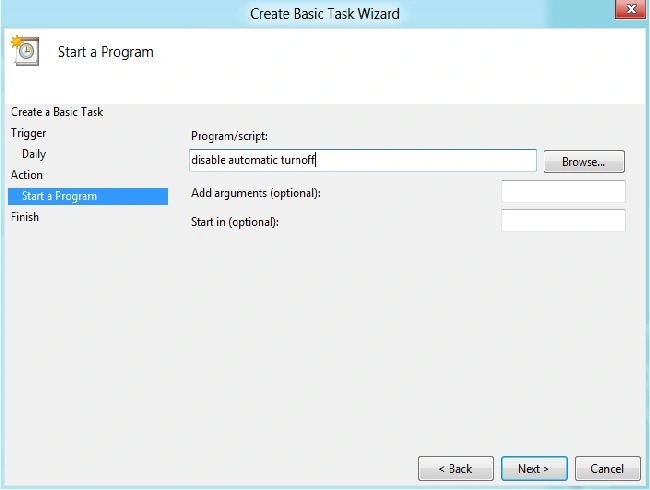
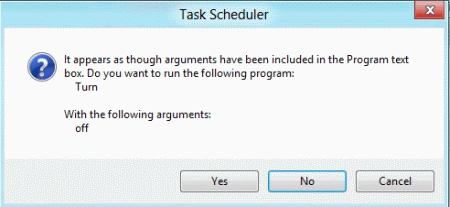
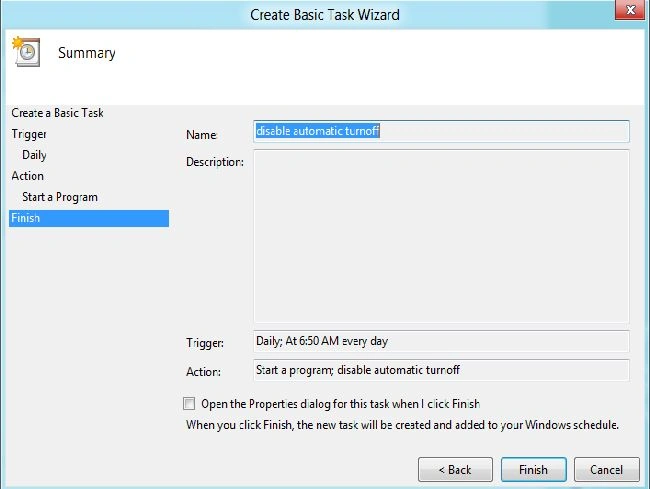
On performing this task a new window will appear labeled with Tasks Scheduler. In this window, click create a basic task from the list of actions shown on the right side of this popup window.
Join the conversation! Your thoughts help the community grow.