

Introduction
Today we are going learn how to disable the Magnifier in Windows 8. The Magnifier is a display utility that makes your system more readable by creating a separate window. Windows 8 provides the Magnifier. The Magnifier shows a portion of your screen larger in a separate Window. By default the magnifier is turned off. If the magnifier is turned on and if you want to turn it off then you clear its check box for disabling the magnifier. This is described below.
How to disable magnifier in Windows 8?
Step 1
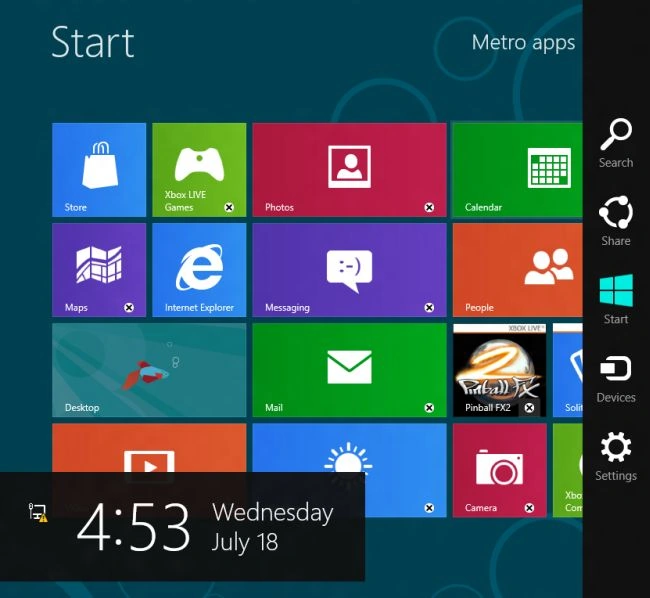
You move your mouse to the bottom-right and click on search as shown below.
Step 2
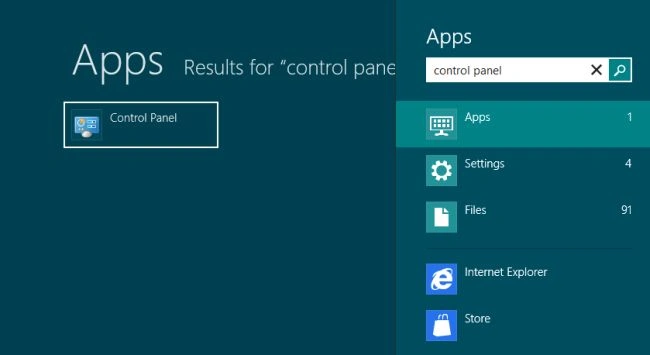
We can type the "Control Panel" in the search box and click on it.
Step 3
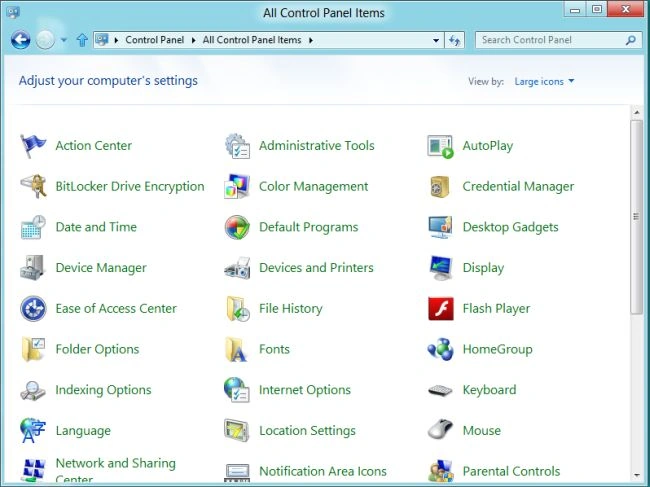
In the Control Panel, you click the drop-down menu arrow in the category tab and select the "Large Icons" and click on the "Ease of Access Center".
Step 4
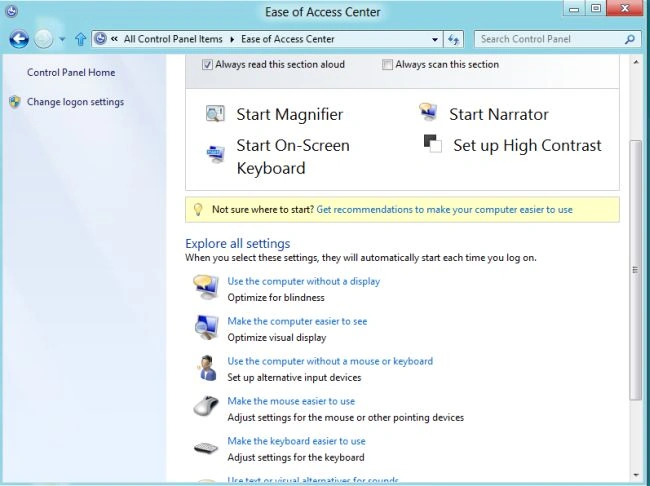
Click on link the "Make the Computer easier to see" of "Optimize Visual Display".
Step 5
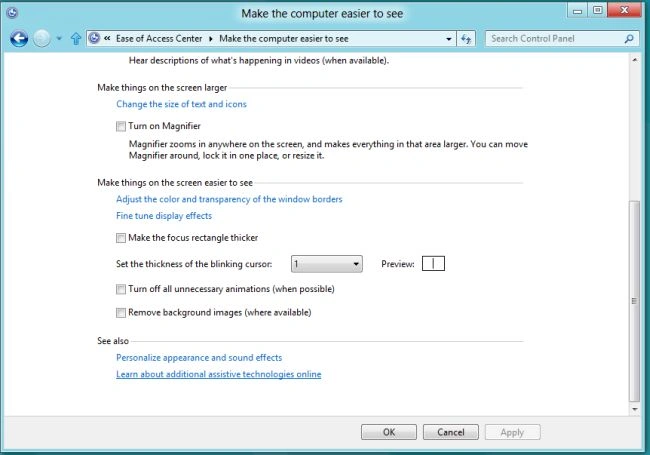
In this step, you scroll down to see an option where you can turn off the Magnifier. Clear its check box to turn off the magnifier and then click the OK or Apply Button.
Summary
In this article, we learned about Disable Magnifier in Windows 8.
JackPosted Jun 28, 2013, 10:53 AM
I tried this, and even though the box "Turn on Magnifier" is unchecked, the mouse pointer continues to randomly become a magnifying glass, causing the web page or window I am using to jump up and down in magnification. This is very annoying and makes it difficult to use the computer. I just want it off!