

Introduction
Step 1
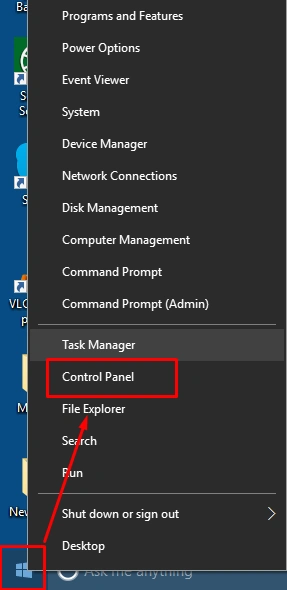
Firstly, you will right click on the “Start” button and select Control Panel option.
Step 2
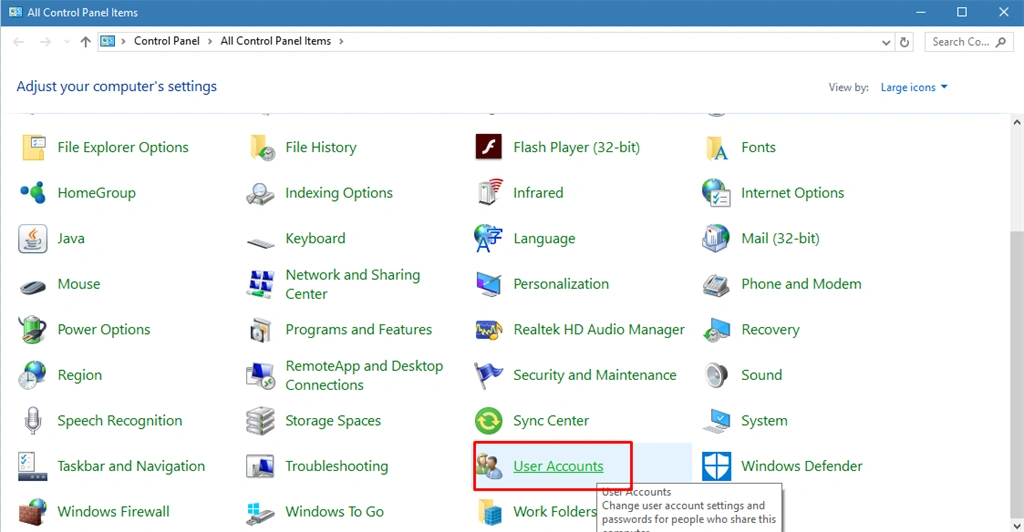
In this step, you can select the User Account option.
 Step 3
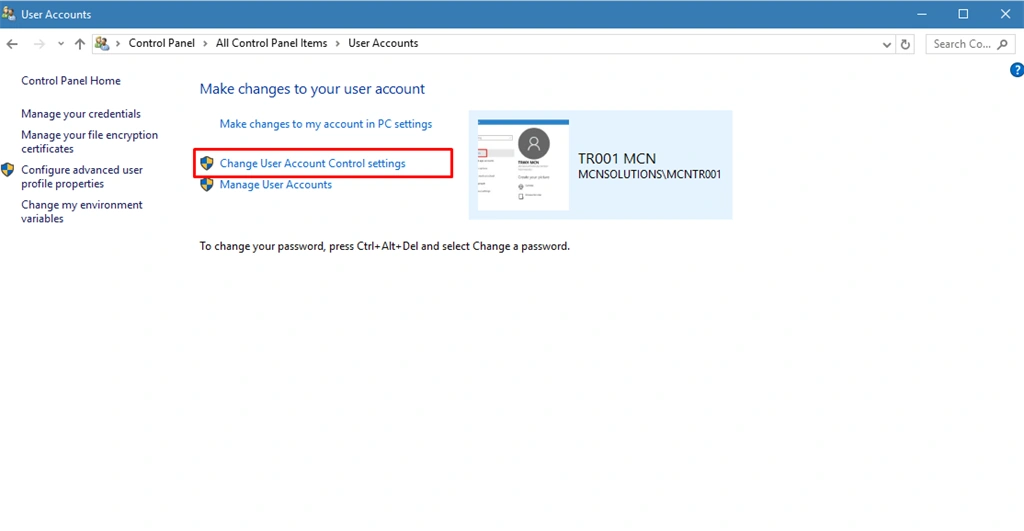
In this step, you can select the “Change User Account Control setting” option.
 Step 4
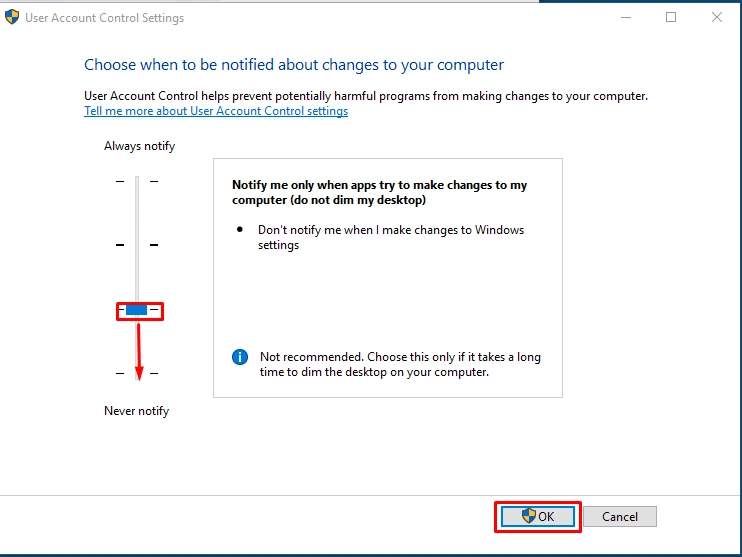
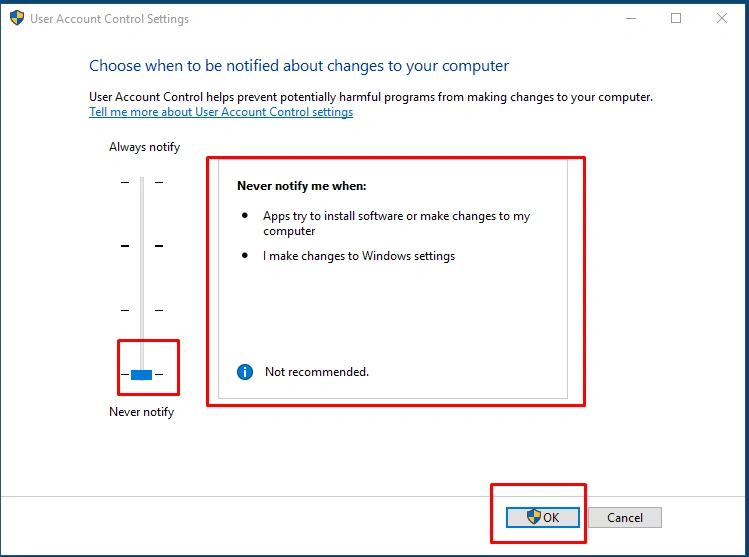
In this step, you can select User Account Control settings, and move the slider to the bottom (Never Notify). Click OK.
Step 5
When you move the slider to the bottom, it means never notify me when:
- Apps try to install software or make changes to my computer
- I make changes to windows settings
And then click ok icon.
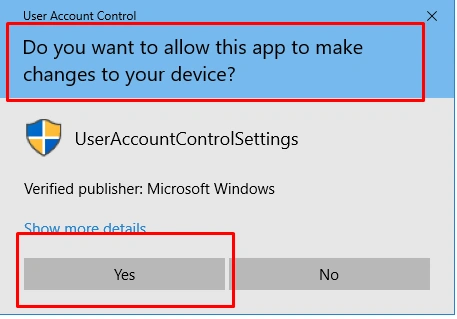
When you click on the ok button the new dialogue box is open. Do you want to allow this app to make changes to your device?
Summary
In this article, we learned about disable user account control in Windows 10.
Onkar SharmaPosted Apr 17, 2020, 5:20 AM
Informative article...
Shamim UddinPosted Nov 3, 2016, 1:03 PM
Nice