

Introduction
In this article, we are going to explain how to disable the Windows 8 SmartScreen. Windows 8 provides a security feature called SmartScreen. In Windows when we are running unrecognized apps and files from the Internet, then SmartScreen warns you.
Windows 8 SmartScreen
Example
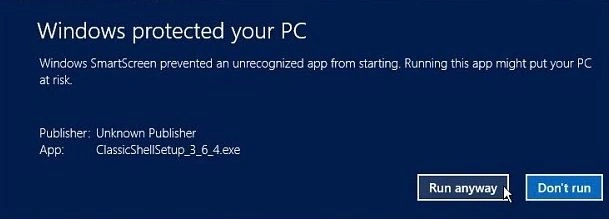
we'll see an example of SmartScreen when trying to install an unrecognized app.
Step 1
Since it's a safe program, click Run Anyway. Then we'll be able to work your way through the install wizard like normal.
Step 2
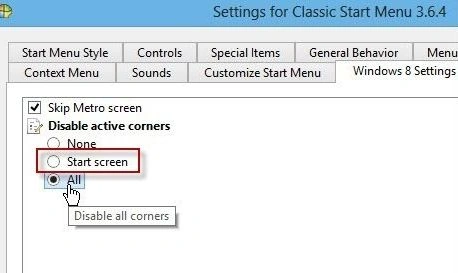
Windows 8 settings, allows you to disable SmartScreen. But I digress on to how to turn it off in Windows.
Turn Off Windows 8 SmartScreen
Step 1
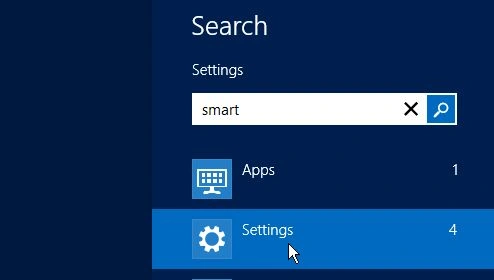
First, we press the "Win + W" shortcut key and then display the Settings search field and type "smart".
Step 2
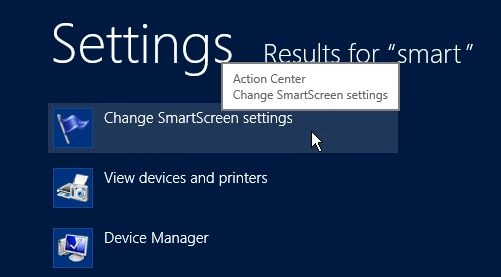
Then select "Change SmartScreen Settings" under the search results.
Step 3
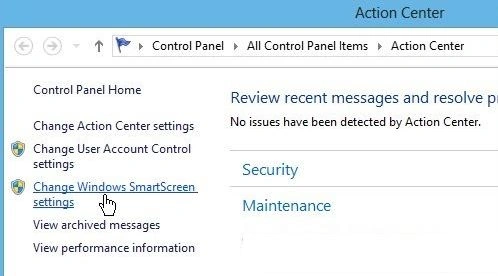
After that, the "Action Center" window opens in our Desktop. Click the "Change Windows SmartScreen Settings" link in the left pane.
Step 4
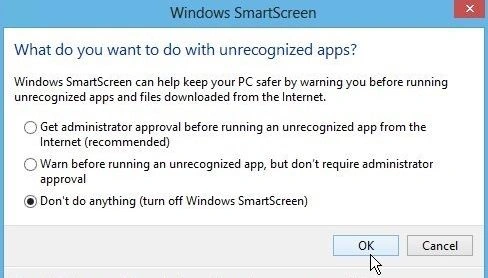
Now we select "Don't Do Anything (Turn Off Windows SmartScreen)" and click "OK."
Step 5
After turning it off, a balloon message will pop up in the Notification area of the Taskbar. Just click to close it.
Step 6
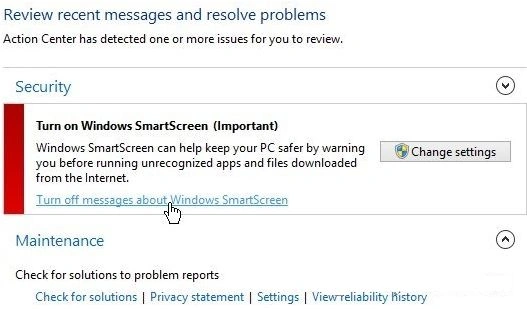
Also, we'll see a warning message under "Security" in the Action Center. Since we know what we're doing, click the link to "Turn off messages about Windows SmartScreen".
Summary
In this article, we learned about Disable Windows 8 SmartScreen.
Join the conversation! Your thoughts help the community grow.