

Introduction
Multi-Factor Authentication, abbreviated as MFA, is a security procedure mandating individuals to furnish several forms of identification before being granted access to a system, application, or account. The primary objective of MFA is to augment security by introducing an additional layer beyond the conventional username and password, mitigating vulnerabilities to potential attacks like phishing or password guessing.
Although MFA has many advantages but there are scenarios where it may act as a disadvantage. We will discuss several use cases where we require MFA to be disabled. Further, we will discuss steps how to disable MFA.
Use Cases
- Manual Testing: A company is deploying a web app with Multi-Factor Authentication (MFA). Manual testing reveals user confusion and workflow inefficiencies with MFA. To address usability concerns, the testing team recommends temporarily disabling MFA for specific user roles. This allows focused testing and refinement before re-enabling MFA.
- Automation and Scripting: The integration of MFA with automated testing or scripting may face challenges. A practical approach may involve temporarily disabling MFA for specific accounts during automated testing, with the condition that thorough consideration and addressing of security implications are undertaken.
- Manual Deployment Steps: For critical post-deployment tasks in Power Platform such as updating connectors and adjusting settings, MFA is temporarily disabled for a service account, allowing streamlined manual execution. Enhanced security measures are in place during the process, and MFA remains disabled for efficiency.
- Training and Onboarding Costs: If MFA creates complexity for end-users, there might be expenses associated with training and onboarding. Temporarily deactivating MFA could mitigate these costs in the short term; however, it is essential to prioritize user education for long-term effectiveness.
There might be several other use cases as well. Now let's discuss how we can disable MFA.
Steps to disable MFA using Azure Portal
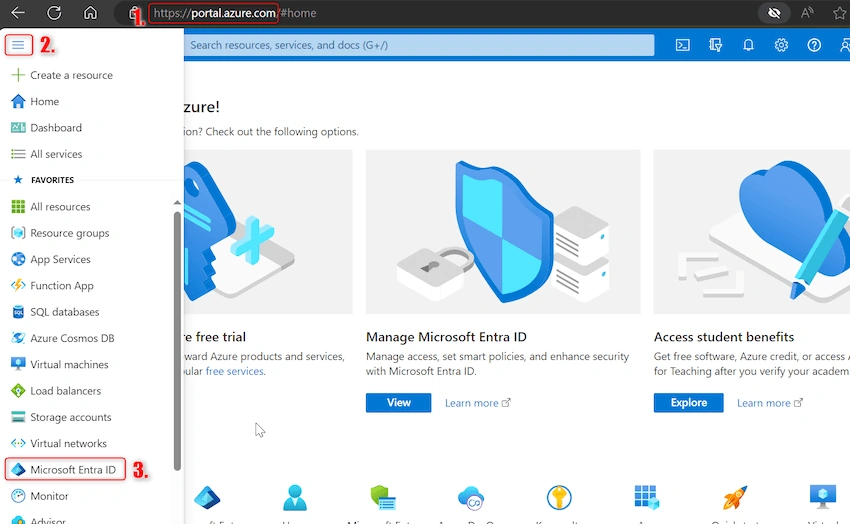
Step 1. Login to portal.azure.com with at least a security administrator role(I have Global Admin role in my case)
Step 2. Click on hamburger menu icon -> Go to Microsoft Entra ID (previously known as Azure Active Directory) as shown below:
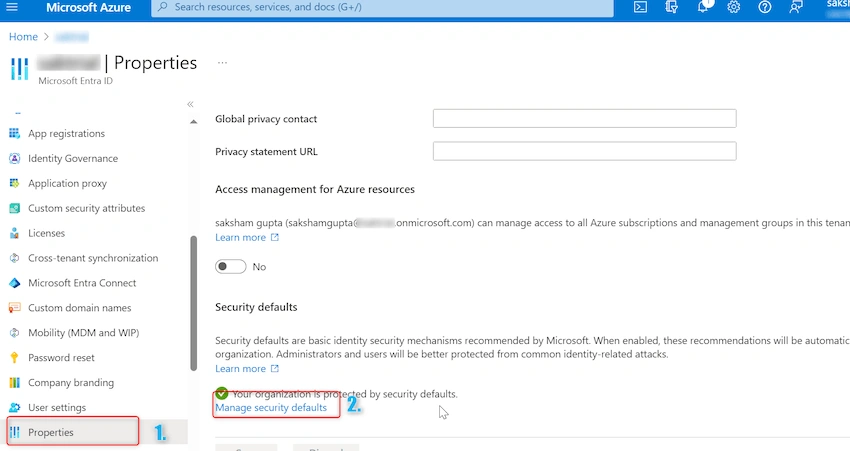
Step 3. A new window for Microsoft Entra ID will open. On left hand side under manage click on properties. In properties scroll to the bottom and click on Manage Security defaults hyperlink as shown below:
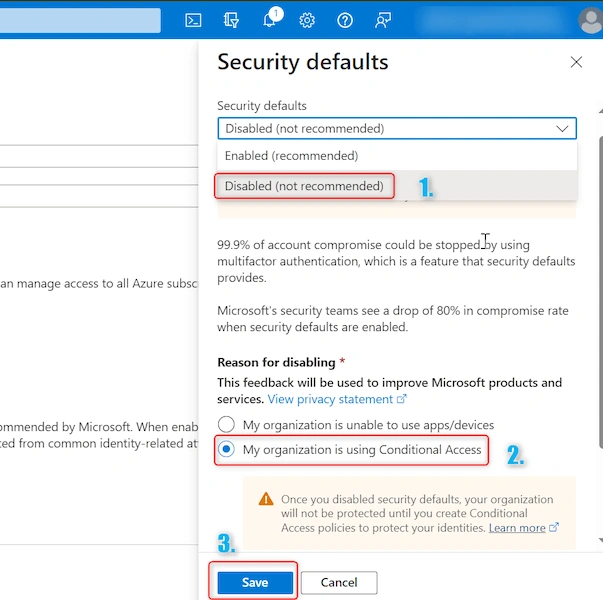
Step 4. A new window will open on right hand side. Click on dropdown and select Disabled. In Reason for Disabling select 'My organization is using conditional access' (We will discuss conditional access further in this article) . Now click on Save as shown below:
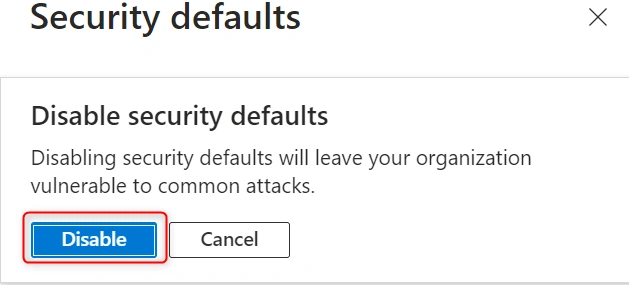
If any warning pop-up appears select disable as shown below:
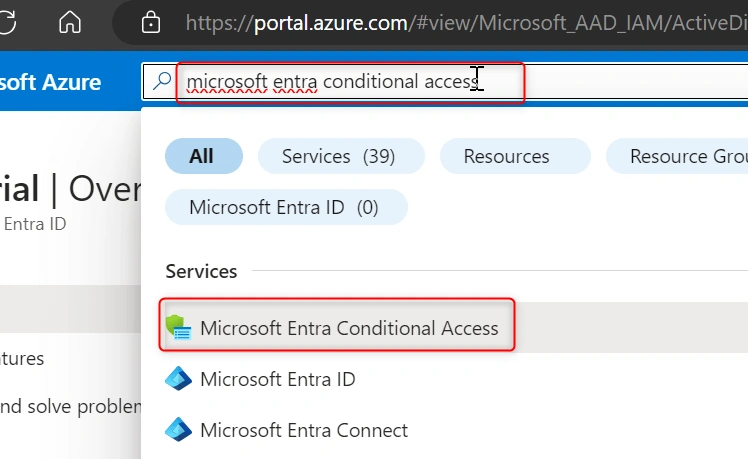
Step 5. After completion of above steps, MFA will be disabled for all users in the organization. This is not recommended, we should only disable MFA for specific users/group. To achieve this we will make use of Microsoft Entra conditional access. In search box type 'Microsoft Entra conditional access' and open the service as shown below:
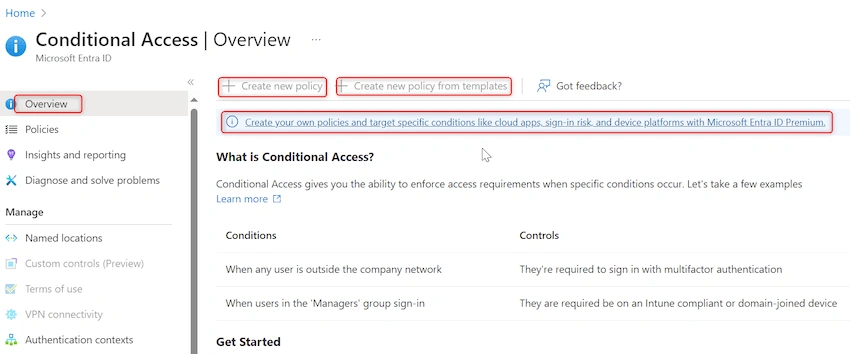
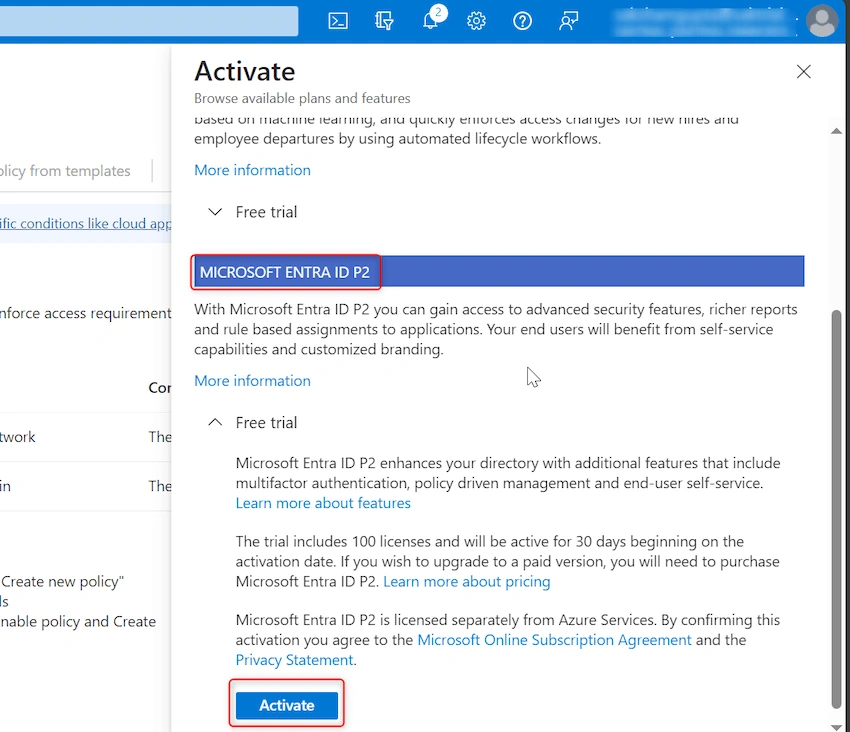
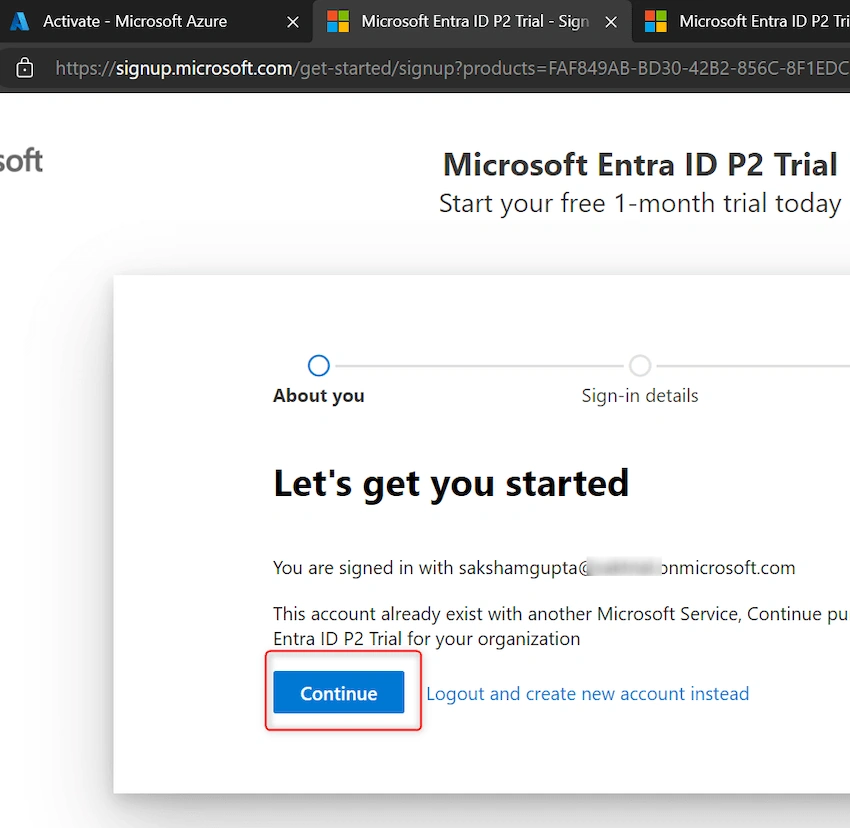
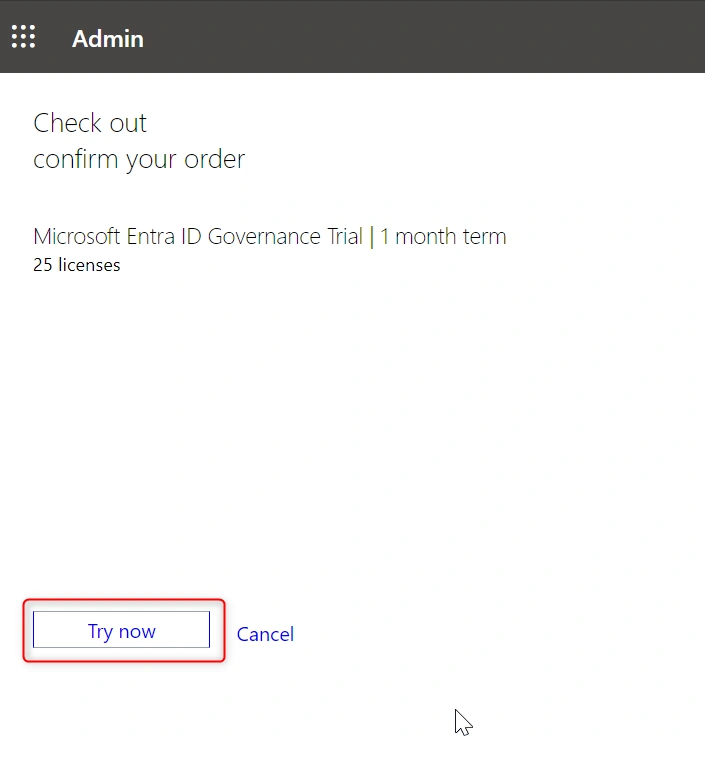
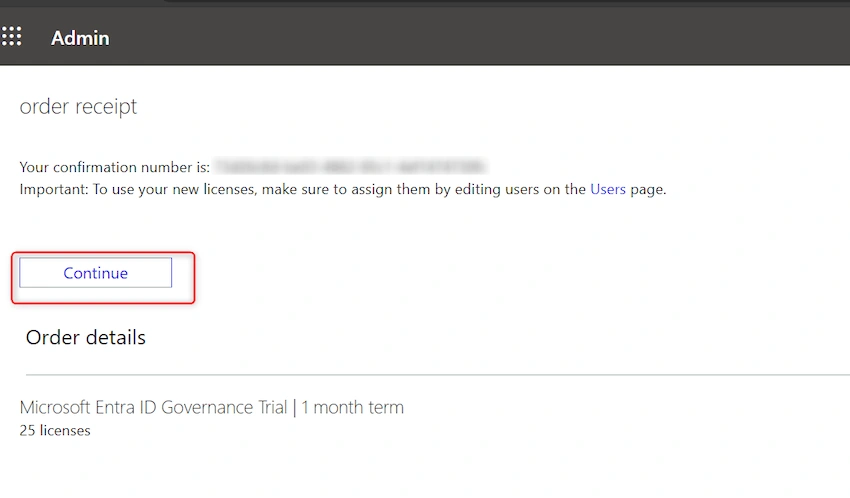
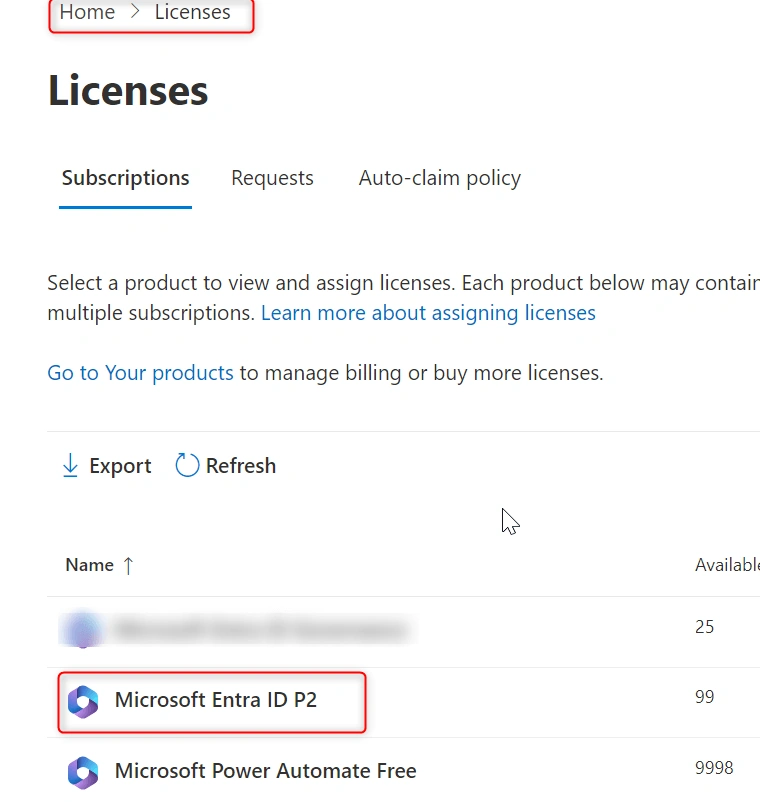
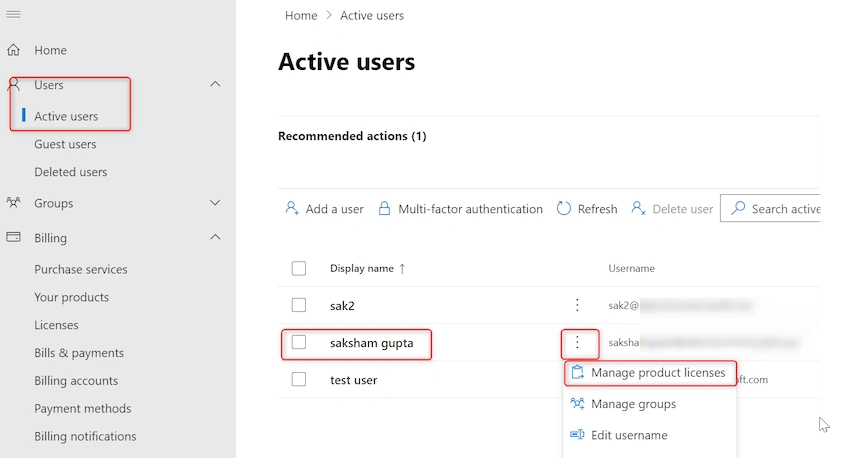
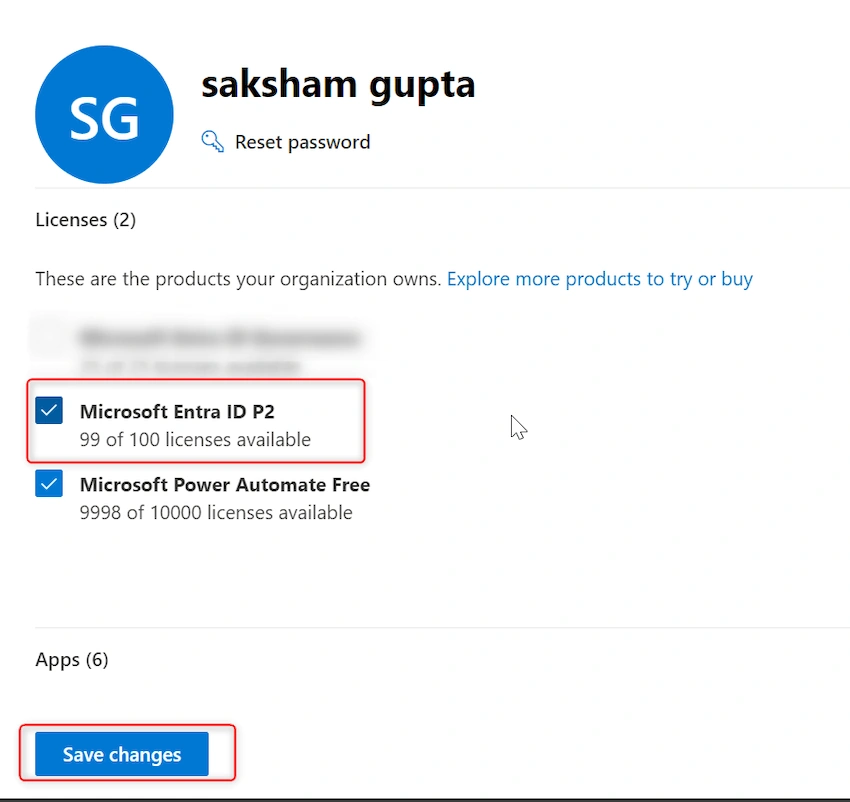
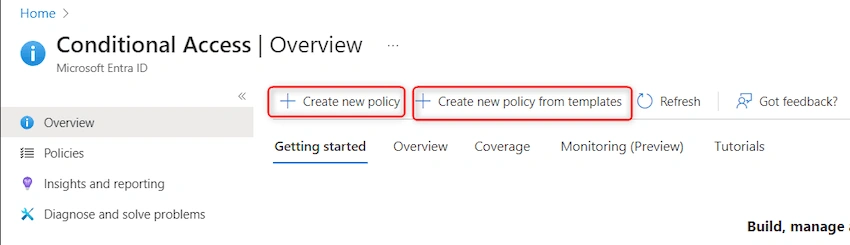
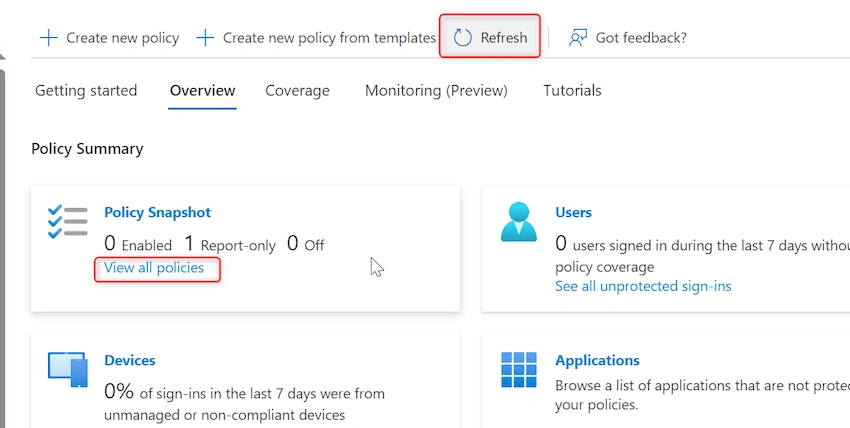
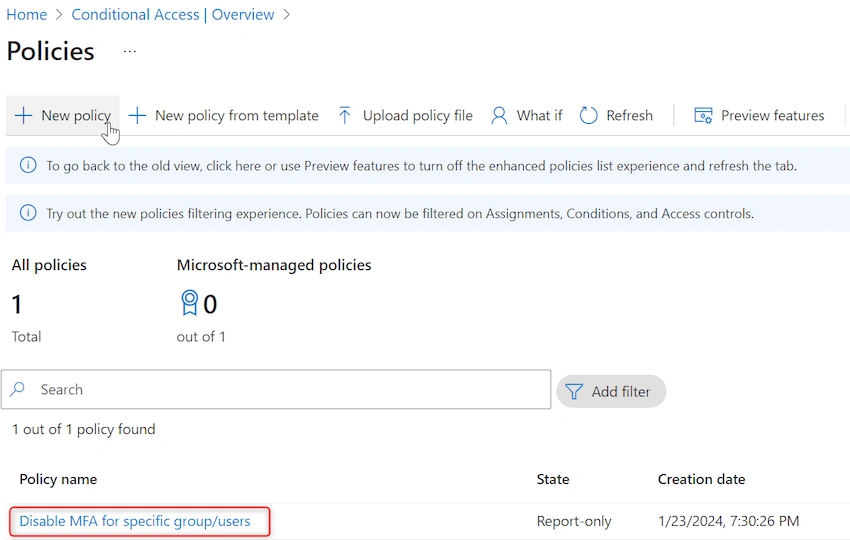
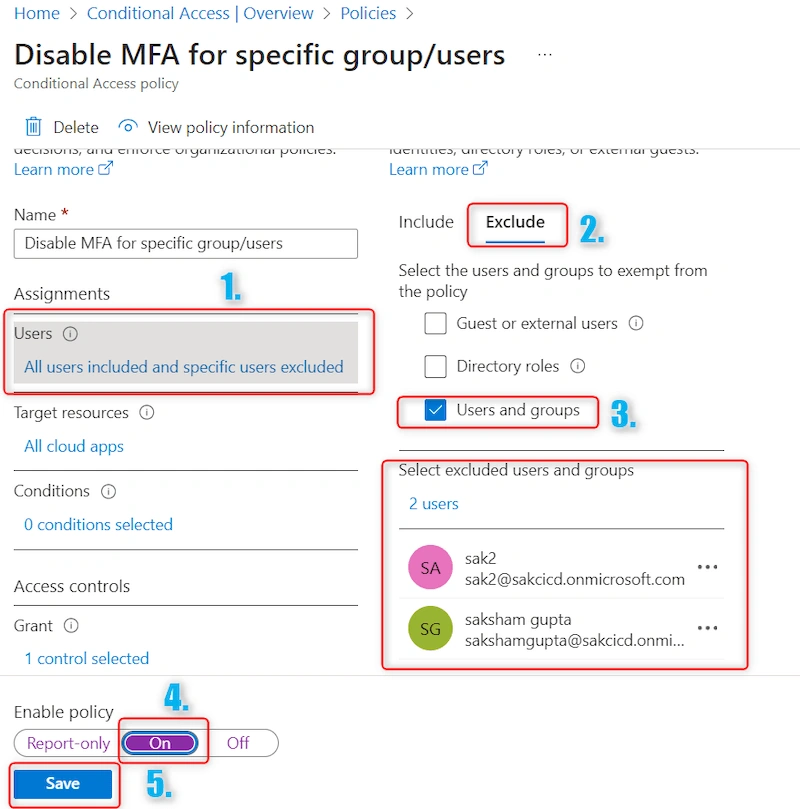
Step 6. A new window will open. If logged-in user don't have 'Microsoft Entra ID P2' license, Create new policy option will be disabled for him. To raise a trial request for 'Microsoft Entra ID P2' click on highlighted hyperlink: Create your own policies and target specific conditions like cloud apps, sign-in risk, and device platforms with Microsoft Entra ID Premium. as shown below:
Join the conversation! Your thoughts help the community grow.