

Welcome to an article on how to use the action "Office 365 discard check out" on Document Library in SharePoint Online and Office 365 using Nintex Workflows. This article will display the action “Office 365 discard check out”. Here we will see how to configure this action and use it for our work.
Using this action you can discard check out of items in a document library.
Let’s see the implementation of this functionality.
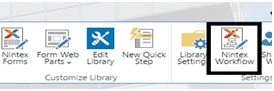
- I have created a document library “Dev Document”. In Dev Document, Click on the Library tab on the Top ribbon and click on Nintex Workflows.
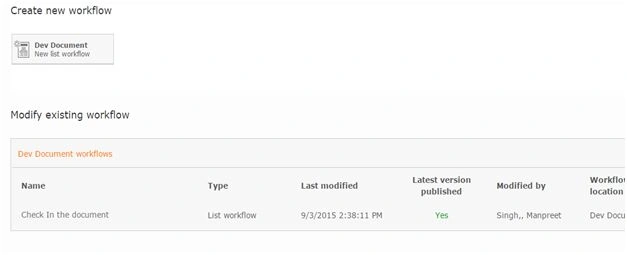
- You will see the following screen, to create a new workflow.
- Click below “Create new workflow”.
- You will come to the design phase of the Nintex workflows.
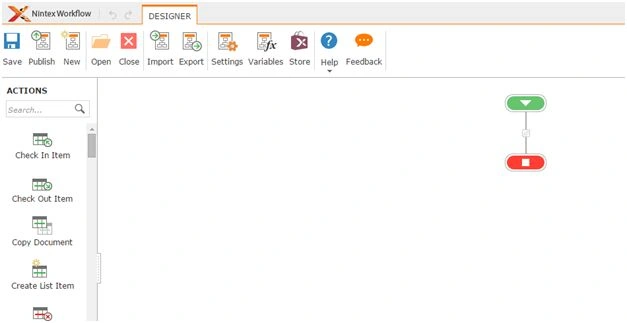
- Add the action, “Office 365 discard check out” action by right clicking on the workflow or by dragging and dropping from the left toolbox.
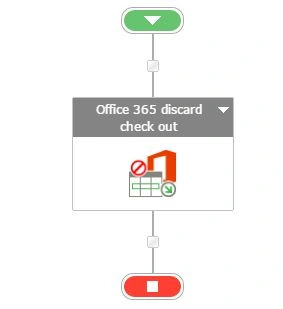
- Now let’s configure it.
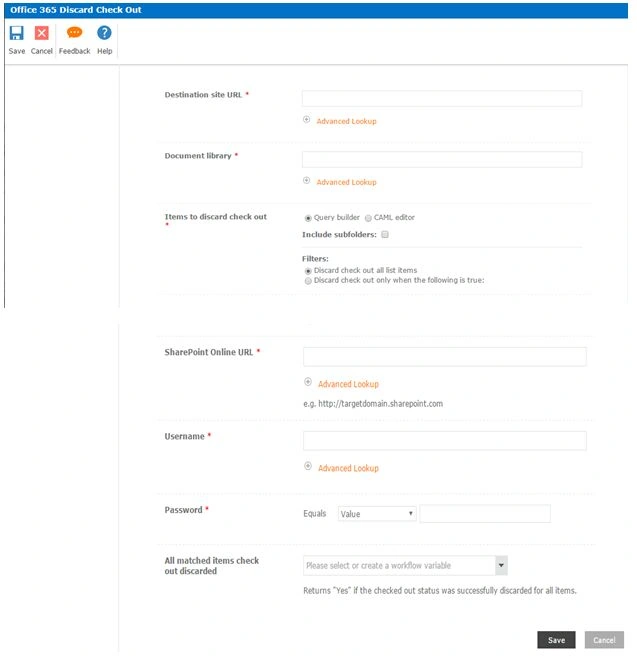
Configuration
- Destination site URL - Provide the site URL.
- Document Library - Specify the name of the library.
- Items to discard Check Out - You can choose if you want to discard check out for all the documents which are checked out or based on specific conditions.
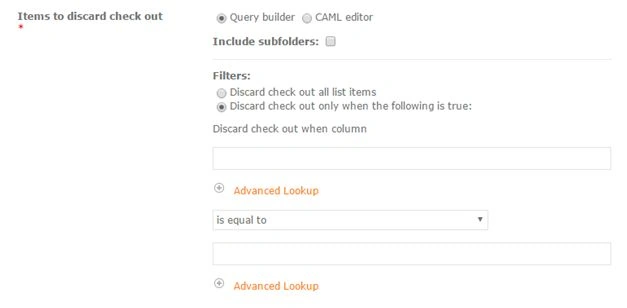
- SharePoint Online URL - Provide the site URL.
- Username - Provide the site user name.
- Password - Specify the password.
- All Matched items checked out discarded - Here you can add a variable to store the value ‘Yes’ if all the matched items are checked out.
- Now we have configured our workflow, let’s go and publish it to use it.
- Click on Publish on the left corner of the ribbon of Nintex Designer.

- You will see the screen below.
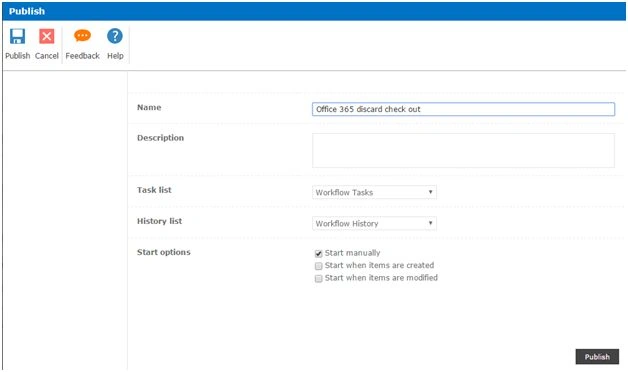
- Give your workflow a name
- Description
- Choose your task list where it should store the tasks; it will be Workflow Tasks by default.
- Choose your history list where it should store the history logs ;it will be Workflow History by default.
- Start Options,
- You can either start your workflow manually.
- Or you can start your workflow automatically when an item is created, I will select this option to create automatically when an item is created.
- Or you can start your workflow automatically when an item is modified.
- Click on Publish.
- Your workflow will get published.
Once you configure, the workflow will automate the process of discarding the check-out of items from the document library as per your condition.
So in this article we saw how to discard check out on the library using the action "Office 365 discard check out" in SharePoint Online and Office 365 using Nintex Workflows. We will see more new articles on the actions of Nintex Workflows in the other parts of the article. Until then, keep learning!
RajaPosted Jul 1, 2016, 12:05 AM
Good one...
Vignesh ManiPosted Jun 30, 2016, 5:39 PM
Nice
kalu singh raoPosted Jun 30, 2016, 2:42 PM
Nice...