

Overview
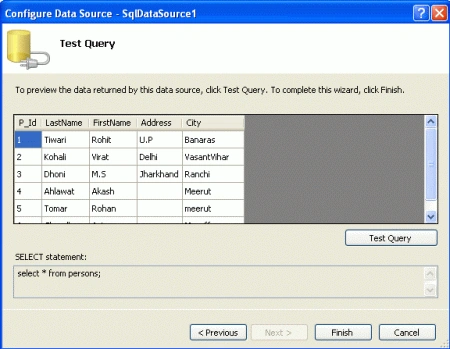
Here first of all we create an ASP.NET 3.5 Website Project in Visual Studio 2008 and create a gridview ASP.NET control on to the default.aspx page. Then we build the web site project and display the data in the gridview on the default.aspx page.
Create an ASP.NET 3.5 Web Site Project
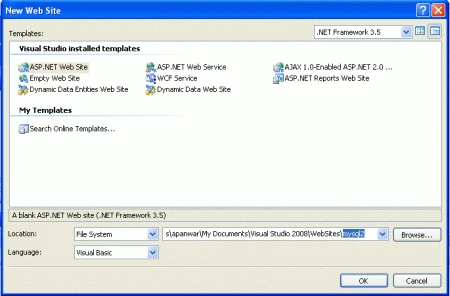
Start Visual Studio 2008 and Click File > New >Web Site... to open up the
New Web Site window as shown. Here we have to change the default name of the web
site . I choose mysql2 as shown.
Take a Gridview
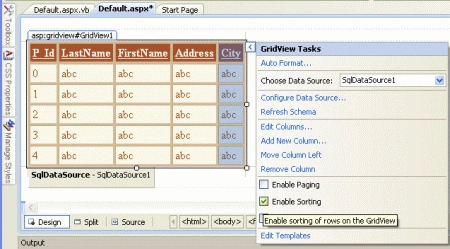
Under Toolbox we find the GridView Control. Drag
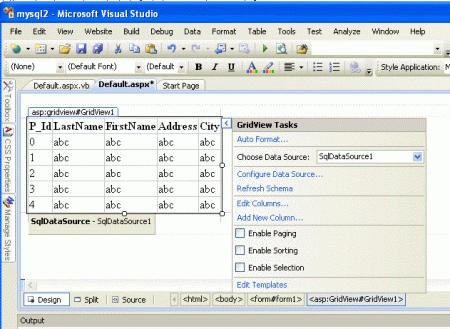
and drop this control on to the Default.aspx page and under the task menu items
choose data source.
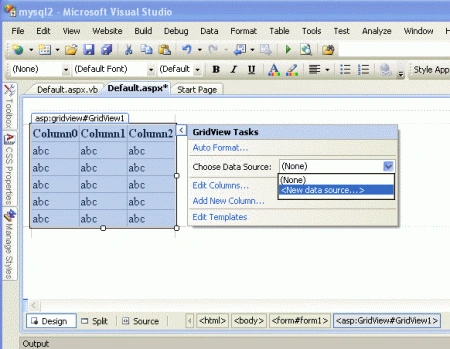
Click on the <New Data Source...> item in Choose data source. This will
bring up the Data Source Configuration wizard . Here we need to choose a
source of the data we are trying to bring into the application to be bound to
the GridView control.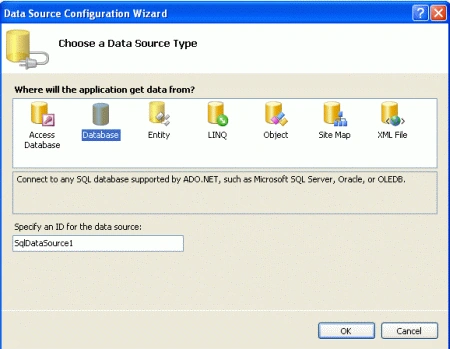
Here in this wizard several options and we will be using data from a database. Click on the Database icon as shown in the previous figure. With this we will be specifying an instance of SQLDataSource1 as our source of data. Click OK.
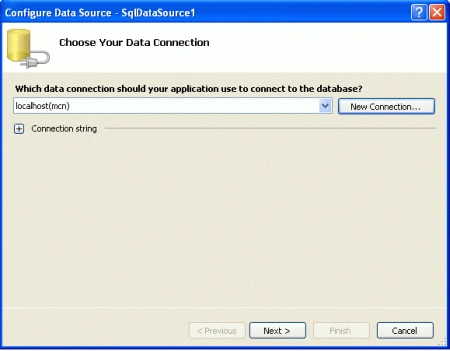
After the ok button the next window shown here. Here we will try to establish a connection to the data source. In the combo-box shown you may see some of the existing connections you have previously established one of which may initially show up. Here in we will be making a new connection. Click the New Connection... button.
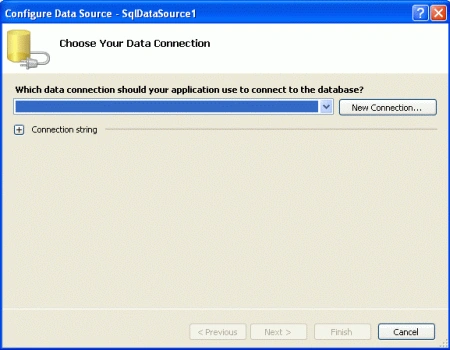
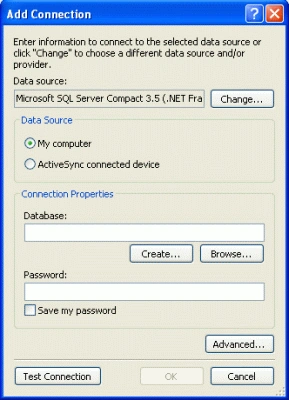
This brings up the Add Connection window which gets displayed with the
default data source, the Microsoft SQL Server Compact 3.5 as shown.
Gowtham RajamanickamPosted Apr 26, 2016, 3:14 AM
good article