

Introduction
A RadioButtonList control is a collection of RadioButtons. It is used to select one item from a group of items. Usually text is displayed with RadioButtons in the RadioButtonList. But sometimes it is required to display an image in place of the text. The RadioButtonList control allows us to display an image with the RadioButtons using ListItem. In this article we will see how we can display an image with RadioButtons in a RadioButtonList control

Step 1: Create a new ASP.NET Web Application in Visual Studio. Add a folder in the root named Images. Right-click on the project name and select:
Add -> New Folder
Now add some images in this folder to show with RadioButtons in the RadioButtonList control. Right-click on the Images folder and select:
Add -> Existing Item
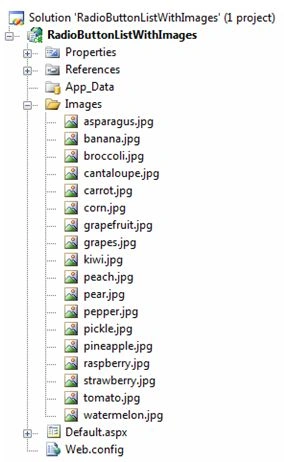
Step 2: Add a RadioButtonList in HTML source view of Default.aspx, as shown in the following:
<div>
<asp:RadioButtonList ID="RadioButtonList1"
runat="server"
BorderStyle="Groove"
BorderWidth="1px"
RepeatColumns="3"
RepeatLayout="Table">
</asp:RadioButtonList>
</div>
RepeatColumns of RadioButtonList is set to "3" to divide its items in three columns. For example if we have 18 items in the RadioButtonList, it will be displayed in 3 columns with 6 RadioButtons in each column.
The RepeatLayout property is used to specify the arrangement of RadioButtons inside the RadioButtonList control. By default or when it is set to "Table", RadioButtons are rendered in a table but if it is set to "Flow", it is rendered without a table.
Step 3: Write the following code in the Page Load event of Default.aspx.cs:
Pruthvi PatelPosted Mar 19, 2016, 12:15 PM
In this same output format If i want to image from database where image is stored as image datatype how to do that? Please help me for that
Tina GargPosted Oct 22, 2012, 12:21 AM
Very nice article
Shekhar ChauhanPosted Oct 21, 2012, 10:56 PM
Nice way to show radio button list.Nice article.