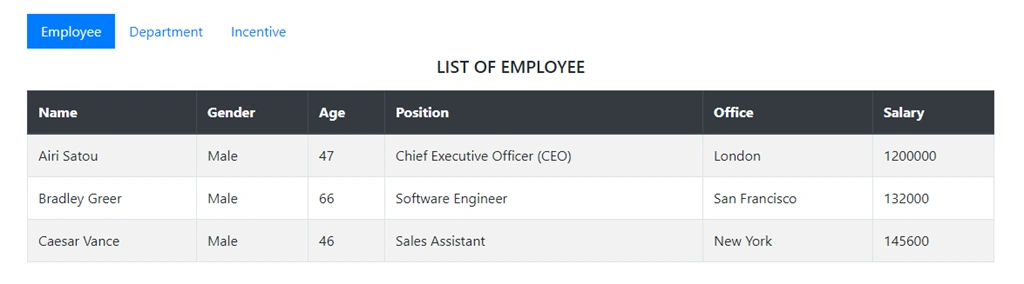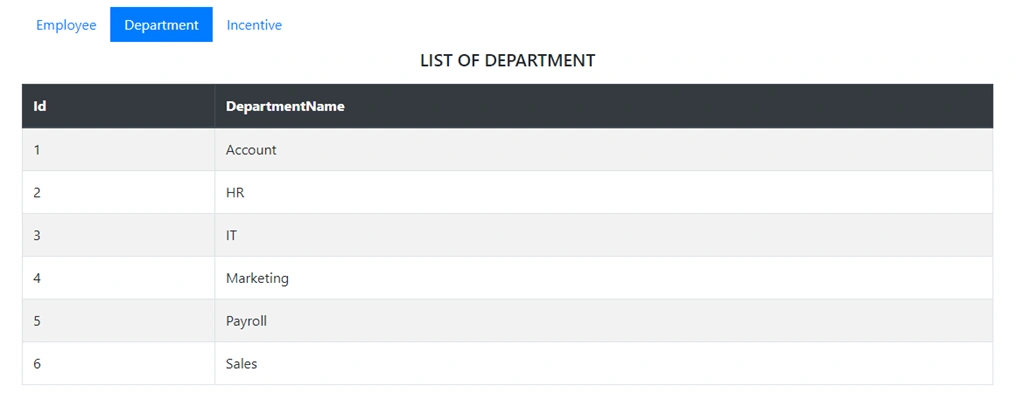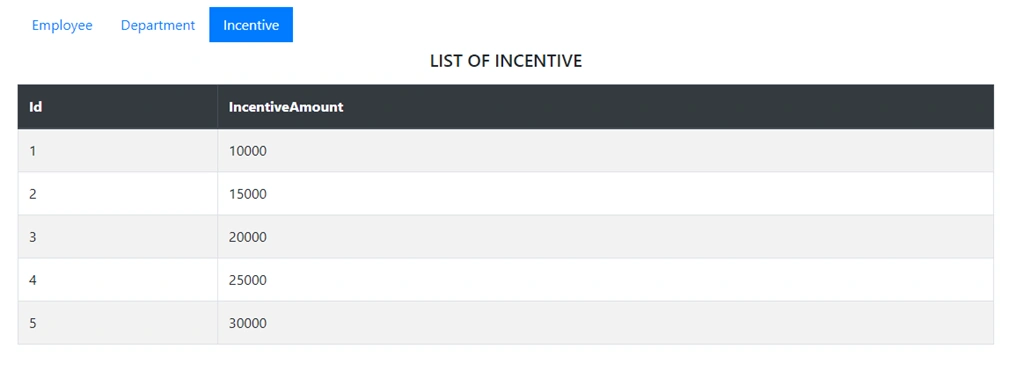
Introduction

This article will explain to you how you can display multiple tables' record in a single view using ViewModel in ASP.Net MVC. For this article, you should have basic understanding of the following,
Step 1
Open your favourite SQL server database any version. It doesn’t really matter. Create tables as shown below.
  1. CREATE TABLE [dbo].[Employee](
  2. [Id] [int] IDENTITY(1,1) NOT NULL,
  3. [Name] [nvarchar](50) NULL,
  4. [Gender] [char](10) NULL,
  5. [Age] [int] NULL,
  6. [Position] [nvarchar](50) NULL,
  7. [Office] [nvarchar](50) NULL,
  8. [Salary] [int] NULL,
  9. CONSTRAINT [PK_Employee] PRIMARY KEY CLUSTERED
  10. (
  11. [Id] ASC
  12. )WITH (PAD_INDEX = OFF, STATISTICS_NORECOMPUTE = OFF, IGNORE_DUP_KEY = OFF, ALLOW_ROW_LOCKS = ON, ALLOW_PAGE_LOCKS = ON) ON [PRIMARY]
  13. ) ON [PRIMARY]
  14. GO
  15. CREATE TABLE [dbo].[Department](
  16. [Id] [int] IDENTITY(1,1) NOT NULL,
  17. [DepartmentName] [nvarchar](50) NULL,
  18. CONSTRAINT [PK_Department] PRIMARY KEY CLUSTERED
  19. (
  20. [Id] ASC
  21. )WITH (PAD_INDEX = OFF, STATISTICS_NORECOMPUTE = OFF, IGNORE_DUP_KEY = OFF, ALLOW_ROW_LOCKS = ON, ALLOW_PAGE_LOCKS = ON) ON [PRIMARY]
  22. ) ON [PRIMARY]
  23. GO
  24. CREATE TABLE [dbo].[Incentive](
  25. [Id] [int] IDENTITY(1,1) NOT NULL,
  26. [IncentiveAmount] [int] NULL,
  27. CONSTRAINT [PK_Incentive] PRIMARY KEY CLUSTERED
  28. (
  29. [Id] ASC
  30. )WITH (PAD_INDEX = OFF, STATISTICS_NORECOMPUTE = OFF, IGNORE_DUP_KEY = OFF, ALLOW_ROW_LOCKS = ON, ALLOW_PAGE_LOCKS = ON) ON [PRIMARY]
  31. ) ON [PRIMARY]
  32. GO
Step 2
Now open your favorite Visual Studio 2017 or any version you wish to.
Display Multiple Tables In A Single View In ASP.NET MVC
Step 3
Create an empty project in Visual Studio, and give an appropriate name. Check MVC checkbox and click on OK.
Display Multiple Tables In A Single View In ASP.NET MVC
Step 4
Right-click on the Models folder and add a database model. Add Entity Framework now. For that, right-click on Models folder, select Add, then select New Item.
Display Multiple Tables In A Single View In ASP.NET MVC
You will get a window; from there, select Data from the left panel and choose ADO.NET Entity Data Model, give it the name MyModel (this name is not mandatory, you can give any name) and click "Add"
Display Multiple Tables In A Single View In ASP.NET MVC
After you click on "Add a window", the wizard will open. Choose EF Designer from the database and click "Next".
Display Multiple Tables In A Single View In ASP.NET MVC
After clicking on "Next", a window will appear. Choose New Connection. Another window will appear. Add your server name - if it is local, then enter a dot (.). Choose your database and click "OK".
Display Multiple Tables In A Single View In ASP.NET MVC
The connection will be added. If you wish, save the connection name as you want. You can change the name of your connection below. It will save the connection in the web config. Now, click "Next".
Display Multiple Tables In A Single View In ASP.NET MVC
After clicking on NEXT, another window will appear. Choose the database table name as shown in the below screenshot and click "Finish".
Display Multiple Tables In A Single View In ASP.NET MVC
Entity Framework gets added and the respective class gets generated under the Models folder.
Display Multiple Tables In A Single View In ASP.NET MVC
Step 5
Right-click on Controllers folder and add a controller.
Display Multiple Tables In A Single View In ASP.NET MVC
A window will appear. Choose MVC5 Controller-Empty and click "Add".
Display Multiple Tables In A Single View In ASP.NET MVC
After clicking on "Add", another window will appear with DefaultController. Change the name to HomeController and click "Add". The HomeController will be added under the Controllers folder. Don’t change the Controller suffix for all controllers, change only the highlight, and instead of Default, just change Home.
Display Multiple Tables In A Single View In ASP.NET MVC
Step 6
Right click on project “Add Folder” name it ViewModel. Now right click on this folder and “Add Class” with name EmployeeViewModel.
  1. using MvcMultipleTable_Demo.Models;
  2. using System;
  3. using System.Collections.Generic;
  4. using System.Linq;
  5. using System.Web;
  6. namespace MvcMultipleTable_Demo.ViewModel
  7. {
  8. public class EmployeeViewModel
  9. {
  10. public IEnumerable<Employee> Employees { get; set; }
  11. public IEnumerable<Department> Departments { get; set; }
  12. public IEnumerable<Incentive> Incentives { get; set; }
  13. }
  14. }
Controller Class Code
  1. using MvcMultipleTable_Demo.Models;
  2. using MvcMultipleTable_Demo.ViewModel;
  3. using System;
  4. using System.Collections.Generic;
  5. using System.Linq;
  6. using System.Web;
  7. using System.Web.Mvc;
  8. namespace MvcMultipleTable_Demo.Controllers
  9. {
  10. public class HomeController : Controller
  11. {
  12. private readonly EmployeeContext db = new EmployeeContext();
  13. public ActionResult Index()
  14. {
  15. var tables = new EmployeeViewModel
  16. {
  17. Employees=db.Employees.ToList(),
  18. Departments=db.Departments.ToList(),
  19. Incentives=db.Incentives.ToList()
  20. };
  21. return View(tables);
  22. }
  23. }
  24. }
Step 7
Right click on Index action method in controller class “Add View”
Display Multiple Tables In A Single View In ASP.NET MVC
Index View Code
  1. @model MvcMultipleTable_Demo.ViewModel.EmployeeViewModel
  2. @{
  3. ViewBag.Title = "Index";
  4. }
  5. <ul class="nav nav-pills">
  6. <li class="nav-item ">
  7. <a class="nav-link active rounded-0" data-toggle="pill" href="#home">Employee</a>
  8. </li>
  9. <li class="nav-item">
  10. <a class="nav-link rounded-0" data-toggle="pill" href="#menu1">Department</a>
  11. </li>
  12. <li class="nav-item">
  13. <a class="nav-link rounded-0" data-toggle="pill" href="#menu2">Incentive</a>
  14. </li>
  15. </ul>
  16. <div class="tab-content">
  17. <div class="tab-pane container active p-0" id="home">
  18. <h5 class="text-uppercase p-2 text-center">List of Employee</h5>
  19. <table class="table table-bordered table-striped">
  20. <thead class="thead-dark text-white">
  21. <tr>
  22. <th>@Html.DisplayNameFor(m => Model.Employees.FirstOrDefault().Name)</th>
  23. <th>@Html.DisplayNameFor(m => Model.Employees.FirstOrDefault().Gender)</th>
  24. <th>@Html.DisplayNameFor(m => Model.Employees.FirstOrDefault().Age)</th>
  25. <th>@Html.DisplayNameFor(m => Model.Employees.FirstOrDefault().Position)</th>
  26. <th>@Html.DisplayNameFor(m => Model.Employees.FirstOrDefault().Office)</th>
  27. <th>@Html.DisplayNameFor(m => Model.Employees.FirstOrDefault().Salary)</th>
  28. </tr>
  29. </thead>
  30. <tbody>
  31. @foreach (var employee in Model.Employees)
  32. {
  33. <tr>
  34. <td>@employee.Name</td>
  35. <td>@employee.Gender</td>
  36. <td>@employee.Age</td>
  37. <td>@employee.Position</td>
  38. <td>@employee.Office</td>
  39. <td>@employee.Salary</td>
  40. </tr>
  41. }
  42. </tbody>
  43. </table>
  44. </div>
  45. <div class="tab-pane container fade p-0" id="menu1">
  46. <h5 class="text-uppercase p-2 text-center">List of Department</h5>
  47. <table class="table table-bordered table-striped">
  48. <thead class="thead-dark text-white">
  49. <tr>
  50. <th>@Html.DisplayNameFor(m => Model.Departments.FirstOrDefault().Id)</th>
  51. <th>@Html.DisplayNameFor(m => Model.Departments.FirstOrDefault().DepartmentName)</th>
  52. </tr>
  53. </thead>
  54. <tbody>
  55. @foreach (var employee in Model.Departments)
  56. {
  57. <tr>
  58. <td>@employee.Id</td>
  59. <td>@employee.DepartmentName</td>
  60. </tr>
  61. }
  62. </tbody>
  63. </table>
  64. </div>
  65. <div class="tab-pane container fade p-0" id="menu2">
  66. <h5 class="text-uppercase p-2 text-center">List of Incentive</h5>
  67. <table class="table table-bordered table-striped">
  68. <thead class="thead-dark text-white">
  69. <tr>
  70. <th>@Html.DisplayNameFor(m => Model.Incentives.FirstOrDefault().Id)</th>
  71. <th>@Html.DisplayNameFor(m => Model.Incentives.FirstOrDefault().IncentiveAmount)</th>
  72. </tr>
  73. </thead>
  74. <tbody>
  75. @foreach (var employee in Model.Incentives)
  76. {
  77. <tr>
  78. <td>@employee.Id</td>
  79. <td>@employee.IncentiveAmount</td>
  80. </tr>
  81. }
  82. </tbody>
  83. </table>
  84. </div>
  85. </div>
Step 8
Install latest version of bootstrap and JQuery from NuGet package manager under tools in Visual Studio.
Step 9
Add the following styles and script link in layout view,
  1. <!DOCTYPE html>
  2. <html>
  3. <head>
  4. <meta charset="utf-8" />
  5. <meta name="viewport" content="width=device-width, initial-scale=1.0">
  6. <title>@ViewBag.Title - My ASP.NET Application</title>
  7. <link href="~/Content/Site.css" rel="stylesheet" type="text/css" />
  8. <link href="~/Content/bootstrap.min.css" rel="stylesheet" type="text/css" />
  9. <script src="~/Scripts/modernizr-2.6.2.js"></script>
  10. </head>
  11. <body>
  12. <div class="container body-content">
  13. @RenderBody()
  14. </div>
  15. <script src="~/Scripts/jquery-3.4.1.min.js"></script>
  16. <script src="~/Scripts/bootstrap.min.js"></script>
  17. <script src="~/Scripts/popper.min.js"></script>
  18. </body>
  19. </html>
Step 10
Build your project and run by pressing Ctrl+F5
Display Multiple Tables In A Single View In ASP.NET MVC