

Introduction
Here are the steps involved in manipulating the display options in Windows 10.
Step 1
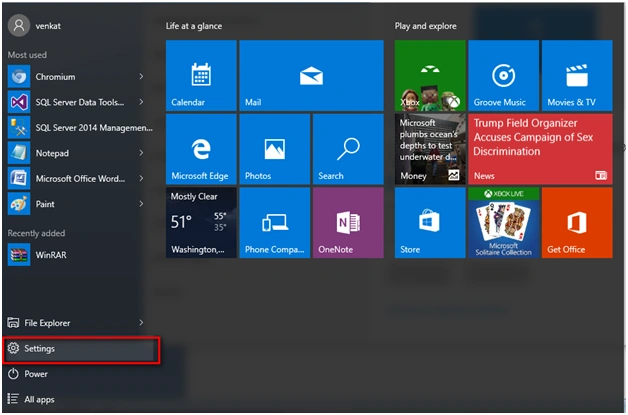
Go to Settings Tab.

Step 2
Click on the System Tab.

Step 3
Click on the Display option, you can see the size of the window. It can be 100% by default and you can increase the size to 125% also.
 Step 4
Now I am trying to increase the overall size of the display to 125%.
 Step 5
Now the entire window becomes too large at 125%
and it will ask the option of signing out to check out the possible
the best option for your machine to display.
 Step 6
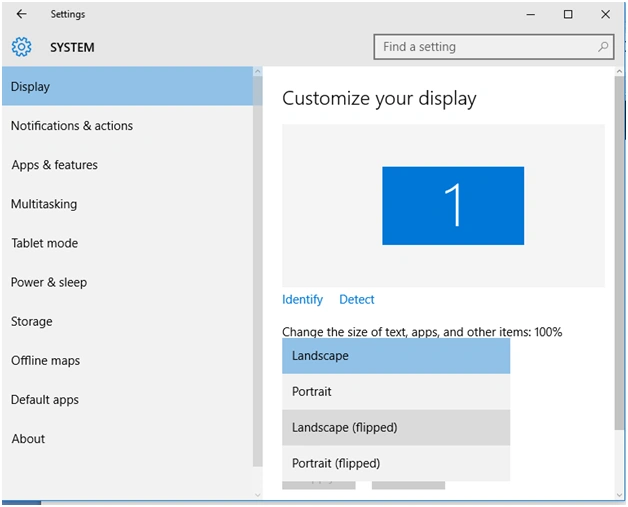
Move on to the Orientation option, you can see multiple options like:
 Step 7
- Landscape
- Portrait
- Landscape (Flipped)
- Portrait (Flipped)
Now, I am trying to change the option to "Portrait."

Step 8
Step 8
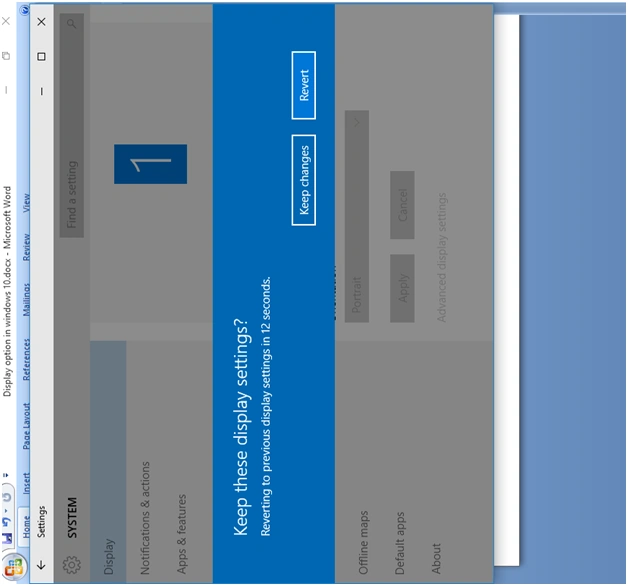
Oops, my video looks like the following:
 Step 9
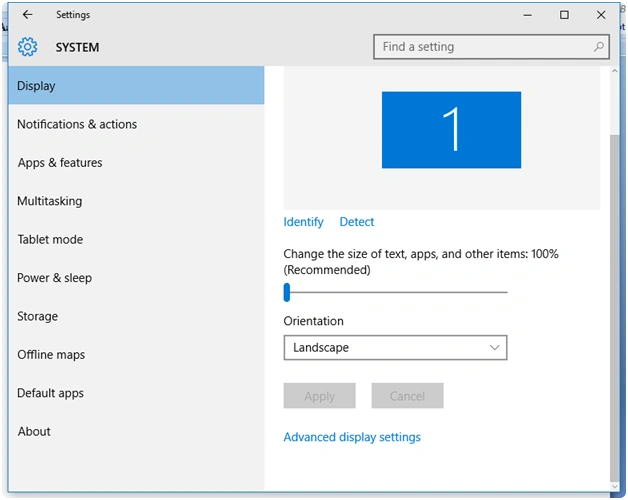
Reverting back to "Landscape" I got my window back.
Read more articles on Windows 10:
Summary
In this article, we learned about Display Settings in Windows 10.
Ammar ShaukatPosted Feb 18, 2016, 9:19 AM
wah. bhai
Sibeesh VenuPosted Feb 18, 2016, 7:16 AM
Nice Share