Start with a Problem You Already Know
Have you ever cooked a dish from a recipe at home, and it tasted perfect? Then you tried the same recipe at a friend's house, and it came out completely different. Their stove was hotter, their salt was different, they didn't have the same pan.
Software has exactly this problem.
A developer builds an application on their laptop. It works beautifully. They hand it over to the testing team, and it breaks. They send it to the production server, and it breaks again. The reasons are boring but real:
• A different version of some software is installed
• A library is missing
• A setting is wrong
• The operating system is different
Developers have a famous joke for this: "But it works on my machine!"
Docker and Kubernetes were created to end this headache. This article explains both from scratch, with no jargon left unexplained.
Part 1: How We Got Here
The Old Way: One Server, Many Applications
Imagine you want to open a restaurant. For every new branch you must buy a building, set up the kitchen, connect electricity and water, hire staff and configure everything by hand. It is slow and expensive.
Old-style software deployment was the same. You bought a physical server, installed an operating system, and then squeezed all your applications onto it.
Physical Server

The trouble? The applications fought with each other. Application 1 needed an older version of a tool, Application 2 needed the newest one. If one crashed badly, it could drag the others down with it. Think of three families forced to share one kitchen, one fridge and one stove.
The Middle Way: Virtual Machines (VMs)
The next idea was clever: split one big server into several pretend computers called virtual machines. Each VM gets its own operating system and its own space.
Physical Server

The good: apps are isolated, and one server is shared more efficiently.
The bad: every VM carries a complete operating system. That's heavy. VMs take minutes to start and eat a lot of memory.
Daily-life comparison: A VM is like giving every family their own full flat, with its own kitchen, plumbing and wiring, even if they only need a bedroom and a table.
Part 2: What Is Docker?
The Tiffin Box Idea
Think about a lunch tiffin. Your lunch is packed with the dal, the rice, the sabzi, the chapati, even a spoon. Once packed, it doesn't matter whether the tiffin travels by bike, train or bus. When it reaches you, the lunch is exactly as it was packed. You don't have to ask the office canteen to supply the dal.
Docker does the same for software. It packs your application together with everything it needs to run, and seals it in a lightweight box called a container.
Application code + Libraries + Dependencies + Settings + Runtime = DOCKER CONTAINER
Now wherever you open that box (your laptop, the test server, the cloud) it behaves the same way.
Before and After Docker
WITHOUT DOCKER WITH DOCKER

Why Containers Are Lighter Than VMs
A container doesn't carry its own full operating system. It shares the one already running on the machine and only packs what the app itself needs. That's why a container starts in seconds, not minutes.
VIRTUAL MACHINES CONTAINERS
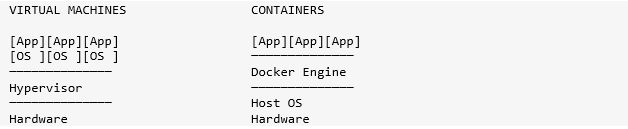
Daily-life comparison: Containers are like rooms in a co-living space. Everyone has a private room, but the kitchen, water supply and electricity are shared. Cheaper, faster to set up, and no one needs to build a whole house.
The Five Docker Terms You Need to Know
Docker has plenty of vocabulary, but five words cover almost everything.
1. Docker Image: the Recipe
An image is a read-only blueprint. It describes what goes inside the box: the operating system layer, the runtime (say, .NET 8), your app files and the settings.
2. Docker Container: the Cooked Meal
A container is a running copy of an image.
Image (recipe) ───run───▶ Container (meal on the plate)
From one recipe you can cook ten meals. Likewise, from one image you can start ten containers.
3. Dockerfile: the Written Instructions
A Dockerfile is a simple text file that tells Docker how to build your image. Here is a small example for a .NET application:

In plain English:
• FROM: start with this ready-made base (a .NET 8 environment)
• WORKDIR: work inside a folder called /app
• COPY: copy my application files into it
• ENTRYPOINT: when the container starts, run my app
Four lines, and your app is now portable.
4. Docker Engine: the Kitchen Staff
The engine is the part of Docker that actually builds, runs and manages your containers. You give instructions through the Docker client, and the Docker daemon (a background service) does the work.
You ──▶ Docker Client ──▶ Docker Daemon ──▶ Containers
5. Docker Registry: the Warehouse
A registry is an online store for images. Once you build an image, you can upload ("push") it there and anyone with access can download ("pull") it. Popular ones are Docker Hub, Azure Container Registry and Amazon ECR.
The Complete Docker Journey
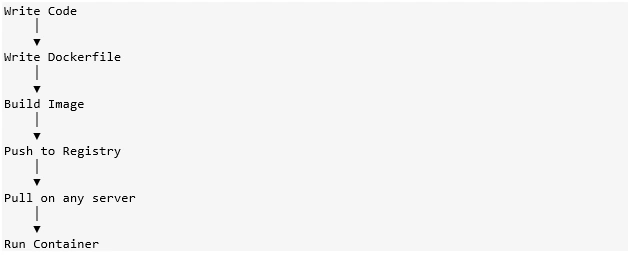
`Docker in Action: The Commands
You only need a handful of commands to get started:

Two More Docker Ideas: Volumes and Networks
Volumes: Because Containers Forget
Containers are temporary by design. Delete one, and everything inside disappears. That's fine for application code, but a disaster for a database.
Daily-life comparison: A container is like a whiteboard in a meeting room. When the meeting ends, someone wipes it. If you want to keep the notes, you must take a photo or copy them into a notebook.
A volume is that notebook. It's storage that lives outside the container, so your data survives even if the container is deleted.

Networks: How Containers Talk
Containers can talk to each other through Docker networks. By default, containers on the same bridge network can find and call each other, like colleagues in the same office who can walk over and chat, while strangers outside can't.
Docker Compose: Running Many Containers Together
Real applications are rarely just one piece. A typical web app has a front end, an API, a database and a cache. Starting each one by hand is tedious.
Docker Compose lets you describe everything in one file and start it with a single command.
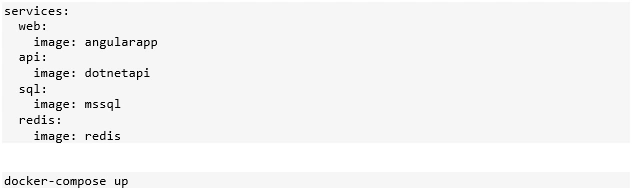
That's it. All four pieces start together, already connected.
Daily-life comparison: It's like a wedding planner's checklist. Instead of calling the caterer, decorator, DJ and photographer one by one every time, you hand over one list and everything is arranged together.
Where Docker Alone Starts to Struggle
Docker is brilliant for packaging and running containers. But think about what happens when your app becomes popular.
• Docker mainly manages containers on one machine
• Scaling up means starting more containers by hand
• If a machine dies, someone must notice and fix it
• Keeping everything highly available becomes complicated
This is where Kubernetes enters.
Part 3: What Is Kubernetes?
A Scenario: The Big Sale Day
Let's make this real. Imagine you've built an online grocery app, "FreshCart," with an Angular website and a .NET backend. Everything runs happily in Docker containers.
Then Diwali arrives and you announce a mega sale. Suddenly:
• Ten times the usual visitors show up at 9 AM
• One of your servers crashes under the load
• Customers see errors and leave
• Your team is frantically starting containers by hand
Now scale this up. Not one app, but 100 applications, 500 containers and 20 servers. Questions pile up:
• Which server should run which container?
• What if a server crashes at midnight?
• How do we handle sudden traffic?
• Who updates the app without taking the website down?
Nobody can manage this by hand. Kubernetes (often shortened to K8s) does it automatically.
Kubernetes is a system that deploys, scales, monitors and heals containers across many machines, automatically.
The Restaurant Analogy
• Docker is the kitchen. It's where each dish (container) is prepared.
• Kubernetes is the restaurant manager. It decides how many chefs are needed, which chef works at which station, replaces anyone who didn't show up, and calls in extra staff when the dining hall fills.
You don't tell the manager how to do each task. You just say, "I always want five chefs on duty," and the manager makes sure that's true, all day, every day.
This idea has a name: desired state. You declare what you want, and Kubernetes keeps working until reality matches it.
How Kubernetes Is Built
A Kubernetes setup is called a cluster, which is simply a group of machines working as a team. It has two kinds of members.
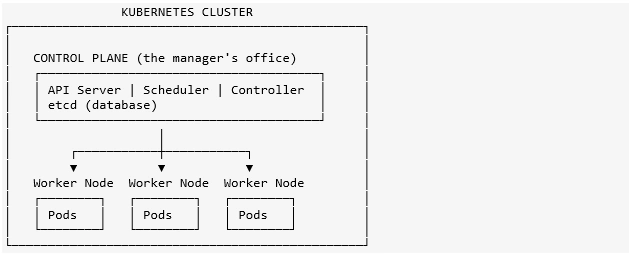
The Control Plane: the Brain
Part | What it does | Everyday comparison |
API Server | The front door. Every command goes through it | Reception desk |
Scheduler | Decides which worker runs which container | The person assigning tables to waiters |
Controller Manager | Constantly compares "what we want" vs "what we have" and fixes gaps | A supervisor walking around with a checklist |
etcd | The memory. Stores cluster settings and state | The manager's notebook |
Example: You want 5 copies of your app, but only 4 are running. The controller notices and quietly starts a 5th.
The Worker Nodes: the Muscle
Worker nodes are the machines that actually run your applications. Each one has:
• Kubelet: an agent that takes orders from the control plane and reports back
• Container runtime: the software that really runs the containers (containerd, CRI-O, etc.)
• Kube-proxy: handles networking so traffic reaches the right container
The Building Blocks of Kubernetes
Kubernetes has its own vocabulary too. Here are the essential pieces, in the order you'll meet them.
Pod: the Smallest Unit
A pod is a small wrapper around one (sometimes more) containers. Most of the time, one pod holds one container. Kubernetes doesn't run containers directly. It runs pods.
Deployment: "Keep This Many Running"
A Deployment is your instruction to Kubernetes: "Run 3 copies of this app, always."

Behind the scenes a ReplicaSet does the actual counting. You rarely touch it directly.
Service: a Stable Phone Number
Pods are mortal. They die and get replaced, and each new pod gets a new address. If other parts of your app had to track those addresses, chaos would follow.
A Service gives a group of pods one steady name and address.
Daily-life comparison: When you call a pizza chain's customer care number, you don't care which employee picks up. The number stays the same even when staff change. That's a Service.
There are a few flavours:
• ClusterIP: reachable only inside the cluster (e.g., the front end calling the back end)
• NodePort: opens a port on each machine for outside access
• LoadBalancer: used on cloud platforms to bring public internet traffic in
Ingress: the Smart Receptionist
Ingress routes web traffic based on the address typed in.

One entrance, intelligent directions.
ConfigMap and Secret: Settings and Passwords
• ConfigMap stores ordinary settings such as the API URL or cache options, keeping configuration separate from code
• Secret stores sensitive things like passwords, certificates and API keys
Persistent Volumes: Kubernetes' Notebook
Just like Docker volumes, pods are temporary. A Persistent Volume (PV) is the actual storage, and a Persistent Volume Claim (PVC) is your application's request for some of it.
Application ──▶ PVC ("I need 10 GB") ──▶ PV (the actual disk)
What Kubernetes Does for You: Back to the Sale Day
Let's return to FreshCart and see how Kubernetes handles each problem.
1. Scaling: When Traffic Spikes
It's 9 AM and visitors flood in. You're running 3 copies of your API and need 10.
kubectl scale deployment freshcart-api --replicas=10
One line. Seven more pods appear. Even better, with autoscaling Kubernetes can do this on its own when it sees the load climbing, then scale back down at night to save money.
Daily-life comparison: A mall opens extra billing counters when the queue gets long, and closes them when it's quiet.
2. Self-Healing: When Something Crashes
A pod crashes at 2 AM. Nobody is awake.

Kubernetes notices the missing pod and starts a replacement within seconds. If an entire server dies, it moves the pods to healthy servers. No phone call to a sleepy engineer needed.
3. Rolling Updates: Upgrading Without Closing the Shop
You've built version 2 of your app. How do you release it without the website going dark?
Kubernetes swaps pods gradually, one at a time:

Customers keep shopping throughout. If version 2 turns out buggy, a single command rolls everything back.
Daily-life comparison: Think of a hotel renovating its rooms floor by floor while staying open, instead of closing the whole building for a month.
4. Load Balancing: Sharing the Work
Traffic is spread evenly among healthy pods, so no single pod gets overwhelmed.
A Tiny Taste of Kubernetes YAML
Kubernetes is configured with simple text files. Here is a minimal Deployment that asks for 3 copies of an app:
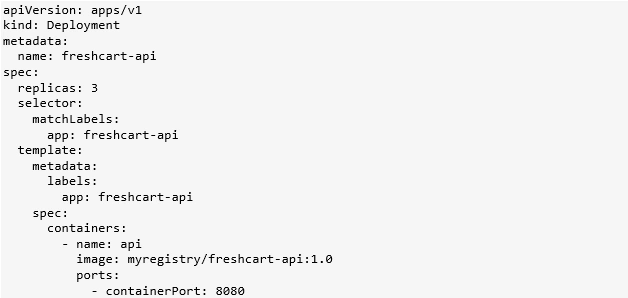
Read it like a sentence: "Please keep 3 copies of the container image freshcart-api:1.0 running, and label them freshcart-api." Apply it with:
kubectl apply -f deployment.yaml
Docker vs Kubernetes: Not Rivals, but Teammates
A common beginner mistake is to think you must choose between the two. You don't. They do different jobs, and they work together.
Docker | Kubernetes |
Packages and runs containers | Manages containers at scale |
Usually one machine | Many machines |
Focus on the application | Focus on the infrastructure |
You start containers | It keeps them running |
The kitchen | The restaurant manager |
Or in one line: Docker builds the boxes. Kubernetes manages thousands of them.
What a Real-World Setup Looks Like
Here is how a typical company might run an app with an Angular front end, a .NET back end and a SQL database:
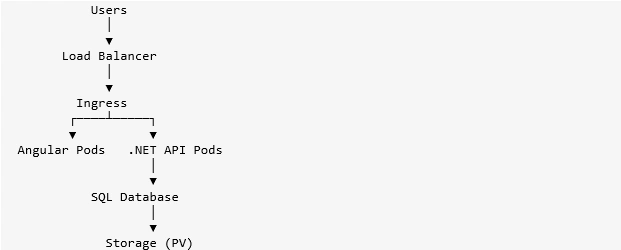
Each piece (front end, back end, cache, background workers) is its own Deployment. That means each can be scaled independently. If only the API is under pressure, you scale just the API, not everything.
Do You Always Need Kubernetes?
Honestly, no. This is worth saying plainly.
• A small project or a personal app? Docker, or Docker Compose, is usually plenty.
• A growing product with real traffic and uptime needs? Kubernetes starts to pay for itself.
• A big system with many services? Kubernetes is nearly essential.
Kubernetes is powerful, but it brings its own complexity. Don't use a truck to carry a bag of vegetables.
A Simple Learning Path
If you want to learn this step by step, here's a sensible order.
Phase 1: Docker basics
• Images and containers
• Writing a Dockerfile
• Volumes and networks
• Docker Compose
• Practice: containerize a small web API and a front end, then run both with Compose
Phase 2: Docker, going deeper
• Multi-stage builds (smaller, cleaner images)
• Private registries
• Security and image optimization
Phase 3: Kubernetes basics
• Cluster, nodes, pods
• Deployments and ReplicaSets
• Services and Ingress
• ConfigMaps and Secrets
Phase 4: Kubernetes in production
• Helm charts (package manager for Kubernetes)
• Monitoring with Prometheus and Grafana
• Logging
• Autoscaling
• A managed service such as Azure Kubernetes Service (AKS)
• Automated CI/CD pipelines
To practise for free, install Docker Desktop on your computer, which can also run a small local Kubernetes cluster.


Join the conversation! Your thoughts help the community grow.