

Power Apps is a suite of apps, services, connectors, and data platforms that provide a rapid application development environment to build custom apps for your business needs. More Details https://docs.microsoft.com/en-us/powerapps/powerapps-overview.
Power Fx is the low-code language that will be used across the Microsoft Power Platform. It's a general-purpose, strong-typed, declarative, and functional programming language.
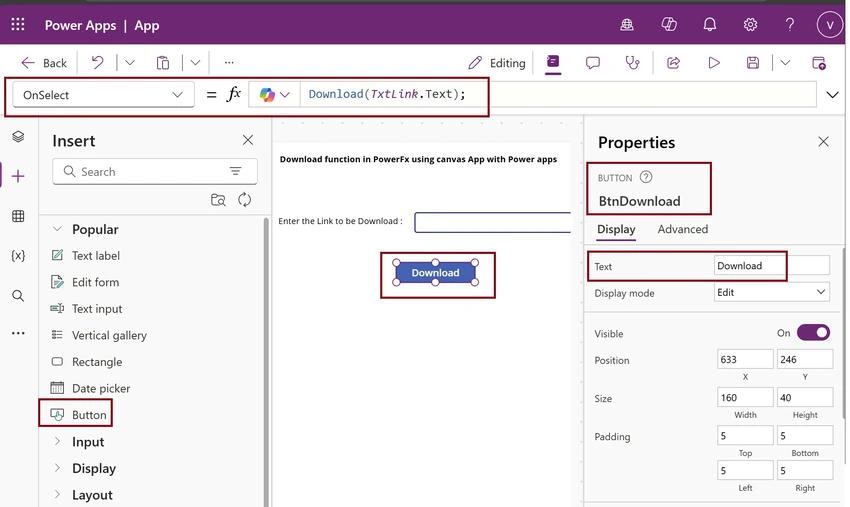
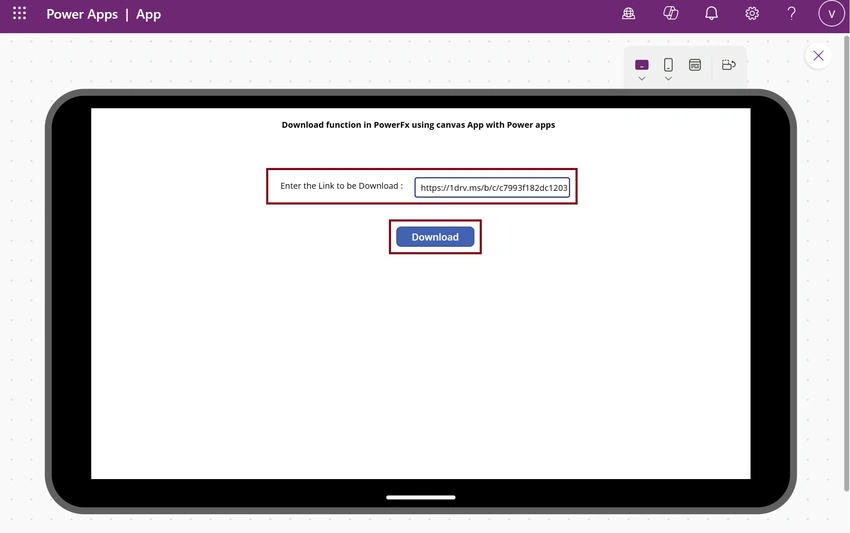
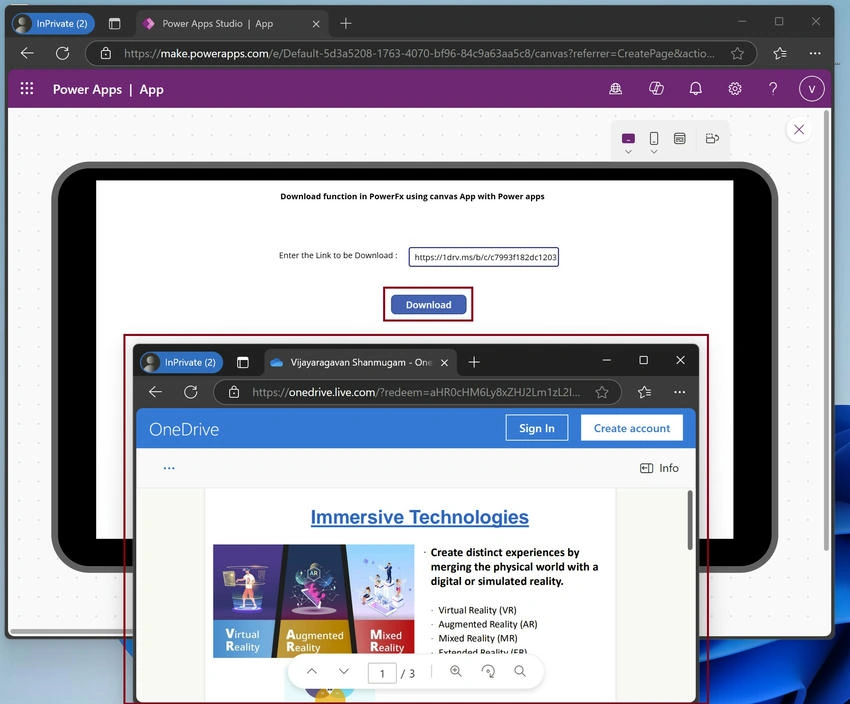
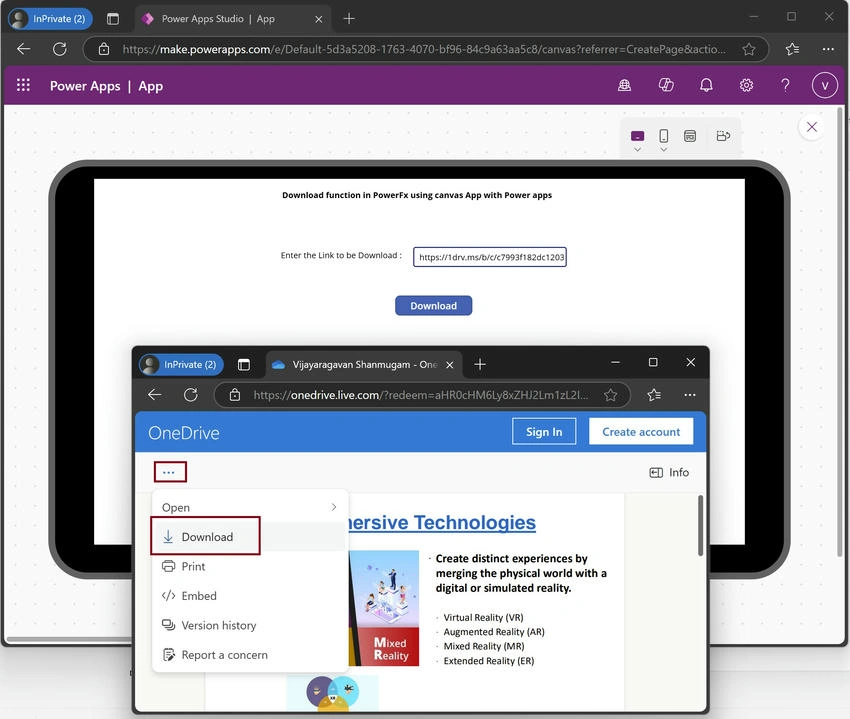
The Download function downloads a file from the web to the local device. When used on the web, the Download is dependent on the browser's settings to determine what happens with the file. For images, videos, PDFs, and other file types that the browser natively supports, a new browser tab is opened to display the file. Many browsers support saving the contents to the local file system. The General syntax is Download( Address )
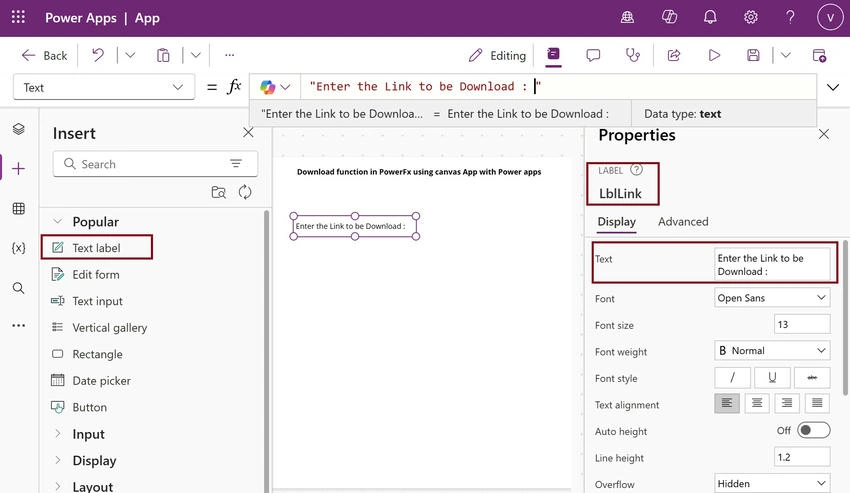
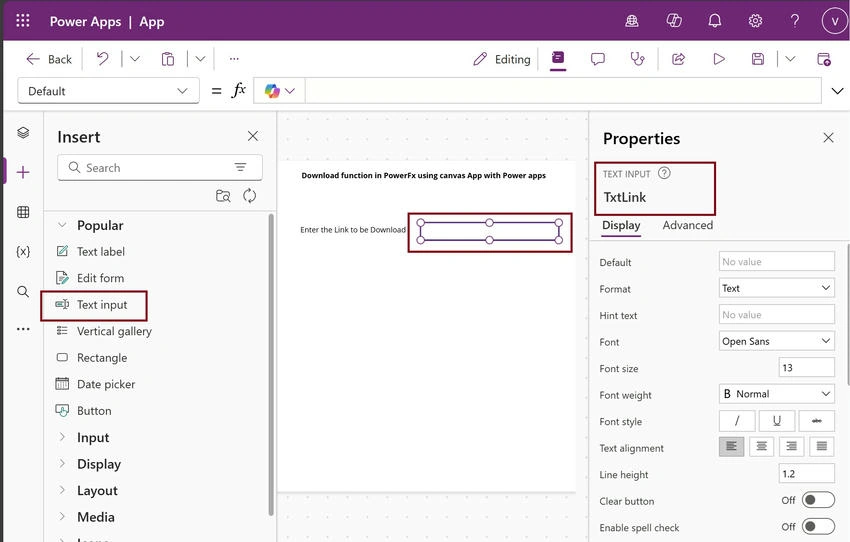
By reading this article, you can learn how to perform the Download function from Power Fx using Microsoft Power Apps. Also, you will be able to learn Text Box and Label control in the Power Apps environment.
Step 1. Open the URL https://powerapps.microsoft.com/en-us/ in the browser for Power Apps.
Create an account with your Organisation Mail ID and log in after logging into your Power Apps account.
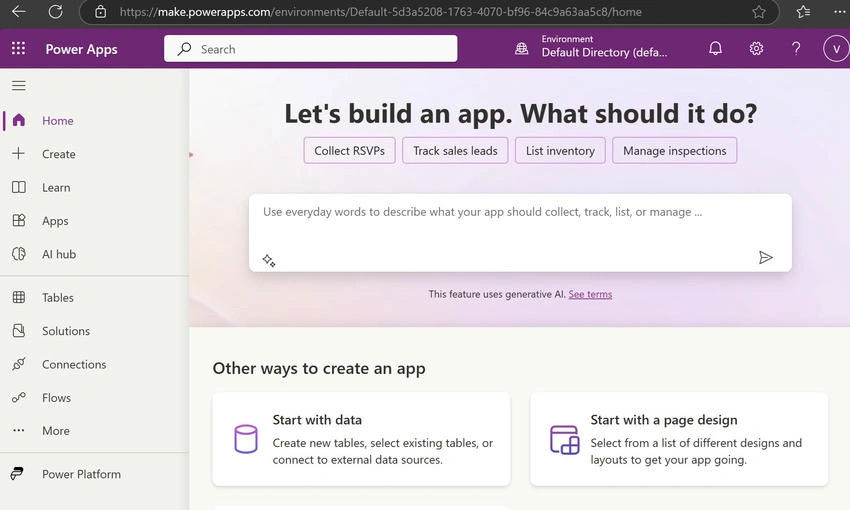
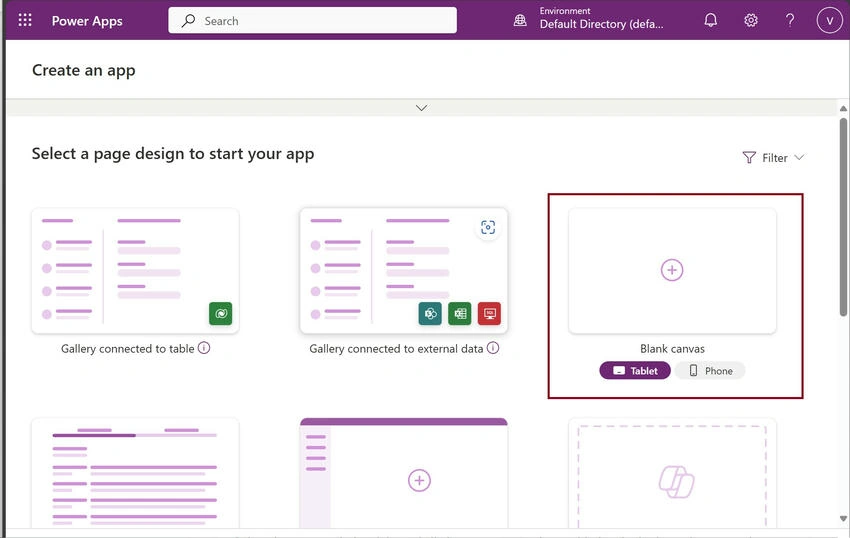
Step 2. First, click Create (+ ), select Start with Page Design, and select Blank Canvas.
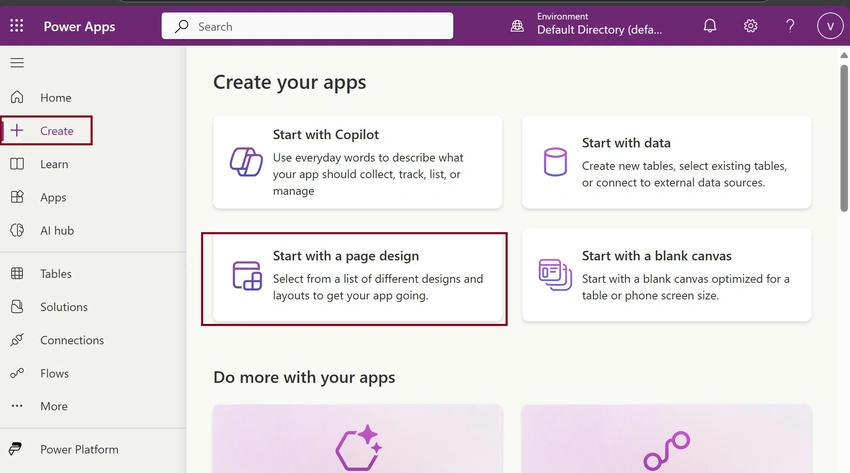
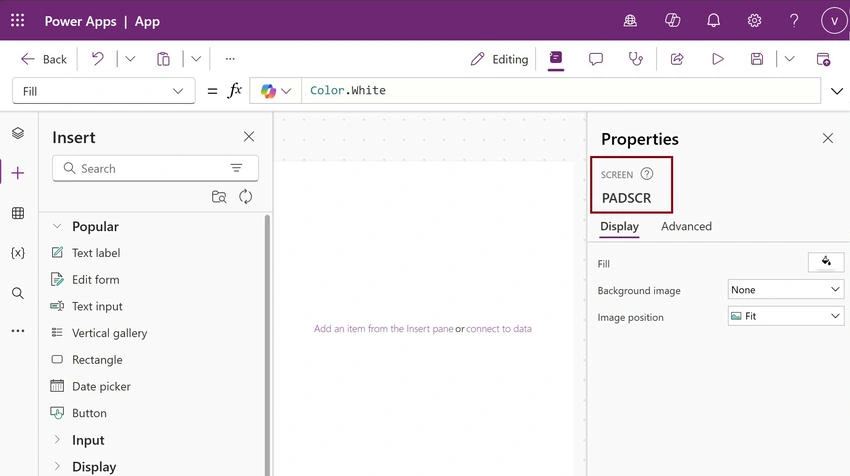
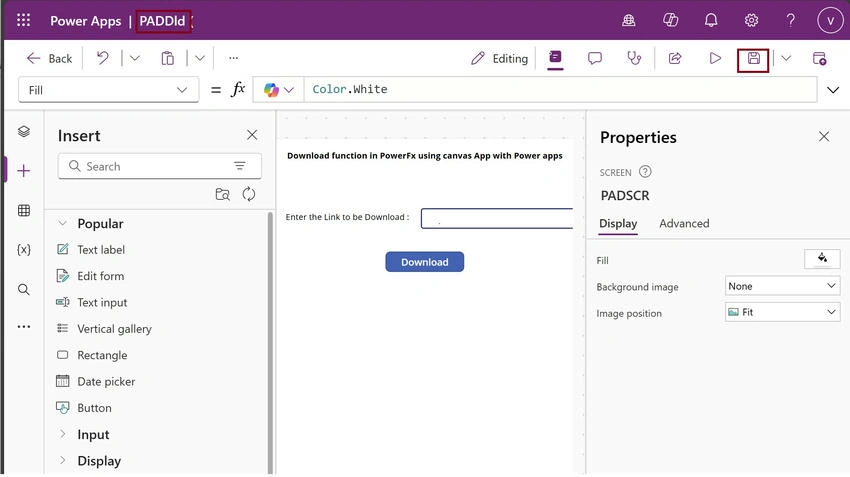
Step 3. To test the power function, first rename the screen PADSCR.
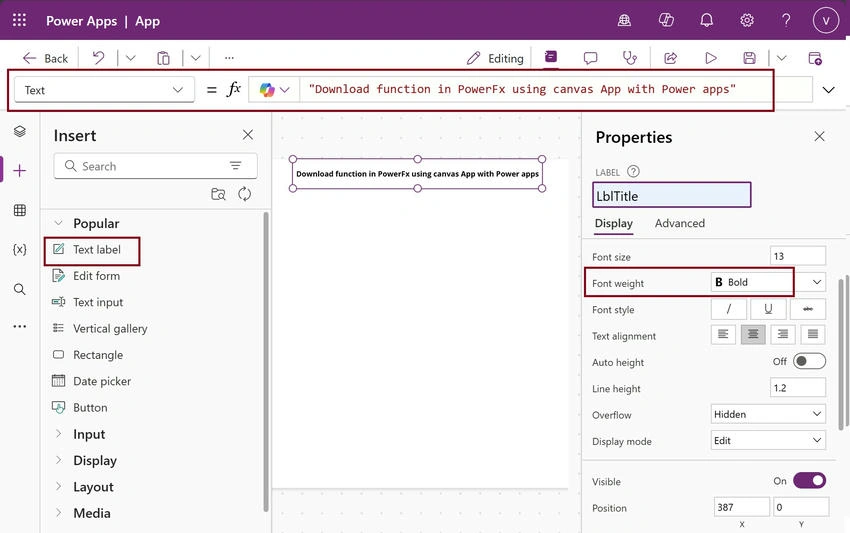
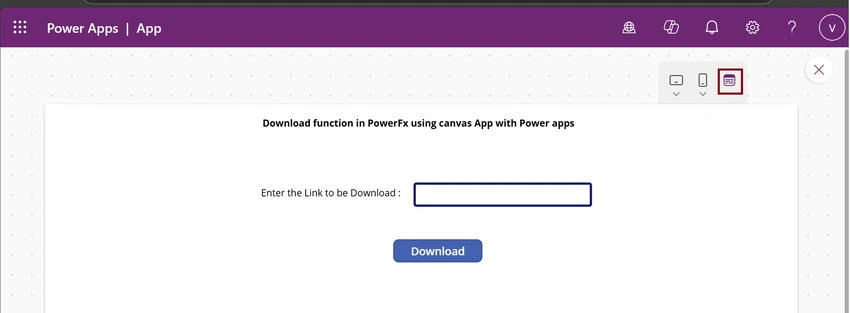
Next, insert a Label control and set the Name and Text property as LblTitle and “Download function in PowerFx using canvas App with Power apps”.
Join the conversation! Your thoughts help the community grow.