

Introduction
This article helps you to download multiple files as a zip file using Angular and SharePoint Online.
Prerequisites
- Download and Install Node from Node
- Install and create an Angular project using Angular CLI from here: Angular CLI
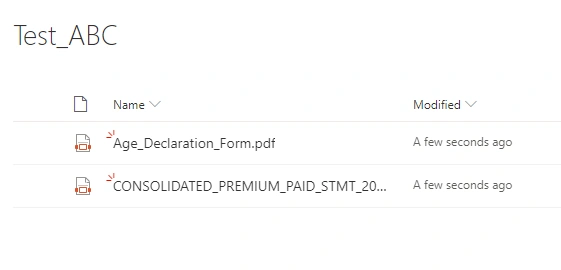
- Create a document library and upload the sample files in it.
- npm i jszip
To save the file on the client-side, we are required to file-save the library file.
- npm i file-saver
Create a component(FileDownloaderClient) in Angular for downloading the file on the client side.
- ng g c File/FileDownloaderClient
Create a proxy for SharePoint online using my previous blog Proxy With Angular 6+ And SharePoint Environment.
To show the files in the browser, PrimeNG table has been used. To know more details about PrimeNG, refer here.
Now the file-downloader-client.component.html will look like the following:
- <p-table [value]="filesArray">
- <ng-template pTemplate="header">
- <tr>
- <th>Sr.No</th>
- <th>
- File Name
- </th>
- </tr>
- </ng-template>
- <ng-template pTemplate="body" let-item let-rowIndex="rowIndex">
- <tr>
- <td>{{rowIndex + 1}}</td>
- <td>
- <a href={{item.FileRef}}>{{item.FileLeafRef}}</a>
- </td>
- </tr>
- </ng-template>
- </p-table>
- <p-button label="Download" type="button" (click)="downloadFile()"></p-button>
Import the install library in file-downloader-client.component.ts
- import * as JSZip from 'jszip';
- import * as FileSaver from 'file-saver';
The complete file-downloader-client.component.ts will look like:
- import { Component, OnInit } from '@angular/core';
- import { HttpClient, HttpHeaders, HttpErrorResponse } from '@angular/common/http';
- import * as JSZip from 'jszip';
- import * as FileSaver from 'file-saver';
- import { TableModule } from 'primeng/table';
- import { GlobalServicesService } from 'src/app/services/global-services.service';
- @Component({
- selector: 'app-file-downloader-client',
- templateUrl: './file-downloader-client.component.html',
- styleUrls: ['./file-downloader-client.component.css']
- })
- export class FileDownloaderClientComponent implements OnInit {
- jsonHeader = 'application/json; odata=verbose';
- headersOld = new Headers({ 'Content-Type': this.jsonHeader, Accept: this.jsonHeader });
- headers = { 'Content-Type': this.jsonHeader, Accept: this.jsonHeader };
- filesArray: [];
- showFileArray: [];
- constructor(
- private httpClient: HttpClient,
- private globalService: GlobalServicesService
- ) { }
- ngOnInit() {
- this.getFilesFromLibrary();
- }
- async readFiles(listName: string, options?: any) {
- let res;
- const url = this.globalService.sharePointPageObject.webAbsoluteUrl + '/_api/web/lists/GetByTitle(\'' + listName + '\')/items?$select=FileRef,FileLeafRef';
- res = await this.httpClient.get(url, this.getHeaders(true, true)).toPromise().catch((err: HttpErrorResponse) => {
- const error = err.error;
- return error;
- });
- return this.parseResults(res);
- }
- parseResults(res) {
- if (res) {
- if (res.hasOwnProperty('d') && res.d.hasOwnProperty('results')) {
- return res.d.results;
- } else if (res.hasOwnProperty('error')) {
- const obj: any = res.error;
- obj.hasError = true;
- return obj;
- } else {
- return {
- hasError: true,
- comments: res
- };
- }
- } else {
- return {
- hasError: true,
- comments: 'Check the response in network trace'
- };
- }
- }
- getHeaders(bAddContext, returnOp) {
- const headerCopy: any = Object.assign({}, this.headers);
- if (bAddContext) {
- const context: any = document.getElementById('__REQUESTDIGEST');
- if (context) {
- headerCopy['X-RequestDigest'] = context.value;
- }
- }
- if (returnOp) {
- const httpOptions = {
- headers: new HttpHeaders(headerCopy)
- };
- return httpOptions;
- } else {
- return headerCopy;
- }
- }
- async getFilesFromLibrary() {
- const results = await this.readFiles('Test_ABC');
- this.filesArray = results;
- console.log(results);
- }
- downloadFile() {
- this.createZip(this.filesArray.map(c => c.FileRef), 'Sample');
- }
- async getFile(url: string) {
- const httpOptions = {
- responseType: 'blob' as 'json'
- };
- const res = await this.httpClient.get(url, httpOptions).toPromise().catch((err: HttpErrorResponse) => {
- const error = err.error;
- return error;
- });
- return res;
- }
- async createZip(files: any[], zipName: string) {
- const zip = new JSZip();
- const name = zipName + '.zip';
- // tslint:disable-next-line:prefer-for-of
- for (let counter = 0; counter < files.length; counter++) {
- const element = files[counter];
- const fileData: any = await this.getFile(element);
- const b: any = new Blob([fileData], { type: '' + fileData.type + '' });
- zip.file(element.substring(element.lastIndexOf('/') + 1), b);
- }
- zip.generateAsync({ type: 'blob' }).then((content) => {
- if (content) {
- FileSaver.saveAs(content, name);
- }
- });
- }
- }
Now run npm run start in terminal and browse http://localhost:4200/#/fileDownload to view the file on the browser.
Click on the download button to download the file as a zip folder.
Please find the attached source code
Arvind KushwahaPosted Mar 18, 2020, 1:19 AM
Please change the code in file node_modules->jszip->lib->readable-stream-browser.js to module.exports = require("readable-stream");