

Introduction
In enterprise applications, we often need to access files stored in Azure File Shares. Traditionally, developers used storage account keys or connection strings to authenticate. However, this approach has security concerns because keys can be leaked or compromised. Managed Identity provides a more secure way to authenticate without storing credentials in code or configuration files.
In this article, I will walk you through how to build an ASP.NET Core Web API that downloads files from Azure File Share using Managed Identity with DefaultAzureCredential. We will also cover how to assign the correct roles to your application and users so they can access the file share securely.
The complete implementation includes creating a service to interact with Azure File Share, configuring the controller to handle download requests, and assigning the necessary Azure roles for both local development and production.
Prerequisites
Azure Subscription
Visual Studio 2022 or later with the Azure development workload installed. Make sure you are signed in to your Azure account in Visual Studio under Tools> Options> Azure Service Authentication.
Azure CLI installed on your machine for running the role assignment scripts
.NET 8 or above SDK
Implementation
Step 1: Understanding the Authentication Flow
When we use DefaultAzureCredential, the Azure SDK tries multiple authentication methods in a specific order. During local development, it will use your Visual Studio credentials. In production, when deployed to Azure App Service or Azure Functions, it will use the Managed Identity assigned to that resource.
The key thing to understand is that Azure File Share access via REST API requires a special token intent called Backup. This is different from Blob Storage, which uses standard OAuth tokens. Because of this requirement, we need to use ShareTokenIntent.Backup in our code and assign one of the Privileged roles rather than the standard SMB roles.
Step 2: Creating the Request Model
First, let us create a simple model class to hold our download request parameters. Create a new folder called Models in your project and add a class file.
The FileShareDownloadRequest class contains four properties. StorageAccount is the name of your Azure Storage Account. FileShare is the name of the file share within that storage account. A directory is an optional property for the folder path within the file share. FileNameRegex is a regular expression that matches the file you want to download.
Step 3: Creating the Service Layer
Now, let us create the service that handles the actual file download logic. Create a folder called Services and add a class file named AzureService.cs.
The service uses DefaultAzureCredential, which automatically picks the right credential based on the environment. During development, it uses your Visual Studio credentials. In production, it uses Managed Identity.
The important part is the ShareClientOption,s where we set ShareTokenIntent to Backup. This is required for OAuth based access to Azure File Shares.
Step 4: Creating the Controller
Now, let us create the API controller that exposes the download endpoint. Create a Controllers folder if it does not exist, and add a file named FileShareController.cs.
The controller has a GET endpoint that accepts the download request parameters as query strings. It calls our service to download the file and returns it as a ZIP archive.
Step 5: Configuring Program.cs
In your Program.cs file you need to register the service with dependency injection.
Please check my GitHub Repository for the complete Source Code
Step 6: Understanding Azure File Share Roles
Before we run the application, we need to assign the correct roles. Azure has different roles for File Share access, and it is important to understand the difference.
For SMB protocol access, which is used when mounting file shares as a network drives there are roles like Storage File Data SMB Share Reader and Storage File Data SMB Share Contributor. These roles work with traditional Active Directory authentication.
For REST API and SDK access, which is what we are using with DefaultAzureCredential there are the Privileged roles. Storage File Data Privileged Reader allows read-only access via OAuth tokens. Storage File Data Privileged Contributor allows read and write access via OAuth tokens.
Since our application only needs to download files, the Storage File Data Privileged Reader role is the right choice. This follows the principle of least privilege. The word Privileged in the role name refers to the authentication method not elevated permissions. It simply means the role supports OAuth token-based access, which is required when using ShareTokenIntent.Backup.
Step 7: Assigning Roles Using Azure CLI
Now, let us assign the necessary roles. We need to assign the role to two principals. First is your user account for local development with Visual Studio. Second is the group or Managed Identity that will be used in production.
Here is the PowerShell script to assign the roles. Save this as assign-fileshare-roles.ps1.
Step 8: Testing the Application
Now, let us test the application. Make sure you are signed in to Visual Studio with the same Azure account that has the role assignment.
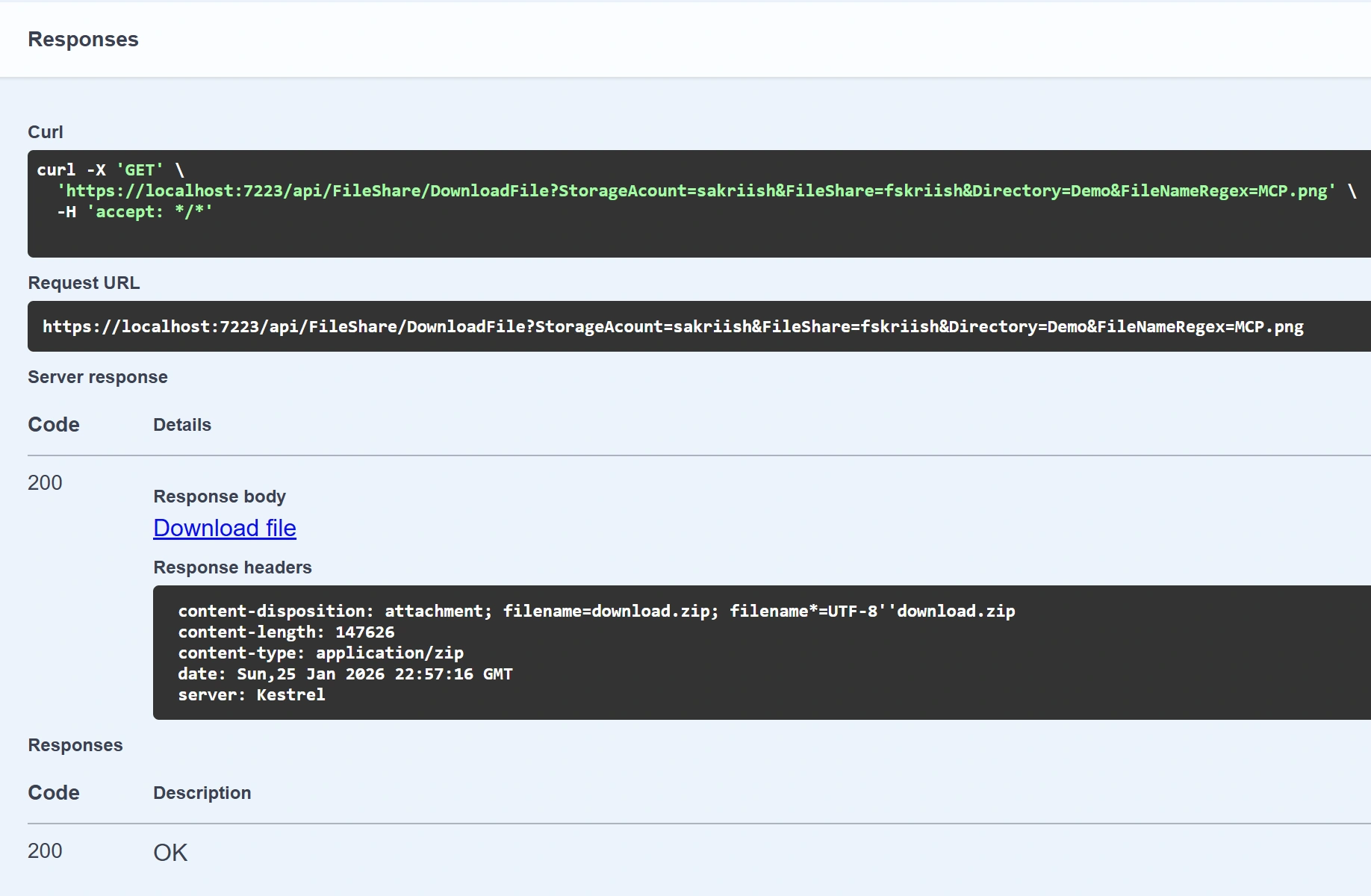
Run the application and navigate to the Swagger UI. You should see the DownloadZipFile endpoint. Enter the following parameters.
For StorageAcount enter your storage account name.
For FileShare, enter your file share name.
For Directory, enter the folder path if your file is in a subdirectory, such as Demo. Leave it empty if the file is in the root.
For FileNameRegex, enter a regex pattern to match your file. For example, MCP.png will match a file named MCP.png exactly. You can also use patterns like .*\.png to match any PNG file.
Click Execute, and if everything is configured correctly, you should receive a ZIP file containing your document.
Step 9: Deploying to Azure
When you deploy your application to Azure App Service or Azure Functions, you need to enable Managed Identity on that resource and assign the same Storage File Data Privileged Reader role to the Managed Identity.
First, enable System Assigned Managed Identity on your App Service. Go to your App Service in the Azure Portal, then navigate to Identity under Settings. Turn on the System-assigned managed identity and click Save.
Second, assign the role to the Managed Identity. You can use the same script, but replace the GroupObjectId parameter with the Object Principal ID of your Managed Identity. You can find this ID on the Identity page of your App Service.
The DefaultAzureCredential in your code will automatically detect that it is running in Azure and use the Managed Identity for authentication. No code changes are required.
Summary
In this article, we built an ASP.NET Core Web API that downloads files from Azure File Share using Managed Identity. We used DefaultAzureCredential for authentication, which automatically works with Visual Studio credentials during development and Managed Identity in production. By following this approach, you eliminate the need to store storage account keys or connection strings in your code or configuration files. This significantly improves the security posture of your application.
Join the conversation! Your thoughts help the community grow.