
Introduction
File upload is one of the functionality which we use in most of the application, whether it is a business app or it is a commercial app, we require file upload feature. In old application we have file upload feature with an input type file control. We browse using file browser and select the file/s but now a days customers required more user friendly way like drag and drop, copy paste, etc. Even the internet browser also evolved to support may types of event which helps to implement these type of functionality.
Agenda
We will discuss implementation of file upload using drag and drop. There are browsers present in the market which don’t support drag and drop so for that we have to provide the browse feature as well. We will write a clean SOC code and separate the file upload feature as a separate reusable component and will help to bind UI and view model in a cleaner way.
Let’s frame out our scenario first.
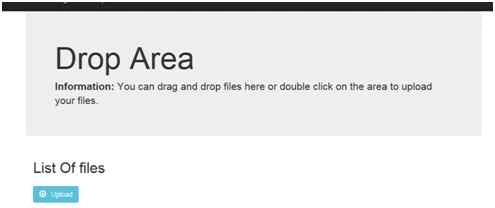
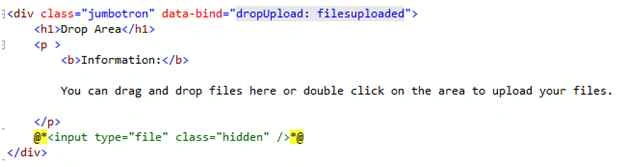
- We will create a file upload drop area when we drop files in there they should be ready for upload.
- When we double click on the drop zone it should open the file browser.
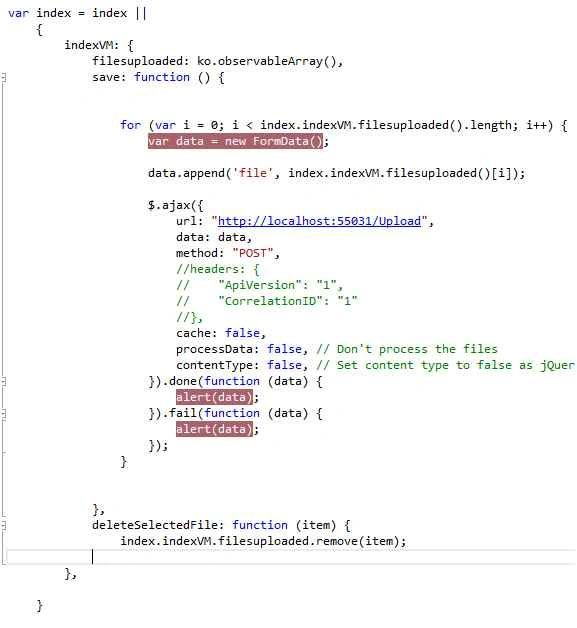
- All files should store in an observable array.
- When we click on the upload button file should reach the Web API.
- In the API we will just read the files or convert them in byte arrays. File upload in repository is not in the scope of this article.
Note: There are many ways to store the file in a file repository like Azure blob storage, Database, SharePoint, etc.
Application will look like the following,
Steps to implement the drag and drop functionality
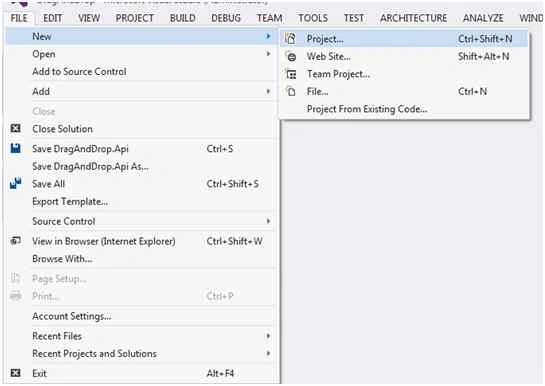
Step 1: Open Visual Studio, File, New, then Project.
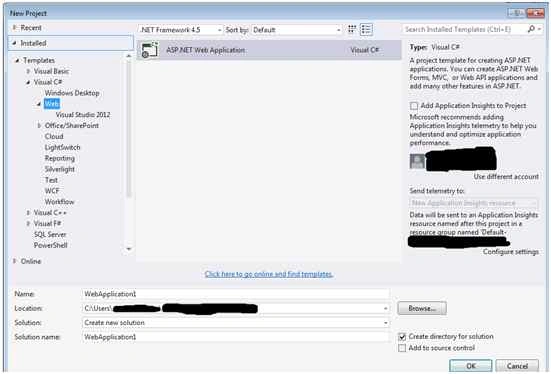
Step 2: Select Web project then enter your solution name, project name and the file location and click OK.
Step 3: Select the project type. Here we require two projects one for web UI project and other the API project (service to upload files)
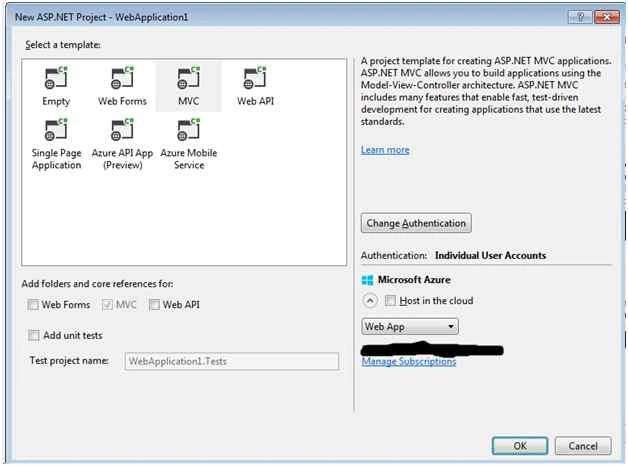
[Create two projects one UI MVC project and other WEB API project. We can create both type of projects in the same project but for the sake of separation and the recommended approach we divided into two projects. Once you add your project it should (recommended approach) look like below.]

Step 4: In the API project add one controller name Attachment and add an Action method name Upload.
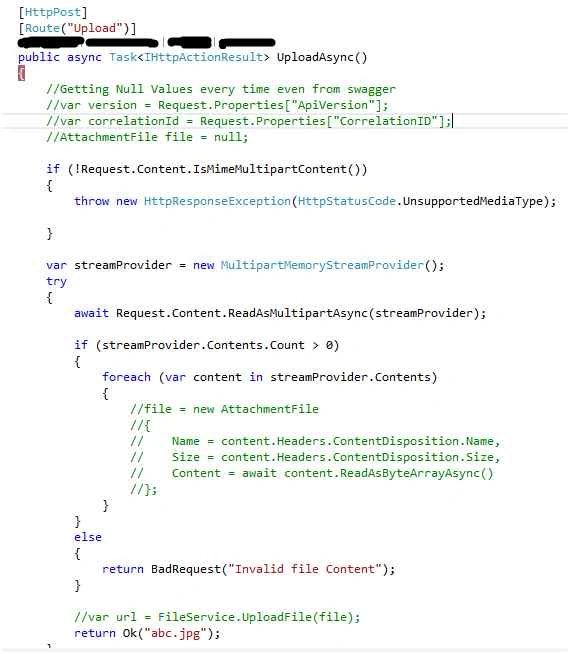
[I commented few lines because we don’t need those logic for this article I just kept them because it helps us to understand the entire API logic]
Step 5: For web project we have to add few more JavaScript libraries from Nuget.


kishore kumar B VPosted Dec 4, 2017, 7:08 AM
Firstly Thank you for great post. I am seeing an issue with browser compatibility. This will not work in IE browsers. I mean the browsers that will not support Drag and drop(HTML5) Did you ever got into this particular issue. If you have any solution please help me.
Jayant KulkarniPosted May 27, 2016, 12:28 AM
nice one..
Bipin PatilPosted Jan 14, 2016, 9:08 AM
Good Artical
Ankur MistryPosted Dec 13, 2015, 3:10 AM
halpful - thank you
Manas MohapatraPosted Dec 13, 2015, 1:34 AM
Nice Stuff..